
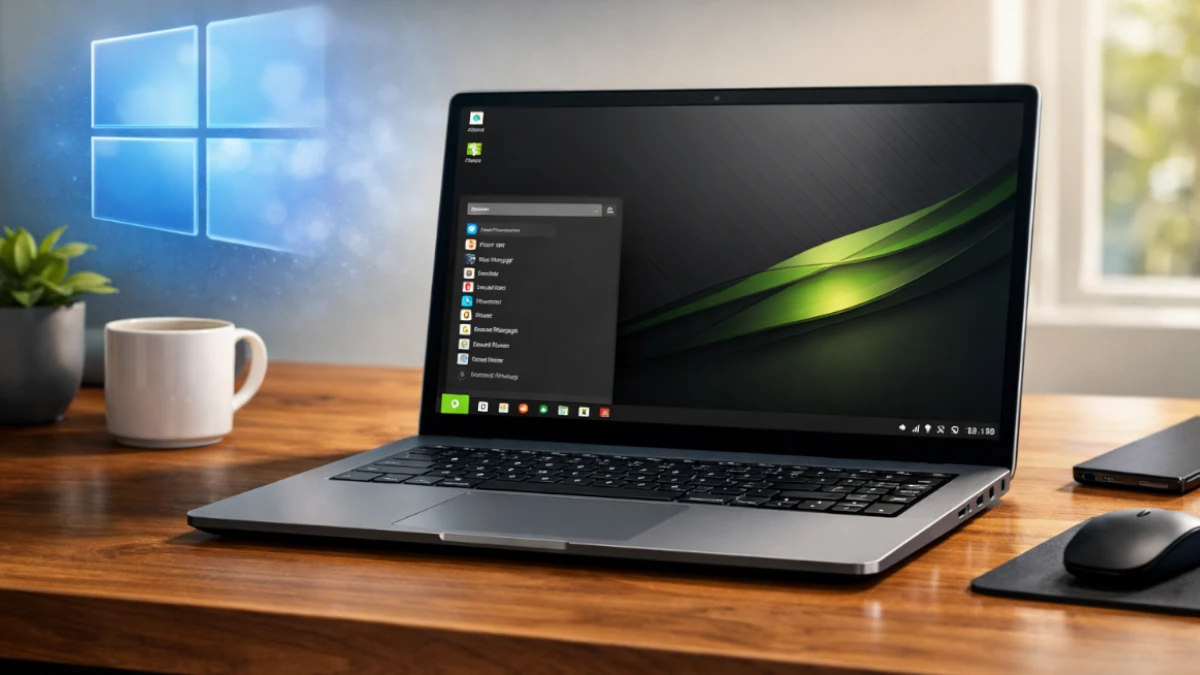
For many of us, using Windows has started to feel like a chore rather than a choice. Between the intrusive ads appearing in the Start menu, the constant “forced” updates that interrupt your work, and the reality that perfectly good computers are being labeled “obsolete” due to Windows 11’s strict hardware requirements, the frustration is reaching a breaking point.
Enter Linux Mint. Often described as the “comfort zone” of the Linux world, Mint is specifically designed to feel familiar to long-time Windows users. Its most popular version, known as the Cinnamon Edition, provides a layout you already know by heart: a Start menu in the bottom-left, a taskbar for your open apps, and a system tray for your clock and settings.
The biggest hurdle for most people is the “hacker” myth; the idea that using Linux requires typing complex code into a scary black screen.
Let’s bust that right now: You don’t need to be a tech genius to use Linux Mint. Modern Linux is entirely “point-and-click.” From installing apps to updating your system, everything is handled through simple, visual menus just like a smartphone or a standard PC.
This guide will show you exactly how to make the move, proving that tech freedom is much closer than you think.
Phase 1: Preparation
Before you jump into the installation, you need a solid game plan. Think of this as “packing your bags” before moving to a better house. Taking ten minutes to prepare now ensures a stress-free transition later.
1. Hardware Check: Can Your PC Handle It?
The short answer is: Probably.
One of the best things about Linux Mint is that it is significantly “lighter” than Windows. If your computer can run Windows 10 or 11, it will likely fly on Linux Mint.
The Minimum Requirements:
- RAM: 2GB (4GB is recommended for smooth multitasking).
- Disk Space: 20GB (100GB is recommended to store your photos and files).
- Resolution: 1024×768.
Why it feels faster: Unlike Windows, Linux Mint doesn’t run hundreds of hidden “telemetry” processes in the background. This frees up your processor and RAM to focus on the apps you are actually using.
2. The Golden Rule: Back Up Your Data
Switching an operating system usually involves wiping your hard drive to start fresh. This will delete your files, so a backup is mandatory.
You have three main options:
- External Drive (Recommended): Plug in a USB hard drive and manually drag and drop your “Documents,” “Pictures,” “Music,” and “Videos” folders onto it. This is the fastest way to get your files back once Mint is installed.
- Cloud Storage: If you use Google Drive, Dropbox, or OneDrive, ensure your files are synced to the cloud. You can access these via a web browser on Linux Mint later.
- Use a different drive for Linux. This is what I did with my computer. I just installed a new SSD and dismount the one I’m using for Windows so as not to accidentally wipe it.
3. The Software Audit: Mapping Your Apps
Most people don’t realize that they don’t actually need “Windows”; they need the apps they use on Windows. Most of your favorite programs already have a Linux version or a perfect equivalent.
Before you switch, make a list of your “Must-Haves.” Here is a quick cheat sheet:
- Web Browsing: Google Chrome, Firefox, and Brave all work natively on Linux Mint.
- Office Work: Instead of Microsoft Office, Linux Mint comes with LibreOffice (which handles Word and Excel files perfectly). If you prefer a more modern look, OnlyOffice is a fantastic free alternative.
- Creativity: If you use Photoshop, try GIMP or the web-based Photopea. For video editing, Kdenlive or DaVinci Resolve are professional-grade options.
- Entertainment: Spotify, VLC, and Steam (for gaming) all have official Linux versions that work exactly like their Windows counterparts.
Pro Tip: If a specific app you need is web-based (like Canva, Gmail, or Slack), it will work perfectly on Linux Mint because your browser doesn’t care what operating system you’re using.
Phase 2: Creating Your “Key to Freedom”
Now that you’ve backed up your data, it’s time to create your “Key to Freedom”—a bootable USB drive that contains the Linux Mint operating system. This USB allows you to test-drive the OS without installing it and eventually serves as your installation tool.
1. Choosing Your Edition: Which Mint is for You?
When you visit the download page, you’ll see three main “flavors” (called desktop environments). Here is the breakdown to help you choose:
- Cinnamon (Recommended): This is the flagship version. If you are coming from Windows 10 or 11, choose this. It is modern, sleek, and familiar.
- MATE: A bit more traditional and slightly lighter on resources. It’s great if you liked the classic Windows XP or Windows 7 look.
- Xfce: The “lightweight” champion. If you are reviving an old laptop with very little RAM, Xfce is the fastest and most stable choice.
Download here: Official Linux Mint Download Page
2. The Tools: “Flashing” the USB
You can’t just drag and drop the downloaded file (called an ISO) onto a USB stick. You need to “flash” it to make it bootable.
What you need:
- A USB drive with at least 4GB of space (it will be formatted, so ensure it’s empty).
- A flashing tool. I recommend balenaEtcher because it is incredibly simple for beginners.
Steps to create your USB:
- Download and install balenaEtcher.
- Plug in your USB drive.
- Open Etcher, select “Flash from file” and pick the Linux Mint ISO you just downloaded.
- Select your USB drive.
- Click “Flash!” and wait a few minutes.
(Alternative for advanced users: Rufus is another excellent, lightweight tool for Windows users.)
3. BIOS/UEFI 101: Telling Your PC to Boot from USB
By default, your computer is programmed to start Windows immediately. We need to tell it to look at the USB drive first. This is done in the BIOS or UEFI menu.
How to get there:
- Keep the USB plugged in and restart your computer.
- As soon as the screen lights up, tap the Boot Menu Key repeatedly. This varies by brand:
- Dell: F12
- HP: F9 or Esc
- Lenovo: F12 or Fn+F12
- ASUS/Acer: F2 or F12
- A menu will appear. Use your arrow keys to select your USB Drive (it might say “USB Storage” or the brand of the drive, like “Sandisk”) and press Enter.
A Note on “Secure Boot”:
Sometimes, a security feature called “Secure Boot” might prevent Linux from starting. If you see an “Access Denied” or “Security Violation” error, you may need to enter your BIOS settings (usually by tapping F2 or Del on startup) and switch Secure Boot to Disabled. Linux Mint supports Secure Boot, but on some specific hardware, turning it off makes the process much smoother.
Phase 3: The “Try Before You Buy” (Live Booting)
Once you successfully boot from your USB, you will be greeted by the Linux Mint desktop. At this point, nothing has been changed on your computer. You are currently running Linux Mint entirely off the USB stick and your computer’s RAM. This is the “Live Environment,” and it is the ultimate safety net for new users.
The Magic of the Live Environment
Think of this as a “test drive” for your computer. Since Linux Mint hasn’t been installed on your hard drive yet, your Windows files, photos, and settings are still sitting exactly where you left them. This phase is crucial because it allows you to ensure that Linux Mint “talks” to your hardware correctly. If your Wi-Fi works here, it will work when you install it. If you can hear sound now, you’ll hear it later.
Note: Because the OS is running off a USB stick, it might feel slightly slower than usual. Once it is fully installed on your computer’s internal drive, it will be much snappier.
Your “Before You Commit” Checklist
Before you click that “Install” icon, take five minutes to run through this checklist to ensure a perfect match with your hardware:
- Connect to Wi-Fi: Click the network icon in the bottom-right corner. Does it see your network? Can you connect and browse a website?
- Test the Sound: Open the volume settings or play a video on YouTube. Do your speakers or headphones work?
- Check the Display: Is the resolution correct? Is the screen too bright or too dim? Try the brightness keys on your laptop.
- Try Your Peripheral Devices: Plug in your printer, your external mouse, or your webcam. Linux Mint comes with thousands of drivers pre-installed, so most devices should “just work” the moment you plug them in.
- Touchpad & Keyboard: If you’re on a laptop, try out the touchpad gestures (like two-finger scrolling) and ensure all your function keys (like volume and mute) respond.
If everything looks good, you’ve passed the test! You can now proceed with confidence, knowing that your computer is fully compatible with its new home. If something doesn’t work, don’t panic—the Linux Mint community is massive, and most “fixes” are just a quick search away. But for 95% of users, this “Live” session will be the moment you realize: “Wow, this actually works.”
Phase 4: The Installation (The Point of No Return)
If you’ve tested your hardware in the Live Session and you’re happy with the results, it’s time to make the switch official. Look for the disc-shaped icon on the desktop labeled “Install Linux Mint” and double-click it to begin.
1. Language and Keyboard Settings
The first few screens are straightforward. You’ll select your preferred language and your keyboard layout.
- Pro Tip: If you have a non-standard keyboard, there is a small text box where you can type to test if keys like @ or # are in the right place.
2. Connect to Wi-Fi
The installer will ask you to connect to the internet. While not strictly required, it is highly recommended. Connecting to Wi-Fi now allows the installer to download necessary language packs and updates in the background, saving you time later.
3. The Multimedia Codecs (Don’t Skip This!)
Shortly into the process, you’ll see a checkbox that says: “Install multimedia codecs.”
- Check this box.
- Why? Some media formats (like certain video files, MP3s, or specific website features) are proprietary. Because Linux Mint values open-source software, it doesn’t include these by default, but checking this box ensures your videos and music play perfectly the moment you first log in.
4. The Big Decision: How to Handle Your Hard Drive
This is the most important part of the installation. You will be presented with two main options:
Option A: Erase Disk and Install Linux Mint (The “Clean Break”)
This is the best choice for most people who want to leave Windows behind.
- What it does: It wipes everything on your hard drive and replaces it with Linux Mint.
- The Result: You get a clean, fast, and organized computer with no “ghosts” of Windows left behind.
Option B: Install Linux Mint alongside Windows (The “Dual Boot”)
If you aren’t quite ready to delete Windows because you need one specific program for work, choose this.
- What it does: It shrinks your Windows partition and installs Mint in the leftover space.
- The Result: Every time you turn on your computer, a menu will pop up asking if you want to boot into Linux Mint or Windows.
5. Finalizing: Who are you?
Finally, you’ll be asked to choose a username, a name for your computer (e.g., “Johns-Laptop”), and a strong password.
- Important: In Linux, your password is your “key to the kingdom.” You will need it to install apps or change system settings, so don’t forget it!
Once you click “Continue,” the installer will start working. You can sit back, watch the slideshow of features, or go grab a coffee. When it’s finished, a prompt will appear asking you to Restart Now.
The Final Step: As the computer shuts down, it will tell you to “Please remove the installation medium, then press Enter.” Pull out your USB stick, hit Enter, and watch as your computer boots into your brand-new Linux Mint desktop for the very first time.
Phase 5: Post-Installation Checklist
Congratulations! You are now looking at your brand-new Linux Mint desktop. Before you start customizing your wallpaper or moving your files back, there are three quick “housekeeping” steps you should take to ensure your system is secure, fast, and protected.
1. Run the Update Manager (Look for the Shield)
In the bottom-right corner of your screen, you’ll see a small shield icon. This is the Update Manager. Since the version of Linux Mint on your USB was likely created a few months ago, there will be fresh security updates and bug fixes waiting for you.
- How to do it: Click the shield, click “OK” on the welcome screen, and then click “Install Updates.”
- Why it’s better than Windows: Linux Mint will never force a restart. You can keep working while it updates in the background, and it will only ask you to reboot when you are ready.
2. Check for Proprietary Drivers
While Linux Mint comes with almost everything it needs to run, some hardware—specifically NVIDIA graphics cards or certain Broadcom Wi-Fi chips—runs better with “proprietary” drivers (software made by the manufacturer).
- How to do it: Click the Start menu and type “Driver Manager.”
- The Action: It will scan your hardware. If it finds a recommended driver (like a “tested” NVIDIA driver), select it and click “Apply Changes.” If the list is empty, it means your computer is already using the best drivers available; you’re good to go!
3. Set Up Timeshift (Your “Undo” Button)
One of the best features of Linux Mint is Timeshift. Think of this as a “System Restore” on steroids. It takes a “snapshot” of your system files. If you ever accidentally break a setting or install something that makes the system act weird, you can use Timeshift to go back in time to when everything worked perfectly.
- How to do it: Open the Start menu and search for “Timeshift.”
- The Setup:
- Select RSYNC as the snapshot type.
- Choose where to save the snapshots (usually your main hard drive).
- Set a schedule (e.g., “Daily, keep 5 snapshots”).
- Peace of Mind: With Timeshift running, you can experiment with your new OS without any fear. If anything goes wrong, you’re only two clicks away from a perfect system again.
A Quick “Welcome” Tip: The Welcome Screen
Every time you boot up for the first time, a Welcome Screen will appear. Don’t close it immediately! It has a section called “First Steps” that can guide you through choosing “Desktop Colors” (like Dark Mode) and exploring the Software Manager, where you can find thousands of free apps like Spotify, Zoom, and Discord.
You’ve successfully made the switch. Your computer is now faster, more private, and entirely under your control. Welcome to the world of Linux!
Phase 6: Making it Feel Like Home
Now that the “plumbing” of your new operating system is handled, it’s time for the fun part: making the computer look and work exactly how you want. This is where Linux Mint truly shines compared to the rigid, “one-size-fits-all” approach of Windows.
1. The Software Manager: The “App Store” Experience
In Windows, you usually have to open a browser, search for a program, download a .exe file, and hope it doesn’t contain malware. In Linux Mint, you have the Software Manager.
- How it works: Open the Start menu and click the star icon (or search for “Software Manager”). It’s a safe, curated “App Store” where every program has been verified.
- One-Click Install: Whether you want Spotify, Discord, Zoom, VLC, or WhatsApp, you just search for it and click “Install.” No wizards, no “Express Settings” traps, and no hidden toolbars.
2. Customization: Your Desktop, Your Rules
Linux Mint is famous for being incredibly flexible. If you don’t like how something looks, you can change it in seconds.
- Themes: Go to the Start menu and search for “Themes.” With one click, you can switch to a sleek Dark Mode, change your “accent color” (from Mint Green to Blue, Red, or Purple), or even change the shape of your icons.
- Applets & Desklets:
- Applets are tools that live on your taskbar (like a weather forecast or a CPU monitor).
- Desklets are like widgets for your desktop (sticky notes, clocks, or photo frames).
- The Taskbar: Don’t like the taskbar at the bottom? You can move it to the top or the side, make it transparent, or set it to auto-hide when you’re not using it.
3. Gaming on Linux: It’s Not Just for Work
A few years ago, gaming was the biggest reason people stayed with Windows. Today, that barrier is gone. Thanks to a technology called Proton (developed by Valve/Steam), Linux can now run thousands of Windows games with near-perfect performance.
- Steam is Native: You can download the official Steam client directly from the Software Manager.
- Enable Proton: Once Steam is open, go to Settings > Compatibility and check the box that says “Enable Steam Play for all other titles.”
- What Works? From massive hits like Elden Ring, Cyberpunk 2077, and Baldur’s Gate 3 to indie gems like Stardew Valley, most games work flawlessly.
- Note: The only exceptions are certain multiplayer games with “Kernel-level” anti-cheat (like Valorant or Call of Duty). For almost everything else, Linux Mint is a gaming powerhouse.
Final Thoughts: Welcome to Freedom
You’ve done it. You’ve moved from a system that treats you like a product to a system that treats you like an owner.
Linux Mint 22 is more than just a “replacement” for Windows; for most users, it’s an upgrade. It’s faster, it’s more private, and it puts you back in the driver’s seat of your own technology. Take some time to explore, don’t be afraid to click around, and enjoy the peace of mind that comes with a truly personal computer.
Life After Windows
As you settle into your new desktop, remember that the first week is always the “adjustment phase.” You might find yourself reaching for a Windows keyboard shortcut that’s slightly different or looking for a setting in its old hiding place.
That is perfectly normal!
Give yourself a few days to build new muscle memory. You will quickly find that Linux Mint’s way of doing things is often more logical, faster, and much less intrusive than what you’ve left behind.
You aren’t on this journey alone, either. One of the best parts of joining the Mint family is the support system. If you ever run into a snag or have a “how do I do this?” moment, you are backed by one of the most helpful communities in the tech world.
The Linux Mint Forums are a goldmine of information for beginners, and the Linux Mint Subreddit is a great place to see how other users are customizing their systems and solving problems.
Making the move to Linux Mint is more than just changing an operating system; it’s a declaration of digital independence.
You’ve traded bloatware for performance, surveillance for privacy, and forced updates for total control.
Whether you’re reviving an old laptop or powering a brand-new workstation, the result is the same: Your PC is finally yours again. Enjoy the freedom.
FAQs
Can I run my Windows apps (.exe files) on Linux Mint?
You cannot run .exe files natively just by double-clicking them, but you have several powerful options. Most users use Wine or Bottles (a user-friendly interface for Wine) to run Windows software.
For a more integrated experience in 2026, tools like WinApps allow you to run Windows applications in a way that feels like they are a native part of your Linux desktop.
Pro Tip: While these tools work well, the best long-term strategy is to use Linux-native alternatives (like LibreOffice for MS Office). Native apps are faster, more stable, and designed specifically for your new system.
Will my hardware (Printers, Wi-Fi, GPUs) work?
Linux Mint is famous for its Driver Manager, which handles hardware compatibility better than almost any other OS. Most printers, Wi-Fi adapters, and peripherals are “plug-and-play” and will work the moment you connect them.
Graphics Cards: If you have an NVIDIA GPU, the Driver Manager will offer a one-click install for the official proprietary drivers.
The Exceptions: While 99% of hardware works, some niche features like fingerprint readers or specialized RGB lighting software for gaming keyboards can still be tricky to configure and may require third-party community tools.
Is Linux Mint actually safe? Do I need an Antivirus?
While no operating system is 100% immune to threats, you generally do not need active antivirus software like Norton or McAfee on Linux Mint. Linux is built with a strict permission structure; nothing can execute or change system files without your explicit password.
Additionally, because you download most software from the vetted Software Manager rather than random websites, the risk of downloading a “trojan horse” is significantly lower than on Windows.
Can I play my AAA games on Linux Mint?
Yes! Gaming on Linux has undergone a revolution. Thanks to Steam’s Proton layer and tools like Lutris, roughly 80% of the top-tier Windows games run perfectly on Linux Mint.
The Catch: The primary hurdle in 2026 remains games with “Kernel-level Anti-Cheat” (such as Fortnite, Valorant, or Call of Duty). Because these anti-cheat systems are designed specifically for the Windows kernel, they often refuse to run on Linux. Always check ProtonDB to see if your favorite game is compatible.
What happens to my files? Can Mint read my Windows drive?
Linux Mint is excellent at “talking” to Windows. It can natively read and write to Windows-formatted drives (NTFS). This means if you are dual-booting, you can open your Windows photos and documents while using Linux.
Note: This is a one-way street. Windows cannot natively read Linux drives (EXT4). If you are moving files back and forth, it is best to do the moving while you are logged into Linux Mint.
