
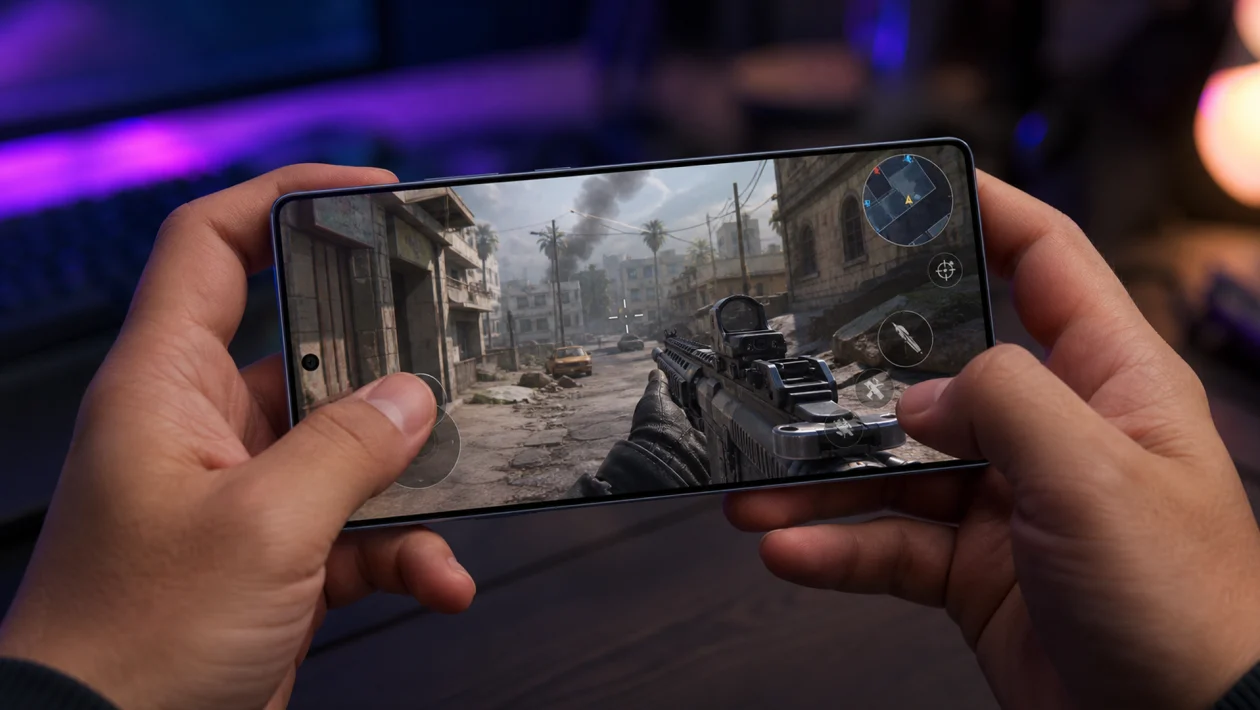
If your Samsung Galaxy S26 Ultra overheats while gaming, stop playing for a few minutes, remove the case, close background apps, lower the game’s graphics settings, and avoid gaming while charging. Then open Game Booster, check the Performance monitor, and let Samsung’s automatic temperature control manage performance instead of forcing maximum graphics all the time.
A warm phone during gaming is normal. A phone that becomes uncomfortable to hold, dims the screen, drops frame rates hard, shows a temperature warning, or shuts apps down is not something to ignore.
Why the Galaxy S26 Ultra Gets Hot While Gaming
Gaming pushes the phone harder than almost anything else. The processor, graphics chip, display, speakers, mobile data, Wi-Fi, battery, and cooling system can all be working at once.
Your Galaxy S26 Ultra may heat up faster when:
- You play demanding games at high graphics settings
- You use 120Hz mode with maximum brightness
- You game while charging
- You use mobile data instead of Wi-Fi
- You play in a hot room or under sunlight
- You use a thick case
- Many apps run in the background
- The game is newly installed and not optimized yet
- A recent update caused temporary app or system behavior
- The phone is restoring data, syncing files, or updating apps
The fix is not always “stop gaming.” The better goal is to reduce unnecessary heat so the phone can keep stable performance for longer.
1. Stop Playing and Let the Phone Cool Down
Start with the safest step.
- Exit the game.
- Lock the phone.
- Remove the case.
- Place the phone on a cool, dry surface.
- Wait 5 to 10 minutes before gaming again.
Do not put the phone in a refrigerator or freezer. That can create condensation inside the device. Just let it cool naturally.
If the phone shows a heat warning, follow the warning and wait before using it again.
2. Do Not Game While Charging
Gaming while charging is one of the fastest ways to make a phone hot.
The battery heats up while charging. The processor heats up while gaming. Put those together and the phone has less thermal headroom.
Do this instead:
- Charge the phone before gaming.
- Unplug the charger before launching the game.
- Avoid wireless charging while playing.
- Use a Samsung-approved charger and cable.
- Keep the phone on a hard surface while charging.
If you need to play while plugged in, lower the graphics settings and remove the case. But for overheating problems, unplugging is usually the better move.
3. Remove the Case While Playing Heavy Games
A thick case traps heat. That is fine for casual use, but it can hurt cooling during long gaming sessions.
Remove the case when playing games like:
- Genshin Impact
- Honkai: Star Rail
- Call of Duty Mobile
- PUBG Mobile
- Fortnite
- Wuthering Waves
- Diablo Immortal
- Emulators
- High-refresh racing games
If temperatures improve after removing the case, the case is part of the problem. Use a thinner case for gaming or take breaks during longer sessions.
4. Lower the Game’s Graphics Settings
This is the fix that makes the biggest difference.
Open the game’s settings and lower:
- Graphics quality
- Resolution
- Shadow quality
- Texture quality
- Anti-aliasing
- Motion blur
- Frame rate
- Effects quality
- Post-processing
- High-resolution resource packs
For most games, a stable medium setting feels better than ultra graphics with frame drops and heat.
Try this practical setup:
| Setting | Recommended starting point |
|---|---|
| Graphics | Medium |
| Frame rate | 60 FPS |
| Shadows | Low or Medium |
| Motion blur | Off |
| Anti-aliasing | Low or Medium |
| Brightness | 50 to 70 percent |
| Voice chat | Off if not needed |
Play for 10 minutes and check if the phone still overheats. If it stays cooler, raise one setting at a time.
5. Use Game Booster Instead of Forcing Max Performance
Samsung’s Game Booster is built to manage gaming performance, memory, battery, and temperature.
While inside a game:
- Swipe from the edge of the screen to open the game tools panel.
- Tap the Game Booster icon.
- Open the performance or monitoring section.
- Check temperature, memory, and battery status.
- Allow automatic performance control if available.
If you force maximum performance all the time, the phone may heat up faster and throttle sooner. For long gaming sessions, balanced performance is usually better.
6. Check the Performance Monitor
Use Performance monitor in Game Booster to see whether the phone is struggling with heat, memory, or battery drain.
Look for signs like:
- Temperature rising quickly
- Memory usage staying high
- Battery draining unusually fast
- FPS dropping after a few minutes
- Game stuttering after the phone gets hot
If the phone runs fine for the first 5 minutes and then slows down, that usually means heat buildup is causing performance throttling.
7. Close Background Apps Before Gaming
Background apps can add heat because they keep using CPU, memory, network, and battery.
Before opening a heavy game:
- Open Recent apps.
- Tap Close all.
- Open Settings.
- Tap Battery.
- Check if any app is using unusual battery in the background.
- Stop or uninstall apps you do not need.
Pay attention to apps like:
- Video editors
- Screen recorders
- VPN apps
- Cloud backup apps
- Social media apps
- Navigation apps
- File syncing apps
- Livestreaming apps
- Third-party boosters or cleaners
The annoying part is that some apps keep working even when you are not using them. Closing them before gaming gives the phone more room to breathe.
8. Restart the Galaxy S26 Ultra
A restart clears temporary system and app issues.
- Press and hold the Side button and Volume Down button.
- Tap Restart.
- Wait for the phone to boot.
- Launch the game again.
This is useful if overheating started suddenly after an app crash, long gaming session, or software update.
9. Update the Game
Game updates often fix performance issues, battery drain, stuttering, and overheating.
- Open the Google Play Store or Galaxy Store.
- Search for the game.
- Tap Update if available.
- Restart the phone after updating.
- Test the game again.
If the overheating started after a game update, check recent user reviews. Sometimes the game itself is poorly optimized after a patch.
10. Update Your Galaxy S26 Ultra
A system update can improve thermal control, app compatibility, battery behavior, and Game Booster performance.
Go to:
Settings > Software update > Download and install
After updating, give the phone a little time to settle. Right after a major update, the phone may run warmer because it is optimizing apps and background data.
11. Lower Screen Brightness
The display can add a lot of heat, especially during long sessions.
Try this:
- Pull down Quick Settings.
- Turn off Adaptive brightness.
- Set brightness around 50 to 70 percent.
- Avoid playing under direct sunlight.
High brightness plus gaming is a bad combination. The phone may heat faster and dim the screen automatically to protect itself.
12. Use Wi-Fi Instead of Mobile Data
Mobile data can make the phone warmer than Wi-Fi, especially if the signal is weak.
If possible:
- Connect to a stable Wi-Fi network.
- Turn off mobile data while gaming.
- Avoid gaming in low-signal areas.
- Move closer to the router if the game keeps reconnecting.
Weak signal forces the modem to work harder. That means more heat and more battery drain.
13. Turn Off Features You Do Not Need While Gaming
Small features can add up.
Before a long session, turn off anything you do not need:
- Bluetooth
- Location
- Nearby device scanning
- Hotspot
- NFC
- Mobile data if using Wi-Fi
- Background downloads
- Auto-sync if not needed
- Screen recording
- Livestreaming
Do not turn off features you actually need for the game, like Bluetooth for a controller or earbuds. The goal is to remove extra load, not break your setup.
14. Avoid Screen Recording During Heavy Gaming
Screen recording makes the phone work harder because it has to render the game and encode video at the same time.
If the Galaxy S26 Ultra overheats only when recording gameplay:
- Lower the recording resolution.
- Use 30 FPS recording instead of 60 FPS.
- Turn off microphone recording if not needed.
- Lower the game graphics.
- Record shorter clips.
Livestreaming is even heavier because it uses video encoding and network upload at the same time.
15. Check Battery and Device Care
Samsung’s Device Care can help find apps that are draining power or causing extra heat.
Go to:
Settings > Battery and device care
Then check:
- Battery
- Memory
- Storage
- Background usage limits
- App battery usage
Put rarely used apps into sleeping or deep sleeping mode.
Path may vary slightly by One UI version, but usually you can find it under:
Settings > Battery > Background usage limits
16. Use Light Performance Profile for Longer Sessions
Some Galaxy models include a performance profile option that can reduce heat and battery drain during normal use.
Check here:
Settings > Device care > Performance profile
Choose Light if available.
This may not affect every game the same way, but it can reduce background performance demand and help the phone stay cooler outside of gaming.
17. Clear the Game Cache
If one game overheats more than others, clear its cache.
- Open Settings.
- Tap Apps.
- Select the game.
- Tap Storage.
- Tap Clear cache.
- Restart the phone.
- Open the game again.
Do not tap Clear data unless you know your game progress is backed up to an account.
18. Reinstall the Problem Game
If overheating happens only in one game and cache clearing does not help, reinstall it.
- Make sure your game account is synced.
- Uninstall the game.
- Restart the phone.
- Install the game again.
- Download only the resources you need.
- Test at medium settings first.
This can fix corrupted game files or broken updates.
19. Check for Rogue Apps in Safe Mode
Safe Mode helps you check whether a third-party app is causing heat in the background.
- Press and hold the Side button and Volume Down button.
- Tap and hold Power off.
- Tap Safe mode.
- Use the phone for a few minutes.
You usually cannot test all games properly in Safe Mode, but you can check whether the phone still gets hot with normal light use. If it cools down in Safe Mode, a third-party app may be the cause.
Restart normally to exit Safe Mode.
20. Avoid Hot Rooms and Direct Sunlight
Gaming in a hot environment makes overheating much more likely.
Avoid gaming:
- In direct sunlight
- Inside a parked car
- While charging on a bed or pillow
- Near a window with strong heat
- Under a blanket
- On top of warm electronics
A cooler room makes a real difference. Even the best phone cooling system struggles when the surrounding air is already hot.
21. Let the Phone Finish Post-Update Optimization
If your Galaxy S26 Ultra started heating after a system update, do not panic right away.
After a major update, the phone may:
- Re-optimize apps
- Rebuild caches
- Sync photos and files
- Update apps in the background
- Relearn battery and usage patterns
Give it 24 to 48 hours. Keep apps updated and restart once after everything finishes. If gaming heat stays bad after a few days, continue with the deeper fixes.
22. Turn Off RAM Plus Temporarily
RAM Plus uses storage as virtual memory. It can help multitasking, but some users prefer turning it off or reducing it when troubleshooting performance and heat issues.
Check here:
Settings > Device care > Memory > RAM Plus
Try lowering it or turning it off if your One UI version allows it. Restart the phone after changing the setting.
This will not magically fix every overheating problem, but it is worth testing if your phone gets hot while switching between games, Discord, screen recording, and social apps.
23. Use a Controller Instead of Touch Controls
This sounds unrelated, but it can help in some situations.
When you use touch controls, your hands cover more of the phone. That can trap heat, especially around the middle and upper frame.
A Bluetooth controller lets the phone sit on a stand with better airflow.
Just remember: Bluetooth adds a tiny bit of battery use, so this helps most when the phone is getting hot because your hands and case are trapping heat.
24. Check if the Phone Is Actually Overheating or Just Warm
A warm phone is normal during gaming. The problem starts when heat affects usability or safety.
Your Galaxy S26 Ultra may simply be warm if:
- It feels warm but comfortable to hold
- No warning appears
- Performance stays stable
- The screen does not dim suddenly
- Battery drain is reasonable
It may be overheating if:
- It becomes uncomfortable to hold
- The screen dims heavily
- The game stutters badly after a few minutes
- Apps close on their own
- Charging slows or stops
- A temperature warning appears
- The phone shuts down
If the phone only gets mildly warm during heavy games, that is expected. If it gets hot during light games or casual use, that is more concerning.
25. Reset All Settings
If overheating started after you changed many settings, reset settings without deleting your files.
Go to:
Settings > General management > Reset > Reset all settings
This resets system settings, but it does not delete your photos, videos, or apps.
After the reset, test gaming before reinstalling boosters, VPNs, overlays, or custom performance tools.
26. Factory Reset as a Last Resort
A factory reset should be the last software fix.
Try it only if:
- The phone overheats in multiple games
- The phone heats up during light use
- Updates did not help
- Safe Mode suggests something is wrong
- Resetting settings did not help
- Battery drain is also unusually bad
Before resetting:
- Back up your phone.
- Sync photos and important files.
- Confirm your Samsung and Google account passwords.
- Charge the phone.
- Go to Settings > General management > Reset > Factory data reset.
After resetting, test one game before restoring every app. If the phone stays cool before restoring apps, one of your apps or settings may have been causing the heat.
Best Fixes by Cause
| Cause | What you will notice | Best fix |
|---|---|---|
| Gaming while charging | Phone heats quickly, charging slows | Unplug while gaming |
| High graphics settings | Heat and frame drops after a few minutes | Lower graphics and FPS |
| Thick case | Back of phone feels very hot | Remove case while gaming |
| Bright screen | Heat plus screen dimming | Lower brightness |
| Poor signal | Heat, lag, fast battery drain | Use Wi-Fi instead of mobile data |
| Background apps | Heat even after leaving the game | Close apps and check battery usage |
| Game bug | Only one game overheats | Update, clear cache, or reinstall the game |
| Recent system update | Heat after update | Update apps and wait 24 to 48 hours |
| Hardware issue | Heat during light use too | Contact Samsung Support |
Recommended Gaming Setup for Lower Heat
For long gaming sessions, try this setup:
| Setting | Recommended value |
|---|---|
| Brightness | 50 to 70 percent |
| Frame rate | 60 FPS |
| Graphics | Medium |
| Case | Removed |
| Charger | Unplugged |
| Network | Wi-Fi |
| Background apps | Closed |
| Game Booster | Enabled |
| Screen recording | Off |
| Room temperature | Cool or well-ventilated |
This setup will not give you the flashiest graphics, but it should give you better sustained gaming.
When to Contact Samsung Support
Contact Samsung Support or visit a service center if:
- The phone overheats during light use
- The battery drains unusually fast
- The phone gets hot while idle
- The phone shuts down from heat
- You see repeated temperature warnings
- The back panel feels swollen or lifted
- The phone heats badly after a factory reset
- It started after a drop, liquid exposure, or repair
Do not ignore battery swelling. If the phone’s body looks warped or the screen/back panel starts lifting, stop using it and get it checked.
Final Advice
Do not start with a factory reset. Start with the fixes that actually reduce heat: stop gaming while charging, remove the case, lower graphics, lower brightness, use Wi-Fi, close background apps, and let Game Booster manage performance.
If the Galaxy S26 Ultra still overheats in every game after updates, resets, and basic testing, treat it as a possible hardware or battery issue and have Samsung check it.
FAQs
Is it normal for the Galaxy S26 Ultra to get warm while gaming?
Yes. Heavy games use the processor, graphics chip, display, speakers, battery, and network connection at the same time. Warm is normal. Too hot to hold, sudden screen dimming, warnings, or shutdowns are not normal.
Why does my Galaxy S26 Ultra overheat when charging and gaming?
Charging creates battery heat, while gaming creates processor and graphics heat. Doing both at the same time can push the phone beyond comfortable temperatures. Charge first, then play unplugged.
Does lowering FPS help with overheating?
Yes. Lowering FPS can reduce GPU load and heat. If you play at 120 FPS and the phone overheats, try 60 FPS for better stability.
Can a phone case cause gaming heat?
Yes. Thick, rugged, leather, and poorly ventilated cases can trap heat. Removing the case during heavy gaming can help the phone cool faster.
Should I use a cooling fan for the Galaxy S26 Ultra?
A phone cooling fan can help during long gaming sessions, especially for demanding games. Use a reputable cooler and avoid anything that creates moisture or extreme cold.
Why does only one game make my Galaxy S26 Ultra hot?
That game may be poorly optimized, using high graphics settings, downloading resources in the background, or running at an aggressive frame rate. Update it, clear its cache, lower graphics, or reinstall it.
