
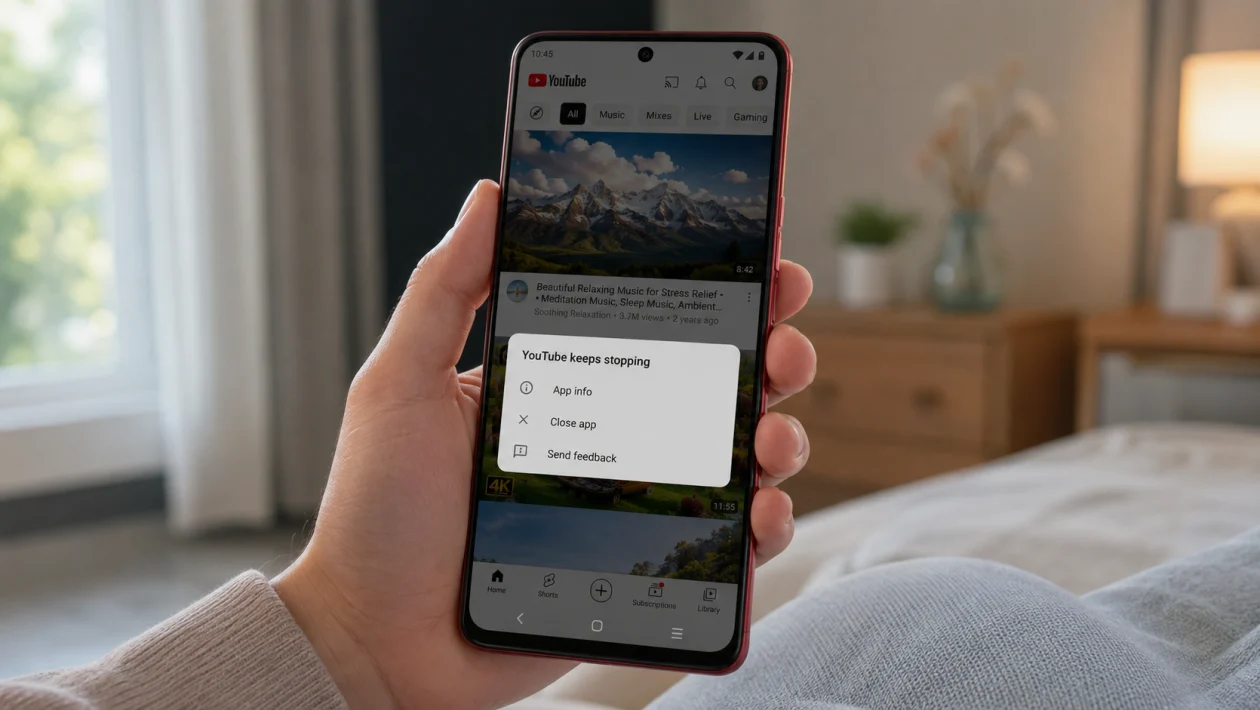
If the YouTube app keeps crashing on your vivo Y51 Pro, the problem is usually caused by a bad app cache, an outdated YouTube version, low storage, a buggy update, Android System WebView issues, or a temporary Funtouch OS glitch.
Start with the simple fixes first. Force close YouTube, clear its cache, restart your phone, and update the app. If YouTube still crashes when you open videos, sign in, scroll, or launch the app, move through the 10 solutions below.
Quick answer
To fix YouTube crashing on vivo Y51 Pro, go to Settings > Apps > YouTube > Storage and clear the cache. Then restart your phone and update YouTube from the Google Play Store.
If the app still crashes, clear YouTube data, update Android System WebView, free up storage, reset app preferences, or uninstall YouTube updates and reinstall the app.
vivo Y51 Pro YouTube crashing diagnostic table
| Symptom | Likely cause | What to try first |
|---|---|---|
| YouTube crashes as soon as it opens | Corrupted cache or bad update | Clear cache and restart |
| YouTube crashes when playing videos | App bug, network issue, or WebView problem | Update YouTube and WebView |
| YouTube freezes then closes | Low RAM or background apps | Close apps and restart |
| YouTube crashes after an update | Buggy app version | Uninstall updates or reinstall |
| YouTube only crashes on mobile data | Network instability | Test on Wi-Fi |
| YouTube crashes after signing in | Account sync or app data issue | Clear data and sign in again |
| YouTube keeps stopping message appears | App process failure | Force stop and clear cache |
| YouTube works in browser but not app | App-specific issue | Reinstall YouTube |
Why YouTube keeps crashing on vivo Y51 Pro
YouTube may keep crashing on your vivo Y51 Pro because the app is trying to load broken temporary files, running an outdated version, or fighting for storage and memory. It can also happen when Android System WebView, Google Play services, or the phone software needs an update.
On vivo phones, app cache and app data can usually be cleared from the app settings menu. The exact path may vary depending on the Funtouch OS version, but the idea is the same: open the YouTube app settings, go to storage, then clear cache or data.
1. Force stop YouTube and open it again
Start here because it is quick and does not delete anything.
- Open Settings.
- Tap Apps.
- Select YouTube.
- Tap Force stop.
- Open YouTube again.
This stops the current YouTube process. If the app crashed because it got stuck in the background, this may be enough.
2. Clear the YouTube app cache
A damaged cache is one of the most common reasons YouTube keeps crashing. Clearing it removes temporary files without signing you out.
- Open Settings.
- Tap Apps or Apps & notifications.
- Tap YouTube.
- Tap Storage.
- Tap Clear cache.
On some vivo phones, the path may look like Settings > More Settings > App manager > YouTube > Storage > Clear cache.
3. Restart your vivo Y51 Pro
A restart can clear temporary system glitches, stuck app processes, and memory issues.
- Press and hold the Power button.
- Tap Restart.
- Wait for the phone to turn back on.
- Open YouTube again.
Do not skip this step. If YouTube started crashing after heavy use, gaming, charging, or switching between many apps, a restart can help the phone settle.
4. Update YouTube from the Google Play Store
An old YouTube version can crash because it no longer works properly with newer Google services, ads, video playback changes, or account features.
- Open the Google Play Store.
- Search for YouTube.
- Tap Update if available.
- Open YouTube after the update finishes.
You can also update all apps from Google Play Store > Profile icon > Manage apps & device > Updates available.
5. Clear YouTube app data
Try this if clearing cache does not work. Clearing data resets the YouTube app on your phone, so you may need to sign in again or adjust some app preferences.
- Open Settings.
- Tap Apps.
- Tap YouTube.
- Tap Storage.
- Tap Clear data or Clear storage.
- Open YouTube and sign in again.
Use this when YouTube crashes after opening, after signing in, or after loading your home feed.
6. Update Android System WebView and Google apps
YouTube depends on other Google components. If Android System WebView, Chrome, Google Play services, or the Play Store is outdated, apps can behave badly.
- Open the Google Play Store.
- Search for Android System WebView.
- Tap Update if available.
- Search for Google Chrome and update it too.
- Update Google Play services if an update appears.
- Restart the phone.
This is especially worth trying if other apps are also crashing, not just YouTube.
7. Free up storage space
If your vivo Y51 Pro is almost full, YouTube may crash when saving cache, loading videos, downloading updates, or switching between screens.
- Open Settings.
- Tap Storage.
- Check available space.
- Delete unused apps, old videos, duplicate downloads, and large files.
- Restart the phone.
Try to keep at least a few GB of free space. YouTube needs room for cache, app updates, and temporary playback files.
8. Check your internet connection
A poor connection usually causes buffering, but it can also make YouTube freeze or close on some devices.
Try this:
- Switch from mobile data to Wi-Fi.
- Turn Airplane mode on for 10 seconds, then turn it off.
- Restart your router if YouTube only crashes on Wi-Fi.
- Disable VPN or private DNS temporarily.
- Open YouTube again.
If YouTube only crashes on one network, the app may be struggling to load videos, ads, or account data from that connection.
9. Reset app preferences
Resetting app preferences can fix YouTube if a disabled app, blocked permission, or restricted background setting is causing the crash.
- Open Settings.
- Tap Apps.
- Tap the three-dot menu if available.
- Tap Reset app preferences.
- Confirm the reset.
- Open YouTube again.
This usually resets disabled apps, default app choices, background restrictions, and permissions. It should not delete your photos, videos, or personal files.
10. Uninstall YouTube updates and reinstall the app
Use this if YouTube still crashes after all the basic fixes. On many Android phones, YouTube is a preinstalled app, so you may not be able to remove it fully. You can usually uninstall updates, then update it again.
- Open Settings.
- Tap Apps.
- Tap YouTube.
- Tap the three-dot menu.
- Tap Uninstall updates if available.
- Restart your phone.
- Open the Google Play Store.
- Update YouTube again.
If YouTube was installed manually, uninstall it from the Play Store, restart the phone, then install it again.
What if YouTube still crashes on vivo Y51 Pro?
If YouTube still crashes after all 10 fixes, the issue may be caused by a deeper software problem, a faulty system update, or a conflict with your Google account.
Before doing a factory reset, try these final checks:
Open YouTube in a browser to confirm the service works.
Try YouTube while signed out.
Test another Google account.
Check whether other apps are crashing too.
Install any available Funtouch OS update.
Contact vivo support if the phone keeps crashing across multiple apps.
A factory reset should be the last option because it deletes data from the phone. Back up your photos, videos, contacts, and files first.
FAQ
Why does YouTube keep stopping on my vivo Y51 Pro?
YouTube usually keeps stopping because of corrupted cache, outdated app files, low storage, Android System WebView problems, or a temporary phone software glitch.
Will clearing YouTube cache delete my account?
No. Clearing cache only removes temporary files. Your YouTube account, subscriptions, history, and uploads should stay linked to your Google account.
Will clearing YouTube data delete downloads?
It may remove offline downloads and reset app settings. Use it only after clearing cache and restarting the phone.
