
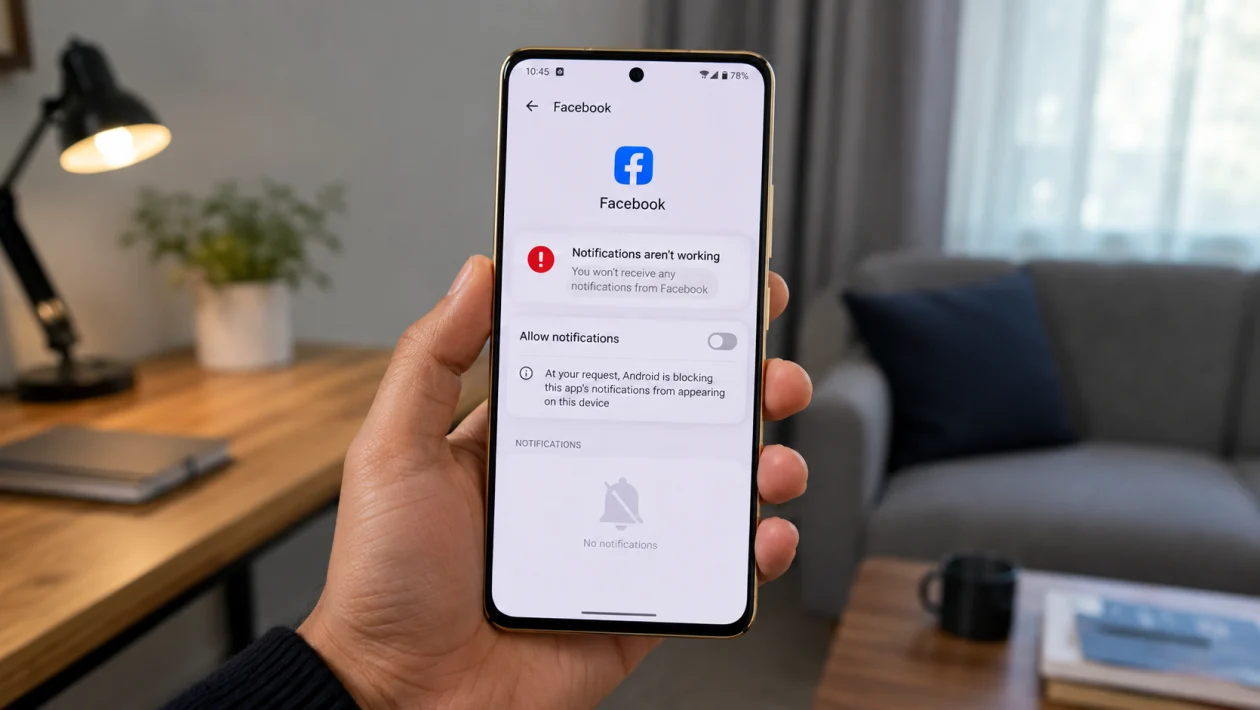
If Facebook notifications are not working on your vivo Y51 Pro, the problem is usually caused by disabled app notifications, battery restrictions, background data limits, Do Not Disturb, or notification settings inside the Facebook app.
Start with the simple checks first. Make sure Facebook notifications are allowed on your phone, then check Facebook’s own notification menu, battery usage settings, data access, and app updates.
Quick answer
To fix Facebook notifications not working on vivo Y51 Pro, go to Settings > Apps > Facebook > Notifications and make sure notifications are turned on. Then open Facebook and check Menu > Settings & privacy > Settings > Notifications to confirm push notifications are enabled.
If notifications still do not appear, turn off battery restrictions for Facebook, allow background data, disable Do Not Disturb, update the Facebook app, and restart your phone.
Facebook notifications not working on vivo Y51 Pro: quick diagnostic table
| Symptom | Likely cause | What to check first |
|---|---|---|
| No Facebook notifications at all | Notifications disabled | Settings > Apps > Facebook > Notifications |
| Notifications arrive late | Battery restriction or background data limit | Battery and data settings |
| Messenger works but Facebook does not | Facebook app notification settings | Facebook > Settings > Notifications |
| Notifications show silently | Alert style set to silent | App notification category settings |
| Notifications missing on lock screen | Lock screen alerts disabled | Lock screen notification settings |
| Notifications stop overnight | Battery saver, sleep mode, or background restriction | Battery settings |
| Notifications stop on mobile data | Data Saver or background data disabled | Mobile data settings |
| Notifications stopped after update | App bug or system setting reset | Update Facebook, restart phone |
Why Facebook notifications stop working on vivo Y51 Pro
Facebook notifications can stop working when the vivo Y51 Pro blocks the app from running in the background. This can happen because Android and vivo’s battery tools try to save power by limiting apps that are not actively open.
The issue can also come from Facebook itself. You may have turned off push alerts for comments, tags, friend requests, groups, pages, videos, or Marketplace without realizing it.
Use the fixes below in order. Do not reset the phone first. Most notification problems are solved by one of these settings.
1. Turn on Facebook notifications in vivo settings
Start here because this is the most common reason Facebook alerts stop appearing.
- Open Settings.
- Tap Apps.
- Tap Facebook.
- Tap Notifications.
- Turn on Allow notifications.
- Check each notification category and make sure the ones you need are enabled.
On some vivo Y51 Pro software versions, the menu may appear as Settings > Apps & permissions > App manager > Facebook > Notifications.
Also check whether Facebook notifications are set to Silent. If they are silent, the alert may appear in the notification shade without sound, vibration, or a pop-up.
Look for options such as:
Notifications
Comments
Tags
Friend requests
Groups
Marketplace
Videos
Live videos
Reminders
Other notifications
Turn on the categories you actually want.
2. Check Facebook’s in-app notification settings
Your phone can allow notifications, but Facebook can still block specific alert types inside the app.
- Open the Facebook app.
- Tap your profile picture or Menu.
- Scroll down and tap Settings & privacy.
- Tap Settings.
- Tap Notifications.
- Review each notification type.
- Make sure Push is turned on for the alerts you want.
Check important sections like:
Comments
Tags
Reminders
Friend requests
People you may know
Groups
Pages
Marketplace
Video
Fundraisers
Birthdays
If you only stopped receiving one type of alert, such as comments or group posts, this is probably the fix. Facebook lets you control different notification types separately, so one category can be off while the rest still work.
3. Allow Facebook to run in the background
If Facebook notifications arrive late or only appear when you open the app, your vivo Y51 Pro may be restricting Facebook in the background.
- Open Settings.
- Tap Apps.
- Tap Facebook.
- Tap Battery or Battery usage.
- Choose Unrestricted, Don’t restrict, or the least restrictive option available.
The exact wording depends on your Funtouch OS version.
If you see an option like Background power consumption management, make sure Facebook is not heavily restricted. Facebook needs background access to receive push notifications on time.
This matters most if notifications work for a while after opening Facebook, then stop again later.
4. Turn off Battery Saver or Low Power Mode
Battery Saver can delay Facebook notifications because the phone tries to reduce background activity.
- Open Settings.
- Tap Battery.
- Turn off Battery Saver, Low power mode, or Super power-saving mode.
- Restart your phone.
- Wait for a new Facebook notification to test it.
You do not need to keep Battery Saver off forever. But if Facebook notifications start working after turning it off, the issue is probably related to power management.
For a better setup, keep Battery Saver available but allow Facebook to run without heavy restrictions.
5. Allow background data for Facebook
If Facebook notifications work on Wi-Fi but not on mobile data, check background data settings.
- Open Settings.
- Tap Apps.
- Tap Facebook.
- Tap Mobile data & Wi-Fi or Data usage.
- Turn on Background data.
- Turn on Unrestricted data usage if available.
Also check whether Data Saver is enabled:
- Open Settings.
- Tap Network & internet or Mobile network.
- Tap Data Saver.
- Turn it off, or allow Facebook to use data while Data Saver is on.
Facebook needs background data to receive alerts when the app is closed. If background data is blocked, notifications may only show after you open the app manually.
6. Turn off Do Not Disturb
Do Not Disturb can block Facebook notification sounds, vibrations, banners, and lock screen alerts.
- Swipe down from the top of the screen.
- Look for Do Not Disturb.
- Turn it off if it is enabled.
You can also check it through settings:
- Open Settings.
- Tap Sound & vibration.
- Tap Do Not Disturb.
- Turn it off.
- Check any schedules that may turn it on automatically.
If you use Do Not Disturb at night, make sure it is not staying on during the day. A schedule can make it look like Facebook notifications are broken when the phone is actually muting them.
7. Check lock screen notification settings
If Facebook notifications appear only after unlocking the phone, lock screen notifications may be hidden.
- Open Settings.
- Tap Notifications.
- Tap Lock screen notifications.
- Choose Show notifications.
- Open Facebook notification settings.
- Make sure lock screen alerts are allowed.
You may also see privacy options such as:
Show all notification content
Hide sensitive content
Do not show notifications
Choose the option that matches how much information you want visible. If you want Facebook alerts to appear on the lock screen, avoid selecting Do not show notifications.
8. Clear the Facebook app cache
A corrupted app cache can cause notification glitches, loading problems, or delayed alerts. Clearing the cache does not delete your Facebook account.
- Open Settings.
- Tap Apps.
- Tap Facebook.
- Tap Storage.
- Tap Clear cache.
- Restart your vivo Y51 Pro.
Do not tap Clear data unless you are ready to sign in again. Clearing data resets the app locally, while clearing cache only removes temporary files.
After clearing the cache, open Facebook once and leave it running normally. Then wait for a new notification.
9. Update Facebook and your vivo Y51 Pro software
Notification bugs can happen after an app update, Android update, or Facebook server-side change. Updating the app is worth doing before trying more aggressive fixes.
To update Facebook:
- Open the Google Play Store.
- Search for Facebook.
- Tap Update if available.
Then check for system updates:
- Open Settings.
- Tap System update.
- Install any available update.
- Restart your phone.
Also update Google Play services if an update is available. Many Android push notifications depend on Google services running properly in the background.
10. Remove and reinstall Facebook
Use this if the settings look correct but Facebook notifications still do not work.
- Press and hold the Facebook app icon.
- Tap Uninstall.
- Restart your vivo Y51 Pro.
- Open the Google Play Store.
- Install Facebook again.
- Sign in.
- Allow notifications when prompted.
After reinstalling, open Facebook and check notification settings again. Some categories may return to default settings, so review both phone-level and in-app notification options.
This is also useful if Facebook notifications stopped after a failed update or if the app behaves strangely in other ways.
Best settings for Facebook notifications on vivo Y51 Pro
For reliable Facebook notifications, use these settings:
| Setting | Recommended option |
|---|---|
| Facebook app notifications | On |
| Facebook in-app push notifications | On |
| Battery restriction | Unrestricted or not restricted |
| Background data | Allowed |
| Data Saver | Off or Facebook allowed |
| Do Not Disturb | Off, or Facebook allowed as exception |
| Lock screen notifications | Show notifications |
| Facebook app version | Latest version |
| Funtouch OS version | Updated |
What to do if Facebook notifications still do not work
If none of the fixes work, test whether the problem affects other apps.
If only Facebook has the issue, the problem is probably inside Facebook, the app install, or your Facebook notification preferences.
If all apps have delayed notifications, the issue is more likely related to battery saving, background restrictions, mobile data, Do Not Disturb, or system notification settings on your vivo Y51 Pro.
You can also try logging into Facebook on another phone. If notifications work there, your vivo Y51 Pro settings need more checking. If notifications do not work on another phone either, your Facebook account notification settings may be the cause.
FAQ
Why am I not getting Facebook notifications on my vivo Y51 Pro?
You may not be getting Facebook notifications because app notifications are disabled, Facebook push alerts are turned off, background activity is restricted, Data Saver is enabled, or Do Not Disturb is blocking alerts.
Why do Facebook notifications only appear when I open the app?
This usually means Facebook is being restricted in the background. Allow background data and set Facebook battery usage to unrestricted or not restricted.
Why are Facebook notifications silent on my vivo phone?
Facebook notifications may be set to silent in Android notification settings. Go to Settings > Apps > Facebook > Notifications and check whether the notification category is set to silent instead of alerting.
