
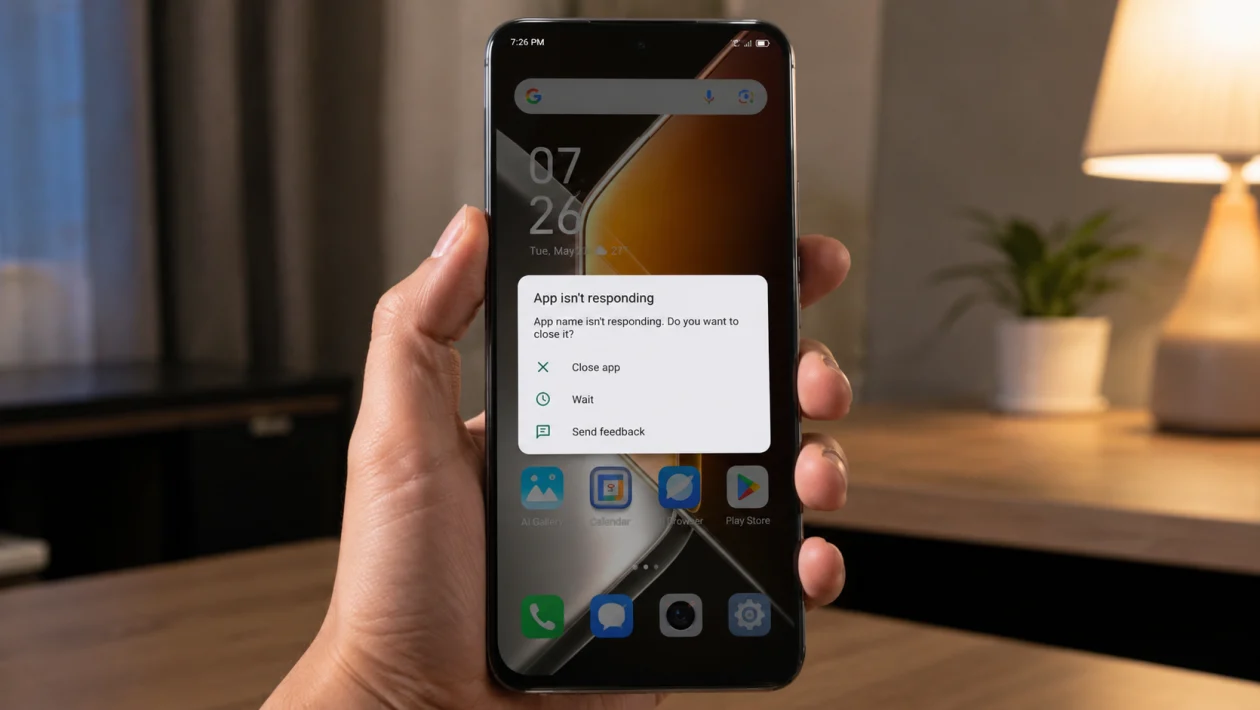
If apps keep crashing on your Infinix GT 50 Pro, the problem is usually caused by corrupted app cache, outdated apps, low storage, strict battery limits, Android System WebView, Google Play Services, or a recent software update.
The good news is that you usually do not need to reset the phone right away. Start with the app that crashes most often, then work through the fixes below in order.
The Infinix GT 50 Pro runs on Android with Infinix’s XOS software, so some menu names may vary slightly depending on your region and software version.
Quick answer
To fix apps that keep crashing on the Infinix GT 50 Pro, restart the phone first. Then go to Settings > Apps > App management, choose the crashing app, and clear its cache. If that does not work, update the app from the Google Play Store, update Android System WebView, free up storage, and check whether XOS battery settings are restricting the app in the background.
If many apps crash at once, the issue is more likely related to WebView, Google Play Services, storage, RAM pressure, or a system update.
Infinix GT 50 Pro app crashing diagnostic table
| Symptom | Likely cause | Check first |
|---|---|---|
| One app keeps crashing | Bad cache, app bug, outdated app | Clear cache and update the app |
| Many apps crash at once | Android System WebView or Google Play Services issue | Update WebView and Play Services |
| Apps crash after opening | Low storage or corrupted app data | Free storage and clear app data |
| Apps crash in the background | Battery optimization or background restriction | Check XOS battery settings |
| Games crash during play | Heat, RAM pressure, graphics bug, old version | Restart, update, lower graphics |
| Apps crash after update | App compatibility or XOS bug | Update apps and system software |
| Banking or login apps crash | Outdated Play Services, permissions, security issue | Update Play Services and check permissions |
| Apps freeze before closing | Weak internet or overloaded phone | Check network and close background apps |
Why apps keep crashing on Infinix GT 50 Pro
Apps can crash when the phone cannot load the app properly, when the app’s temporary files are damaged, or when another system component stops working.
Common causes include:
Outdated app version
Corrupted app cache
Low internal storage
Too many apps running in the background
Strict battery optimization
Android System WebView problems
Google Play Services errors
Weak internet connection
Missing app permissions
XOS software bugs
Overheating during gaming or heavy use
Use the 10 fixes below before trying a factory reset.
1. Restart your Infinix GT 50 Pro
Start with a restart. It sounds basic, but it can stop temporary app glitches, clear stuck background processes, and refresh system memory.
- Press and hold the Power button.
- Tap Restart.
- Wait for the phone to turn back on.
- Open the app that was crashing.
- Use it for a few minutes to check if the problem returns.
This will not delete your photos, apps, messages, or files.
Restarting is especially useful if apps started crashing after gaming, charging, switching networks, or installing several updates at once.
2. Force stop the crashing app
If only one app keeps crashing, force stop it before changing deeper settings.
- Open Settings.
- Tap Apps or App management.
- Tap App list.
- Choose the app that keeps crashing.
- Tap Force stop.
- Open the app again.
Force stopping closes the app completely. This helps when the app is stuck in a bad session or keeps reopening with the same temporary error.
Do this for the exact app that crashes, not for every app on the phone.
3. Clear the app cache
App cache stores temporary files. When those files become outdated or damaged, the app may freeze, crash, or close by itself.
- Open Settings.
- Tap Apps or App management.
- Tap App list.
- Select the crashing app.
- Tap Storage.
- Tap Clear cache.
- Reopen the app.
Clearing cache does not usually delete your account, login, photos, messages, or saved files inside the app.
Try this first for social media apps, shopping apps, browsers, video apps, games, and messaging apps.
4. Clear app data if cache does not work
If clearing cache does not fix the issue, clear the app’s data. This resets the app to a fresh state.
- Open Settings.
- Tap Apps or App management.
- Choose the crashing app.
- Tap Storage.
- Tap Clear data or Clear storage.
- Confirm the action.
- Open the app and sign in again.
Be careful with this fix. Clearing app data may remove local settings, offline files, downloaded content, or saved login sessions.
Use this for apps that crash immediately after opening, apps stuck on a loading screen, or apps that crash after an update.
5. Update the crashing app
An outdated app can crash if it is no longer fully compatible with your phone’s software.
- Open the Google Play Store.
- Tap your profile icon.
- Tap Manage apps and device.
- Tap Updates available.
- Update the crashing app.
- Restart the phone after updating.
You can also search for the app directly in the Play Store and tap Update if the button appears.
If the app is from another store, update it from the same source where you installed it. Avoid installing random APK files from unknown websites because they can cause more crashes, security warnings, or compatibility problems.
6. Update Android System WebView and Google Play Services
If many apps crash at the same time, check Android System WebView and Google Play Services. These background components help apps display web content, sign in, sync, send notifications, and connect to Google services.
- Open the Google Play Store.
- Search for Android System WebView.
- Tap Update if available.
- Search for Google Play Services.
- Tap Update if available.
- Restart your Infinix GT 50 Pro.
This fix is useful when apps like Gmail, banking apps, browsers, social media apps, shopping apps, or login-heavy apps keep crashing.
If there is no Update button, the component may already be current.
7. Free up internal storage
Apps can crash when your Infinix GT 50 Pro is almost out of storage. Apps need free space for cache, updates, temporary files, downloads, and background tasks.
- Open Settings.
- Tap Storage.
- Check available space.
- Delete unused apps, large videos, duplicate photos, and old downloads.
- Empty recently deleted files if your gallery has that option.
- Restart the phone.
Try to keep at least 10% to 15% of internal storage free. If the phone is almost full, apps may open slowly, freeze, fail to update, or crash without warning.
This matters more for games, camera apps, video editors, browsers, and social media apps with large caches.
8. Check battery optimization and background limits
XOS may restrict apps in the background to save battery. That is useful for battery life, but it can make some apps crash, fail to sync, or stop working properly.
- Open Settings.
- Tap Battery.
- Look for Battery optimization, Power Marathon, App battery management, or similar options.
- Choose the app that keeps crashing.
- Allow background activity if the app needs it.
- Turn off strict battery restriction for that app.
This is worth checking for messaging apps, email apps, fitness apps, navigation apps, smart home apps, banking apps, and apps that need real-time notifications.
Do not remove battery limits for every app. Only adjust the apps you actually need to run reliably.
9. Check app permissions and internet connection
Some apps crash when they cannot access a permission they need. Others crash when the network is unstable, especially apps that rely on login, maps, cloud sync, payments, or streaming.
To check permissions:
- Open Settings.
- Tap Apps or App management.
- Choose the crashing app.
- Tap Permissions.
- Allow the permissions the app clearly needs.
For example, a camera app may need Camera and Storage access. A maps app may need Location. A messaging app may need Contacts, Notifications, Photos, or Microphone depending on how you use it.
Then check your connection:
- Switch from mobile data to Wi-Fi.
- Try another Wi-Fi network if possible.
- Turn Airplane mode on for 10 seconds, then turn it off.
- Reopen the app.
If the app only crashes on mobile data, the issue may be your connection, VPN, private DNS, data saver, or carrier network.
10. Update XOS software or reinstall the app
If the app still crashes, update your Infinix GT 50 Pro software and reinstall the app.
To update XOS:
- Open Settings.
- Tap System.
- Tap System update or Software update.
- Download and install any available update.
- Restart the phone.
To reinstall the app:
- Touch and hold the app icon.
- Tap Uninstall.
- Restart your phone.
- Open the Google Play Store.
- Install the app again.
Reinstalling helps when the app installation is damaged, the app update failed, or clearing cache and data did not fix the issue.
If apps started crashing after a major system update, give the phone a little time to settle after installing all app updates. Some apps may need a new version before they work smoothly with the latest XOS build.
When should you reset your Infinix GT 50 Pro?
A factory reset should be the last option, not the first fix.
Consider it only if:
Multiple apps keep crashing every day
The phone freezes even after updates
System apps crash repeatedly
You already cleared cache, updated apps, and freed storage
The problem started after a failed update
The phone is almost unusable
Before resetting, back up your photos, videos, contacts, messages, authenticator apps, and important files.
You can also contact Infinix support or visit a service center if the phone crashes even after a clean setup. That may point to a deeper software or hardware issue.
FAQ
Why does only one app keep crashing on my Infinix GT 50 Pro?
If only one app crashes, the problem is probably inside that app. Clear its cache, update it, check permissions, then reinstall it if needed.
Should I turn off battery optimization for all apps?
No. Only change battery settings for apps that need to run in the background, such as messaging, email, maps, banking, or fitness apps.
Will clearing cache delete my data?
No. Clearing cache usually removes temporary files only. Clearing app data is different and may reset the app.
