
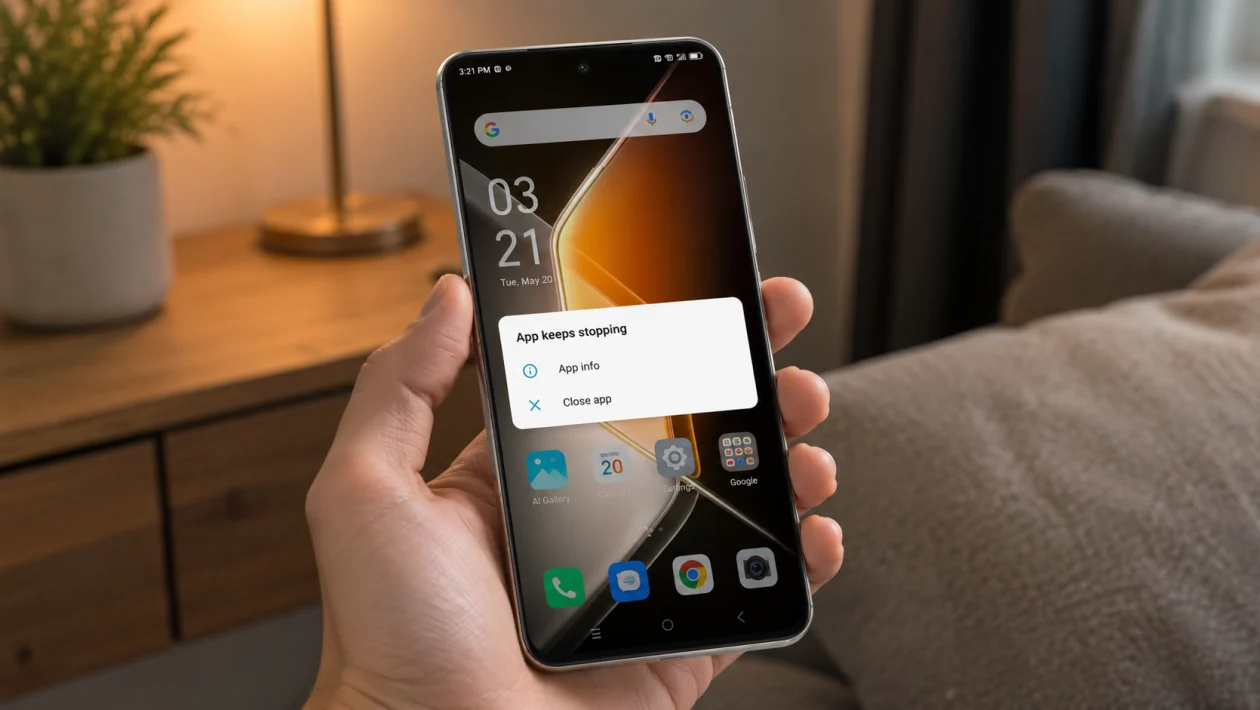
If your Infinix GT 50 Pro keeps closing apps by itself, freezing for a second, or sending you back to the home screen, the problem is usually software-related. It can happen because of a bad app update, low storage, corrupted cache, aggressive battery management, overheating, outdated XOS software, or app permission problems.
The Infinix GT 50 Pro is built as a gaming-focused phone, so random app crashes can feel extra annoying when they happen during games, social media, banking apps, camera use, or multitasking. Start with the simple fixes first before resetting anything.
Quick answer
To fix Infinix GT 50 Pro apps that are randomly crashing, restart the phone, update the crashing apps, clear the app cache, check storage, disable strict battery restrictions, and install the latest XOS update. If only one app crashes, the issue is likely with that app. If many apps crash, check storage, RAM settings, overheating, Android System WebView, and system updates.
Infinix GT 50 Pro app crashing diagnostic table
| Symptom | Likely cause | Check first |
|---|---|---|
| One app keeps crashing | Bad app update or corrupted app cache | Clear cache, update, reinstall |
| Many apps randomly close | Storage, RAM, system bug, or XOS issue | Restart, update software, check storage |
| Games crash during play | Heat, graphics setting, RAM pressure | Lower graphics, cool phone, close apps |
| Apps crash after update | App compatibility or system re-optimising | Update apps and monitor |
| Apps close in background | Battery optimisation or memory management | Battery and background settings |
| Banking or login apps crash | Permissions, security conflict, outdated app | Update app, check permissions |
| Apps crash when opening links | Android System WebView or browser issue | Update WebView and Chrome |
| Phone freezes before apps crash | Storage, heat, or system overload | Free storage, restart, check temperature |
Why apps randomly crash on Infinix GT 50 Pro
Apps can crash on the Infinix GT 50 Pro when the phone runs into a temporary software problem, an app bug, or a resource issue. Even powerful phones can crash apps if a background process gets stuck, storage is almost full, or a recent update breaks compatibility.
Common causes include:
Apps running on outdated versions
Corrupted app cache
Low internal storage
Too many apps running in the background
Aggressive battery optimisation
Outdated XOS software
Android System WebView issues
Weak internet connection for online apps
Overheating during gaming
App permission conflicts
Use the 10 fixes below in order.
1. Restart your Infinix GT 50 Pro
Start with a restart. It is simple, but it often fixes random app crashes caused by temporary software glitches.
- Press and hold the Power button.
- Tap Restart.
- Wait for the phone to turn back on.
- Open the app that was crashing.
- Use it for a few minutes to check if the problem returns.
A restart clears stuck background processes without deleting your files. This should be your first step if apps started crashing suddenly.
2. Update the crashing app
If only one app keeps crashing, the app itself may be the problem. Developers often release updates to fix crashes, login errors, display bugs, and compatibility issues with newer Android or XOS versions.
- Open Google Play Store.
- Tap your profile icon.
- Tap Manage apps and device.
- Tap Updates available.
- Update the app that keeps crashing.
- Open the app again.
Also check the Palm Store or any app store you used to install the app. Some apps behave badly when installed from unofficial APK sources, especially banking, gaming, streaming, and social media apps.
3. Clear the app cache
Cached files help apps load faster, but they can also become corrupted. When that happens, an app may freeze, close randomly, or crash every time you open a certain screen.
- Open Settings.
- Tap Apps.
- Select the app that keeps crashing.
- Tap Storage.
- Tap Clear cache.
- Reopen the app.
Do not tap Clear storage yet unless you are ready to sign in again or reset the app’s local data. Clear cache is safer because it usually does not delete your account, files, or app settings.
4. Force stop the app and open it again
Force stopping an app closes its active background process. This helps when the app is stuck, looping, or failing to load properly.
- Open Settings.
- Tap Apps.
- Choose the crashing app.
- Tap Force stop.
- Tap OK if asked.
- Open the app again.
This works well for apps that crash after being left open in the background for a long time.
5. Free up internal storage
Apps need free storage to save temporary files, update data, load media, and run smoothly. If your Infinix GT 50 Pro storage is almost full, apps may crash even if the phone still feels fast.
- Open Settings.
- Tap Storage.
- Check how much free space is left.
- Delete large videos, duplicate photos, old downloads, and unused apps.
- Empty trash folders inside Gallery or file manager apps.
- Restart the phone after freeing space.
Try to keep at least 10% to 15% of internal storage free. Games, camera apps, TikTok, Facebook, Instagram, WhatsApp, Telegram, and video editors can create large cache files over time.
6. Check battery optimisation and background limits
Infinix phones can be aggressive with battery and background app management. That helps battery life, but it can also make apps close in the background or crash when they try to sync, send notifications, or reload.
- Open Settings.
- Tap Battery.
- Look for Battery optimisation, Power saving, or App battery management.
- Select the app that keeps crashing.
- Allow background activity if the app needs it.
- Turn off strict battery restrictions for messaging, banking, navigation, and work apps.
Also check whether Power Marathon, Ultra Power Saving, or similar power modes are active. These modes may limit app activity.
7. Update XOS and Android System WebView
If several apps crash randomly, the issue may be related to the system software, Android System WebView, or Google Play services.
First update XOS:
- Open Settings.
- Tap System.
- Tap System update.
- Download and install any available update.
- Restart the phone.
Then update Android System WebView:
- Open Google Play Store.
- Search for Android System WebView.
- Tap Update if available.
- Search for Google Chrome.
- Update Chrome too.
Android System WebView helps many apps display web pages, login screens, payment pages, and in-app browser content. When it has a bug, apps that rely on web content may crash.
8. Check app permissions
Some apps crash because they cannot access something they need, such as storage, camera, microphone, location, contacts, or notifications.
- Open Settings.
- Tap Apps.
- Choose the crashing app.
- Tap Permissions.
- Allow the permissions the app actually needs.
- Reopen the app.
For example, a camera app may crash without camera or storage permission. A navigation app may crash or freeze without location permission. A messaging app may fail if notifications or background access are blocked.
Do not allow every permission blindly. Only enable permissions that make sense for the app.
9. Lower game graphics and cool the phone
If games crash on your Infinix GT 50 Pro, the phone may be getting too hot or running the game at settings that are too demanding.
Try this:
- Close apps running in the background.
- Remove the phone case while gaming.
- Lower graphics quality inside the game.
- Lower frame rate settings if the game keeps crashing.
- Avoid gaming while charging.
- Let the phone cool for a few minutes before reopening the game.
The Infinix GT 50 Pro has gaming hardware, a high refresh rate display, and cooling features, but heavy games can still crash if the phone gets hot, the game has a bug, or the graphics settings are unstable.
10. Reinstall the app or reset app preferences
If the app still crashes after updating and clearing cache, reinstall it.
- Press and hold the app icon.
- Tap Uninstall.
- Restart your phone.
- Open Google Play Store.
- Install the app again.
- Sign in and test it.
If many apps are affected, reset app preferences instead.
- Open Settings.
- Tap Apps.
- Tap the three-dot menu.
- Tap Reset app preferences.
- Confirm the reset.
This will restore default app settings, disabled apps, background restrictions, and permission defaults. It should not delete your personal files, but some apps may ask for permissions again.
What if apps still keep crashing?
If apps still randomly crash after all 10 fixes, check whether the problem started after a recent XOS update, app update, or APK installation. Remove recently installed apps first, especially cleaner apps, battery saver apps, VPNs, screen recorders, modded APKs, and apps installed outside the Play Store.
You should contact Infinix support or visit an authorised service centre if:
Apps crash even after a factory reset
The phone overheats during normal use
The phone freezes and restarts by itself
System apps keep crashing
The problem started after physical damage or liquid exposure
The phone shuts down while opening apps
Back up your photos, contacts, chats, and files before any factory reset or repair visit.
FAQ
Why do apps keep crashing on my Infinix GT 50 Pro?
Apps may crash because of outdated app versions, corrupted cache, low storage, XOS bugs, battery restrictions, overheating, or Android System WebView problems.
Should I clear cache or clear storage?
Clear cache first. It is safer and usually does not delete your app data. Clear storage only if the app still crashes and you are ready to sign in again.
Can low storage make apps crash?
Yes. Apps need free space for temporary files, updates, downloads, and cached data. If storage is nearly full, apps can freeze or close randomly.
