
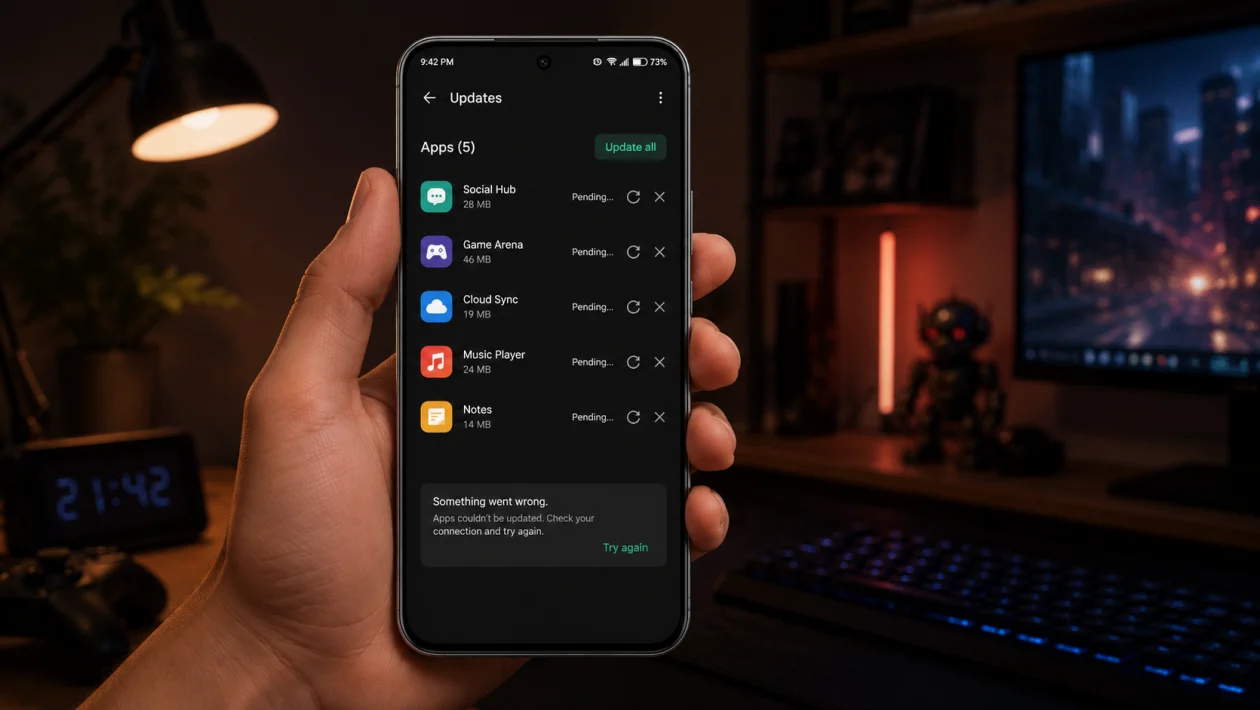
If your Infinix GT 50 Pro can’t update apps, the problem usually comes from the Google Play Store, Google Play Services, weak internet, low storage, a stuck download queue, date and time errors, or an XOS setting blocking background activity.
Start with the simple checks first. Make sure your internet works, restart the phone, check storage, then clear the Play Store cache if app updates are still stuck.
Quick answer
To fix an Infinix GT 50 Pro that can’t update apps, open Google Play Store > Profile icon > Manage apps and device > Updates available, then try updating one app at a time.
If the update stays pending or fails, go to Settings > Apps > Google Play Store > Storage & cache, then tap Clear cache. If that does not work, clear Play Store data, restart the phone, and try again.
Infinix GT 50 Pro app update problem diagnostic table
| Problem | Likely cause | What to check first |
|---|---|---|
| Apps stuck on pending | Download queue or Play Store cache issue | Play Store update queue |
| Apps fail to update on mobile data | Data saver, weak signal, or Play Store setting | Wi-Fi and mobile data settings |
| Only one app will not update | App compatibility or app-specific bug | App page in Play Store |
| All apps fail to update | Play Store, Play Services, storage, or account issue | Google Play Store cache |
| Update stops halfway | Unstable internet or low storage | Wi-Fi and free space |
| Play Store keeps crashing | Corrupted Play Store data | Clear Play Store data |
| Updates only work after restart | Background process stuck | Restart and system update |
| Update says not enough space | Storage is too low | Internal storage |
| Update button missing | App installed outside Play Store or incompatible version | App source and compatibility |
| App updates fail after system update | XOS or Google services re-syncing | Wait, restart, then update apps |
Why your Infinix GT 50 Pro can’t update apps
Your Infinix GT 50 Pro may fail to update apps when Google Play Store cannot complete the download, the phone does not have enough storage, the internet connection keeps dropping, or Google Play Services is not working properly.
This can also happen after a system update, especially if the phone is still syncing apps, optimizing background services, or updating Google components.
Use the fixes below in order.
1. Restart your Infinix GT 50 Pro
Start with a restart. It sounds basic, but it can clear stuck Play Store downloads, frozen background services, and temporary XOS glitches.
- Press and hold the Power button.
- Tap Restart.
- Wait for the phone to turn back on.
- Open the Google Play Store.
- Try updating one app first.
Do not update all apps immediately. Test one small app so you can see whether the problem is fixed.
2. Check your internet connection
App updates can fail if your Wi-Fi or mobile data is unstable. This is especially common when updates start downloading, then stop at a percentage.
Try this:
- Turn Wi-Fi off and on.
- Move closer to your router.
- Open YouTube, Chrome, or another app to confirm the connection works.
- Switch from Wi-Fi to mobile data, or from mobile data to Wi-Fi.
- Try updating the app again.
If app updates work on Wi-Fi but not on mobile data, check whether Play Store is set to update only over Wi-Fi.
Go to:
Google Play Store > Profile icon > Settings > Network preferences > App download preference
Choose Over any network only if you are comfortable using mobile data.
3. Check your available storage
Apps need extra free space while updating. Even if the update is only 200 MB, the phone may need more room to download, unpack, and install it.
Go to:
Settings > Storage
If your internal storage is almost full, delete or move:
- Old videos
- Duplicate photos
- Downloaded movies
- Unused apps
- Large WhatsApp or Telegram files
- APK files in the Downloads folder
After freeing space, restart your Infinix GT 50 Pro and try updating apps again.
For better results, keep at least a few GB of free storage instead of waiting until the phone is nearly full.
4. Cancel stuck updates and update one app at a time
Sometimes the Play Store queue gets stuck because one app fails and blocks the rest.
- Open the Google Play Store.
- Tap your profile icon.
- Tap Manage apps and device.
- Tap Updates available.
- Cancel any stuck updates.
- Update one app manually.
Start with a small app. If that works, update the rest in smaller batches.
This helps when the Play Store shows Pending, Downloading, or Installing for too long.
5. Clear the Google Play Store cache
A corrupted Play Store cache is one of the most common reasons Android phones cannot update apps.
Go to:
Settings > Apps > See all apps > Google Play Store > Storage & cache > Clear cache
Then reopen the Play Store and try updating again.
This does not delete your apps, photos, messages, or personal files. It only clears temporary Play Store files.
6. Clear Google Play Store data
If clearing the cache does not work, clear the Play Store data. This gives the Play Store a cleaner reset.
Go to:
Settings > Apps > See all apps > Google Play Store > Storage & cache > Clear storage
Then tap Clear all data or Delete, depending on the wording shown on your phone.
After that:
- Restart your Infinix GT 50 Pro.
- Open the Google Play Store.
- Sign in again if asked.
- Try updating one app.
This may reset Play Store preferences, including auto-update settings.
7. Clear Google Play Services cache
Google Play Services helps Android apps update, sync, sign in, and communicate with Google features. If it has a problem, app updates may fail even when the Play Store opens normally.
Go to:
Settings > Apps > See all apps > Google Play Services > Storage & cache > Clear cache
If the issue continues, tap Manage space, then clear data only if you are comfortable re-syncing some Google services afterward.
Restart the phone after doing this.
8. Check date, time, and Google account sync
Wrong date and time settings can cause Google Play errors because the phone cannot properly verify downloads and account sessions.
Go to:
Settings > System > Date & time
Turn on:
- Set time automatically
- Set time zone automatically
Then check your Google account:
Settings > Passwords & accounts > Google > Account sync
Make sure sync is working. If your Google account has an error, fix that first before updating apps again.
9. Update XOS and the Google Play Store
Your Infinix GT 50 Pro may fail to update apps if the system software, Play Store, or Google components are outdated.
To check for an XOS update:
Settings > System > System update
Install any available update, then restart the phone.
To update the Play Store:
- Open the Google Play Store.
- Tap your profile icon.
- Tap Settings.
- Tap About.
- Tap Update Play Store.
If it says the Play Store is already up to date, close it and try updating your apps again.
10. Remove and re-add your Google account
Use this only after the easier fixes fail. A Google account problem can stop Play Store updates, especially if sync, authentication, or payment-related services are stuck.
Before doing this, make sure you know your Google account password.
- Open Settings.
- Tap Passwords & accounts.
- Tap your Google account.
- Tap Remove account.
- Restart your phone.
- Go back to Settings > Passwords & accounts.
- Add the same Google account again.
- Open the Play Store and try updating apps.
This will not delete the apps already installed on your phone, but your Google services may need a few minutes to sync again.
What to do if your Infinix GT 50 Pro still can’t update apps
If none of the 10 fixes work, check whether the problem happens with every app or only one app.
If only one app will not update, the app may not support your current Android version, region, or device configuration. Open that app’s Play Store page and check for compatibility messages.
If no apps update at all, the issue may be with Google Play Services, your Google account, XOS, or the phone’s software. At that point, contact Infinix support or visit a Carlcare service center if one is available in your region.
FAQ
Why are apps stuck on pending on my Infinix GT 50 Pro?
Apps usually get stuck on pending because the Play Store download queue is frozen, the internet connection is unstable, storage is low, or the Play Store cache has a problem. Cancel the queue, restart the phone, then update one app at a time.
Why can’t I update apps using mobile data?
Your Play Store may be set to update apps only over Wi-Fi. Open Google Play Store > Settings > Network preferences > App download preference, then choose the setting you want.
Will clearing Play Store data delete my apps?
No. Clearing Play Store data will not delete installed apps, photos, videos, or messages. It only resets Play Store app data and preferences.
