
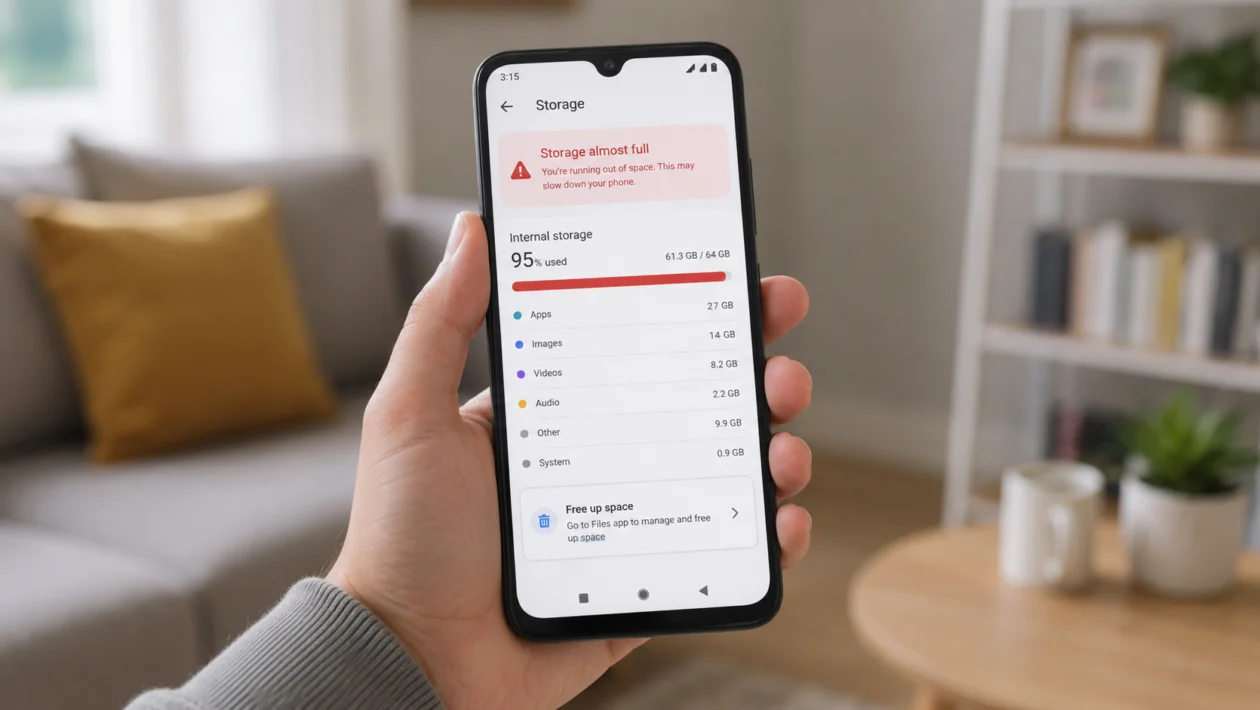
If your Xiaomi Poco C81 Pro storage keeps filling up quickly, the problem is usually not one single file. It is often a mix of app cache, downloads, WhatsApp media, duplicate photos, videos, hidden folders, offline files, and system data.
This matters more on the Poco C81 Pro because some versions come with 64GB, 128GB, or 256GB storage, and the available space is always lower than the advertised number because HyperOS, system files, and pre-installed apps already use part of it.
Start with the built-in storage tools first. Xiaomi already includes storage cleanup options inside HyperOS, so you do not need to install a random “phone cleaner” app right away.
Quick answer
To fix a Xiaomi Poco C81 Pro with storage quickly filling up, go to Settings > About phone > Storage > Clear and remove unnecessary files. Then open the Security app, use Cleaner, and check Deep clean for large videos, photos, apps, and cached files.
After that, check WhatsApp, Telegram, Downloads, Gallery trash, offline videos, and Memory extension. If storage keeps filling up after cleaning, back up your files and reset the phone only after trying the safer fixes below.
Xiaomi Poco C81 Pro storage diagnostic table
| Symptom | Likely cause | Check first |
|---|---|---|
| Storage fills up overnight | App cache, messaging media, syncing | Settings > About phone > Storage |
| “Other” or system storage is large | Cache, logs, temporary files | Security > Cleaner |
| Photos and videos take too much space | Camera videos, screenshots, duplicates | Gallery and File Manager |
| Storage drops after using WhatsApp | Auto-downloaded media | WhatsApp storage settings |
| Apps keep getting bigger | Cache, offline files, app data | Settings > Apps |
| Phone is slow and storage is almost full | Less free internal storage | Delete large files and unused apps |
| Storage fills after update | Temporary update files and app rebuilding | Restart and run Cleaner |
| Free space returns then disappears | Cloud sync, downloads, hidden media | Downloads, Gallery trash, Telegram |
| 4GB RAM extension is enabled | Storage used as virtual RAM | Memory extension settings |
| Nothing works | Corrupt data or deeper system issue | Backup, then factory reset |
Why your Xiaomi Poco C81 Pro storage fills up fast
Your Poco C81 Pro storage can fill up quickly because apps are constantly saving temporary files, downloaded media, thumbnails, backups, and offline content.
The most common causes are:
Apps storing cache
WhatsApp, Telegram, or Messenger media
Large videos from the Camera app
Screenshots and screen recordings
Offline YouTube, Netflix, Spotify, or Maps files
Downloads you forgot to delete
Duplicate photos
Gallery trash not emptied
Memory extension using internal storage
System update files and temporary HyperOS data
Here are the 10 fixes to try.
1. Check what is using your storage first
Do this before deleting random files.
Open Settings.
Tap About phone.
Tap Storage.
Check which category is using the most space.
Look for apps, images, videos, audio, documents, APKs, and “Other.”
If videos are taking the most space, cleaning app cache will not help much. If apps are the issue, deleting photos will not fix the real problem.
This is the fastest way to avoid wasting time.
2. Use Xiaomi’s built-in storage cleaner
Xiaomi recommends using the built-in storage clear option when a Xiaomi phone shows low storage.
Open Settings.
Tap About phone.
Tap Storage.
Tap Clear.
Review the files suggested for removal.
Delete only the files you do not need.
Then try the Security app:
Open Security.
Tap Cleaner.
Tap Clean up.
Wait for the scan to finish.
Delete junk files and cache.
This is safer than using a third-party cleaner app because it is built into Xiaomi’s software.
3. Use Deep clean for large photos, videos, and apps
The normal Cleaner removes junk files. Deep clean helps you find the files that actually eat storage.
Open the Security app.
Tap Deep clean.
Check large videos.
Check duplicate or similar photos.
Check rarely used apps.
Check large files.
Delete only what you recognize.
Do not delete folders if you are not sure what they are. Focus on obvious files first, such as old videos, downloaded APKs, duplicate photos, and screen recordings.
This fix usually frees more space than clearing cache because videos and duplicate media can take several gigabytes.
4. Clear cache from large apps
Some apps grow over time because they store cache. Social media apps, browsers, maps, shopping apps, video apps, and games are common storage users.
Open Settings.
Tap Apps.
Tap Manage apps.
Choose a large app.
Tap Storage.
Tap Clear cache.
Do not tap Clear data unless you understand what it does. Clearing data can sign you out, remove downloads, delete settings, or reset the app.
Apps worth checking:
TikTok
Facebook
Instagram
Chrome
YouTube
Google Maps
Shopee or Lazada
Mobile games
Telegram
WhatsApp
Cache usually comes back over time, so this is not a one-time permanent fix. Still, it can quickly recover space.
5. Clean WhatsApp, Telegram, and Messenger media
Messaging apps are one of the biggest hidden storage problems on Android phones.
For WhatsApp:
Open WhatsApp.
Tap the three-dot menu.
Tap Settings.
Tap Storage and data.
Tap Manage storage.
Delete large videos, forwarded files, and old media.
Also turn off auto-download:
Go to Settings > Storage and data.
Check Media auto-download.
Disable auto-download for mobile data if needed.
For Telegram:
Open Telegram.
Go to Settings.
Tap Data and Storage.
Tap Storage Usage.
Clear cache and set a shorter media retention period.
For Messenger:
Open Settings inside the app or clear cache from Android app settings.
This is especially useful if your storage fills up again after every group chat, family chat, or video-heavy conversation.
6. Delete old downloads, APK files, and documents
The Downloads folder is easy to forget. It can hold PDFs, ZIP files, APK installers, videos, memes, receipts, and duplicate documents.
Open File Manager.
Tap Downloads.
Sort by size or date.
Delete files you no longer need.
Also check these folders:
Documents
APK
Bluetooth
Screen recordings
Compressed files
Music
Movies
Pay attention to APK files. Once an app is installed, the installer file is usually no longer needed.
7. Empty Gallery trash and remove duplicate photos
Deleting photos does not always free storage immediately. Many gallery apps keep deleted items in Trash or Recently deleted for a recovery period.
Open Gallery.
Go to Albums.
Look for Trash, Recently deleted, or similar.
Delete items permanently if you no longer need them.
Then check for duplicates:
Open Gallery or File Manager.
Look for duplicate photos, screenshots, burst shots, and edited copies.
Delete the versions you do not need.
Also check videos recorded at high quality. A few long videos can use more storage than hundreds of photos.
8. Move photos, videos, and files to a microSD card or cloud backup
The Poco C81 Pro supports Dual SIM plus microSD, so you can move media files away from internal storage if your region’s model includes that slot.
Good files to move:
Photos
Videos
Music
Documents
Offline files
Backups
Screen recordings
You can move files using File Manager:
Open File Manager.
Select large files or folders.
Tap Move.
Choose the microSD card.
Confirm the transfer.
You can also back up photos to Google Photos, Xiaomi Cloud, or another cloud service, then remove local copies after confirming the backup is complete.
Do not delete local photos until you have checked that the backup actually finished.
9. Turn off Memory extension if storage is very low
The Poco C81 Pro supports memory extension, but this feature uses part of internal storage as virtual RAM. That can be helpful for multitasking, but it is not ideal if your phone is already low on storage.
Open Settings.
Search for Memory extension.
Tap Memory extension.
Turn it off or reduce it if the option is available.
Restart the phone.
This will not delete your files. It simply stops using part of your internal storage for virtual RAM.
This fix is worth trying if you have the 64GB version or if your free space is already low.
10. Back up your phone and reset it if storage still keeps filling up
Only do this after trying the other fixes.
A factory reset can help if storage keeps disappearing because of corrupted app data, leftover system files, or a software issue that normal cleaning does not fix.
Before resetting:
Back up photos and videos.
Back up contacts.
Back up WhatsApp chats.
Save important documents.
Check your Google account and Xiaomi account login details.
Charge the phone.
Then reset:
Open Settings.
Tap About phone.
Tap Factory reset.
Choose Erase all data.
Follow the on-screen instructions.
This deletes your personal files from the phone, so do not skip the backup.
Best fix if you only have 5 minutes
Start here:
Go to Settings > About phone > Storage > Clear.
Open Security > Cleaner > Clean up.
Open Security > Deep clean and delete large videos or unused apps.
Open WhatsApp or Telegram and remove large media files.
Empty Gallery trash.
That combination usually gives the biggest storage recovery in the shortest time.
How to stop your Poco C81 Pro storage from filling up again
After cleaning your phone, change a few habits:
Turn off auto-download in WhatsApp and Telegram.
Delete screen recordings after sharing them.
Move old videos to a microSD card.
Clear app cache every few weeks.
Avoid installing multiple cleaner apps.
Uninstall games and apps you do not use.
Check Downloads once a month.
Keep at least a few GB of free space for updates and app performance.
FAQ
Why does my Poco C81 Pro storage fill up even after deleting files?
Deleted photos and videos may still be inside Gallery trash. Messaging apps may also download new media again after you clean storage. Check Gallery trash, WhatsApp storage, Telegram cache, and Downloads.
Is it safe to clear cache on the Poco C81 Pro?
Yes, clearing cache is usually safe. It removes temporary files. Some apps may load slower the next time you open them, but your personal files should not be deleted.
Should I use a third-party cleaner app?
Usually, no. Use Xiaomi’s built-in Cleaner and Deep clean first. Many third-party cleaner apps add notifications, ads, background activity, or extra storage use.
