
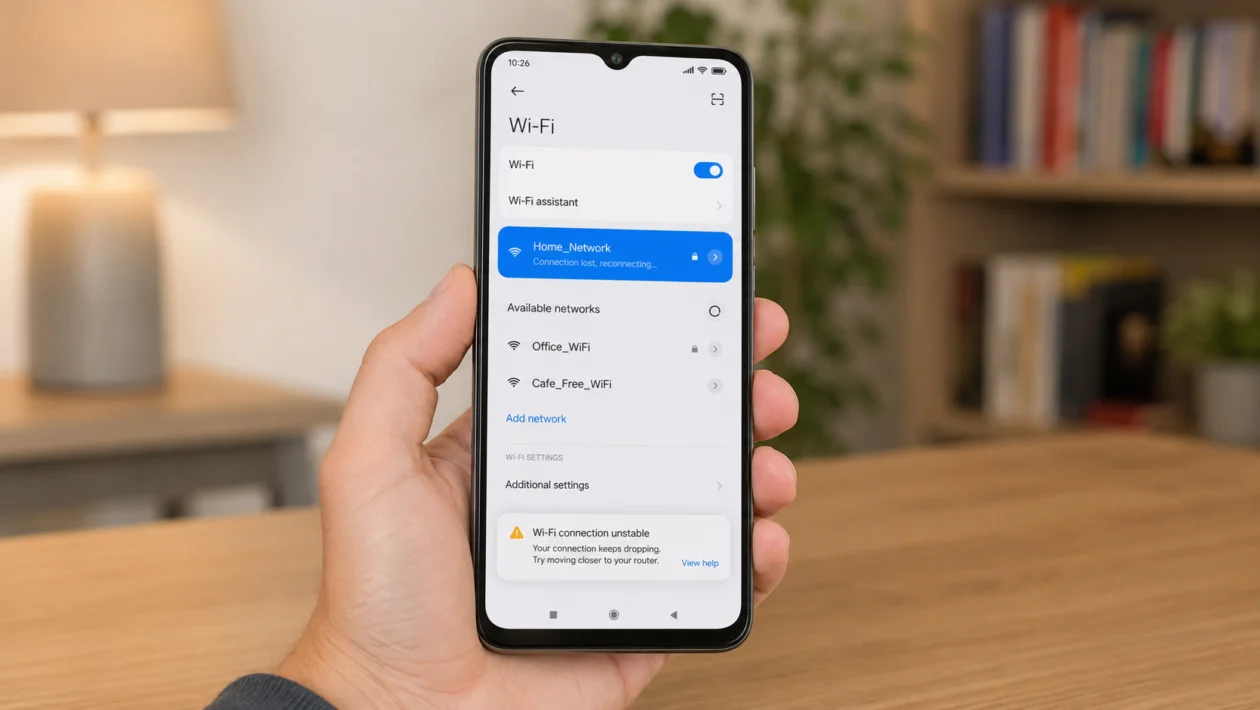
If your Xiaomi Poco C81 Pro keeps disconnecting from Wi-Fi, the problem may not be the phone itself. It can happen because of a weak signal, router issues, Wi-Fi Assistant switching networks, battery restrictions, corrupted network settings, VPN apps, or a recent HyperOS update.
Start with the simple checks first. Restart the phone and router, forget the Wi-Fi network, then check the settings that can make the Poco C81 Pro leave a network automatically.
Quick answer
To fix a Xiaomi Poco C81 Pro that keeps disconnecting from Wi-Fi, restart the phone and router first. Then go to Settings > Wi-Fi, forget the network, reconnect, and check whether Wi-Fi Assistant or automatic network switching is causing the phone to move away from your Wi-Fi.
If the issue continues, update HyperOS, reset Wi-Fi, mobile networks, and Bluetooth, then test another Wi-Fi network to check whether the problem is with the phone or your router.
Xiaomi Poco C81 Pro Wi-Fi disconnecting diagnostic table
| Symptom | Likely cause | What to check first |
|---|---|---|
| Wi-Fi drops every few minutes | Weak signal or router issue | Move closer to the router |
| Wi-Fi disconnects only at home | Router setting or band issue | Restart router and test 2.4GHz |
| Wi-Fi disconnects when screen is off | Battery or background restriction | Battery settings |
| Wi-Fi switches to mobile data | Wi-Fi Assistant or smart switching | Wi-Fi Assistant settings |
| Wi-Fi connects but has no internet | Router, DNS, or network cache | Forget and reconnect |
| Wi-Fi disconnects after update | HyperOS or app issue | Restart and update software |
| Only one app loses connection | App, VPN, or private DNS | Disable VPN or private DNS |
| All Wi-Fi networks disconnect | Phone network settings issue | Reset network settings |
| Other phones disconnect too | Router or ISP issue | Restart router or contact ISP |
| Wi-Fi icon disappears randomly | Possible system or hardware issue | Test Safe Mode or support |
Why does my Xiaomi Poco C81 Pro Wi-Fi keep disconnecting?
Your Xiaomi Poco C81 Pro may keep disconnecting from Wi-Fi because the phone is struggling to keep a stable connection or because a setting is telling it to switch networks.
Common causes include:
Weak Wi-Fi signal
Router cache or temporary router errors
Wi-Fi Assistant switching to mobile data
Battery Saver restricting background activity
A VPN or private DNS conflict
Corrupted Wi-Fi settings
Outdated HyperOS software
Router band or channel problems
Too many saved networks
Possible hardware or antenna issue
The Poco C81 Pro runs Xiaomi HyperOS, so the exact wording of menus may vary slightly by region and software version. The steps below use common Xiaomi and POCO menu paths.
1. Restart your Poco C81 Pro and router
Start here before changing deeper settings. A restart clears temporary network glitches on the phone and refreshes the router connection.
- Press and hold the Power button.
- Tap Restart.
- Unplug your Wi-Fi router from power.
- Wait 30 seconds.
- Plug the router back in.
- Wait until the Wi-Fi light is stable.
- Reconnect your Poco C81 Pro to Wi-Fi.
Use the phone normally for a few minutes. Open YouTube, Chrome, TikTok, Facebook, or any app that usually loses connection.
If the Wi-Fi stays connected after this, the issue was probably a temporary router or phone network glitch.
2. Move closer to the router and check signal strength
A weak signal can make the phone disconnect, reconnect, and disconnect again. This is common if you are far from the router, behind thick walls, near appliances, or using Wi-Fi in another room.
Try this:
- Stand near the router.
- Connect your Poco C81 Pro to Wi-Fi.
- Check if the Wi-Fi icon stays full or nearly full.
- Use the internet for 5 to 10 minutes.
- Move back to your usual spot and test again.
If Wi-Fi works near the router but drops in another room, the phone may not be the problem. Your router signal may be too weak in that area.
In that case, try moving the router to a more open spot, using the 2.4GHz band for longer range, or adding a Wi-Fi extender.
3. Forget the Wi-Fi network and reconnect
If the saved Wi-Fi profile is corrupted, your Poco C81 Pro may keep trying to reconnect using old or broken network details.
- Open Settings.
- Tap Wi-Fi.
- Tap the network you are using.
- Tap Forget network.
- Restart your phone.
- Go back to Settings > Wi-Fi.
- Select your Wi-Fi network again.
- Enter the password.
This is one of the best fixes when the phone connects, drops, then reconnects to the same network again and again.
Also check that you are entering the correct password. If the router password was changed recently, the phone may keep failing the connection in the background.
4. Turn off Wi-Fi Assistant or automatic network switching
Some Xiaomi and POCO phones include Wi-Fi Assistant features that can switch networks or move to mobile data when Wi-Fi looks weak. That can be helpful, but it can also make Wi-Fi feel unstable.
Check this setting:
- Open Settings.
- Tap Wi-Fi.
- Look for Wi-Fi Assistant, Additional settings, or Advanced settings.
- Turn off options such as Switch to mobile data automatically.
- Turn off automatic network switching if available.
- Reconnect to your Wi-Fi network.
After changing this, test the phone again.
This fix is useful if your Poco C81 Pro disconnects from Wi-Fi even though the Wi-Fi still works on your laptop, TV, or another phone.
5. Turn off Battery Saver temporarily
Battery Saver can sometimes limit background network activity. If the Wi-Fi disconnects when the screen is off, when the phone is idle, or when an app runs in the background, check battery settings.
- Open Settings.
- Tap Battery.
- Turn off Battery Saver.
- Turn off Ultra Battery Saver if it is enabled.
- Test Wi-Fi again.
Then check the app that keeps losing connection:
- Open Settings.
- Tap Apps.
- Tap Manage apps.
- Choose the affected app.
- Tap Battery saver.
- Choose No restrictions for testing.
Do this only for apps that need a constant connection, such as messaging apps, video call apps, or work apps. Leaving every app unrestricted can reduce battery life.
6. Update HyperOS and your apps
A software bug can cause Wi-Fi problems after an update or after installing a new app. Xiaomi also recommends keeping the phone updated for stable performance.
To update your Poco C81 Pro:
- Open Settings.
- Tap About phone.
- Tap Xiaomi HyperOS version.
- Tap Check for updates.
- Install any available update.
- Restart the phone after updating.
To update apps:
- Open Google Play Store.
- Tap your profile icon.
- Tap Manage apps and device.
- Tap Update all.
If the Wi-Fi problem started right after a system update, restart the phone and give it some time. Phones can behave strangely after large updates while apps and background services settle.
If the issue continues after a day or two, move to the next fixes.
7. Disable VPN, private DNS, or ad-blocking apps
A VPN, private DNS, firewall app, or ad blocker can make it look like Wi-Fi is disconnecting when the real issue is traffic being blocked.
Try this:
- Open Settings.
- Tap VPN, or search for VPN in Settings.
- Disconnect any active VPN.
- Go back to Settings.
- Search for Private DNS.
- Set Private DNS to Off or Automatic.
- Restart the phone.
- Test Wi-Fi again.
Also check recently installed apps. If the Wi-Fi started disconnecting after you installed a VPN, cleaner app, security app, DNS app, or ad blocker, uninstall that app temporarily and test the connection again.
8. Switch between 2.4GHz and 5GHz Wi-Fi
Some routers use both 2.4GHz and 5GHz Wi-Fi. The 5GHz band is usually faster, but the 2.4GHz band often works better through walls and at longer distances.
If your router shows two networks, test both:
- Open Settings.
- Tap Wi-Fi.
- Connect to the 2.4GHz network.
- Test the connection.
- Then connect to the 5GHz network.
- Test again.
If your Poco C81 Pro only disconnects on 5GHz, use 2.4GHz in areas far from the router.
If your router combines both bands under one name, log in to the router settings and separate the 2.4GHz and 5GHz names if possible. For example:
HomeWiFi_2.4G
HomeWiFi_5G
This makes it easier to see which band is more stable for your phone.
9. Reset Wi-Fi, mobile networks, and Bluetooth
If the Wi-Fi settings are corrupted, resetting network settings can give the phone a clean wireless configuration.
This will remove saved Wi-Fi networks, Bluetooth pairings, and mobile network settings. It will not delete your photos, apps, or personal files.
- Open Settings.
- Tap More connectivity options.
- Tap Reset Wi-Fi, mobile networks, and Bluetooth.
- Tap Reset settings.
- Enter your lock screen password if asked.
- Restart the phone.
- Reconnect to your Wi-Fi network.
After doing this, test Wi-Fi before changing other settings. If the connection is stable now, the issue was likely caused by a broken network configuration.
10. Test Safe Mode or contact Xiaomi support
If none of the fixes work, test whether a third-party app is causing the disconnection.
To enter Safe Mode:
- Press and hold the Power button.
- Touch and hold Power off.
- Tap Safe Mode if the option appears.
- Connect to Wi-Fi.
- Test the connection.
Safe Mode disables downloaded apps temporarily. If Wi-Fi works in Safe Mode, one of your installed apps may be causing the problem.
Look for apps installed around the time the issue started. Start with VPN apps, cleaner apps, battery saver apps, antivirus apps, automation apps, and Wi-Fi tools.
If Wi-Fi still disconnects in Safe Mode, test another router or hotspot.
Use this test:
- Connect the Poco C81 Pro to a different Wi-Fi network.
- Try a mobile hotspot from another phone.
- Check if the same disconnection happens.
If the phone disconnects from every Wi-Fi network, contact Xiaomi or POCO support. The issue may be deeper than a normal setting problem.
Should you factory reset your Poco C81 Pro?
A factory reset should be the last option, not the first fix. Try the 10 solutions above before erasing the phone.
Only consider a factory reset if:
The phone disconnects from all Wi-Fi networks
Network reset did not help
Safe Mode did not help
HyperOS is already updated
You already backed up your files
Xiaomi support recommends it
Before resetting, back up your photos, videos, contacts, messages, and important app data.
FAQ
Why does my Poco C81 Pro disconnect from Wi-Fi when the screen turns off?
This can happen because of Battery Saver, app battery restrictions, or background network management. Turn off Battery Saver temporarily and set the affected app to No restrictions under app battery settings.
Why does my Poco C81 Pro switch from Wi-Fi to mobile data?
Wi-Fi Assistant or automatic network switching may be enabled. Go to Settings > Wi-Fi and check Wi-Fi Assistant or advanced Wi-Fi settings. Turn off automatic switching for testing.
Why does Wi-Fi work on other phones but not my Poco C81 Pro?
The saved network profile on your Poco C81 Pro may be corrupted, or the phone may have a network setting conflict. Forget the Wi-Fi network first. If that fails, reset Wi-Fi, mobile networks, and Bluetooth.
