
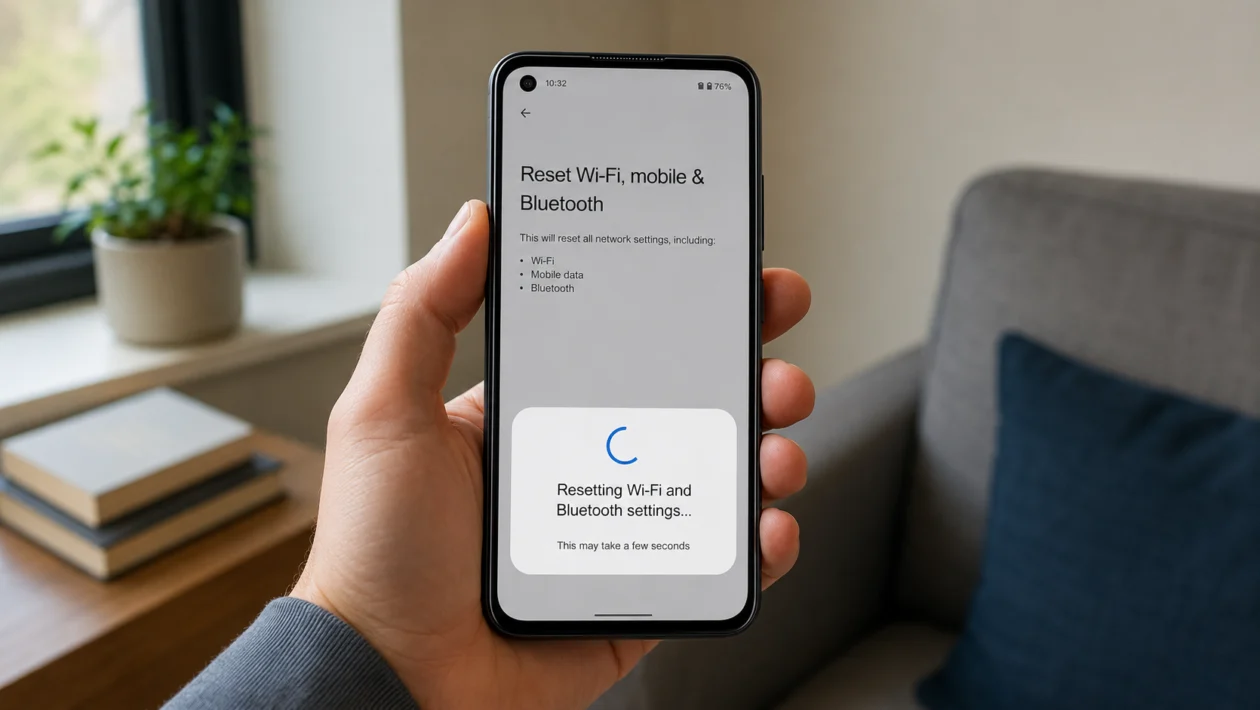
If your Asus Zenfone 10 keeps disconnecting from Wi-Fi, refuses to pair with Bluetooth devices, or cannot reconnect to saved networks, resetting the Wi-Fi and Bluetooth settings can help.
This does not erase your photos, apps, messages, or personal files. It resets network-related settings, so you may need to reconnect to Wi-Fi networks, re-pair Bluetooth devices, and check any saved VPN or mobile network settings afterward.
Start with the simple checks first. Restart the phone, toggle Wi-Fi and Bluetooth, forget the affected connection, then reset the network settings if the problem continues.
Quick answer
To reset Wi-Fi and Bluetooth settings on your Asus Zenfone 10, open Settings > System > Reset options > Reset Wi-Fi, mobile & Bluetooth, then tap Reset settings and confirm.
After the reset, reconnect to your Wi-Fi network and pair your Bluetooth devices again. Use this fix if your Zenfone 10 has saved network errors, failed Bluetooth pairing, unstable Wi-Fi, or connection problems after a software update.
Asus Zenfone 10 Wi-Fi and Bluetooth reset table
| Problem | Likely cause | What to try first |
|---|---|---|
| Wi-Fi keeps disconnecting | Saved network error, weak signal, router issue | Forget and reconnect to Wi-Fi |
| Bluetooth will not pair | Old pairing record or device conflict | Unpair the device and pair again |
| Wi-Fi works on other phones but not Zenfone 10 | Phone network settings issue | Reset Wi-Fi, mobile and Bluetooth |
| Bluetooth audio cuts out | Interference, codec issue, old pairing | Restart both devices |
| Wi-Fi disappeared after update | Software or saved setting conflict | Restart, update, reset network settings |
| Cannot connect to one Wi-Fi network | Router password, security, or IP issue | Forget network and reconnect |
| Cannot connect to any Wi-Fi network | System network issue | Reset Wi-Fi and Bluetooth settings |
| Bluetooth device connects then drops | Battery, range, or pairing conflict | Remove old pairings |
| Mobile data affected after reset | APN or carrier settings need refresh | Restart phone and check carrier settings |
| Reset did not help | Router, accessory, software, or hardware issue | Test another network or contact support |
What happens when you reset Wi-Fi and Bluetooth settings?
Resetting Wi-Fi and Bluetooth settings removes saved wireless connection data from your Zenfone 10.
It may remove or reset:
Saved Wi-Fi networks
Saved Wi-Fi passwords
Bluetooth pairings
Mobile network preferences
APN-related settings in some cases
VPN-related network settings in some cases
It should not delete:
Photos
Videos
Apps
Messages
Contacts
Downloads
Google account data
Files stored on the phone
Before you reset, make sure you know your Wi-Fi password. You will need it when reconnecting.
1. Restart your Asus Zenfone 10 first
Do this before resetting anything. A restart can clear temporary connection problems without removing saved networks or Bluetooth pairings.
Press and hold the Power button.
Tap Restart.
Wait for the phone to turn back on.
Try Wi-Fi or Bluetooth again.
This is useful if the issue started suddenly after the phone woke from sleep, switched networks, or disconnected from a Bluetooth speaker, earbuds, smartwatch, or car system.
2. Toggle Wi-Fi and Bluetooth off and on
If the connection is stuck, turn the wireless radios off and on again.
For Wi-Fi:
Open Settings.
Tap Network & internet.
Tap Internet or Wi-Fi.
Turn Wi-Fi off.
Wait 10 seconds.
Turn Wi-Fi back on.
For Bluetooth:
Open Settings.
Tap Connected devices.
Tap Connection preferences.
Tap Bluetooth.
Turn Bluetooth off.
Wait 10 seconds.
Turn Bluetooth back on.
You can also use Quick Settings by swiping down from the top of the screen. This is faster, but the Settings app gives you more control if you need to check saved devices or networks.
3. Forget the Wi-Fi network and reconnect
Use this if your Zenfone 10 has trouble with one specific Wi-Fi network.
Open Settings.
Tap Network & internet.
Tap Internet or Wi-Fi.
Tap the network name.
Tap Forget.
Select the same network again.
Enter the Wi-Fi password.
Tap Connect.
This can fix problems caused by an old password, router security change, incorrect saved IP configuration, or a saved network profile that no longer matches the router.
4. Remove the Bluetooth device and pair it again
Use this if Bluetooth fails with one device, such as earbuds, a speaker, a car, a keyboard, or a smartwatch.
Open Settings.
Tap Connected devices.
Find the Bluetooth device.
Tap the gear icon beside it.
Tap Forget or Unpair.
Restart the Bluetooth device.
Put it back in pairing mode.
Pair it with your Zenfone 10 again.
If you are pairing earbuds, place them back in the case first, then follow the manufacturer’s pairing reset steps. Some earbuds will not re-pair correctly unless they are removed from both the phone and the charging case memory.
5. Reset Wi-Fi, mobile, and Bluetooth settings
This is the main fix if Wi-Fi and Bluetooth problems keep coming back.
Open Settings.
Scroll down and tap System.
Tap Reset options.
Tap Reset Wi-Fi, mobile & Bluetooth.
Tap Reset settings.
Enter your PIN, pattern, or password if asked.
Confirm the reset.
After the reset, restart the phone. Then reconnect to Wi-Fi and pair your Bluetooth devices again.
Use this when:
Wi-Fi keeps disconnecting
Bluetooth pairing fails repeatedly
Wi-Fi and Bluetooth both stopped working after an update
The phone cannot connect to networks it used to remember
Bluetooth audio cuts out even after re-pairing
Network settings feel corrupted
6. Reconnect to Wi-Fi after the reset
Once the reset is finished, your Zenfone 10 may no longer remember your saved Wi-Fi networks.
Open Settings.
Tap Network & internet.
Tap Internet or Wi-Fi.
Choose your Wi-Fi network.
Enter the password.
Tap Connect.
If the network does not appear, move closer to the router and wait a few seconds. You can also restart the router if other devices are having connection problems too.
If the Wi-Fi network is hidden, tap Add network and enter the network name, security type, and password manually.
7. Pair Bluetooth devices again after the reset
After resetting Wi-Fi and Bluetooth settings, your old Bluetooth pairings may be removed.
Open Settings.
Tap Connected devices.
Tap Pair new device.
Put your Bluetooth accessory in pairing mode.
Tap the device name when it appears.
Confirm the pairing request.
For car Bluetooth, remove the Zenfone 10 from the car’s Bluetooth list too. Then pair both sides again from scratch.
For smartwatches, use the watch app instead of pairing only through Android Bluetooth settings. Some watches need their companion app to complete setup.
8. Check for system updates
If the issue started after a software update, another update may fix it. If the issue started before an update, the latest patch may also improve wireless stability.
Open Settings.
Tap System.
Tap System update.
Check for updates.
Install any available update.
Restart the phone.
Also update apps that manage connected devices, such as smartwatch apps, earbud apps, car apps, VPN apps, or router companion apps.
Open the Google Play Store.
Tap your profile icon.
Tap Manage apps and device.
Tap Update all, or update the affected apps manually.
9. Test another Wi-Fi network or Bluetooth device
Do this before assuming the Zenfone 10 is faulty.
For Wi-Fi, try connecting to:
A different home network
A mobile hotspot
Office Wi-Fi
Public Wi-Fi, if safe and trusted
For Bluetooth, try pairing:
Another speaker
Another pair of earbuds
Another car system
A keyboard or controller
If your Zenfone 10 works with other networks and accessories, the problem is probably with the router, Wi-Fi password, Bluetooth accessory, or device compatibility.
If it fails with every Wi-Fi network and every Bluetooth device, the issue may be deeper in the phone’s software or hardware.
10. Reset app preferences or contact Asus support if nothing works
If Wi-Fi or Bluetooth still fails after resetting network settings, check whether an app or system setting is interfering.
You can try resetting app preferences:
Open Settings.
Tap Apps.
Tap See all apps.
Tap the three-dot menu.
Tap Reset app preferences.
Confirm.
This can restore disabled system apps, default app permissions, and background restrictions that may affect connectivity. It does not delete your apps, but you may need to adjust some permissions again.
If the problem continues, contact Asus support or visit an authorized service center. This matters if:
Wi-Fi will not turn on
Bluetooth will not turn on
Both switches are greyed out
The phone gets hot when searching for networks
The issue started after a drop or liquid exposure
A full network reset does not change anything
At that point, the issue may not be a saved settings problem.
Should you factory reset your Asus Zenfone 10?
Do not factory reset the phone as your first fix.
A factory reset erases your data and returns the phone to its original setup state. Try it only after you have backed up your files and tested the easier fixes first.
Before factory resetting, try:
Restarting the phone
Forgetting the Wi-Fi network
Unpairing the Bluetooth device
Resetting Wi-Fi, mobile and Bluetooth
Updating the phone
Testing another router or accessory
Contacting Asus support
If Asus support recommends a factory reset, back up your phone first.
FAQ
Will resetting Wi-Fi and Bluetooth delete my files?
No. Resetting Wi-Fi, mobile and Bluetooth settings should not delete your photos, apps, messages, or files. It only resets network-related settings.
Will I lose my Wi-Fi passwords?
Yes, saved Wi-Fi networks and passwords may be removed. Keep your Wi-Fi password ready before resetting.
Will Bluetooth devices be removed?
Yes, Bluetooth pairings may be removed. You may need to pair your earbuds, speakers, smartwatch, keyboard, controller, or car Bluetooth again.
