
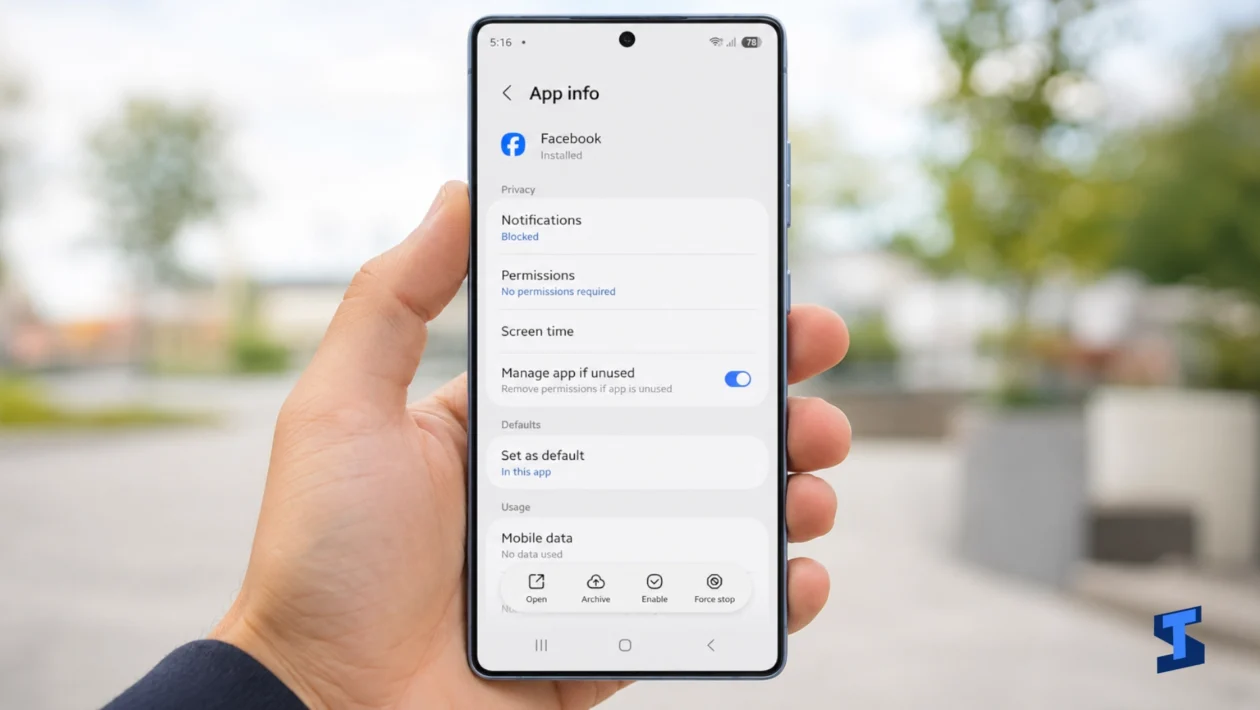
Apps may crash after a Galaxy S26 Ultra update because the phone’s system software has changed while one or more apps are still using outdated code, permissions, or temporary files. The problem can also come from low storage, an incomplete Google Play system update, or a third-party app interfering with other services.
Start by identifying whether one app is crashing or the entire phone is affected. Do not clear every app’s data or factory-reset the phone before you know which part is failing.
Quick fix
Restart the phone, update every app through the Google Play Store and Galaxy Store, then check for a Google Play system update.
If only one app still crashes, clear that app’s cache. If several unrelated apps crash, check your available storage and test the phone in Safe Mode.
First, identify what is actually crashing
The number and type of affected apps can point you toward the cause.
| What you notice | Most likely cause |
|---|---|
| One app closes immediately | Corrupted cache, outdated app, or compatibility problem |
| Several Google apps crash | Google Play system or app update problem |
| Samsung apps also crash | System software, storage, or firmware problem |
| Apps crash only when using the camera, location, or files | Missing permission |
| Crashes began after installing another app | Third-party app conflict |
| The entire phone freezes or restarts | Broader system problem rather than one faulty app |
Try to reproduce the crash twice. Note what you were doing, which app was open, and whether an error message appeared.
That information will be useful if you need to contact the developer or send Samsung an error report.
1. Restart the Galaxy S26 Ultra
A restart is worth trying first because an update may leave temporary processes running until the phone reboots cleanly.
Swipe down from the top of the screen twice, tap the Power icon, and select Restart.
After the phone turns back on, open the affected app before launching several other apps. If it works normally, a temporary background process may have caused the crash.
Restarting does not delete your photos, accounts, or personal files.
2. Update your apps from both app stores
A phone update can change how apps interact with Android, One UI, permissions, or background services. An older app version may not work correctly until its developer releases a compatible update.
Open the Google Play Store:
- Tap your profile picture.
- Select Manage apps and device.
- Install all available updates.
Then open the Galaxy Store and check its Updates section. Samsung apps may receive updates separately from Google Play apps.
Test the affected app again after updating.
If the app has not been updated recently and every other app works, the problem may need to be fixed by its developer. Check the app’s store page for recent reviews and compatibility information rather than downloading an unofficial APK from an unknown website.
Samsung’s official app-crash troubleshooting guide can be used as a manual source link here.
3. Install the latest Google Play system update
A Galaxy software update and a Google Play system update are not the same thing. Many Android apps rely on Google Play system components for security, sign-in, notifications, location, and other functions.
Go to:
Settings > About phone > Software information > Google Play system update
Install any available update and restart the phone if prompted.
This step is especially relevant when several unrelated apps crash, Google apps stop opening, or sign-in screens repeatedly close.
Also check:
Settings > Software update > Download and install
A smaller follow-up patch may already be available for a problem introduced by the earlier update.
The phrase Google Play system update is a suitable manual hyperlink anchor.
4. Clear the affected app’s cache
An app cache contains temporary files intended to help the app open faster. Some of those files may no longer match the updated operating system.
To clear them:
Settings > Apps > select the affected app > Storage > Clear cache
Reopen the app and repeat the action that previously caused it to crash.
Clearing the cache should not remove your account, saved settings, or personal files stored by the app. It is safer than clearing app data, which resets the app more completely.
Clear only the cache of the app causing the problem. There is no need to work through every app installed on the phone.
5. Check the app’s permissions
An app may close when it tries to use the camera, microphone, location, contacts, notifications, or storage without the permission it expects.
Open:
Settings > Apps > select the app > Permissions
Review the permissions under Allowed and Not allowed.
Grant only the permissions needed for the app’s main function. A camera app may need camera and microphone access, but a calculator should not require your contacts or precise location.
Test the feature that previously triggered the crash. If the app opens normally but crashes when attaching a photo or using location, a missing permission is a strong possibility.
6. Check your available storage
Apps need free storage for temporary files, downloads, updates, databases, and account information. A phone that is nearly full may open apps slowly or fail when an app tries to save new data.
Go to:
Settings > Device care > Storage
Remove files you no longer need, such as:
- Duplicate videos
- Old downloads
- Offline streaming content
- Unused games
- Large screen recordings
You can also open Settings > Device care and tap Optimize now. This can close unstable background apps and identify unnecessary storage use.
Avoid deleting unfamiliar system files through third-party cleaning apps. Freeing several gigabytes manually is safer than allowing an unknown cleaner to decide what should be removed.
7. Clear app data or reinstall the app
Use this step only when one specific app continues to crash after you have updated it and cleared its cache.
Go to:
Settings > Apps > select the app > Storage > Clear data
Warning: Clearing data resets the app. You may be signed out, lose downloaded content, remove saved preferences, or erase information stored only inside the app.
Confirm that important information is backed up or synchronized before continuing.
For a downloaded app, you can instead uninstall it, restart the phone, and reinstall it from the Google Play Store or Galaxy Store. This replaces damaged installation files with a fresh copy.
Do not uninstall an authenticator, banking, password-management, or messaging app until you know how to restore access.
8. Test the phone in Safe Mode
Safe Mode temporarily disables downloaded apps while keeping Samsung’s original system software available.
To enter it:
- Open the Power menu.
- Touch and hold Power off.
- Tap Safe mode.
- Wait for the phone to restart.
Use Samsung apps and any available system functions that were crashing.
If the problem disappears in Safe Mode, a downloaded app is probably causing the conflict. Start by removing apps installed or updated shortly before the crashes began. Launchers, antivirus apps, accessibility tools, VPNs, screen overlays, and system customisation apps deserve particular attention.
Restart the phone normally to exit Safe Mode.
Samsung’s Safe Mode instructions for Galaxy phones would be a useful manual hyperlink in this section.
Do not factory-reset the phone yet
A factory reset deletes accounts, apps, settings, and locally stored files. It also may not solve the problem if the app itself is incompatible with the latest software.
Before resetting the phone:
- Confirm your Samsung and Google backups
- Test Safe Mode
- Check for follow-up updates
- Contact the affected app’s developer
- Send Samsung an error report
A factory reset makes more sense when the entire system remains unstable and Samsung support recommends it after reviewing the problem.
When to contact Samsung
Send an error report when several Samsung and third-party apps continue crashing after updates, restarts, storage checks, and Safe Mode testing.
Open:
Samsung Members > Support > Error reports
Reproduce the problem shortly before sending the report so the relevant system logs can be included. Describe the app, the action that triggered the crash, and when the problem began.
Contact Samsung Members support or an authorised service centre if the phone also restarts, overheats while idle, becomes stuck on the Samsung logo, or cannot remain on long enough to complete troubleshooting.
