
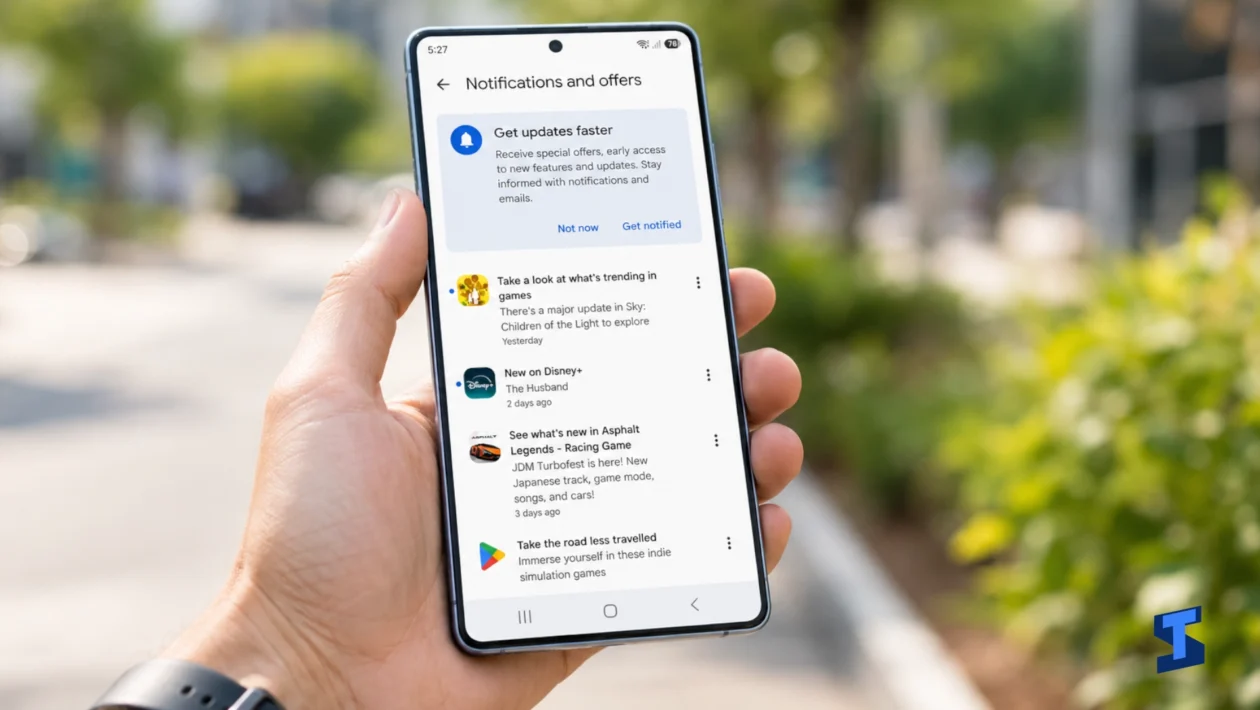
Notifications may arrive late on your Galaxy S26 Ultra when an app cannot stay active or access the internet in the background. Common causes include Samsung’s sleeping-app controls, per-app battery restrictions, Data Saver, unstable connectivity, Do Not Disturb schedules, and problems within the affected app.
Start by identifying whether the delay affects one app or every app. Do not disable every battery-saving feature at once. Change one setting, send a test message, and check the result.
Menu names may vary slightly by region, carrier, and software version.
Check whether the notification is late or simply hidden
A notification can arrive on time without producing a sound, vibration, pop-up, or lock-screen alert. Before changing battery settings, check when the phone actually received it.
Open:
Settings > Notifications > Advanced settings > Notification history
Enable Notification history if it is currently off. You will then be able to review recent alerts and their arrival order.
Use another device to send yourself a message while the Galaxy S26 Ultra is locked.
- If the notification appears in the history immediately but you do not notice it, check its sound, pop-up, lock-screen, and Do Not Disturb settings.
- If it appears in the history several minutes late, investigate background activity, data access, connectivity, or the app itself.
- If it appears only after opening the app, the app is probably being restricted in the background.
Identify the pattern before applying a fix
| What happens | Likely cause |
|---|---|
| Only one app is delayed | App permission, battery setting, cache, or server problem |
| Several apps update after unlocking the phone | Sleeping apps, Power saving, or background connection |
| Delays happen only on mobile data | Data Saver, weak reception, or mobile-data restriction |
| Delays happen only on Wi-Fi | Router, VPN, Private DNS, or Wi-Fi stability |
| Alerts arrive but make no sound | Notification category, Do Not Disturb, or sound setting |
| Work apps are delayed | Work-profile policy, VPN, authentication, or company restrictions |
This quick check prevents you from changing unrelated settings.
1. Confirm that the app is allowed to send notifications
Open:
Settings > Notifications > App notifications
Select the affected app and make sure notifications are allowed.
You can also go to:
Settings > Apps > select the app > Notifications
Check the app’s individual notification categories. An app may be allowed to send notifications while a specific category, such as direct messages, orders, calls, reminders, or account activity, remains disabled or silent.
Some apps also have notification controls inside the app. Open the affected app and review its settings, especially for muted conversations, quiet hours, priority contacts, and email synchronization.
Review the official Samsung notification settings when the available categories do not match the instructions above.
2. Remove important apps from Sleeping apps
Samsung can limit apps that have not been used frequently. This reduces battery consumption, but it may also delay background updates and notifications.
Open:
Settings > Battery > Background usage limits
Check both:
- Sleeping apps
- Deep sleeping apps
Remove messaging, email, security, banking, delivery, calendar, smart-home, and work apps that need to notify you immediately.
An app placed in Deep sleeping apps may not run normally in the background. It may update only after you open it.
You can add essential apps to Never auto sleeping apps if that option appears on your phone. Do this selectively. Allowing too many apps to remain active can increase standby battery drain.
3. Give the affected app unrestricted battery access
If notifications from one critical app remain delayed, open:
Settings > Apps > select the app > Battery
Choose Unrestricted, if available.
This permits the app to run in the background with fewer battery limitations. It is useful for apps such as:
- Messaging and calling apps
- Security-camera apps
- Two-factor authentication services
- Medical or safety apps
- Work communication tools
- Time-sensitive delivery or booking apps
Do not give unrestricted access to every installed app. Games, shopping apps, and rarely used services do not normally need it.
Unrestricted access can increase battery use, so apply it only to apps whose notifications must arrive promptly.
4. Check Power saving and Data Saver
Power saving can limit background activity. Turn it off temporarily:
Settings > Battery > Power saving
Lock the phone and send another test message. If the notification now arrives immediately, Power saving was probably affecting the app.
Data Saver can also stop selected apps from sending or receiving background data over a mobile connection.
Open:
Settings > Connections > Data usage > Data Saver
You can either turn Data Saver off for testing or add the affected app to apps allowed to use data while Data Saver is on.
Also open:
Settings > Apps > select the app > Mobile data
Make sure background data is permitted. Available options can vary by app and carrier.
5. Review Do Not Disturb, Modes, and Routines
Do Not Disturb usually silences notifications rather than delaying their delivery. However, it can make alerts appear late because you only notice them after the mode ends.
Open:
Settings > Notifications > Do not disturb
Check:
- Scheduled times
- Allowed apps
- Allowed contacts
- Hidden notification settings
- Exceptions for calls and messages
Next, open Settings > Modes and Routines. Look for Sleep, Work, Driving, Exercise, or custom modes that change notification behaviour.
A routine may activate automatically based on the time, location, connected Wi-Fi network, Bluetooth device, or charging status.
Add critical apps as exceptions rather than disabling Do Not Disturb completely.
6. Test Wi-Fi, mobile data, VPNs, and Private DNS
Notifications require a working background internet connection.
Turn off Wi-Fi and test the app using mobile data. Then reconnect to Wi-Fi and test again.
If delays happen on only one connection, investigate that connection rather than resetting the entire phone.
Temporarily disable:
- VPN apps
- Ad-blocking services
- Firewall apps
- Battery-management apps
- Custom Private DNS
- Network-monitoring tools
These services can interrupt an app’s connection to its notification server.
If alerts arrive late on one Wi-Fi network but work elsewhere, restart the router and check whether the network blocks background connections.
7. Update the app and clear its cache
An outdated or damaged app can fail to maintain its notification connection correctly.
Update the app through Google Play or the Galaxy Store. Then check for phone updates under:
Settings > Software update > Download and install
Restart the Galaxy S26 Ultra after updating.
If only one app remains affected, clear its temporary cache:
Settings > Apps > select the app > Storage > Clear cache
Do not select Clear data unless you have confirmed that your account, conversations, files, and app settings are safely backed up. Clearing data resets the app and may sign you out.
8. Test the phone in Safe Mode
Safe Mode temporarily disables downloaded apps. It can reveal whether a VPN, cleaner, launcher, antivirus tool, automation app, or battery manager is interfering with notifications.
Follow the official Samsung Safe Mode instructions and test the affected app where possible.
If notifications begin arriving normally in Safe Mode, restart the phone and remove recently installed or recently updated apps one at a time.
Safe Mode is less useful for testing an affected third-party app because that app may also be disabled. Its main purpose here is to identify broader interference affecting Samsung or system apps.
How to verify that the problem is fixed
Do not assume the issue is resolved after receiving one notification.
Send several test messages under the same conditions:
- Keep the phone locked for at least five minutes.
- Send a message while connected to Wi-Fi.
- Repeat the test using mobile data.
- Test with Power saving on and off.
- Review Notification history after every attempt.
Record the sending and arrival times. A repeated test is more reliable than judging the result from memory.
When to contact the app developer or Samsung
Contact the app developer when only one app remains delayed after you have checked its permissions, battery access, data access, cache, and updates. The app’s notification service or account synchronization may be responsible.
Contact Samsung support when multiple apps remain delayed across Wi-Fi and mobile data, particularly after a restart, software update, and Safe Mode test.
Avoid performing a factory reset until your files are backed up and simpler causes have been ruled out. A reset will not fix a problem caused by an app’s servers, account settings, workplace policy, or network provider.
