
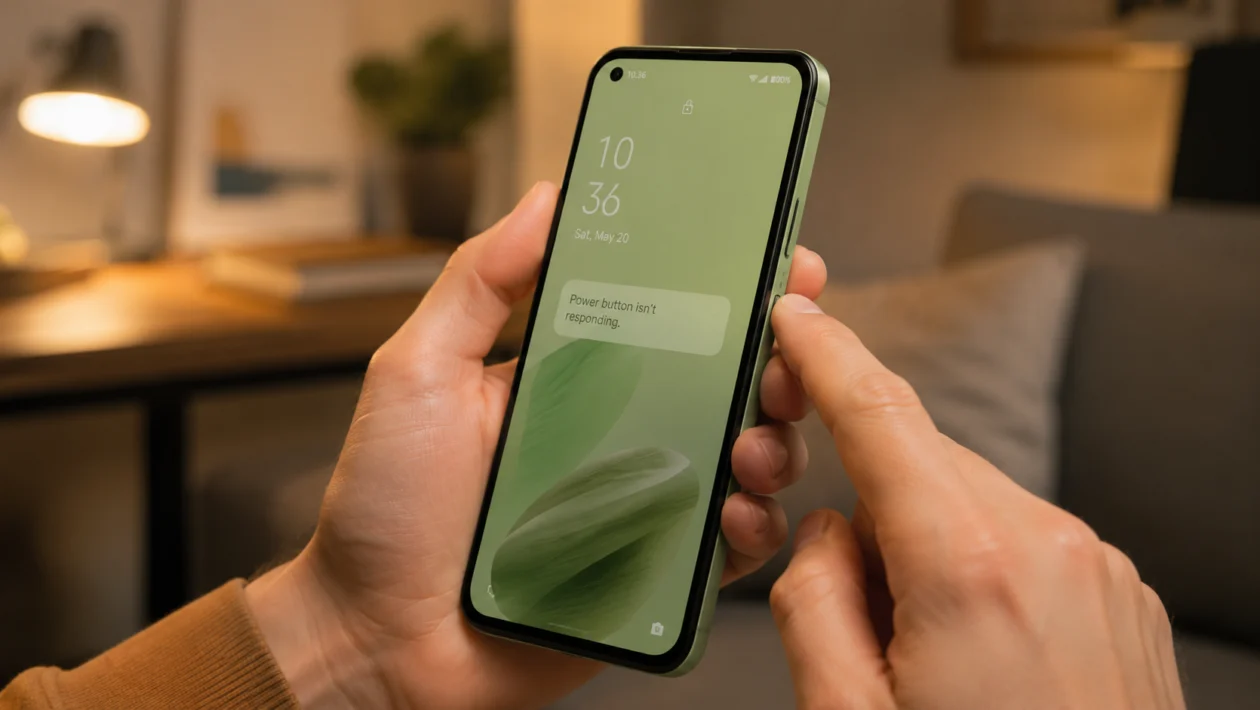
If your Asus Zenfone 10 power button is not responding, the problem may be caused by a stuck case, Smart Key settings, a temporary system freeze, a third-party app, outdated firmware, or physical button damage.
Start with the simple checks first. Remove the case, clean around the button, use the on-screen power menu, restart the phone, then check Smart Key and software settings before trying a reset or repair.
Quick answer
If your Asus Zenfone 10 power button is unresponsive, remove the case first and check if the button can click normally. Then open Quick Settings and use the on-screen power icon to restart or power off the phone.
If the button still does not respond, check Smart Key settings, update the phone through Settings > System > System updates > Check now, test the phone in Safe Mode, and contact ASUS support if the button feels stuck, loose, damaged, or completely dead.
Asus Zenfone 10 power button problem diagnostic table
| Symptom | Likely cause | What to try first |
|---|---|---|
| Power button does not click | Case pressure, dirt, or hardware damage | Remove the case and clean around the button |
| Long press does not open power menu | Smart Key action may be reassigned | Use Quick Settings power icon and check Smart Key |
| Phone is frozen and button seems dead | Temporary system crash | Force restart with Volume Down + Power |
| Button works only sometimes | Dirt, case pressure, worn button, or app conflict | Remove case, clean button, test in Safe Mode |
| Fingerprint works but power menu does not | Smart Key or software setting issue | Check Smart Key settings |
| Power button works in Safe Mode | Third-party app conflict | Remove recent apps or button remappers |
| Phone will not turn on | Battery, charger, system freeze, or hardware issue | Charge for at least 1 hour, then force restart |
| Button feels loose or sunken | Physical button damage | Stop pressing hard and contact ASUS support |
Why your Asus Zenfone 10 power button is not responding
The Asus Zenfone 10 uses the side button as a power key and Smart Key. That means the same button may handle power controls, fingerprint unlocking, gestures, and custom shortcuts.
When the button stops responding, it does not always mean the button is broken.
Common causes include:
- A tight case pressing against the button
- Dirt or debris around the side key
- A temporary Android system freeze
- Smart Key settings changing the long-press action
- A third-party app interfering with button behavior
- Outdated firmware
- Moisture or impact damage
- A worn or damaged side button
Here are the 10 fixes to try.
1. Remove the case and test the button again
Start here because the case is the easiest thing to rule out.
A tight or badly aligned case can press against the Zenfone 10 side button and stop it from clicking properly. This is especially common with thick protective cases or cases that have stiff button covers.
- Remove the case.
- Press the power button several times.
- Check if the button clicks normally.
- Try a short press to lock or wake the screen.
- Try a long press to open the power menu.
If the button works without the case, the phone is fine. The case is the problem.
2. Clean around the power button
Dust, lint, dried liquid, or pocket debris can make the side button feel stuck.
Do not use water, metal pins, SIM ejector tools, or sharp objects around the button. You do not want to push dirt deeper into the gap or damage the side key.
- Turn off the phone if possible.
- Remove the case.
- Use a dry microfiber cloth around the button.
- Use a soft brush to loosen dirt around the button edge.
- Press the button gently several times.
- Check if the button starts clicking again.
If the button feels sticky after liquid exposure, do not keep pressing it. That can make the damage worse.
3. Use the Quick Settings power button
If the physical button is not opening the power menu, use the on-screen power shortcut.
This is useful when the phone is still working but the side button is unreliable.
- Swipe down from the top of the screen.
- Swipe down again to open the full Quick Settings panel.
- Tap the power icon.
- Choose Power off or Restart.
- Wait for the phone to shut down or restart.
ASUS says that if a long press gesture has been assigned to another custom function, you may not be able to use it to turn off the phone normally. In that case, the Quick Settings power icon can still open the power menu.
4. Check Smart Key settings
The Zenfone 10 power button also works as a Smart Key. If the long press action was changed, the button may look broken even when the hardware still works.
Check this before assuming it is a repair issue.
- Open Settings.
- Go to Advanced.
- Look for Smart Key.
- Check what single press, double press, long press, or swipe actions are assigned to the button.
- Change the long press action back to the power menu if that option is available.
- Test the button again.
The exact wording can vary depending on your ZenUI version. If you do not see Smart Key under Advanced, use the search bar inside Settings and type Smart Key.
If the button clicks, wakes the screen, or reads your fingerprint, but long press does not open the power menu, this is more likely a setting issue than a broken button.
5. Force restart the Asus Zenfone 10
If the phone is frozen, the power button may not respond because Android itself is stuck.
A force restart does not delete your files. It simply forces the phone to reboot.
- Press and hold Volume Down and Power at the same time.
- Keep holding both buttons for at least 8 seconds.
- If nothing happens, keep holding for up to 12 seconds.
- Release the buttons when the screen turns off or the phone restarts.
- Wait for the phone to boot normally.
ASUS lists Volume Down + Power as the force restart method for Zenfone 7 and later models.
If this works, the button may not be physically broken. The phone may have been frozen.
6. Charge the phone for at least one hour
If the Zenfone 10 does not turn on at all, the button may not be the real problem. The battery may be fully drained, the charger may not be working, or the phone may be stuck in a low-power state.
- Plug the phone into a charger.
- Use a known working USB-C cable and adapter.
- Leave it charging for at least 1 hour.
- Check if the charging icon appears.
- Try turning it on again.
- If it still does not respond, try another charger and cable.
ASUS recommends charging the device with the original charger for at least 1 hour when the phone does not power on, then trying a different charger if needed.
If the phone charges but the power button still does not work, continue with the next fixes.
7. Update your Zenfone 10 system software
A software bug can affect button behavior, Smart Key shortcuts, fingerprint response, or power menu actions.
Install the latest system update before trying more serious fixes.
- Open Settings.
- Tap System.
- Tap System updates.
- Tap Check now.
- Install any available update.
- Restart the phone after updating.
- Test the power button again.
ASUS also recommends updating firmware when the Smart Key or power key does not respond as expected.
8. Test the phone in Safe Mode
Safe Mode starts the phone with only the built-in apps enabled. This helps you check whether a third-party app is interfering with the power button or Smart Key.
Try this if the button works sometimes, stopped working after installing an app, or behaves differently after an update.
- Open the power menu.
- Tap and hold Power off.
- Tap OK when Safe Mode appears.
- Wait for the phone to restart.
- Test the power button in Safe Mode.
If the power button works normally in Safe Mode, a third-party app is likely causing the issue.
Focus on apps that control gestures, accessibility shortcuts, screen lock, button remapping, automation, battery saving, or launch actions.
To exit Safe Mode, restart the phone normally.
9. Remove recent apps that control buttons or gestures
If Safe Mode helps, uninstall recently added apps first. Do not reset the whole phone yet.
Start with apps that can change button behavior, lock the screen, change gestures, automate actions, or run accessibility services.
- Open Settings.
- Tap Apps.
- Check recently installed apps.
- Uninstall button remapper, gesture, automation, launcher, battery saver, or lock screen apps one by one.
- Restart the phone after removing each suspicious app.
- Test the power button again.
This step is worth doing before a factory reset because it is faster and does not erase your data.
If the problem started right after installing one app, remove that app first.
10. Back up your data and contact ASUS support
Stop troubleshooting if the power button feels physically damaged.
Signs of hardware damage include:
- The button is stuck
- The button feels loose
- The button is sunken
- The button no longer clicks
- The phone was dropped
- The phone was exposed to liquid
- Fingerprint unlock also stopped working
- Force restart does not work
- The issue continues after updates and Safe Mode
Back up your data before sending the phone for repair.
You can also try a factory reset if the button still works physically and the issue looks software-related. Do this only after backing up your files.
- Open Settings.
- Tap System.
- Tap Reset options.
- Choose the factory reset option.
- Read the warning carefully.
- Back up important files before continuing.
Caution: A factory reset erases apps, settings, and personal information from the phone.
If the button is physically damaged, a reset will not fix it. Contact ASUS support or visit an authorized service center instead.
What to do if the power button is completely dead
If the power button does not click and the phone is still on, avoid letting the battery drain to 0%. Keep the phone charged while you back up your data.
Use the Quick Settings power icon when you need the power menu. You can also enable accessibility shortcuts if you need an on-screen way to lock or control the phone, but treat that as a temporary workaround.
A dead physical button usually needs inspection or repair.
FAQs
Why is my Asus Zenfone 10 power button not working?
Your Asus Zenfone 10 power button may not be working because of a tight case, dirt around the button, Smart Key settings, a frozen system, outdated firmware, a third-party app, or physical button damage.
How do I restart my Asus Zenfone 10 if the power button is unresponsive?
Open Quick Settings and tap the power icon, then choose Restart. If the phone is frozen, press and hold Volume Down + Power for at least 8 seconds. If it does not restart, keep holding both buttons for up to 12 seconds.
Can Smart Key settings stop the power menu from opening?
Yes. If the long press gesture is assigned to another custom function, the power button may not open the power menu as expected. Check Settings > Advanced > Smart Key and review the assigned actions.
