
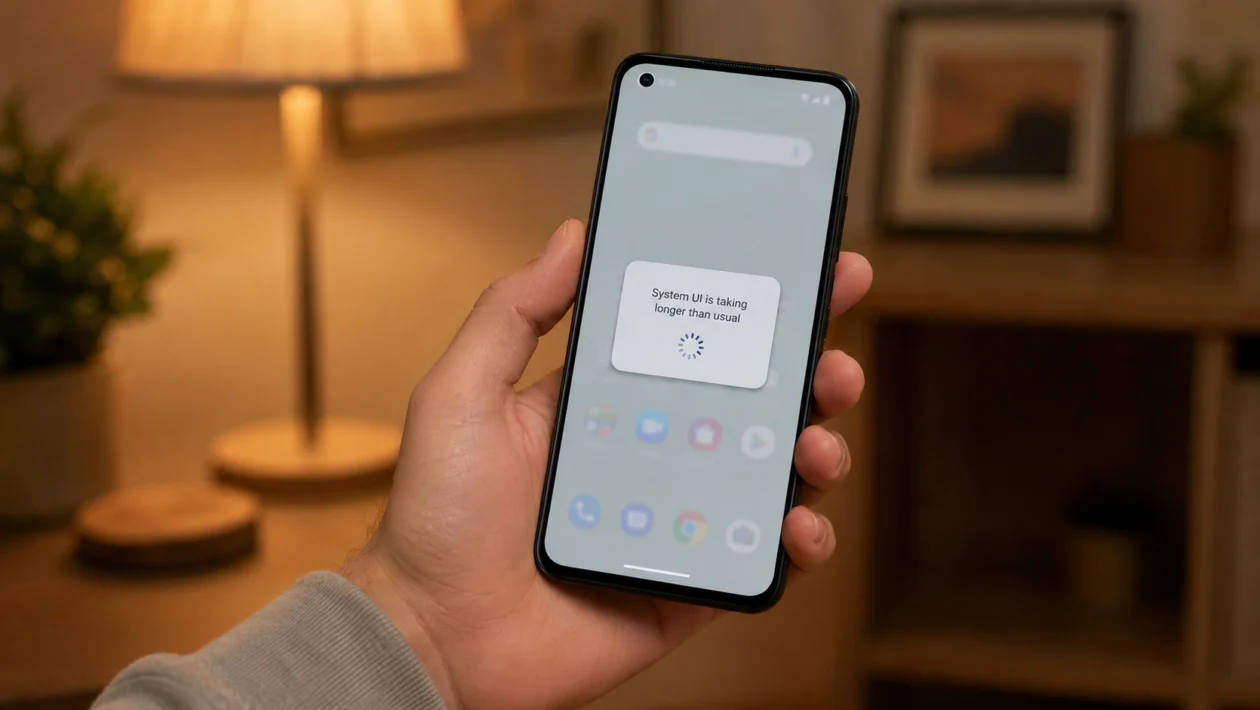
If your Asus Zenfone 10 feels slow when opening apps, swiping home, pulling down Quick Settings, typing, or switching between apps, the problem is usually caused by software, storage, animations, background apps, heat, or a bad app update.
The Zenfone 10 has strong hardware, so normal use should feel smooth. Asus lists the phone with the Snapdragon 8 Gen 2 platform, LPDDR5X RAM, and a high refresh rate display, which means regular UI delays are usually not expected unless something is getting in the way.
Start with the simple checks first. Restart the phone, check storage, update apps, then adjust the settings most likely to affect performance.
Quick answer
If your Asus Zenfone 10 has UI delays, restart the phone first. Then go to Settings > System > System update and install any available update. After that, open Settings > Apps and check recently installed or recently updated apps.
If the lag happens only in one app, clear that app’s cache or update it. If the whole phone feels delayed, check storage, refresh rate, animations, battery mode, background apps, and Safe Mode.
Do not factory reset the phone first. Use that only after the easier fixes fail.
Asus Zenfone 10 UI delay diagnostic table
| Symptom | Likely cause | What to check first |
|---|---|---|
| Delay when swiping home | Launcher, animations, background load | Restart and update apps |
| Slow app opening | Low storage, app cache, background apps | Storage and app cache |
| Lag after software update | System optimization or app conflict | Restart, update apps, wait 24 to 48 hours |
| Keyboard delay | Keyboard app cache or memory pressure | Keyboard app settings |
| Quick Settings lag | System UI load, animation scale, theme issue | Restart and animation settings |
| Touch feels delayed | Refresh rate, screen protector, heat | Display and touch checks |
| Lag during gaming | Heat, power mode, Game Genie settings | Temperature and battery mode |
| Phone freezes briefly | Problem app or low storage | Safe Mode |
| Lag after installing an app | Third-party app conflict | Uninstall or test in Safe Mode |
| Lag continues after every fix | Deeper software or hardware issue | Backup and reset, then Asus support |
Why is my Asus Zenfone 10 UI delayed?
Your Asus Zenfone 10 may feel delayed because the phone is busy doing something in the background, an app is misbehaving, storage is nearly full, the display is not running as smoothly as expected, or the system needs an update.
Common causes include:
Recently installed apps
Outdated apps
Low internal storage
Too many background processes
Heavy widgets
Launcher issues
Animation settings
Battery saver restrictions
Heat during gaming or charging
Recent Android or system updates
App cache problems
A software bug
A hardware issue, if delays continue after a reset
Use the fixes below in order.
1. Restart your Asus Zenfone 10
Start here because a restart can clear temporary system problems, stuck background tasks, and app processes that may be slowing down the interface.
- Press and hold the Power button.
- Tap Restart.
- Wait for the phone to turn back on.
- Use the phone normally for a few minutes.
- Check if swiping, typing, and app switching feel smoother.
This will not delete your files.
If the UI delay started suddenly, this may be the only fix you need.
2. Update your phone software
A system update can fix bugs, improve stability, and patch performance issues. This is especially important if the delays started after a recent update, app update, or security patch.
- Open Settings.
- Tap System.
- Tap System update.
- Download and install any available update.
- Restart the phone after the update finishes.
You can also check your Android version and security update status from the Settings app. Google’s Android support guidance recommends checking the Android version and update status through Settings.
3. Update your apps
A single bad app can make the whole phone feel slower, especially if it runs in the background or keeps crashing silently.
- Open the Google Play Store.
- Tap your profile icon.
- Tap Manage apps and device.
- Tap Update all.
- Open the MyASUS app or Asus system apps if available and check for updates there too.
After updating, restart the phone again.
Pay close attention to apps you installed or updated shortly before the lag started. Launchers, keyboards, VPNs, antivirus apps, cleaners, social media apps, and apps with accessibility permissions can sometimes affect UI smoothness.
4. Free up storage space
Android phones can become unstable or slow when storage is almost full. Google’s Android troubleshooting guidance notes that phones can start having issues when less than 10% of storage is free.
Check your storage:
- Open Settings.
- Tap Storage.
- Check how much space is available.
- Delete large downloads, old videos, duplicate photos, and unused apps.
- Restart the phone.
Try to keep at least 10% to 15% of storage free. More free space gives the system room to manage cache, app data, updates, and temporary files.
If your Zenfone 10 is the 128GB model, storage can fill up faster because the phone does not have microSD expansion. Move large videos, camera files, and downloads to cloud storage or a computer if needed.
5. Clear cache for laggy apps
If the delay happens mostly in one app, clear that app’s cache first. This can fix slow loading, frozen screens, delayed taps, or stuttering inside the app.
- Open Settings.
- Tap Apps.
- Tap See all apps.
- Choose the app that feels slow.
- Tap Storage and cache.
- Tap Clear cache.
- Reopen the app.
Do not tap Clear storage unless you are ready to reset that app’s data. Clearing storage may sign you out or remove local app settings.
Start with apps that commonly affect daily performance:
Launcher app
Keyboard app
Browser
Messaging app
Camera app
Social media apps
Shopping apps
Banking apps
Navigation apps
If clearing cache does not help, update the app or uninstall it temporarily.
6. Check display refresh rate and animation settings
The Zenfone 10 has a high refresh rate display, but the smoothness you feel depends on settings, app behavior, power mode, and temperature. Asus also notes that the 144 Hz refresh rate is enabled through Game Genie while playing mobile games, so do not assume every part of the phone always runs at 144 Hz.
Check refresh rate settings:
- Open Settings.
- Tap Display.
- Look for Refresh rate or Smooth display options.
- Choose a smoother option if available.
- Test scrolling, app switching, and Quick Settings again.
You can also reduce animation delays through Developer options, but only change these settings if you are comfortable.
To adjust animations:
- Open Settings.
- Tap About phone.
- Tap Build number seven times to enable Developer options.
- Go back to Settings.
- Tap System.
- Tap Developer options.
- Find Window animation scale, Transition animation scale, and Animator duration scale.
- Set each one to 0.5x.
Do not turn off random Developer options. Only change animation scale settings. Wrong changes can cause new problems.
7. Turn off Battery Saver or performance limits
Battery saving modes can reduce background activity and performance. That can make the phone last longer, but it may also make the UI feel slower.
- Open Settings.
- Tap Battery.
- Check Battery Saver or power mode settings.
- Turn off Battery Saver temporarily.
- Test the phone for a few minutes.
If the delay improves, battery mode was probably limiting performance.
Also check whether a specific app is restricted:
- Open Settings.
- Tap Apps.
- Select the delayed app.
- Tap Battery.
- Choose an unrestricted or optimized option, depending on your preference.
Use unrestricted mode only for apps that need smooth real-time behavior, such as keyboard, launcher, messaging, navigation, or work apps.
8. Remove or disable heavy widgets and live wallpapers
Widgets and live wallpapers can refresh in the background. One or two simple widgets are fine, but a home screen full of weather, calendar, social, finance, battery, and news widgets can make the launcher feel slower.
Try this:
- Press and hold a widget.
- Tap Remove.
- Remove live wallpapers.
- Use a static wallpaper.
- Restart the phone.
- Test swiping between home screens.
Also remove third-party launchers temporarily if you use one. Go back to the default Asus launcher and check whether the lag disappears.
If the phone becomes smooth after removing widgets or a launcher, add them back one at a time. This helps you find the exact cause.
9. Test the phone in Safe Mode
Safe Mode disables third-party apps, which helps you check whether an installed app is causing the delay. Asus support says Safe Mode can help determine if a third-party app is causing the issue.
To enter Safe Mode:
- Press and hold the Power button.
- Press and hold Power off on the screen.
- Tap OK when Safe Mode appears.
- Use the phone for a few minutes.
- Check if swiping, typing, and app switching feel normal.
If the Zenfone 10 is smooth in Safe Mode, a downloaded app is likely causing the delay.
Restart the phone to exit Safe Mode. Then uninstall recently installed apps one by one, starting with:
Cleaner apps
Battery saver apps
Third-party launchers
Keyboard apps
VPN apps
Antivirus apps
Screen filter apps
Automation apps
Apps with accessibility access
Apps installed right before the lag started
After each uninstall, restart the phone and test again.
10. Back up and factory reset the phone
Only do this after the other fixes fail. A factory reset removes your apps, settings, accounts, photos, downloads, and local files from the phone.
Before resetting:
Back up photos and videos
Back up WhatsApp or messaging data
Sync contacts
Save authenticator recovery codes
Check passwords
Charge the phone
Remove important files from internal storage
To reset:
- Open Settings.
- Tap System.
- Tap Reset options.
- Tap Erase all data or Factory reset.
- Follow the on-screen instructions.
Google and Asus both warn that a factory reset removes phone data, so do not skip the backup step.
After the reset, test the phone before reinstalling every app. If the UI feels smooth at first but becomes delayed after you reinstall a certain app, that app is probably the cause.
When should you contact Asus support?
Contact Asus support if your Zenfone 10 still has UI delays after a factory reset, or if the phone also has other symptoms such as:
Random restarts
Frequent freezing
Touch not responding
Screen flickering
Heavy overheating
Sudden shutdowns
Battery swelling
Lag even during setup after reset
If the lag continues on a freshly reset phone with no third-party apps installed, the issue may be firmware-related or hardware-related.
FAQ
Why is my Asus Zenfone 10 lagging?
Your Asus Zenfone 10 may lag because of low storage, outdated apps, background processes, app cache, battery saver limits, heat, launcher problems, or a third-party app conflict.
How do I make my Asus Zenfone 10 smoother?
Restart the phone, update the system, update apps, keep storage above 10% free, clear cache for slow apps, use a smoother refresh rate setting, and remove heavy widgets or live wallpapers.
Can Safe Mode fix Asus Zenfone 10 UI delays?
Safe Mode does not permanently fix the problem by itself. It helps you test whether a downloaded app is causing the delay. If the phone is smooth in Safe Mode, uninstall recently installed or suspicious apps.
