
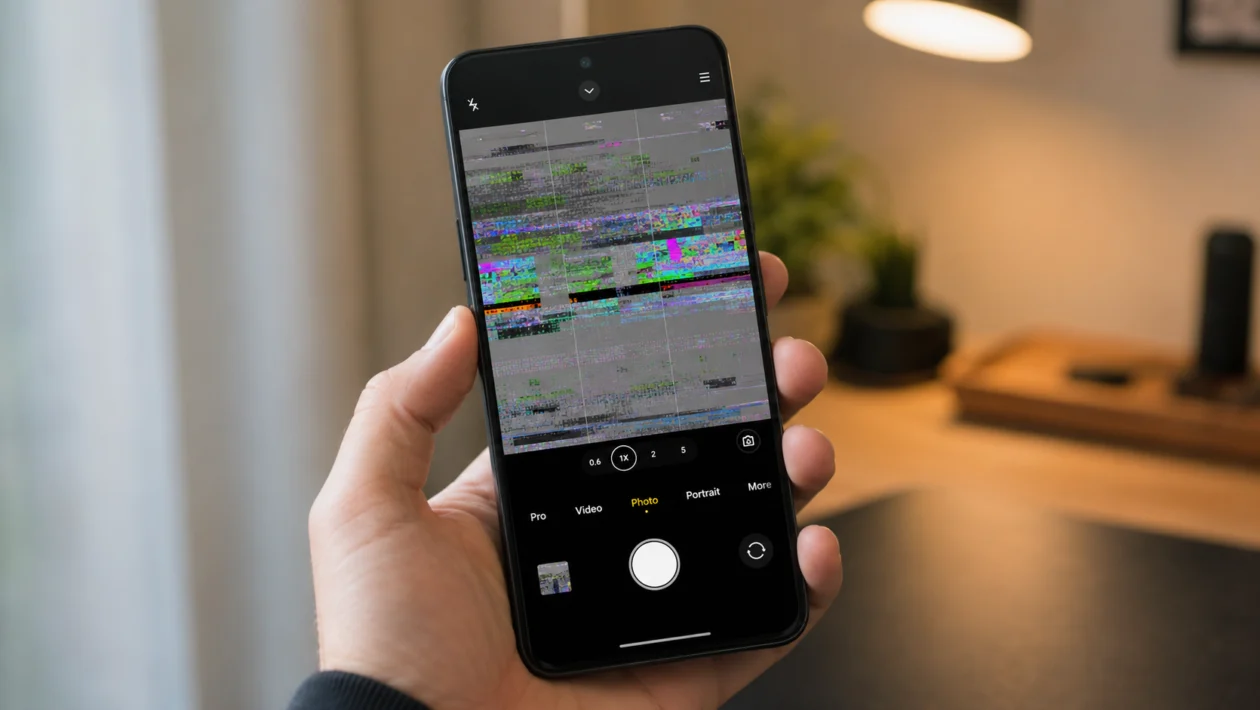
If your Xiaomi 17T Pro camera is glitchy, it can ruin photos, videos, video calls, QR scans, and quick shots. The Camera app may freeze, lag, flicker under lights, show a black screen, crash after opening, or switch lenses slowly.
Most camera glitches are caused by software, storage, permissions, camera settings, lighting conditions, overheating, or a recent HyperOS update. A hardware fault is possible, but it is not the first thing to assume.
Start with the simple checks first. Force close the Camera app, restart the phone, clear the camera cache, update HyperOS, then test the camera again before trying bigger fixes.
Quick answer
If your Xiaomi 17T Pro camera is glitchy, go to Settings > Apps > Manage apps > Camera > Force stop, then clear the Camera app cache and restart the phone.
If the issue happens only under LED or fluorescent lights, check the anti-banding setting inside the Camera app. If the camera freezes during video, lower the resolution from 8K or 4K 120fps to 4K 30fps or 1080p and test again.
If the glitch started after a HyperOS update, update your apps, check for another system update, and monitor the phone for 24 to 48 hours. If the camera still shows a black screen, crashes in every app, or fails after a factory reset, contact Xiaomi support.
Xiaomi 17T Pro glitchy camera diagnostic table
| Symptom | Likely cause | What to check first |
|---|---|---|
| Camera app freezes | App bug, full storage, overheating | Force stop Camera and restart |
| Camera shows black screen | Camera app issue, permissions, hardware fault | Camera permissions and app cache |
| Video looks laggy | High resolution, heat, low storage | Lower video resolution |
| Camera flickers indoors | LED or fluorescent light flicker | Anti-banding setting |
| Camera crashes after opening | Camera cache, update bug, app conflict | Clear cache and update HyperOS |
| Camera lags when switching lenses | Heavy processing or software issue | Restart and test in good light |
| Photos look distorted | Lens switching, scene mode, dirty lens | Clean lenses and reset camera settings |
| Third-party app camera glitches | App permission or compatibility issue | Test the stock Camera app |
| Front camera does not work | Software bug or hardware issue | Test in multiple apps |
| Camera gets worse when phone is hot | Thermal throttling | Let the phone cool down |
Why is my Xiaomi 17T Pro camera glitching?
Your Xiaomi 17T Pro camera may glitch because the Camera app is stuck, HyperOS needs an update, storage is nearly full, the phone is overheating, or a setting is not working properly with your lighting or video mode.
The Xiaomi 17T Pro has a Leica camera system with a 50MP main camera, 50MP telephoto camera, 12MP ultra-wide camera, optical image stabilization, high-resolution video modes, and Xiaomi HyperOS 3. That means the camera app is doing a lot of processing in the background, especially when shooting 4K, 8K, HDR, zoom, portrait, night video, or motion modes.
Use the fixes below in order.
1. Force stop the Camera app and open it again
Start here if the Camera app freezes, lags, or opens with a black screen.
- Open Settings.
- Tap Apps.
- Tap Manage apps.
- Find and tap Camera.
- Tap Force stop.
- Reopen the Camera app.
This closes the Camera app fully instead of leaving it stuck in the background.
After reopening it, test photo mode, video mode, front camera, ultra-wide, main camera, and zoom. If only one lens or mode glitches, the problem may be tied to that specific camera mode.
2. Restart your Xiaomi 17T Pro
A restart can fix temporary software problems, stuck camera services, and background app conflicts.
- Press and hold the Power button.
- Tap Restart.
- Wait for the phone to turn back on.
- Open the Camera app again.
- Test photos and videos.
This will not delete your photos, videos, apps, or files.
Restarting is especially useful if the camera started glitching after heavy gaming, long video recording, navigation, charging, or using multiple apps at the same time.
3. Clear the Camera app cache
The Camera app stores temporary files. If some of those files become corrupted, the camera may lag, crash, or behave strangely.
- Open Settings.
- Tap Apps.
- Tap Manage apps.
- Tap Camera.
- Tap Storage.
- Tap Clear cache.
- Reopen the Camera app.
Clearing cache should not delete your photos or videos. Your media files are stored separately in the Gallery or file storage.
After clearing the cache, take a normal photo and record a short video. Do not test with the hardest camera mode first. Start with the basic mode so you can see whether the app itself is stable.
4. Reset the Camera app settings
If the glitch started after changing camera settings, reset the Camera app settings.
- Open the Camera app.
- Tap the menu or settings icon.
- Look for Restore default settings or Reset settings.
- Confirm the reset.
- Close and reopen the Camera app.
This can help if the problem comes from video settings, HDR, focus tracking, filters, watermark settings, aspect ratio, AI mode, or another camera feature.
Resetting camera settings does not erase your photos. It only puts the Camera app settings back to default.
5. Check camera permissions
If the camera works in the Xiaomi Camera app but glitches in Instagram, TikTok, Messenger, WhatsApp, Snapchat, or another app, permissions may be the issue.
- Open Settings.
- Tap Apps.
- Tap Manage apps.
- Choose the app with the camera problem.
- Tap App permissions.
- Tap Camera.
- Choose Allow only while using the app.
- Reopen the app and test again.
Then test the stock Camera app. If the Xiaomi Camera app works normally but a third-party app glitches, the issue is probably with that app, not the phone camera hardware.
You can also update the affected app from the Google Play Store.
6. Free up storage space
Low storage can cause camera glitches, especially when recording high-resolution video.
The Xiaomi 17T Pro supports demanding video modes, so the phone needs enough free space to save large files quickly. If storage is almost full, the Camera app may lag, freeze, or stop recording.
- Open Settings.
- Tap About phone.
- Tap Storage.
- Check how much free space is left.
- Delete large videos, duplicate photos, downloads, or unused apps.
- Restart the phone.
- Test the Camera app again.
Try to keep several gigabytes free, especially if you shoot 4K or 8K video.
7. Lower the video resolution and frame rate
If the camera only glitches during video recording, the setting may be too demanding for the current condition.
This can happen when recording in 8K, 4K 120fps, HDR video, night video, or long clips in warm weather.
- Open the Camera app.
- Switch to Video.
- Open video settings.
- Change the resolution to 4K 30fps or 1080p 30fps.
- Turn off HDR video temporarily.
- Record a 30-second test clip.
If the camera becomes stable at a lower setting, the issue may be heat, storage speed, processing load, or a software bug in a specific video mode.
This does not mean your phone is broken. It means you have narrowed the issue down to a specific camera mode.
8. Check anti-banding if the camera flickers indoors
If the camera preview flickers under LED lights, fluorescent lights, monitors, or indoor bulbs, it may not be a camera defect.
Some lights flicker at a frequency the human eye barely notices. A phone camera can pick it up, especially in video mode.
Try this:
- Open the Camera app.
- Open Camera settings.
- Look for Anti-banding.
- Change it from Auto to 50Hz or 60Hz.
- Test the camera under the same light again.
Use 50Hz in many countries with 50Hz power systems. Use 60Hz in countries that use 60Hz power systems. If you are not sure, test both and keep the one that reduces flicker.
9. Update HyperOS and your apps
Camera bugs can happen after a system update, app update, or camera service update. The fix may come through another HyperOS patch or app update.
To update HyperOS:
- Open Settings.
- Tap About phone.
- Tap the HyperOS version panel.
- Tap Check for updates.
- Install any available update.
To update apps:
- Open the Google Play Store.
- Tap your profile icon.
- Tap Manage apps and device.
- Tap Update all.
Also check Xiaomi system app updates if available in your region.
If the camera glitch started right after a HyperOS update, give the phone some time after updating and restarting. Some apps and system services may still be settling after a major update.
10. Test Safe Mode, then consider a factory reset or support
If nothing works, test whether another app is interfering with the camera.
Safe Mode loads the phone with only basic system apps. If the Camera app works normally in Safe Mode, a third-party app may be causing the glitch.
- Press and hold the Power button.
- Press and hold Power off on the screen.
- Tap Safe Mode if the option appears.
- Test the Camera app.
- Restart the phone to exit Safe Mode.
If the camera works in Safe Mode, uninstall recently installed camera apps, filters, QR scanner apps, social media apps, or apps that use camera permissions.
If the camera still glitches in Safe Mode, back up your phone before trying a factory reset.
To factory reset:
- Back up your photos, videos, contacts, and files.
- Open Settings.
- Tap About phone.
- Tap Factory reset.
- Follow the on-screen instructions.
Only do this after trying the easier fixes. A factory reset deletes data from the phone.
If the camera still has problems after a factory reset, contact Xiaomi support or visit an authorized service center. The issue may be hardware-related, especially if:
The camera shows a black screen in every app
The front or rear camera never opens
The phone was dropped
The phone was exposed to water
Photos have permanent lines, spots, or heavy distortion
The camera makes unusual noises
Only one lens fails every time
Should you replace the Xiaomi 17T Pro if the camera is glitchy?
Not immediately.
Try the software fixes first. Most glitchy camera issues come from the app, settings, storage, heat, permissions, or a recent update. A replacement only makes sense if the problem continues after updates, cache clearing, Safe Mode testing, and a factory reset.
If your phone is still under warranty, do not open it or attempt a repair yourself. Camera modules, seals, and internal parts are easy to damage. Get it checked by Xiaomi or an authorized repair center.
FAQ
Why does my Xiaomi 17T Pro camera freeze?
The camera may freeze because the Camera app is stuck, storage is low, the phone is hot, or a camera mode is too demanding. Force stop the Camera app, restart the phone, clear the cache, and test again.
Why is my Xiaomi 17T Pro camera flickering?
Camera flicker usually happens under LED or fluorescent lights. Change the anti-banding setting in the Camera app to 50Hz or 60Hz and test again.
Why does my Xiaomi 17T Pro camera lag when recording video?
Video lag can happen when recording at high resolution or high frame rates. Lower the setting to 4K 30fps or 1080p and check whether the camera becomes stable.
