
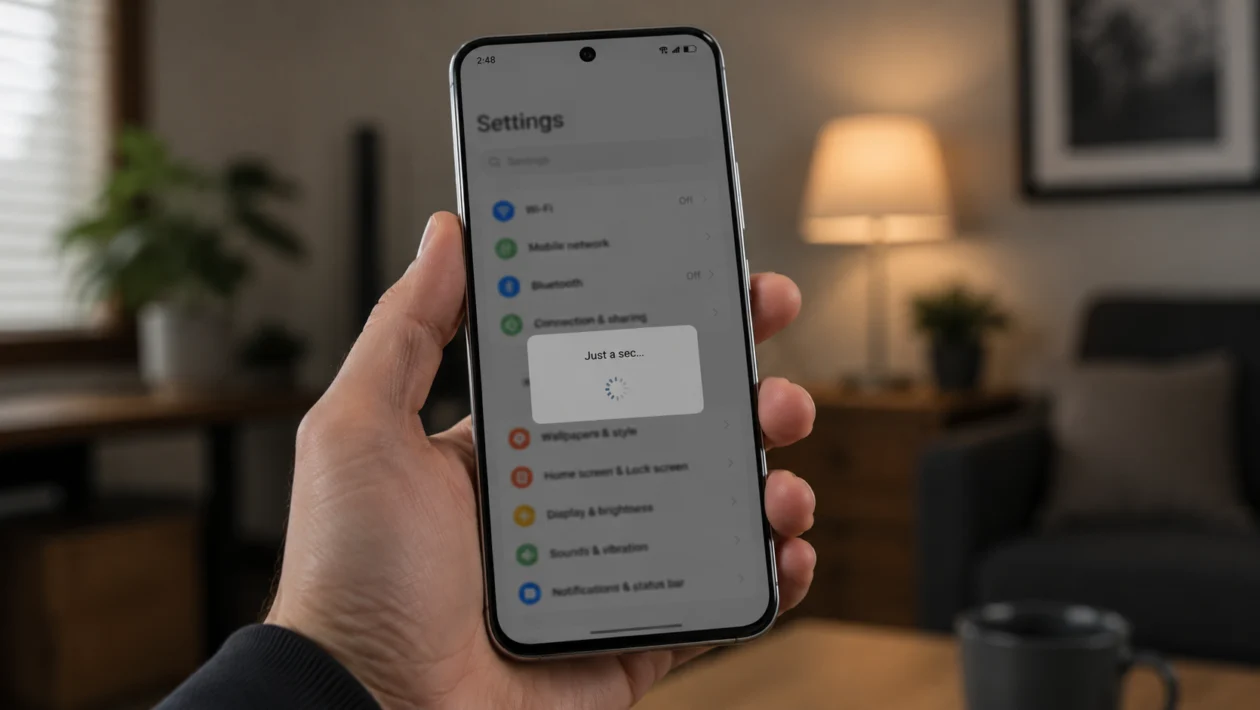
If your Realme P4R feels slow, starts lagging while switching apps, freezes on the home screen, or takes too long to open basic apps, the problem is usually caused by storage, background apps, cache files, software bugs, or heavy settings running in the background.
Slow performance does not always mean your phone is defective. In many cases, you can fix it by clearing storage, restarting the phone, updating software, removing problem apps, and reducing background activity.
Start with the simple fixes first. Do not reset your phone right away unless the lag continues after trying the safer steps below.
Quick answer
To fix a slow Realme P4R, restart the phone, check storage space, close background apps, clear app cache, update Realme UI, remove recently installed apps, turn off heavy visual effects, check for overheating, and reset settings if the problem continues.
If the phone became slow after a system update, use it normally for 24 to 48 hours first. Android phones can feel slower after an update while apps, system services, and background processes settle.
Realme P4R slow performance diagnostic table
| Symptom | Likely cause | What to check first |
|---|---|---|
| Apps open slowly | Low storage, too many background apps | Storage and recent apps |
| Phone lags after update | System re-optimising, app compatibility | Software update and app updates |
| Screen freezes randomly | Problem app, low memory, software bug | Recently installed apps |
| Gaming feels choppy | Heat, high graphics, background apps | Game settings and temperature |
| Keyboard types slowly | Keyboard cache or app lag | Keyboard app cache |
| Phone heats up and slows down | Thermal throttling | Case, charging, heavy apps |
| Home screen stutters | Launcher cache or animation settings | Launcher and display settings |
| Phone is slow on mobile data | Weak signal or app syncing | Network and background sync |
| Phone slows after installing apps | Bad app or background service | App list and permissions |
| Phone remains slow after all fixes | Software or hardware issue | Backup and service check |
Why is your Realme P4R running slow?
Your Realme P4R may slow down when the processor, memory, storage, or background services are under pressure.
Common causes include:
- Too many apps running in the background
- Low internal storage
- Large cache files
- Heavy games or social media apps
- Weak mobile signal
- Overheating
- Battery saver or performance settings
- Outdated apps
- A recent Realme UI update
- A faulty or poorly optimised third-party app
The best fix depends on when the phone started slowing down. If the lag started after installing one app, check that app first. If it started after an update, update all apps and monitor the phone before resetting anything.
1. Restart your Realme P4R
A restart is the fastest first fix because it clears temporary system issues and closes background processes that may be stuck.
- Press and hold the Power button.
- Tap Restart.
- Wait for the phone to turn back on.
- Use it normally for a few minutes.
- Check if the lag improves.
This will not delete your photos, apps, messages, or files.
Try this before clearing data, uninstalling apps, or resetting the phone.
2. Check your storage space
Low storage can make your Realme P4R feel slow. Apps need free space to save temporary files, load updates, and run smoothly.
- Open Settings.
- Tap Storage.
- Check how much space is available.
- Delete large videos, duplicate photos, unused downloads, and old APK files.
- Move media files to cloud storage or a computer if needed.
Try to keep at least 15% to 20% of your internal storage free. If the phone is almost full, even simple actions like opening the camera, typing, switching apps, and installing updates can feel slower.
3. Close background apps
If too many apps are active in the background, your Realme P4R may run out of available memory. This can cause slow app switching, delayed typing, and random stutters.
- Swipe up from the bottom of the screen and hold.
- View the recent apps screen.
- Swipe away apps you are not using.
- Keep only important apps open.
Pay attention to apps like Facebook, TikTok, Instagram, Chrome, Shopee, Lazada, Messenger, games, VPN apps, and navigation apps. These can use memory, location, mobile data, and background services even when you are not actively looking at them.
Do not close every app every few minutes. Android is designed to manage memory automatically. But if the phone is already lagging, closing unused apps can help.
4. Clear cache from problem apps
If only one app is slow, crashing, or freezing, clear that app’s cache first.
- Open Settings.
- Tap Apps.
- Tap App management.
- Choose the slow app.
- Tap Storage usage.
- Tap Clear cache.
Do not tap Clear data unless you are ready to reset that app’s local files, login state, or saved settings.
Clear cache is safer because it removes temporary files without deleting your account or personal data inside most apps.
This is useful for slow apps like Chrome, YouTube, TikTok, Facebook, Instagram, Messenger, camera apps, shopping apps, and games.
5. Update Realme UI and your apps
Software updates can fix bugs that cause lag, freezing, battery drain, and app crashes.
To update your Realme P4R:
- Open Settings.
- Tap About device.
- Tap Realme UI.
- Check for updates.
- Install the update if available.
To update apps:
- Open Google Play Store.
- Tap your profile icon.
- Tap Manage apps and device.
- Tap Update all.
Also check the realme App Market if you use it.
If the phone became slow right after a major update, give it 24 to 48 hours before judging performance. During this period, the system may still be updating apps, rebuilding background data, and adjusting battery behaviour.
6. Remove recently installed apps
A bad app can make the whole phone slow. This is common with cleaner apps, battery saver apps, free VPNs, unknown APKs, launchers, keyboard apps, live wallpaper apps, and games downloaded outside the Play Store.
Think about what changed before the lag started.
Ask yourself:
- Did you install a new app?
- Did you install an APK from a browser?
- Did you change your launcher?
- Did you install a phone booster or cleaner app?
- Did the problem start after updating one app?
To remove a suspicious app:
- Press and hold the app icon.
- Tap App info.
- Tap Uninstall.
- Restart your phone.
- Check performance again.
Avoid third-party “RAM booster” and “speed booster” apps. They often run in the background and can make performance worse instead of better.
7. Turn off heavy visual settings
Animations, live wallpapers, Always On Display, high refresh rate, and extra visual effects can make the phone feel smoother, but they can also use more power and processing resources.
Try reducing them if your Realme P4R feels slow.
To change the refresh rate:
- Open Settings.
- Tap Display and brightness.
- Tap Screen refresh rate.
- Choose a lower or standard refresh rate if available.
To remove live wallpaper:
- Press and hold the home screen.
- Tap Wallpapers.
- Choose a static wallpaper.
To reduce animations:
- Open Settings.
- Tap Additional settings.
- Tap Accessibility.
- Look for motion or animation options.
- Reduce animations if available.
Some menu names may vary depending on your Realme UI version.
This fix is useful if the phone mostly lags while swiping, opening the app drawer, using the home screen, or switching between apps.
8. Check if the phone is overheating
Heat can make your Realme P4R slow down. When a phone gets too warm, it may reduce performance to protect the battery and internal parts.
This can happen when you:
- Play games while charging
- Use mobile data in a weak signal area
- Record long videos
- Use hotspot
- Run navigation for a long time
- Keep the phone under direct sunlight
- Use a thick case while gaming
To cool it down:
- Stop gaming or recording video.
- Unplug the charger.
- Remove the case.
- Turn off hotspot.
- Move the phone away from sunlight.
- Let it rest for 10 to 15 minutes.
Do not put the phone in a refrigerator or freezer. Sudden temperature changes can create moisture inside the device.
If your Realme P4R slows down only when hot, the issue is likely heat-related rather than a storage or software problem.
9. Reset app preferences
If app permissions, disabled system apps, notification settings, or background restrictions are causing problems, resetting app preferences can help.
This does not delete your personal files.
- Open Settings.
- Tap Apps.
- Tap App management.
- Tap the three-dot menu.
- Tap Reset app preferences.
- Confirm the reset.
This may re-enable disabled apps, reset default app choices, and restore app permission prompts.
Use this if your Realme P4R became slow after changing app settings, disabling system apps, blocking background activity, or using a phone cleaner app.
10. Back up your data and factory reset
A factory reset should be your last software fix. It removes your apps, files, accounts, photos, settings, and local data from the phone.
Only do this if the Realme P4R is still slow after trying the first nine fixes.
Before resetting:
- Back up your photos and videos.
- Back up WhatsApp or other chat apps.
- Save important files.
- Make sure you know your Google account password.
- Charge the phone.
To factory reset:
- Open Settings.
- Tap Additional settings.
- Tap Back up and reset.
- Tap Reset phone.
- Tap Erase all data.
- Follow the on-screen instructions.
After the reset, do not reinstall all apps immediately. Install only the apps you need, then test performance for a day. If the phone is fast after the reset but becomes slow after installing one app, that app may be the cause.
When should you contact Realme support?
Contact Realme support or visit a service center if:
- The phone is still slow after a factory reset
- The phone freezes even with no extra apps installed
- The phone overheats during normal use
- Apps crash constantly
- The phone restarts by itself
- The screen becomes unresponsive
- Performance suddenly drops after physical damage or water exposure
A service check is also worth doing if the phone is new and has been slow since the first day.
FAQ
Why is my Realme P4R so slow?
Your Realme P4R may be slow because of low storage, too many background apps, cache buildup, overheating, outdated software, or a poorly optimised app. Start by restarting the phone, checking storage, clearing cache, and updating apps.
How do I make my Realme P4R faster?
Free up storage, close unused apps, clear cache from slow apps, update Realme UI, remove suspicious apps, reduce animations, and avoid gaming while charging. If nothing works, back up your data and factory reset the phone.
Why is my Realme P4R slow after an update?
After an update, the phone may need time to optimize apps and background services. Update your apps, restart the phone, and monitor it for 24 to 48 hours. If the lag continues, clear app cache and check storage.
