

Security features on the Galaxy A57 help protect your personal data, apps, photos, accounts, and private files. But when the fingerprint sensor stops working, face recognition fails, the lock screen becomes unresponsive, or Secure Folder will not open, using your phone can quickly become stressful.
This page covers the most common Galaxy A57 security and lock screen problems. Use it as your starting point if your phone will not unlock properly, your password is not accepted, Auto Lock does not work, or Find My Mobile is not responding.
If you are dealing with other device issues, you can also visit the main Galaxy A57 problems and fixes page for the complete troubleshooting hub.
Common Galaxy A57 Security and Lock Screen Problems
The Galaxy A57 includes several security options, including fingerprint unlock, face recognition, PIN, password, pattern, Secure Folder, Auto Lock, and Samsung’s Find My Mobile feature. These tools are useful, but they can stop working correctly because of software glitches, incorrect settings, failed biometric scans, screen issues, account problems, or recent system changes.
Some problems are simple to fix. Others may require resetting security settings, updating software, removing saved biometrics, or recovering access through your Samsung or Google account.
Start with the issue that best matches what is happening on your phone.
Galaxy A57 Fingerprint Sensor Not Working
If the fingerprint sensor on your Galaxy A57 is not working, the problem may be caused by a dirty sensor area, dry fingers, screen protector interference, outdated software, or corrupted fingerprint data.
You may notice that the phone does not recognize your fingerprint, unlocks slowly, asks for your PIN too often, or shows a message saying the fingerprint sensor is not responding.
This issue can often be fixed by cleaning the screen and sensor area, removing and re-adding your fingerprints, checking for software updates, or adjusting your screen protector if it blocks accurate scanning.
Galaxy A57 Face Recognition Not Working
Face recognition problems can happen when the camera cannot clearly scan your face. Poor lighting, face coverings, dirty front camera glass, changed appearance, sunglasses, or camera-related issues may stop face unlock from working properly.
If your Galaxy A57 does not recognize your face, try using it in better lighting, clean the front camera area, remove saved face data, and register your face again.
If the front camera is also blurry or not working in other apps, the problem may be related to the camera system. In that case, check the Galaxy A57 camera problems page for related fixes.
Galaxy A57 Forgot Password, PIN, or Pattern
Forgetting your Galaxy A57 password, PIN, or pattern can lock you out of the device. This is one of the most serious security-related problems because Samsung and Android are designed to protect your data from unauthorized access.
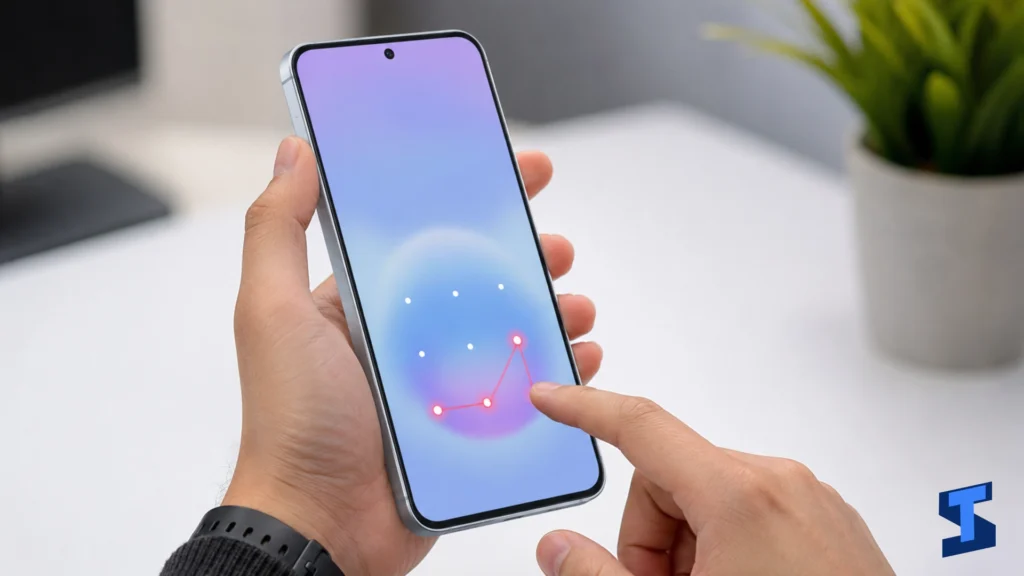
If you forgot your lock screen password, your options may depend on the features you set up before the problem happened. You may be able to use Samsung Find My Mobile, Google account recovery, backup options, or a factory reset.
A factory reset can unlock the phone, but it erases your data. After reset, Factory Reset Protection may still require the Google account previously used on the device.
Galaxy A57 Lock Screen Not Working
If the lock screen is not working on your Galaxy A57, you may experience freezing, delayed response, missing notifications, broken shortcuts, or trouble swiping to unlock.
This can happen because of a software glitch, third-party lock screen app, theme conflict, display issue, or system setting problem. Sometimes, lock screen problems are also connected to touchscreen issues.
If the screen does not respond properly outside the lock screen too, visit the Galaxy A57 display and touchscreen problems page for more help.
Galaxy A57 Secure Folder Not Working
Secure Folder protects private apps, photos, files, and accounts in a separate locked space. If Secure Folder is not working, you may not be able to open it, sign in, move files, receive notifications, or access protected content.
Secure Folder problems may be linked to Samsung account issues, outdated software, disabled permissions, storage problems, or corrupted Secure Folder data.
Before making major changes, check that you know your Samsung account login details. This is important because some Secure Folder recovery options may require account verification.
Galaxy A57 Auto Lock Not Working
Auto Lock should automatically lock your Galaxy A57 after the screen turns off or after a selected delay. If Auto Lock is not working, your phone may stay unlocked longer than expected, which can be a privacy and security risk.
This issue may happen because of Smart Lock, Extend Unlock, screen timeout settings, trusted devices, trusted places, or apps that keep the screen active.
If your phone does not sleep properly or the display stays on too long, you may also need to check your display settings and background apps.
Galaxy A57 Find My Mobile Not Working
Find My Mobile helps you locate, lock, ring, or erase your Galaxy A57 if it is lost. If it is not working, the phone may not appear online, remote controls may fail, or location tracking may not update.
This problem may be caused by disabled location services, no internet connection, Samsung account sign-in problems, remote unlock being turned off, or battery-saving settings limiting background activity.
Network issues can also prevent location and remote commands from working. If your phone cannot stay connected, check the Galaxy A57 Wi-Fi and Bluetooth problems page or the mobile data, SIM, and 5G problems guide.
Galaxy A57 Fingerprint Unlock Setup Guide
If fingerprint unlock is not set up correctly, you may have trouble unlocking your phone. Setting it up properly can improve both convenience and security.
When adding a fingerprint, make sure your finger and screen are clean. Register the same finger from different angles so the phone can recognize your fingerprint more accurately. You can also add more than one finger, such as both thumbs, for easier unlocking.
A good setup can prevent many fingerprint unlock problems before they happen.
What Causes Galaxy A57 Security and Lock Screen Problems?
Security and lock screen issues can be caused by several different factors. In many cases, the problem is related to settings, software, or account access rather than a hardware defect.
Common causes include:
- Dirty or blocked fingerprint sensor area
- Poor lighting during face recognition
- Changed facial appearance
- Outdated software
- Corrupted biometric data
- Third-party lock screen apps
- Theme or launcher conflicts
- Touchscreen response issues
- Samsung account sign-in problems
- Disabled location services
- Weak Wi-Fi or mobile data connection
- Battery-saving restrictions
- Incorrect Auto Lock or Extend Unlock settings
- Forgotten PIN, password, or pattern
If the issue started after changing a setting, installing an app, updating the phone, or adding a new screen protector, that change may be connected to the problem.
What to Try First
Before going to a specific guide, try these basic fixes first.
- Restart your Galaxy A57.
- Clean the screen, camera area, and fingerprint sensor area.
- Check for software updates.
- Remove and re-add your fingerprint or face data.
- Make sure your Samsung and Google accounts are signed in.
- Check lock screen and security settings.
- Disable third-party lock screen apps.
- Check if Smart Lock or Extend Unlock is keeping the phone unlocked.
- Make sure Wi-Fi or mobile data is working.
- Turn off Power Saving Mode temporarily if security features are not syncing properly.
If the problem continues, choose the guide that matches your issue.
When the Problem May Be Related to Other Galaxy A57 Issues
Some security and lock screen problems are connected to other parts of the phone.
If your fingerprint unlock fails because the screen is not responding, check the display and touchscreen guide.
If Find My Mobile fails because your phone cannot connect online, check the Wi-Fi and Bluetooth troubleshooting page or the mobile data and SIM guide.
If the phone becomes slow or freezes at the lock screen, visit the Galaxy A57 performance problems page.
If the phone gets hot while using security features, charging, or syncing, check the battery problems and charging problems guides.
If calls, alerts, or lock screen notification sounds are not working properly, visit the sound and call problems page.
How to Keep Your Galaxy A57 Secure
To keep your Galaxy A57 protected, use a strong lock screen method and keep your recovery options updated.
Set up a PIN, password, or pattern that you can remember but others cannot easily guess. Add fingerprint unlock or face recognition for convenience, but do not rely only on biometrics. Your phone may still ask for your PIN or password after restart, after long inactivity, or when security verification is required.
You should also keep your Samsung and Google account details updated. These accounts are important for Find My Mobile, backup, app access, and device recovery.
Avoid installing unknown apps that ask for unnecessary permissions. Also review app permissions regularly, especially for camera, microphone, contacts, files, and location access.
Final Thoughts
Galaxy A57 security and lock screen problems can affect both convenience and privacy. If your fingerprint sensor, face recognition, password, Secure Folder, Auto Lock, or Find My Mobile feature is not working, start with the guide that matches your issue.
In many cases, the fix is simple: restart the phone, update the software, clean the sensor or camera area, reset biometric data, check lock screen settings, or confirm your Samsung account access. If the issue is linked to the display, network, battery, or performance, use the related Galaxy A57 guides to troubleshoot the connected problem.
Keeping your lock screen and security features working properly helps protect your personal information and makes your Galaxy A57 easier to use every day.
Frequently Asked Questions
Why is my Galaxy A57 fingerprint sensor not working?
Your Galaxy A57 fingerprint sensor may not work because the screen or sensor area is dirty, your finger is wet or dry, the screen protector is interfering, or the saved fingerprint data is not reading correctly. Try cleaning the screen, restarting the phone, and adding your fingerprint again.
Why is my Galaxy A57 fingerprint sensor not working?
Your Galaxy A57 fingerprint sensor may not work because the screen or sensor area is dirty, your finger is wet or dry, the screen protector is interfering, or the saved fingerprint data is not reading correctly. Try cleaning the screen, restarting the phone, and adding your fingerprint again.
Why is face recognition not working on my Galaxy A57?
Face recognition may fail because of poor lighting, a dirty front camera, sunglasses, face coverings, changed appearance, or software glitches. Try scanning your face in bright light, clean the camera area, and register your face again.
What should I do if I forgot my Galaxy A57 password?
If you forgot your Galaxy A57 password, PIN, or pattern, check whether Samsung Find My Mobile or account recovery options are available. If you cannot unlock the phone, a factory reset may be required, but this will erase your data and may require the previously synced Google account afterward.
Why does my Galaxy A57 stay unlocked?
Your Galaxy A57 may stay unlocked because Auto Lock is delayed, Smart Lock or Extend Unlock is enabled, a trusted Bluetooth device is nearby, or the screen timeout is set too long. Check your lock screen and security settings to make sure the phone locks when expected.
Why is Secure Folder not opening on my Galaxy A57?
Secure Folder may not open because of Samsung account issues, outdated software, wrong password, disabled permissions, or corrupted Secure Folder data. Make sure your Samsung account is active, update your phone, and restart the device before trying again.
Why is Find My Mobile not working on my Galaxy A57?
Find My Mobile may not work if your phone has no internet connection, location is turned off, your Samsung account is not signed in, or remote controls were not enabled before the phone was lost. Battery-saving settings and weak signal can also affect location updates.
Should I use fingerprint or face recognition on my Galaxy A57?
Yes, both can make unlocking your Galaxy A57 faster and easier. For better security, use fingerprint or face recognition together with a strong PIN, password, or pattern. Your phone will still need your main lock method for certain security checks.
Can a screen protector affect fingerprint unlock?
Yes, some thick, dirty, damaged, or poorly installed screen protectors can affect fingerprint scanning. If fingerprint unlock became unreliable after installing a screen protector, remove and re-add your fingerprints or try a compatible screen protector.
How do I make my Galaxy A57 more secure?
Use a strong screen lock, enable Find My Mobile, keep your Samsung and Google accounts updated, install software updates, review app permissions, avoid unknown apps, and use Secure Folder for private files and apps.