
Troubleshooting guides, settings tutorials, and practical fixes for common Galaxy Watch8 issues.
Welcome to the Samsung Galaxy Watch8 troubleshooting hub. This page brings together practical guides for fixing common Galaxy Watch8 problems, including battery drain, charging issues, Bluetooth pairing errors, LTE and eSIM problems, notification issues, health sensor errors, GPS tracking problems, lag, app crashes, Samsung Wallet issues, and display glitches.
The Galaxy Watch8 is available in 44mm and 40mm sizes, with Bluetooth-only and LTE versions. It features Wear OS 6 with One UI 8 Watch, a Super AMOLED display, Sapphire crystal protection, an Exynos W1000 chipset, 32GB storage, 2GB RAM, eSIM support on LTE models, NFC, GPS with L1 and L5 support, Wi-Fi, Bluetooth 5.3, and a 435 mAh battery on the 44mm model.
Use this page to find quick solutions, step-by-step tutorials, and helpful settings guides for your Galaxy Watch8. Each guide is written for everyday users and focuses on fixes you can try before contacting Samsung support or visiting a service center.
Find Your Galaxy Watch8 Problem
| Battery Draining Fast Not Charging Charging Slowly Overheating Bluetooth Not Connecting Phone Pairing Failed LTE Not Working eSIM Not Activating Notifications Not Showing | Calls Not Working Speaker Not Working Microphone Not Working Screen Not Responding Touchscreen Not Working Black Screen Watch Won’t Turn On Heart Rate Not Working Sleep Tracking Not Working | ECG Not Working Blood Pressure Not Working GPS Not Accurate Workout Tracking Not Working Samsung Wallet Not Working Apps Keep Crashing Lagging or Freezing |
Start Here: Basic Galaxy Watch8 Fixes
If you are not sure where to begin, start with these basic troubleshooting guides. These fixes are often used before trying more advanced solutions.
- Restart your watch
- Force restart your watch
- Update the watch software
- Update the Galaxy Wearable app
- Reconnect the watch to your phone
- Reset the Bluetooth connection
- Clear the watch cache
- Check battery usage
- Boot into Recovery Mode
- Reset network settings
- Perform a factory reset
Most Popular Galaxy Watch8 Fixes
These are the most common Galaxy Watch8 problems users usually search for first.
- How to stop your watch battery from draining fast
- What to do when your watch is not charging
- What to do when Bluetooth will not connect
- How to pair your watch with your phone again
- What to do when LTE is not working
- How to get notifications showing again
- What to do when heart rate tracking stops working
- How to improve GPS accuracy
- What to do when sleep tracking is not working
- What to do when your watch screen stays black
- How to turn on a watch that will not power on
- How to speed up a lagging watch
Galaxy Watch8 Battery Problems
Battery life can vary depending on display brightness, Always On Display, LTE use, GPS workouts, health tracking, notifications, sleep tracking, background apps, and watch face activity.
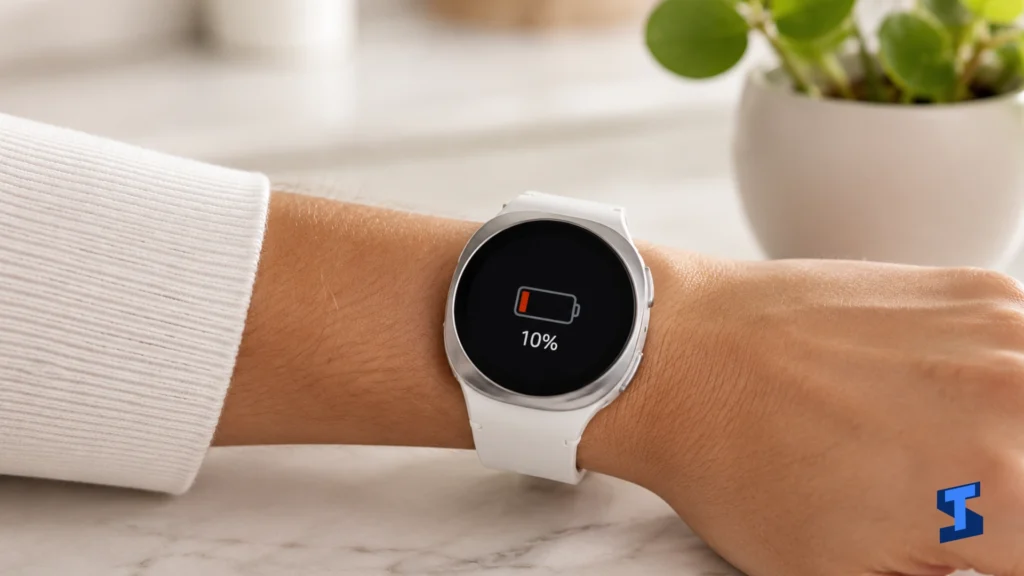
If your Galaxy Watch8 drains fast, loses power overnight, or does not last through the day, start with these guides.
- How to stop your watch battery from draining fast
- What to do when the battery drains overnight
- How to reduce battery drain after a software update
- Why the battery percentage drops quickly
- How to reduce battery drain during workouts
- What to do when LTE drains the battery too fast
- How to reduce battery drain during sleep tracking
- How to manage Always On Display battery drain
- How to check if your watch face is draining the battery
- How to use Battery Saving Mode
- Best battery settings for longer watch life
- What to do when your watch gets warm during normal use
Galaxy Watch8 Charging Problems
The Galaxy Watch8 uses wireless charging. Charging problems can come from the charger, charging pad alignment, heat, dirty sensors, damaged accessories, software glitches, or battery temperature.
These guides can help you narrow down the cause.
- What to do when your watch is not charging
- How to speed up slow charging
- What to do when charging is paused
- Why your wireless charger is not working
- What to do when your watch gets hot while charging
- Why the battery is not increasing while charging
- What to do when your watch will not turn on after charging
- Why your charger is not detected
- What to do when your watch only charges to a certain percentage
- Why charging stops randomly
- Best charging practices for your watch
Galaxy Watch8 Bluetooth and Pairing Problems
Bluetooth connection problems can affect pairing, syncing, calls, notifications, media controls, app updates, and health data transfer.
If your Galaxy Watch8 cannot connect to your phone, keeps disconnecting, or fails during setup, start here.
- What to do when Bluetooth will not connect
- How to pair your watch with your phone
- What to do when your watch keeps disconnecting from your phone
- What to do when pairing fails
- How to get past the pairing screen
- What to do when your watch does not appear in the Galaxy Wearable app
- How to sync your watch with your phone again
- What to do when your watch cannot reconnect after a reset
- How to get Bluetooth audio working again
- What to do when your watch is connected but not syncing
- How to pair your watch with a non-Samsung phone
- How to reset the Bluetooth connection
Galaxy Watch8 LTE, eSIM, and Mobile Network Problems
The Galaxy Watch8 LTE version supports eSIM, allowing the watch to use mobile service without relying only on your phone. LTE problems can happen because of carrier support, plan activation, eSIM provisioning, weak signal, account settings, or regional compatibility.
Use these guides if LTE, mobile data, calls, or eSIM activation is not working.
- What to do when LTE is not working
- How to activate an eSIM on your watch
- What to do when mobile data is not working
- How to troubleshoot no signal on your watch
- What to do when calls are not working on LTE
- What to do when messages are not sending on LTE
- Why your carrier plan is not showing
- What to do when you cannot add a mobile plan
- How to get past an eSIM activation screen
- Why your watch keeps switching from LTE to Bluetooth
- How to reduce LTE battery drain
- What to do when roaming is not working
Galaxy Watch8 Wi-Fi Problems
Wi-Fi helps the Galaxy Watch8 update apps, sync data, use online services, and stay connected when Bluetooth is unavailable.
If your watch cannot connect to Wi-Fi or keeps dropping the connection, these guides can help.
- What to do when Wi-Fi is not working
- How to stop Wi-Fi from disconnecting
- What to do when your watch is connected to Wi-Fi but has no internet
- Why your watch cannot find your Wi-Fi network
- How to improve a slow Wi-Fi connection
- What to do when Wi-Fi sync is not working
- How to get Wi-Fi calling working again
- How to reset Wi-Fi settings
Galaxy Watch8 Notifications and App Alerts
Notification problems are common on smartwatches. The issue may come from notification permissions, Do Not Disturb, Sleep Mode, app settings, phone battery restrictions, Bluetooth connection, or Galaxy Wearable settings.
Use these guides if alerts, messages, calls, or app notifications are not appearing on your watch.
- What to do when notifications are not showing
- How to get message notifications working again
- What to do when call notifications are not working
- How to get WhatsApp notifications showing again
- What to do when Messenger notifications are not showing
- How to get Gmail notifications showing again
- What to do when vibration is not working
- How to stop notifications from arriving late
- What to do when notifications only show on your phone
- How to solve Do Not Disturb notification problems
- What to do when Sleep Mode blocks notifications
Galaxy Watch8 Calls, Sound, and Microphone Problems
The Galaxy Watch8 has a loudspeaker and microphone, but sound and call problems can still happen during calls, voice replies, voice assistant use, alarms, timers, or media controls.
These guides help you check the most likely causes first.
- What to do when your watch has no sound
- How to get the speaker working again
- What to do when the microphone is not working
- How to increase low call volume
- What to do when calls keep dropping
- Why you cannot answer calls on your watch
- How to get voice replies working again
- What to do when alarm sounds are not working
- What to do when timer sounds are not working
- How to get vibration working again
- What to do when Bluetooth earbuds are not working with your watch
Galaxy Watch8 Display and Touchscreen Problems
The Galaxy Watch8 has a Super AMOLED display with Sapphire crystal protection and up to 3000 nits peak brightness. Display and touchscreen issues can make the watch difficult to use, especially during workouts or outdoor use.
Start here if the screen is too dim, unresponsive, flickering, black, or not waking properly.
- What to do when the touchscreen is not working
- How to fix a screen that is not responding
- What to do when the screen stays black
- Why the screen will not turn on
- How to get Always On Display working again
- What to do when Raise to Wake is not working
- How to make the screen brighter
- What to do when brightness controls are not working
- How to stop the screen from flickering
- What to do when your watch has ghost touch issues
- How to get Water Lock working again
- What to do about screen scratches or damage
Galaxy Watch8 Health Sensor Problems
The Galaxy Watch8 includes health and wellness sensors such as heart rate, SpO2, skin temperature, BioActive sensor, barometer, altimeter, compass, and antioxidant index support. Some health features may vary by country, app version, phone compatibility, and regulatory approval.
Use these guides if your health readings are missing, inaccurate, delayed, or not syncing.
- What to do when heart rate tracking is not working
- How to improve inaccurate heart rate readings
- What to do when SpO2 tracking is not working
- How to get sleep tracking working again
- What to do when skin temperature tracking is not working
- How to troubleshoot BioActive Sensor problems
- What to do when Antioxidant Index is not working
- How to get stress tracking working again
- What to do when health data is not syncing
- How to improve sensor readings
- How to wear your watch for more accurate readings
Galaxy Watch8 ECG and Blood Pressure Problems
The Galaxy Watch8 supports ECG and blood pressure monitoring in supported regions. Availability may depend on your country, phone model, Samsung Health Monitor support, app version, and local regulations.
Use these guides if ECG, blood pressure, calibration, or Samsung Health Monitor is not working.
- What to do when ECG is not working
- What to do when blood pressure monitoring is not working
- How to get Samsung Health Monitor working again
- What to do when blood pressure calibration fails
- Why ECG is not available in your region
- What to do when Samsung Health Monitor will not install
- How to handle a failed ECG reading
- How to improve inaccurate blood pressure readings
- Why some health features are missing
- What to do when Health Monitor is not syncing
Galaxy Watch8 GPS and Workout Tracking Problems
The Galaxy Watch8 supports GPS with L1 and L5 positioning, along with GLONASS, GALILEO, and BDS. GPS and workout problems can happen because of poor satellite signal, location permissions, power saving settings, software issues, or how the watch is worn.
Use these guides if route tracking, pace, distance, steps, workouts, or elevation data is not accurate.
- How to improve GPS accuracy
- What to do when GPS is not locking
- What to do when workout tracking is not working
- How to improve inaccurate distance tracking
- How to improve inaccurate pace readings
- What to do when steps are not counting
- How to get auto workout detection working again
- What to do when your running route is missing
- How to improve inaccurate elevation data
- What to do when the compass is not working
- How to get the altimeter working again
- What to do when workout data is not syncing
Galaxy Watch8 Performance and Wear OS Problems
The Galaxy Watch8 runs Wear OS 6 with One UI 8 Watch and uses the Exynos W1000 chipset with 2GB RAM and 32GB storage. It should feel smooth, but performance issues can still happen after updates, app installs, heavy background syncing, low storage, or app conflicts.
If your Galaxy Watch8 feels slow, freezes often, restarts randomly, or apps stop responding, these guides can help.
- How to speed up a lagging watch
- What to do when your watch keeps freezing
- What to do when apps keep crashing
- How to handle an app that is not responding
- What to do when your watch feels slow after an update
- How to free up storage space
- What to do when your watch restarts randomly
- What to do when your watch is stuck on the Samsung logo
- How to handle a failed Wear OS update
- What to do when One UI Watch has bugs
- How to get the Google Play Store working again
- How to factory reset your watch
Galaxy Watch8 Samsung Health and Fitness App Problems
Samsung Health is one of the most important apps on the Galaxy Watch8. Problems with syncing, permissions, sensors, app updates, or paired phone settings can affect your health and workout data.
Use these guides if Samsung Health is missing data, not syncing, or showing incorrect readings.
- What to do when Samsung Health is not syncing
- How to get Samsung Health working again
- What to do when workout data is missing
- What to do when sleep data is missing
- How to improve inaccurate calorie readings
- What to do when health data is not showing on your phone
- How to get health goals updating again
- What to do when workout history is missing
- How to manage Samsung Health permissions
- How to reconnect Samsung Health
Galaxy Watch8 Samsung Wallet, NFC, and Payments
The Galaxy Watch8 supports NFC, which can be used for contactless payments in supported regions and with supported banks. Payment issues may come from lock screen settings, card verification, bank support, Samsung Wallet availability, Google Wallet settings, or regional restrictions.
Start here if tap-to-pay or wallet features do not work.
- What to do when Samsung Wallet is not working
- How to get Google Wallet working again
- What to do when NFC is not working
- How to fix tap-to-pay problems
- What to do when you cannot add a card
- How to handle payment verification failures
- Why Wallet is not available in your region
- What to do when your transit card is not working
- Why a lock screen is required for payments
- How to choose the default payment app
Galaxy Watch8 Apps, Storage, and Play Store Problems
The Galaxy Watch8 has 32GB internal storage and no memory card slot. Storage can fill up with apps, music, watch faces, offline maps, cached data, and downloaded files.
Use these guides to manage apps, storage, downloads, and Play Store issues.
- How to free up storage space
- What to do when apps are not installing
- What to do when apps are not updating
- How to get the Play Store working again
- What to do when watch faces are not downloading
- How to change a watch face that will not update
- What to do when music is not downloading
- What to do when offline maps are not downloading
- How to manage app permissions
- How to delete unused apps
- How to clear app cache
Galaxy Watch8 Durability, Water Resistance, and Build Issues
The Galaxy Watch8 has Sapphire crystal protection, an aluminum frame, IP68 dust and water resistance, and 5ATM water resistance. It is also MIL-STD-810H compliant, but that does not guarantee ruggedness or protection in extreme conditions.
Use these guides to understand water exposure, cleaning, workouts, swimming, and physical damage.
- Water resistance explained
- Can you swim with your watch?
- How to use Water Lock
- What to do after your watch gets wet
- What to do when your watch stops working after water exposure
- How to clear muffled speaker sound after water exposure
- What to do about screen scratches
- Sapphire crystal protection explained
- What MIL-STD-810H means for daily use
- Best cases and screen protectors to consider
Galaxy Watch8 Settings and Features
These Galaxy Watch8 settings guides help you customize the watch, improve battery life, manage health features, and use built-in tools more effectively.
- How to set up your watch
- How to pair your watch with your phone
- How to restart your watch
- How to force restart your watch
- How to update the watch software
- How to change the watch face
- How to enable Always On Display
- How to turn on Battery Saver
- How to enable Sleep Mode
- How to enable Water Lock
- How to set up LTE
- How to set up an eSIM
- How to set up Samsung Wallet
- How to track sleep
- How to track workouts
- How to use Fall Detection
- How to use Emergency SOS
- How to factory reset your watch
Galaxy Watch8 Buying, Size, and Model Guides
The Galaxy Watch8 comes in 44mm and 40mm sizes, with Bluetooth-only and LTE versions. Choosing the right model depends on wrist size, battery expectations, mobile connectivity needs, workout habits, and budget.
These guides help users choose the right Galaxy Watch8 model.
- 44mm vs 40mm: Which size should you choose?
- Bluetooth vs LTE: Which model is better for you?
- Is the LTE model worth it?
- Graphite vs Silver: Which color should you choose?
- Is this watch good for small wrists?
- Is this watch good for fitness tracking?
- Is this watch good for seniors?
- Watch8 vs Watch7: What changed?
- Watch8 vs Watch Ultra: Which one should you buy?
- Should you upgrade to this model?
- Pros and cons before buying
- Best model to buy
Galaxy Watch8 Accessories
The Galaxy Watch8 does not have a 3.5mm headphone jack, USB port, or memory card slot, so accessories matter. The right charger, watch band, screen protector, case, earbuds, and power adapter can improve daily use and help avoid common problems.
- Best chargers to use
- Best bands to buy
- Best screen protectors to consider
- Best cases for daily protection
- Best earbuds to pair with your watch
- Best power adapters for the charger
- Best accessories for workouts
- Best accessories for seniors
- Best bands for small wrists
- Best bands for sensitive skin
Latest Galaxy Watch8 Guides
Show 6 to 12 recent posts here.
This section helps users find new content, helps Google discover newly published articles, improves internal linking flow, and keeps the homepage fresh.
Before You Try These Fixes
Before changing advanced settings, make sure your Galaxy Watch8 has enough battery, your paired phone is nearby, your Galaxy Wearable app is updated, and your important health data is synced.
Some solutions, such as resetting Bluetooth, removing a mobile plan, unpairing the watch, or performing a factory reset, may remove saved connections, preferences, downloaded apps, watch faces, or local data.
Start with simple fixes first. Restart the watch, restart your phone, update the Galaxy Wearable app, check permissions, and only move to reset options when basic troubleshooting does not work.
If your issue started after a software update, give the watch time to finish background optimization. Updates can temporarily affect battery life, app behavior, health data syncing, and system smoothness.
When to Contact Samsung Support
If your Galaxy Watch8 has physical damage, water exposure, repeated charging failure, swollen battery symptoms, sensor failure, display damage, or hardware-related issues that continue after basic troubleshooting, contact Samsung Support or visit an authorized service center.
You should also contact support if the watch overheats during light use, will not turn on, does not charge with a compatible charger, keeps restarting after updates, or shows signs of battery swelling.
Do not open the watch yourself because that may affect warranty coverage, water resistance, and repair eligibility.
About This Galaxy Watch8 Hub
This Galaxy Watch8 hub is built to help users solve common smartwatch problems with clear, practical steps.
The guides are written for everyday users and focus on fixes that can be done through Galaxy Watch settings, the Galaxy Wearable app, Samsung Health, safe troubleshooting steps, and official support options when needed.
Use this page as your starting point whenever your Galaxy Watch8 has a problem, needs a settings adjustment, or requires a beginner-friendly tutorial.
FAQ
Why is my Galaxy Watch8 battery draining fast?
Battery drain can happen because of Always On Display, LTE, GPS workouts, sleep tracking, health monitoring, bright screen settings, background apps, active watch faces, or software bugs after an update.
Start by checking battery usage, lowering brightness, turning off unused features, updating apps, and restarting both the watch and paired phone.
Why is my Galaxy Watch8 not charging?
Charging problems may come from poor charger alignment, a dirty back sensor area, an incompatible charger, heat, damaged charging accessories, or a software glitch.
Try repositioning the watch on the charger, cleaning the back gently, using a compatible charger, and restarting the watch.
Why is my Galaxy Watch8 not pairing with my phone?
Pairing problems can happen because of Bluetooth issues, outdated Galaxy Wearable app, old pairing records, phone compatibility issues, or a failed setup process.
Restart both devices, update the Galaxy Wearable app, remove old Bluetooth pairings, and try pairing again.
Why are notifications not showing on my Galaxy Watch8?
Notifications may not appear if the watch is disconnected, Do Not Disturb is enabled, Sleep Mode is active, app notifications are disabled, or the Galaxy Wearable app does not have the right permissions.
Check notification settings on both the watch and phone.
Why is LTE not working on my Galaxy Watch8?
LTE may not work if your watch is the Bluetooth-only model, your carrier does not support smartwatch plans, your eSIM is not activated, your mobile plan is not provisioned, or your account has not been set up correctly.
Check your watch model, carrier support, and mobile plan activation first.
Why is my Galaxy Watch8 heart rate inaccurate?
Heart rate readings may be inaccurate if the watch is worn too loosely, placed too close to the wrist bone, blocked by sweat or dirt, or used during intense movement.
Wear the watch snugly above the wrist bone and keep the sensor area clean.
Why is my Galaxy Watch8 GPS not accurate?
GPS problems can happen because of tall buildings, weak satellite signal, power saving settings, poor location permissions, or starting a workout before GPS locks.
For outdoor workouts, wait for location to lock before starting and keep location permissions enabled.
Why is ECG or blood pressure missing on my Galaxy Watch8?
ECG and blood pressure features may depend on your region, app support, phone compatibility, Samsung Health Monitor availability, and local regulatory approval.
If the feature is missing, check whether Samsung Health Monitor is available in your country and whether your paired phone supports it.
How do I reset my Galaxy Watch8?
You can reset the Galaxy Watch8 from the watch settings or through the Galaxy Wearable app.
A factory reset removes apps, settings, watch faces, and local data, so sync or back up important data first.
Should I buy the Galaxy Watch8 Bluetooth or LTE version?
Choose the Bluetooth version if you usually keep your phone nearby.
Choose the LTE version if you want calls, messages, and mobile data on the watch when your phone is not with you, as long as your carrier supports smartwatch plans.