
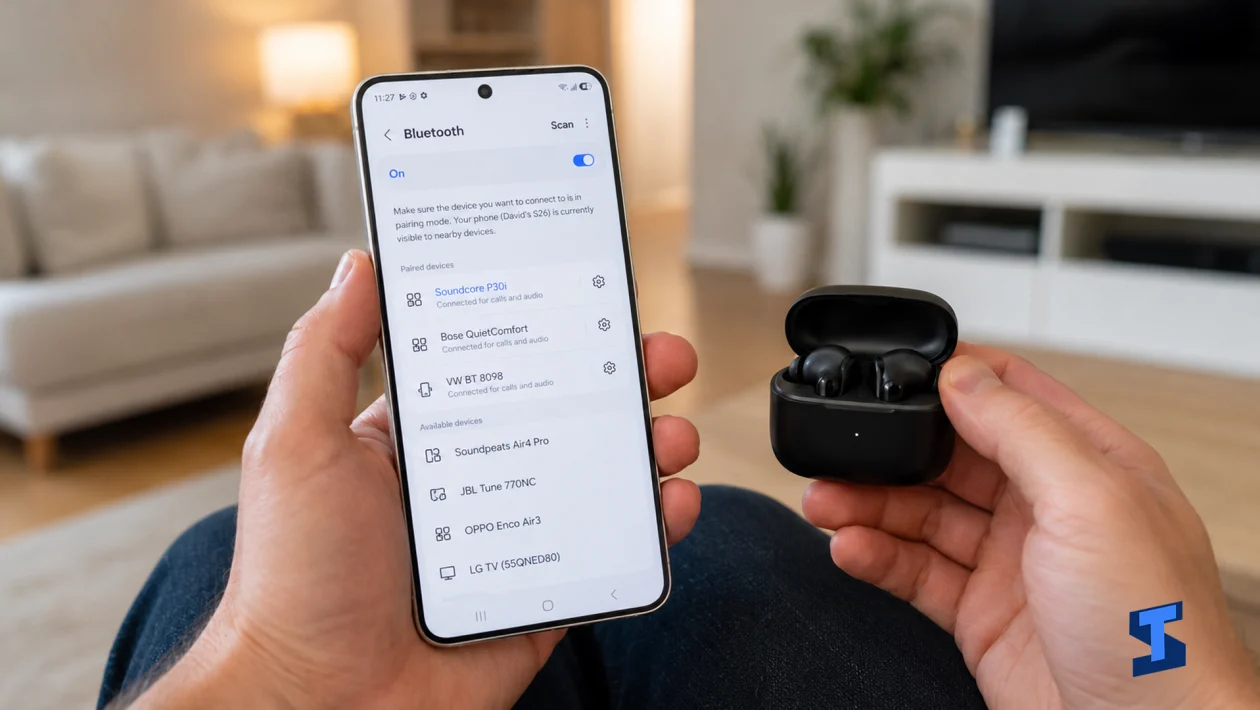
If your Samsung Galaxy S26 Ultra Bluetooth audio keeps cutting out, stuttering, or dropping for a second during playback, you’re not alone. This can happen because of weak Bluetooth signal, outdated device firmware, battery restrictions, codec issues, app glitches, or corrupted wireless settings. The good news is, a few quick adjustments can usually make Bluetooth audio stable again.
For more device-specific troubleshooting, you can also check our Samsung Galaxy S26 Ultra Problems and Fixes Hub where related fixes are organized in one place.
Move the Devices Closer Together
I’d start with the simplest check. Bluetooth audio can cut out when your earbuds, headphones, speaker, or car stereo is too far from your Galaxy S26 Ultra. Walls, bags, pockets, metal objects, and even your body can weaken the signal.
Keep your phone and Bluetooth device close together, then play audio again. If the sound becomes stable, the issue was likely signal interference or distance.
Also try keeping your phone out of tight pockets or bags while listening. Bluetooth works better when there is less obstruction between the phone and the connected device.
Restart Bluetooth
Sometimes Bluetooth only needs a quick refresh. If the connection has been active for hours, or if your phone recently switched between several wireless devices, the audio link may become unstable.
Swipe down twice from the top of the screen, then tap Bluetooth to turn it off. Wait about 10 seconds, then turn it back on. Reconnect your earbuds, headphones, speaker, or car system and test the sound again.
If Bluetooth also has trouble connecting in the first place, check this separate guide on Bluetooth not pairing with devices, since pairing problems and audio dropouts can come from the same wireless connection issue.
Restart Your Galaxy S26 Ultra
A restart can clear temporary system glitches that affect Bluetooth, audio routing, media playback, and background services. This is useful if the cutting out started suddenly after an app crash, update, or long listening session.
Press and hold the Side button and Volume Down button at the same time. When the power menu appears, tap Restart.
After the phone boots up, reconnect your Bluetooth device and play music, a video, or a call audio test. If the connection stays stable, the issue was likely a temporary software glitch.
Forget and Reconnect the Bluetooth Device
A saved Bluetooth profile can become corrupted, especially after updates or repeated pairing attempts. Removing the device and pairing it again gives your Galaxy S26 Ultra a clean connection.
Go to Settings > Connections > Bluetooth. Tap the gear icon beside the connected device, then tap Unpair or Forget. Restart both your phone and the Bluetooth device, then pair them again.
This is especially helpful if the audio cuts out only on one device. If every Bluetooth device has the same problem, the issue is more likely with the phone’s wireless settings.
Check Battery Restrictions for the Audio App
If the sound cuts out while using Spotify, YouTube Music, Netflix, TikTok, or another media app, the app may be restricted in the background. Battery limits can pause or delay app activity, which may cause stutters during playback.
Go to Settings > Apps, then choose the app you use for audio. Tap Battery and set it to Unrestricted or Optimized, depending on what works best on your phone.
You can also check Settings > Battery and device care > Battery > Background usage limits and make sure your audio app is not placed under sleeping or deep sleeping apps. If battery features are not behaving correctly, this guide on Power Saving Mode not working may also help.
Update Your Phone and Audio App
Bluetooth performance can improve through software updates. If the issue started after setup or after a recent update, another patch may already be available to fix wireless audio behavior.
Go to Settings > Software update > Download and install. Install any available update, then restart your phone.
After that, open the Google Play Store or Galaxy Store and update your audio apps. If apps will not update properly, fix that first using this guide on Galaxy S26 Ultra apps that can’t update.
Reset Wi-Fi and Bluetooth Settings
If Bluetooth audio still cuts out across multiple devices, reset the wireless settings. This clears saved Bluetooth, Wi-Fi, and related network configurations without deleting your personal files.
Go to Settings > General management > Reset > Reset Wi-Fi and Bluetooth settings. Confirm the reset, then reconnect your Bluetooth device.
This is one of the best fixes when Bluetooth stutters after changing accessories, pairing multiple devices, using wireless earbuds, or connecting to a car stereo. You can also follow this full guide on how to reset Wi-Fi and Bluetooth settings on Samsung Galaxy S26 Ultra if you want a dedicated walkthrough.
Test Another Bluetooth Device
If the audio only cuts out on one pair of earbuds, headphones, or speakers, the accessory may be the problem. It could have low battery, outdated firmware, weak Bluetooth range, or its own hardware issue.
Try connecting your Galaxy S26 Ultra to another Bluetooth speaker or headset. If the second device works fine, update or reset the original accessory.
If the sound is not just cutting out but also crackling, distorted, or uneven through headphones, check this related guide on audio distortion in headphones, since that may point to a different audio issue.
If your Samsung Galaxy S26 Ultra Bluetooth audio still cuts out after these fixes, test it with more than one app and more than one Bluetooth device. If the problem happens everywhere, contact Samsung Support or visit a service center. At that point, the issue may involve the phone’s Bluetooth radio, software layer, or hardware rather than a normal pairing problem.
