
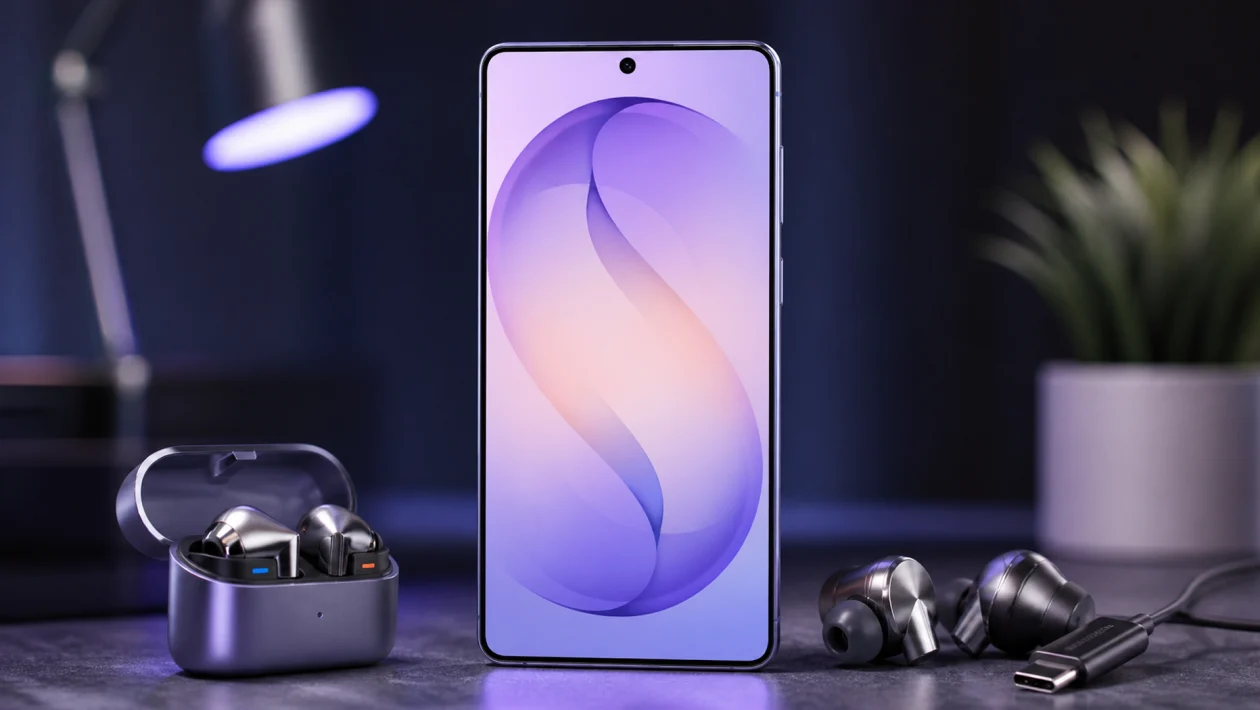
If your Samsung Galaxy S26 Ultra has distorted audio in headphones, first restart the phone, disconnect and reconnect the headphones, then turn off sound effects under Sound quality and effects. If you use Galaxy Buds, clean the earbuds, check for updates in the Galaxy Wearable app, and test the sound with another app before resetting anything.
In many cases, the problem is not the Galaxy S26 Ultra itself. It is usually caused by a Bluetooth glitch, dirty earbuds, a bad USB-C adapter, low earbud battery, an aggressive equalizer setting, Dolby Atmos, Adapt Sound, or a buggy app.
Symptom Check: What Kind of Distortion Are You Hearing?
Before changing deeper settings, identify the sound problem first.
You may hear:
- Crackling sound
- Static noise
- Muffled vocals
- Robotic audio
- Bass that sounds blown out
- Audio cutting in and out
- Distortion only during calls
- Distortion only in one earbud
- Distortion only when using USB-C headphones
- Distortion only in Spotify, YouTube, TikTok, Netflix, or one specific app
That detail matters. If the distortion happens only in one app, it is probably app-related. If it happens only with one pair of headphones, the headphones are the likely problem. If it happens with every headset, every app, and even after a restart, then you should check the Galaxy S26 Ultra’s software, USB-C port, Bluetooth settings, or hardware.
1. Restart Your Galaxy S26 Ultra First
Start here. It sounds boring, but it clears temporary audio glitches.
- Press and hold the Side button and Volume Down button.
- Tap Restart.
- Wait for the phone to turn back on.
- Reconnect your headphones.
- Play the same track or video again.
A restart can fix distortion caused by stuck Bluetooth sessions, app audio bugs, or temporary One UI sound processing issues.
If the distortion comes back after a few minutes, move to the next fix.
2. Test the Headphones With Another Device
Do not spend 30 minutes changing Galaxy S26 Ultra settings before checking the obvious thing.
Connect the same headphones to another phone, tablet, laptop, or Bluetooth device. Play the same song or video.
If the distortion also happens on another device, the headphones are probably the issue. Clean them, charge them, update them, or replace them.
If the headphones sound clean on another device, the issue is likely coming from your Galaxy S26 Ultra, its settings, the app, Bluetooth, or the USB-C connection.
3. Check if the Problem Happens on the Phone Speaker
Disconnect your headphones and play audio through the Galaxy S26 Ultra’s built-in speaker.
If the speaker sounds normal, the issue is likely tied to your headphones, Bluetooth, USB-C adapter, or headphone-specific audio settings.
If the speaker is also distorted, the problem may be app-related, software-related, or caused by a deeper sound setting.
Try this with at least two apps. For example, play one video on YouTube and one local audio file or streaming track.
4. Turn Off Dolby Atmos and Sound Effects
Samsung phones include audio enhancements that can make headphones sound bigger, louder, or more spacious. Nice when they work. Annoying when they do not.
If your headphones sound distorted, too sharp, too bass-heavy, or artificial, turn these effects off temporarily.
- Open Settings.
- Tap Sounds and vibration.
- Tap Sound quality and effects.
- Turn off Dolby Atmos.
- Turn off Dolby Atmos for gaming if enabled.
- Tap Equalizer.
- Choose Normal.
- Go back and turn off Adapt Sound if it is enabled.
Now test your headphones again.
If the distortion disappears, one of the sound effects was pushing the audio too hard. You can turn them back on one by one later, but keep the Equalizer on Normal while testing.
5. Check the Equalizer
A custom equalizer can easily cause distortion, especially if bass frequencies are boosted too much.
Go to:
Settings > Sounds and vibration > Sound quality and effects > Equalizer
Choose Normal.
Then play music at 50 to 70 percent volume. Do not test at maximum volume right away. If the audio sounds clean again, your previous EQ setting was probably clipping the sound.
This is common with small earbuds. Boosted bass can sound impressive at first, then turn messy once the track gets loud.
6. Lower the Volume and Disable Volume Boosting Apps
If you use a third-party volume booster, bass booster, equalizer, music enhancer, or audio effects app, turn it off.
These apps can stack on top of Samsung’s own audio processing. That can create crackling, harsh treble, or blown-out bass.
Try this:
- Lower media volume to 60 percent.
- Turn off third-party audio apps.
- Set Samsung Equalizer to Normal.
- Turn off Dolby Atmos.
- Test the same audio again.
If the distortion is gone, the issue was likely caused by over-processing.
7. Disconnect and Pair Your Bluetooth Headphones Again
For Bluetooth headphones or Galaxy Buds, remove the connection and pair again.
- Open Settings.
- Tap Connections.
- Tap Bluetooth.
- Tap the gear icon beside your headphones.
- Tap Unpair.
- Restart your Galaxy S26 Ultra.
- Put your headphones back into pairing mode.
- Pair them again.
This refreshes the Bluetooth connection and can fix distorted, delayed, robotic, or unstable audio.
8. Update Your Galaxy S26 Ultra
Audio problems can be fixed through software updates, especially if the issue started after a previous update.
Go to:
Settings > Software update > Download and install
Install any available update, then restart the phone.
If the issue appeared after a recent update, check again after the next security patch or system update. Audio bugs are often fixed quietly inside larger One UI updates.
9. Update Your Galaxy Buds or Bluetooth Earbuds
If you use Galaxy Buds, update them through the Galaxy Wearable app.
- Open the Galaxy Wearable app.
- Select your earbuds.
- Tap Earbuds settings.
- Tap Earbuds software update.
- Install any available update.
Also make sure the earbuds and charging case have enough battery. Low battery can cause weak, unstable, or poor-quality sound.
10. Clean Your Galaxy Buds or Earbuds
If the audio sounds muffled, weak, uneven, or distorted in one ear, check for dirt.
Earwax, dust, pocket lint, and moisture can block the speaker grille or microphone opening.
Do this carefully:
- Remove the ear tips.
- Use a dry, soft brush.
- Gently clean the speaker mesh.
- Wipe the ear tips with a dry microfiber cloth.
- Let everything dry before using the earbuds again.
Do not use sharp metal tools. Do not push dirt deeper into the grille. Do not rinse the earbuds unless the manufacturer specifically says that part is safe to wash.
11. Turn Off Ambient Sound During Calls
If distortion happens during phone calls, video calls, Messenger calls, WhatsApp calls, or Zoom meetings, check Ambient Sound or noise control settings.
For Galaxy Buds:
- Open the Galaxy Wearable app.
- Tap Noise controls.
- Turn off Ambient sound.
- Test a call again.
Ambient Sound lets outside noise pass through. In noisy places, it can make calls sound rough, hissy, or distorted. If your earbuds support Active Noise Canceling, try turning ANC on during calls instead.
12. Check if Distortion Happens Only in One App
Some audio distortion is not caused by the Galaxy S26 Ultra. It can come from the app itself.
Test the same headphones with:
- YouTube
- Spotify
- Samsung Music
- Netflix
- TikTok
- A downloaded audio file
- A phone call
If only one app sounds distorted, fix the app.
Try this:
- Open Settings.
- Tap Apps.
- Select the problem app.
- Tap Storage.
- Tap Clear cache.
- Reopen the app.
If that does not work, update the app from the Play Store or Galaxy Store.
Use Clear data only if you are okay with signing in again or resetting app settings.
13. Check USB-C Headphones and Adapters
The Galaxy S26 Ultra does not use a 3.5 mm headphone jack, so wired audio usually depends on USB-C headphones or a USB-C to 3.5 mm adapter.
If distortion happens only with wired headphones, check these:
- Use a different USB-C adapter.
- Use a different pair of wired headphones.
- Check the USB-C port for lint or dust.
- Remove the phone case and reconnect the adapter.
- Avoid cheap adapters with poor DAC quality.
Not all USB-C audio adapters are equal. Some produce noise, low volume, or distortion because of poor digital-to-analog conversion.
If possible, test with a Samsung-compatible USB-C audio adapter or a known good USB-C headset.
14. Clean the USB-C Port Carefully
A dirty USB-C port can cause unstable wired audio.
Turn off the phone first.
Then inspect the port with a flashlight. If you see lint, dust, or debris, clean it gently using a soft, dry brush or compressed air made for electronics.
Do not use a metal pin. Do not scrape the contacts. Do not put liquid inside the port.
After cleaning, reconnect your USB-C headphones and test again.
15. Reset Bluetooth and Network Settings
If Bluetooth audio keeps sounding distorted across multiple headphones, reset network settings.
This resets Wi-Fi, Bluetooth, and mobile network settings. It will not delete your photos, apps, or personal files, but you will need to reconnect Wi-Fi networks and Bluetooth devices.
- Open Settings.
- Tap General management.
- Tap Reset.
- Tap Reset Wi-Fi and Bluetooth settings or Reset network settings, depending on your One UI version.
- Confirm the reset.
- Restart the phone.
- Pair your headphones again.
Use this when simple unpairing does not fix Bluetooth distortion.
16. Boot Into Safe Mode
Safe Mode helps check whether a third-party app is interfering with audio.
- Press and hold the Side button and Volume Down button.
- Tap and hold Power off.
- Tap Safe mode.
- Connect your headphones.
- Test audio again.
If the distortion disappears in Safe Mode, one of your installed apps may be causing it. Start with recently installed apps, audio tools, equalizers, call recorders, automation apps, or apps that control Bluetooth behavior.
Restart the phone normally to leave Safe Mode.
17. Reset App Preferences
If the sound problem started after changing defaults, permissions, Bluetooth controls, or app settings, reset app preferences.
- Open Settings.
- Tap Apps.
- Tap the three-dot menu.
- Tap Reset app preferences.
- Confirm.
This does not delete your personal files, but it can reset disabled apps, default apps, permissions, and background restrictions.
18. Reset Your Galaxy Buds
If you are using Galaxy Buds and the distortion is still there, reset the earbuds.
- Open the Galaxy Wearable app.
- Select your earbuds.
- Tap Earbuds settings.
- Tap Reset.
- Pair the earbuds again.
This is worth doing if only your Galaxy Buds sound distorted, especially after an update, pairing issue, or noise control glitch.
19. Check for Water or Physical Damage
Headphone distortion can also come from hardware damage.
Check for:
- Moisture inside earbuds
- Dropped earbuds
- Bent USB-C connector
- Damaged cable
- Dirty speaker mesh
- Loose ear tips
- Cracked adapter
- Dust inside the phone’s USB-C port
If the distortion started after rain, sweat, cleaning, or a drop, stop using the accessory for a while and let it dry completely. Do not heat it with a hair dryer.
20. Factory Reset Only as a Last Resort
A factory reset should not be your first move. It deletes your data and takes time to set up again.
Try it only if:
- Distortion happens with every headset
- Distortion happens in every app
- The phone speaker may also sound bad
- Software updates did not help
- Safe Mode did not help
- Resetting Bluetooth and app preferences did not help
Before resetting:
- Back up your phone.
- Sync photos and important files.
- Make sure you know your Samsung and Google account passwords.
Then go to:
Settings > General management > Reset > Factory data reset
If the issue remains after a factory reset, it is probably time to contact Samsung Support or visit a service center.
Best Fixes by Headphone Type
| Headphone type | Most likely cause | Best first fix |
|---|---|---|
| Galaxy Buds | Dirty mesh, low battery, outdated firmware, noise control settings | Clean buds, update through Galaxy Wearable, reset buds |
| Bluetooth headphones | Pairing glitch, Bluetooth interference, codec issue | Unpair, restart, pair again |
| USB-C headphones | Bad adapter, dirty port, poor DAC, loose connection | Try another adapter, clean port, test another headset |
| Wired 3.5 mm headphones with adapter | Low-quality USB-C dongle or damaged cable | Use a better adapter or different headphones |
| Distortion in one app only | App cache, streaming quality, app bug | Clear app cache and update the app |
| Distortion during calls only | Ambient sound, microphone noise, call app issue | Turn off Ambient Sound and test another call app |
Why Audio Distortion Happens on the Galaxy S26 Ultra
Most headphone distortion comes from one of four places.
First, the audio source may be bad. A low-quality stream, corrupted file, or buggy app can sound distorted even when the phone is fine.
Second, the headphones may be dirty, damaged, low on battery, or badly paired.
Third, Samsung’s sound processing may be too aggressive. Dolby Atmos, Adapt Sound, custom EQ, volume boosters, and third-party audio apps can stack together and make audio harsh or clipped.
Fourth, there may be a hardware issue with the USB-C port, adapter, earbuds, or Bluetooth radio. This is less common, but it becomes more likely if every fix fails.
When to Contact Samsung Support
Contact Samsung Support or visit a service center if:
- Distortion happens with multiple headphones
- Audio is distorted even after a factory reset
- The USB-C port feels loose
- The phone was dropped or exposed to liquid
- The speaker is also distorted
- Calls sound distorted to other people
- The issue started right after physical damage
Do not pay for a repair before testing at least one other pair of headphones and one other app. That simple check can save you from replacing the wrong thing.
Final Advice
The fastest path is simple: test another headset, turn off sound effects, reset the Bluetooth connection, update the phone, and clean the earbuds or USB-C port.
Most Galaxy S26 Ultra headphone distortion problems are not serious. In most cases, the fix is a setting, app, Bluetooth connection, dirty earbud, or weak adapter. But if the distortion happens across every app, every headset, and even after a reset, treat it as a possible hardware issue and have Samsung check the phone.
FAQs
Why does my Galaxy S26 Ultra sound distorted on Bluetooth headphones?
Bluetooth distortion usually comes from a weak connection, pairing glitch, low headphone battery, interference, outdated firmware, or audio effects. Unpair the headphones, restart the phone, pair again, then turn off Dolby Atmos and custom equalizer settings.
Why do my Galaxy Buds sound muffled on my Galaxy S26 Ultra?
Muffled Galaxy Buds are often caused by dirt or earwax blocking the speaker mesh. Clean the earbuds carefully, check the ear tips, charge the buds, and update them through the Galaxy Wearable app.
Why is only one earbud distorted?
If only one earbud sounds distorted, that earbud may be dirty, damaged, low on battery, or not seated properly in your ear. Clean both earbuds, reset them, and test them with another phone.
Can Dolby Atmos cause headphone distortion?
Yes. Dolby Atmos can change the sound profile, and with some headphones or tracks, it may make audio sound unnatural, sharp, or overloaded. Turn it off while troubleshooting.
Should I factory reset my Galaxy S26 Ultra for audio distortion?
Only as a last resort. Try restarting, changing sound settings, updating software, testing other headphones, clearing app cache, resetting Bluetooth, and checking Safe Mode first.
