
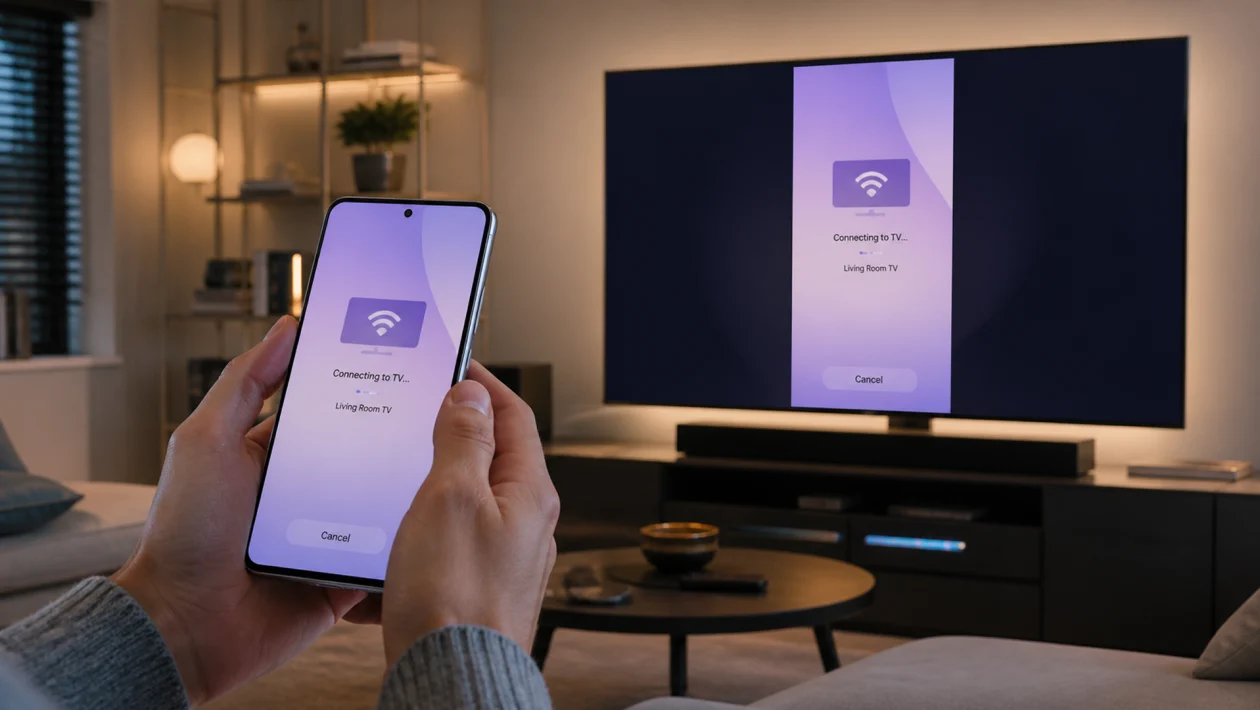
If screen mirroring is not working on your Samsung Galaxy S26 Ultra, restart your phone and TV, connect both devices to the same Wi-Fi network, then open Smart View from Quick Settings and select your TV again.
Samsung notes that Smart View needs compatible mirroring hardware, both devices should be on the same network, and DRM-protected content may not mirror.
Why Screen Mirroring Fails on the Galaxy S26 Ultra
Screen mirroring usually fails because the phone and TV are not on the same Wi-Fi network, the TV has not allowed the connection, the router is glitching, the TV software is outdated, or another app is blocking the connection. It can also fail when you try to mirror protected content from streaming apps, since Samsung says DRM-protected content cannot be mirrored through Smart View.
Stick to these fixes in order. Do not factory reset your phone unless every basic connection fix fails.
1. Restart the Galaxy S26 Ultra, TV, and Router
Start with the boring fix. It works more often than it should.
- Restart your Galaxy S26 Ultra.
- Turn off your TV.
- Unplug the TV from the wall for 30 seconds.
- Plug the TV back in and turn it on.
- Restart your Wi-Fi router if the TV still does not appear.
- Try Smart View again.
Samsung’s own Smart View troubleshooting guidance says restarting or rebooting your device usually solves Smart View problems.
2. Connect Both Devices to the Same Wi-Fi Network
Smart View depends on the phone and TV seeing each other on the local network.
Check your Galaxy S26 Ultra:
- Open Settings.
- Tap Connections.
- Tap Wi-Fi.
- Confirm the network name.
Then check your TV’s network settings and make sure it is connected to the same Wi-Fi network.
Watch out for this common mistake: your phone may be on the 5 GHz network while the TV is on a guest network, extender network, or different router. If your router has separate Wi-Fi names, connect both devices to the same one and try again.
Samsung says the phone or tablet must be connected to the same network as the TV for Smart View to work.
3. Allow the Screen Mirroring Request on the TV
Sometimes the Galaxy S26 Ultra is fine. The TV is simply waiting for permission.
- Open Smart View on your phone.
- Select your TV.
- Look at the TV screen.
- Choose Allow, Accept, or Approve when prompted.
- Try mirroring again.
If you accidentally denied the request before, open your TV’s screen mirroring, device manager, or external device settings and remove the blocked phone from the list. Then reconnect.
Samsung’s Smart View guidance says that when the phone does not display, it may need permission from the TV, and you should select Allow when the message appears.
4. Turn Off VPN, Mobile Hotspot, and Private DNS
VPNs and privacy tools can interfere with device discovery. Smart View may not find the TV if the phone’s traffic is being routed through a VPN or if the phone is acting as the hotspot.
Try this:
- Turn off VPN.
- Turn off Mobile Hotspot.
- Turn off Private DNS temporarily.
- Reconnect to Wi-Fi.
- Open Smart View again.
To check Private DNS:
Settings > Connections > More connection settings > Private DNS
Set it to Automatic while testing.
If Smart View starts working after this, turn those features back on one at a time to find the one causing the issue.
5. Update Your Phone, TV, and SmartThings App
A software mismatch can break mirroring.
Update the Galaxy S26 Ultra:
Settings > Software update > Download and install
Update your Samsung TV through its settings menu. The exact path can vary, but it is usually under:
Settings > Support > Software Update
Then update the SmartThings app from the Galaxy Store or Play Store. Samsung’s screen mirroring guide also shows SmartThings as another way to mirror your phone screen to a Samsung TV.
After updating everything, restart both devices before trying again.
6. Try Mirroring Through SmartThings Instead of Quick Settings
If Smart View from Quick Settings does not connect, use SmartThings.
- Open the SmartThings app.
- Select your TV.
- Tap More options.
- Tap Mirror screen or Smart View.
- Tap Start now if prompted.
This is useful when the TV does not appear in the basic Smart View panel but still appears inside SmartThings. Samsung’s screen mirroring instructions include this SmartThings method for mirroring to a Samsung TV.
7. Reset Network Settings on the Galaxy S26 Ultra
Use this when Smart View still cannot find the TV after restarting, updating, and checking Wi-Fi.
This will reset Wi-Fi, mobile data, and Bluetooth settings. It will not delete your photos, videos, or apps, but you will need to reconnect to Wi-Fi and pair Bluetooth devices again.
- Open Settings.
- Tap General management.
- Tap Reset.
- Tap Reset network settings.
- Tap Reset settings.
- Restart your phone.
- Connect to Wi-Fi again.
- Try Smart View.
Samsung’s Wi-Fi troubleshooting guidance lists reset network settings as a fix when connection problems continue.
8. Check App Restrictions and DRM-Protected Content
If screen mirroring works on the home screen but goes black in Netflix, Disney+, Prime Video, or another streaming app, your phone may not be broken.
Some apps block mirroring because of DRM protection. Samsung specifically notes that DRM-protected content cannot be mirrored through Smart View.
Test with something simple:
- Mirror your home screen.
- Open Gallery.
- Play a personal video.
- Open YouTube.
- Then test the app that failed.
If only one streaming app shows a black screen, use that app directly on the TV instead of mirroring it from your phone.
Best Fixes by Symptom
| Problem | Most likely cause | Best fix |
|---|---|---|
| TV does not appear in Smart View | Different Wi-Fi network or router issue | Connect both to the same Wi-Fi and restart router |
| TV appears but will not connect | Permission blocked on TV | Select Allow or remove blocked device |
| Screen mirrors but video is black | DRM-protected app | Use the TV app instead |
| Mirroring disconnects randomly | Weak Wi-Fi or VPN | Move closer to router and turn off VPN |
| Smart View worked before but stopped | Software or network glitch | Restart phone, TV, and router |
| Quick Settings fails but TV appears in app | Smart View discovery issue | Try SmartThings mirroring |
When to Contact Samsung Support
Contact Samsung Support if your Galaxy S26 Ultra cannot mirror to any compatible TV after network reset, software updates, and testing on another Wi-Fi network. Also contact your TV manufacturer if other phones cannot mirror to the same TV. At that point, the problem may be the TV firmware, router configuration, or device compatibility rather than the phone itself.
Final Advice
Start with the simple stuff: restart everything, use the same Wi-Fi network, approve the TV permission prompt, and turn off VPN. Most Galaxy S26 Ultra screen mirroring problems come from network discovery or TV permissions, not a broken phone.
If Smart View still fails, try SmartThings, update both devices, then reset network settings.
FAQs
Why is my Galaxy S26 Ultra not finding my TV?
Your phone and TV may be on different Wi-Fi networks, the TV may not support Miracast or Smart View, or the router may be blocking local device discovery. Restart both devices and connect them to the same Wi-Fi network first.
Why does Smart View connect but show a black screen?
If only one app shows a black screen, it is probably DRM protection. Try mirroring your home screen or Gallery. If those work, the app is blocking mirrored playback.
Can I screen mirror using mobile data?
For Smart View, use Wi-Fi. Your Galaxy S26 Ultra and TV need to discover each other on the same local network.
Why does screen mirroring keep disconnecting?
Weak Wi-Fi, router congestion, VPN use, outdated TV firmware, or low phone battery can cause disconnections. Restart the router, move closer to it, and turn off VPN while testing.
