
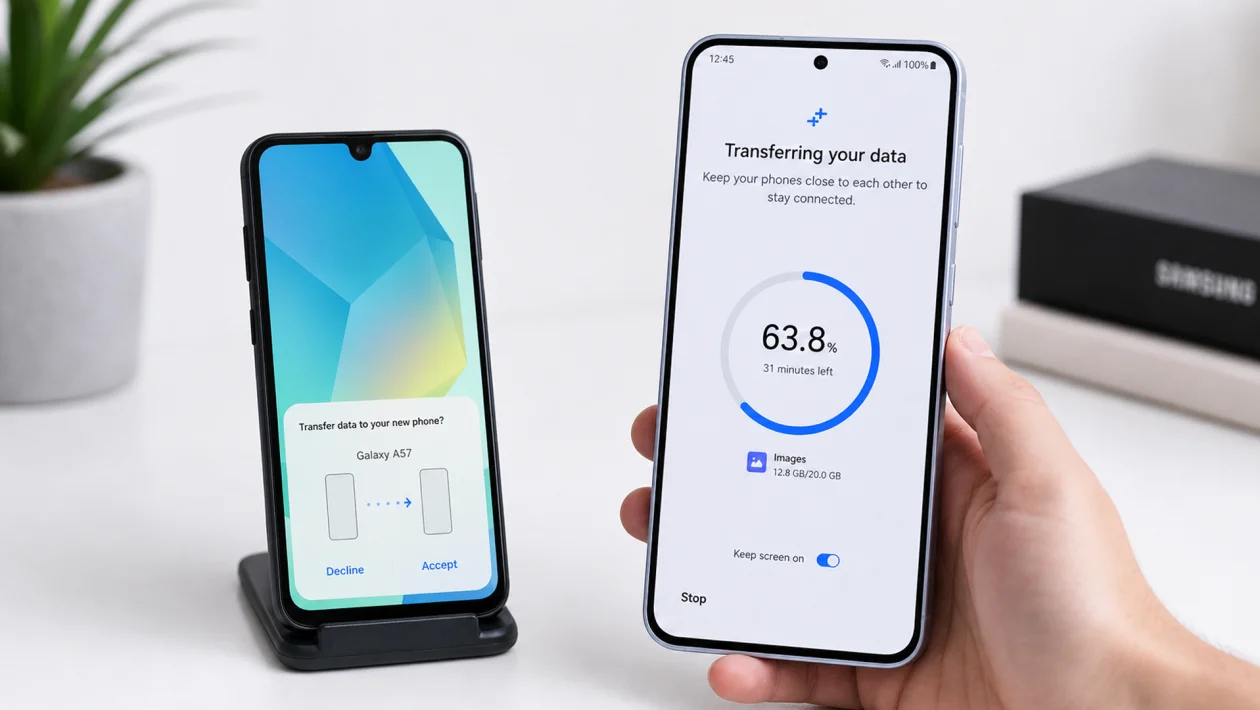
Moving to the Samsung Galaxy A57 is easier if you transfer your files before you start setting everything up manually.
The fastest method is Samsung Smart Switch, which can move contacts, messages, photos, videos, apps, calendars, settings, and other supported data from your old phone to the Galaxy A57. You can transfer using a USB-C cable, Wi-Fi, iCloud, or a backup from a computer.
For most people, a cable transfer is the best option. It is usually faster, more stable, and better for moving large photo and video libraries.
Before You Start
Charge both phones first. Data transfer can take a while, especially if the old phone has years of photos, videos, WhatsApp files, and downloaded apps.
You should also connect both phones to Wi-Fi, update Smart Switch if needed, and keep both phones unlocked during the transfer.
You need one of these:
| Transfer method | Best for |
|---|---|
| USB-C cable | Fastest and most stable transfer |
| Wi-Fi transfer | If you do not have the right cable |
| iCloud transfer | Moving from iPhone without a cable |
| PC or Mac backup | Restoring from a saved Smart Switch backup |
If your old phone has very little storage left, delete a few unnecessary files before transferring. Smart Switch needs enough room to scan, prepare, and move your data.
What Can You Transfer to the Galaxy A57?
Smart Switch can transfer many common types of data, but not everything moves perfectly from every phone.
You can usually transfer:
- Contacts
- Messages
- Call logs
- Photos
- Videos
- Music
- Documents
- Calendar events
- Notes
- Alarms
- Wi-Fi settings
- Some device settings
- Apps or app suggestions
- Home screen layout, depending on the old device
- Some app data, depending on the app
A small warning: some app data may not transfer, especially banking apps, authenticator apps, game progress, secure apps, and apps with their own encrypted storage. Sign in to those apps again after the transfer.
The Best Way to Transfer Data to the Galaxy A57
Use a USB-C cable if possible.
The Galaxy A57 has USB-C, so transferring from another recent Samsung or Android phone is usually straightforward. If you are moving from an iPhone, you may need a USB-C to Lightning cable or a USB-C to USB-C cable, depending on your iPhone model.
A wired transfer is better when you are moving:
- Thousands of photos
- 4K videos
- WhatsApp media
- Large app libraries
- Documents
- Offline music or downloads
Wi-Fi works, but it can be slower. And if the connection drops, the transfer may pause or fail.
How to Transfer Data from an Old Samsung Phone to the Galaxy A57
This is the easiest move because both phones are already in the Samsung ecosystem.
- Turn on the Galaxy A57.
- Follow the setup screen until you see the option to copy apps and data.
- Choose Galaxy or Android device.
- Open Smart Switch on both phones.
- On the Galaxy A57, tap Receive data.
- On the old Samsung phone, tap Send data.
- Choose Cable or Wireless.
- Connect the phones if using a cable.
- Allow permissions on the old phone.
- Select the data you want to transfer.
- Tap Transfer.
- Keep both phones close together until the transfer finishes.
After the transfer, the Galaxy A57 may continue organizing apps, photos, and settings in the background. Give it a few minutes before judging whether everything arrived.
How to Transfer Data from Another Android Phone to the Galaxy A57
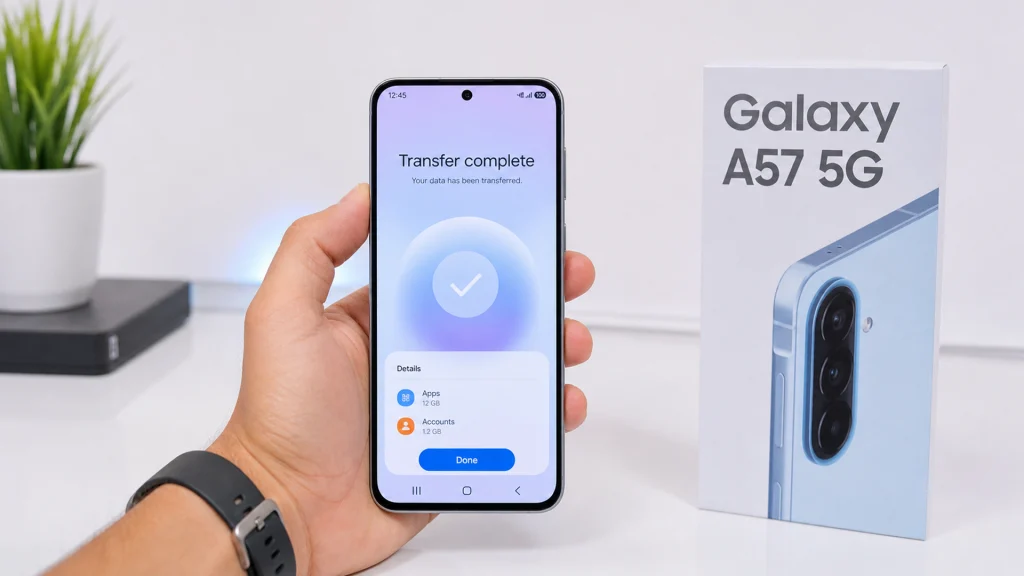
Moving from another Android phone is also simple, but the results can vary depending on the brand.
- Install or update Samsung Smart Switch on the old Android phone.
- Open Settings on the Galaxy A57.
- Go to Accounts and backup.
- Tap Bring data from old device.
- Tap Receive data.
- Choose Galaxy or Android.
- Choose Cable or Wireless.
- Open Smart Switch on the old Android phone.
- Tap Send data.
- Allow the connection.
- Select what you want to transfer.
- Tap Transfer.
Some settings may not transfer exactly if you are coming from Xiaomi, OPPO, vivo, HONOR, Motorola, OnePlus, or another Android brand. That is normal. Your photos, contacts, messages, and files are more likely to move cleanly than brand-specific settings.
How to Transfer Data from iPhone to Samsung Galaxy A57
Switching from iPhone to Galaxy takes a little more care. The transfer can work well, but some Apple-only features will not move to Android.
The best method is a cable transfer.
- Charge both phones.
- Turn on the Galaxy A57.
- Start the setup process.
- Choose iPhone or iPad when asked what device you are transferring from.
- Connect the iPhone to the Galaxy A57 with the correct cable.
- On the iPhone, tap Trust if the “Trust this computer?” message appears.
- Sign in or verify when prompted.
- Choose the data you want to transfer.
- Tap Transfer.
- Keep both devices connected until the process finishes.
You may be able to transfer contacts, photos, videos, calendar events, messages, and some app suggestions. Paid apps, iOS-only apps, iMessage, FaceTime, Apple Wallet cards, and some app data will not transfer in the same way.
Before removing your SIM from the iPhone, turn off iMessage. This helps prevent messages from getting stuck in Apple’s messaging system after you switch to the Galaxy A57.
How to Transfer Data from iCloud to the Galaxy A57
Use this method if you do not have the right cable or your iPhone is backed up to iCloud.
- Turn on the Galaxy A57.
- Open Smart Switch.
- Tap Receive data.
- Choose iPhone or iPad.
- Choose the iCloud transfer option.
- Sign in with your Apple ID.
- Complete any verification steps.
- Select the data you want to import.
- Start the transfer.
This method is convenient, but it is not always as complete as a wired transfer. If you have a large photo library, check your Photos app after the transfer and make sure the important albums arrived.
How to Transfer Data Using a Computer Backup
This method is useful if your old phone is damaged, unstable, or already backed up to a PC or Mac.
- Install Samsung Smart Switch on your computer.
- Open Smart Switch.
- Connect the old phone to the computer.
- Create a backup.
- Disconnect the old phone.
- Connect the Galaxy A57.
- Choose the restore option.
- Select the backup file.
- Restore the data to the Galaxy A57.
This method is also useful if you want an extra backup before resetting or trading in your old phone.
What to Do After the Transfer
Do not wipe your old phone right away.
First, check the important stuff.
Open the Galaxy A57 and confirm that your contacts, photos, videos, messages, calendar events, notes, and files are there. Then open your most important apps and sign in again.
Check these apps manually:
- Banking apps
- Authenticator apps
- Password managers
- Telegram
- Messenger
- Email apps
- Work apps
- Cloud storage apps
- Games
- Health and fitness apps
Authenticator apps deserve special attention. Some of them require a separate transfer process. Do this before erasing your old phone.
How to Transfer WhatsApp to the Galaxy A57
WhatsApp can be tricky because chats and media depend on the backup method used on the old phone.
If you are moving from Android to Galaxy A57, back up WhatsApp to Google Drive first.
- Open WhatsApp on the old Android phone.
- Go to Settings.
- Tap Chats.
- Tap Chat backup.
- Back up to Google Drive.
- Install WhatsApp on the Galaxy A57.
- Sign in with the same phone number.
- Restore the backup when prompted.
If you are moving from iPhone to Galaxy A57, follow WhatsApp’s iPhone-to-Android transfer process during setup when available. Do not skip it if your chats matter. Restoring later may be harder.
How to Transfer Photos and Videos to the Galaxy A57
Smart Switch is the easiest method, but you have other options.
Use Google Photos if your photos are already backed up to your Google account. Just install Google Photos on the Galaxy A57 and sign in.
Use OneDrive if you backed up photos from Samsung Gallery or your old phone.
Use a USB-C flash drive if you want an offline transfer. The Galaxy A57 supports USB OTG, so you can connect compatible USB-C storage and copy files through the My Files app.
For large 4K video files, cable transfer or USB storage is usually better than wireless transfer.
How to Transfer Files with USB OTG
The Galaxy A57 supports USB Type-C with OTG, so you can use compatible flash drives, card readers, and external storage devices.
- Connect a USB-C flash drive to the Galaxy A57.
- Open My Files.
- Tap the connected USB storage.
- Select the files you want to copy.
- Tap Copy or Move.
- Choose Internal storage.
- Select the destination folder.
- Tap Copy here.
This is helpful if your old phone’s data is already saved on a flash drive or memory card.
Smart Switch Not Working? Try These Fixes
If Smart Switch fails, do not reset the Galaxy A57 immediately. Most transfer problems are simple.
Restart Both Phones
Restart the Galaxy A57 and the old phone, then try again. This clears temporary connection problems.
Use a Cable Instead of Wi-Fi
If wireless transfer keeps failing, use a cable. It is usually more stable.
Update Smart Switch
Open the Galaxy Store or Google Play Store and update Smart Switch on both devices.
Keep Both Phones Unlocked
Some phones pause transfer when the screen locks. Keep both screens awake until the transfer finishes.
Free Up Storage
If the Galaxy A57 does not have enough free space, the transfer may fail. This matters more if you bought the 128GB version and your old phone has a large photo library.
Check the Cable
Not all USB-C cables are good for data transfer. Some cheap cables only charge. Use a proper data cable.
Turn Off VPN or Battery Saver
VPNs, firewalls, and aggressive battery-saving modes can interrupt the transfer. Turn them off temporarily during the move.
Transfer in Smaller Batches
If the full transfer fails, move only contacts, messages, and settings first. Then transfer photos and videos separately.
Why Some Data Did Not Transfer
This is common. It does not always mean the transfer failed.
Some data may stay behind because it is encrypted, tied to a specific device, locked inside an app, or stored in a cloud account instead of local storage.
Things that may need manual setup include:
- Banking apps
- Payment cards
- Authenticator codes
- Some game saves
- Work profile data
- Secure Folder content
- iMessage and FaceTime
- Apple Wallet data
- Some app logins
- Some app settings
The safest move is to keep your old phone for a few days before wiping it.
Should You Use Cable or Wireless Transfer?
Use cable if you want the safest transfer.
| Method | Pros | Cons |
|---|---|---|
| Cable transfer | Faster, more stable, better for large files | Needs the right cable |
| Wireless transfer | Convenient, no cable needed | Slower and more likely to fail |
| iCloud transfer | Useful for iPhone users without cable | Some data may not transfer |
| Computer backup | Good for backup and restore | Requires PC or Mac |
For most Galaxy A57 users, cable transfer is the best first choice.
How Long Does Data Transfer Take?
It depends on how much data you have.
A small transfer with contacts, messages, and a few apps may finish in minutes. A large transfer with years of photos, 4K videos, WhatsApp media, and offline files can take much longer.
Do not interrupt the transfer just because it looks slow. If the progress bar is still moving, leave it alone.
Can You Use the Galaxy A57 During Transfer?
It is better not to.
You can sometimes use basic features while data is being organized, but avoid opening many apps, recording video, gaming, or changing settings during the transfer. Let the phone finish first.
After the transfer, the Galaxy A57 may feel warm or slow for a short time. That is normal while it restores apps, indexes photos, syncs accounts, and updates services.
Before You Erase Your Old Phone
Check these first:
- Contacts are complete
- Photos and videos are visible
- WhatsApp chats restored
- Messages transferred
- Email accounts work
- Banking apps are signed in
- Authenticator app is moved
- Password manager works
- Important files are copied
- Notes and calendar events are present
- SIM or eSIM is active on the Galaxy A57
Only reset your old phone after you are sure everything important is safe.
FAQ
What is the easiest way to transfer data to the Samsung Galaxy A57?
The easiest way is Samsung Smart Switch. Use a USB-C cable if possible because it is usually faster and more reliable than Wi-Fi.
Can I transfer data from iPhone to Galaxy A57?
Yes. You can transfer data from an iPhone using Smart Switch through a cable or iCloud. Some Apple-only data, such as iMessage, FaceTime, Apple Wallet cards, and certain app data, will not transfer the same way.
Can I transfer WhatsApp chats to the Galaxy A57?
Yes, but the method depends on your old phone. Android-to-Android transfers usually use Google Drive backup. iPhone-to-Galaxy transfers may require WhatsApp’s dedicated transfer process during setup.
Does Smart Switch transfer everything?
No. Smart Switch transfers many common files and settings, but some app data, secure data, payment cards, authenticator codes, and work profile content may need separate setup.
Can I transfer files with a USB flash drive?
Yes. The Galaxy A57 supports USB OTG through USB-C, so you can connect compatible USB-C flash drives and copy files using the My Files app.
Why did my Smart Switch transfer fail?
Common reasons include weak Wi-Fi, low battery, locked screens, outdated Smart Switch apps, not enough storage, a charge-only cable, VPN interference, or trying to transfer too much data at once.
Should I reset my old phone after transferring data?
Not immediately. Keep your old phone for a few days until you confirm that your contacts, photos, messages, WhatsApp, banking apps, authenticator app, and important files are working on the Galaxy A57.
Final Take
The best way to transfer data to the Samsung Galaxy A57 is to use Smart Switch with a cable. It gives you the cleanest move from an old Samsung phone, Android phone, or iPhone.
But do not rush the final step.
Transfer first. Check everything. Sign in to your important apps. Move your authenticator codes. Confirm WhatsApp. Then, and only then, reset your old phone.
That one extra check can save you from losing something you cannot easily get back.
