
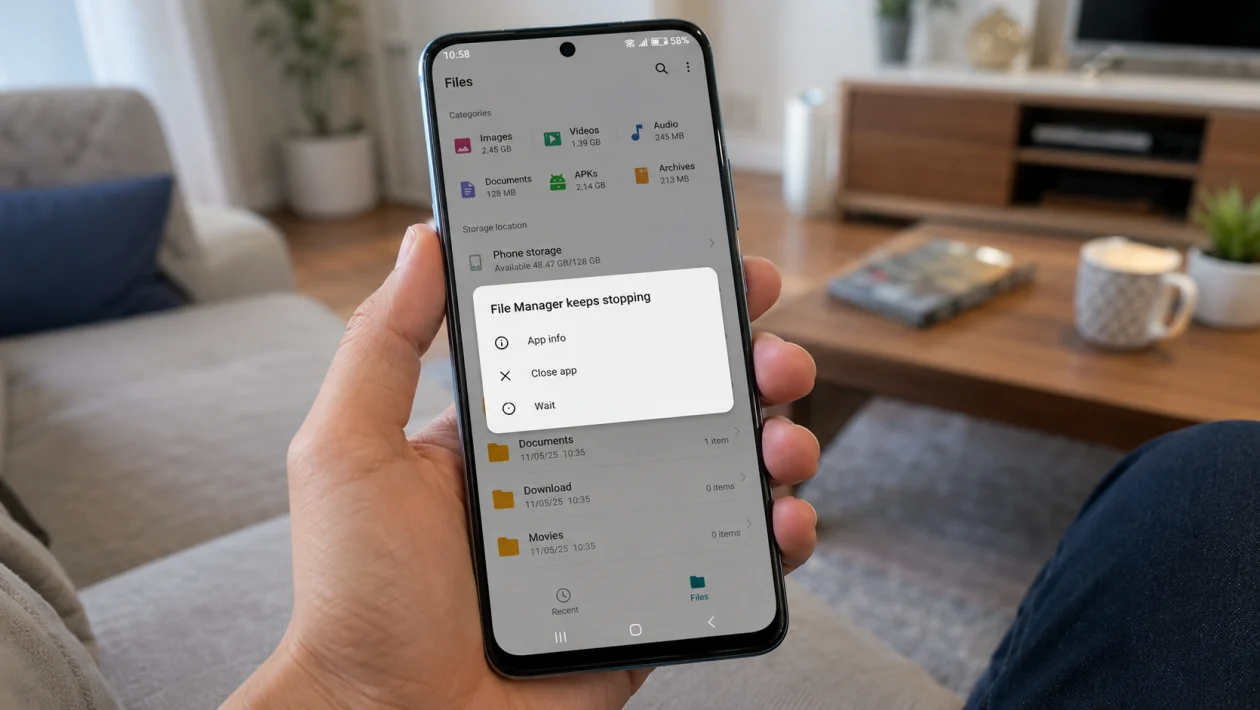
If File Manager keeps crashing on your vivo Y51 Pro, the problem is usually caused by temporary app data, low storage, a stuck background process, outdated software, a bad file, or a system app glitch.
Start with the simple fixes first. Restart the phone, force stop File Manager, clear its cache, then check storage and updates. Do not factory reset the phone right away. That should be the last option after safer fixes.
Quick answer
To fix vivo Y51 Pro File Manager crashing, go to Settings > Apps > File Manager > Storage, then clear the cache and restart the phone. If it still crashes, clear File Manager data, free up storage, update Funtouch OS, check file permissions, and reset app preferences.
If the crash happens only when attaching files inside WhatsApp, Gmail, Messenger, or another app, the issue may involve the app trying to open the system file picker. Update both File Manager and the app where the crash happens.
vivo Y51 Pro File Manager crashing diagnostic table
| Symptom | Likely cause | What to check first |
|---|---|---|
| File Manager closes immediately | Corrupt app cache or stuck process | Restart phone, force stop File Manager |
| File Manager crashes when opening downloads | Damaged file or large folder | Check Downloads folder |
| File Manager crashes when attaching files | File picker, app permission, or third-party app issue | Update the app and File Manager |
| File Manager freezes before closing | Low storage or RAM pressure | Free up storage and close background apps |
| File Manager crashes after update | App data conflict or system bug | Clear cache, update apps, restart |
| File Manager opens but cannot show files | Permission or storage access issue | Check Files and media permissions |
| File Manager still crashes after basic fixes | System app malfunction | Reset app preferences or contact vivo support |
Why does File Manager keep crashing on vivo Y51 Pro?
File Manager may crash when the app cannot load folders, thumbnails, recent files, storage permissions, or system file picker data properly.
Common causes include:
Corrupted File Manager cache
Low internal storage
Too many background apps
A damaged downloaded file
A large folder with many photos, videos, or APK files
Outdated Funtouch OS
Outdated Google Play system components
Permission conflicts
SD card problems, if you use one
A system app bug
The fixes below are arranged from easiest to more advanced.
1. Restart your vivo Y51 Pro
Restart the phone before changing deeper settings.
A restart can close stuck background processes and reload File Manager without deleting your files.
- Press and hold the Power button.
- Tap Restart.
- Wait for the phone to turn back on.
- Open File Manager again.
- Check if it still crashes.
If File Manager works after the restart, the issue was likely temporary.
2. Force stop File Manager
Force stopping File Manager closes the app completely. This helps if the app is frozen in the background and keeps reopening in the same broken state.
- Open Settings.
- Tap Apps or Apps & notifications.
- Tap App manager, See all apps, or App management.
- Find and tap File Manager.
- Tap Force stop.
- Tap OK if asked.
- Open File Manager again.
The exact wording may vary depending on your Funtouch OS version.
3. Clear File Manager cache
Cache files help apps load faster, but they can also cause crashes when they become outdated or corrupted.
Clearing cache should not delete your photos, videos, documents, or downloads.
- Open Settings.
- Tap Apps.
- Tap File Manager.
- Tap Storage or Storage & cache.
- Tap Clear cache.
- Restart the phone.
- Open File Manager again.
If File Manager still crashes, move to the next fix.
4. Clear File Manager data
Clear data is stronger than clearing cache. It resets the File Manager app settings and stored app data.
Your personal files should remain in phone storage, but the app may lose recent file history, sorting preferences, and saved settings.
Caution: Read the warning screen before confirming. Do not tap anything that says erase phone, format storage, or factory reset.
- Open Settings.
- Tap Apps.
- Tap File Manager.
- Tap Storage or Storage & cache.
- Tap Clear data or Clear storage.
- Confirm the action.
- Restart your vivo Y51 Pro.
- Open File Manager again.
This is one of the best fixes if File Manager crashes as soon as it opens.
5. Free up internal storage
File Manager may crash if the phone has very little free storage left. It needs space to load file lists, thumbnails, cached previews, and folder data.
Try to keep at least a few gigabytes of free space if possible.
- Open Settings.
- Tap RAM and storage space or Storage.
- Check available internal storage.
- Delete files you no longer need.
- Move large videos, photos, or downloads to cloud storage or a computer.
- Empty trash or recently deleted folders if available.
- Restart the phone.
Start with large video files, old APK files, duplicate downloads, and app caches. Do not delete folders if you are not sure what they contain.
6. Check if one folder or file is causing the crash
Sometimes File Manager crashes only when opening a specific folder. Downloads, WhatsApp media, Telegram files, large video folders, or APK folders are common trouble spots.
This can happen when a file is damaged or when a folder has too many items for the app to preview smoothly.
- Open File Manager.
- Avoid the folder that usually crashes first.
- Open smaller folders one by one.
- Check if the crash happens only in one location.
- If possible, connect the phone to a computer.
- Move suspicious files out of that folder.
- Restart the phone and test File Manager again.
If the crash started after downloading a file, delete that file using another file app, a computer, or the app that downloaded it.
7. Update Funtouch OS and system apps
Updates can fix system app bugs, permission issues, and file handling problems.
- Open Settings.
- Tap System update.
- Download and install any available update.
- Open the Play Store.
- Tap your profile icon.
- Tap Manage apps and device.
- Update all available apps.
- Open V-Appstore if available and update vivo system apps.
Restart the phone after updating.
If File Manager started crashing right after an update, still check for another update. Sometimes a follow-up patch fixes bugs from the previous release.
8. Check File Manager permissions
File Manager needs access to files and media. If storage permissions are blocked or changed, it may crash or fail when opening folders.
- Open Settings.
- Tap Apps.
- Tap File Manager.
- Tap Permissions.
- Allow Files and media, Photos and videos, or Storage access if shown.
- Go back and open File Manager again.
Also check the app where the crash happens. For example, if File Manager crashes when attaching a file in WhatsApp or Gmail, check that app’s permissions too.
9. Remove or test the SD card
If you use a microSD card, File Manager may crash when the card is corrupted, slow, full, or not mounted properly.
- Turn off your vivo Y51 Pro.
- Remove the SD card.
- Turn the phone back on.
- Open File Manager.
- Check if the app works without the SD card.
If File Manager stops crashing, the SD card may be the problem.
Back up the SD card to a computer if possible. Do not format the card unless you already have a backup, because formatting erases its files.
10. Reset app preferences
Reset app preferences can fix disabled system apps, blocked permissions, background restrictions, and default app problems.
This does not delete your photos, videos, documents, or installed apps. It can reset disabled apps, notification settings, default apps, and permission prompts.
- Open Settings.
- Tap Apps.
- Tap the menu icon, usually three dots.
- Tap Reset app preferences.
- Read the warning.
- Tap Reset apps.
- Restart your phone.
- Open File Manager again.
Use this before trying a factory reset.
What to do if File Manager still crashes
If File Manager still crashes after all 10 fixes, contact vivo support or visit an authorized service center.
Get help sooner if:
File Manager crashes with other system apps
The phone restarts by itself
Internal storage shows errors
Files disappear or cannot be copied
The phone cannot read the SD card
The problem started after water damage or a drop
The phone overheats while opening files
Avoid factory reset unless you have backed up your files. A factory reset erases personal data, apps, photos, videos, downloads, and settings.
vivo Y51 Pro File Manager crashing checklist
Restart the phone
Force stop File Manager
Clear File Manager cache
Clear File Manager data
Free up internal storage
Check if one folder or file causes the crash
Update Funtouch OS and apps
Check File Manager permissions
Remove or test the SD card
Reset app preferences
FAQs
Will clearing File Manager cache delete my files?
No. Clearing cache should not delete your photos, videos, documents, downloads, or folders. It only removes temporary app files.
Will clearing File Manager data delete my photos?
It should not delete your personal files from internal storage. It may reset File Manager settings, recent file history, and app preferences. Read the warning screen before confirming.
Why does File Manager crash when I attach files?
The crash may involve the Android file picker, File Manager, or the app where you are attaching the file. Update both apps, clear File Manager cache, and check permissions for the app you are using.
