
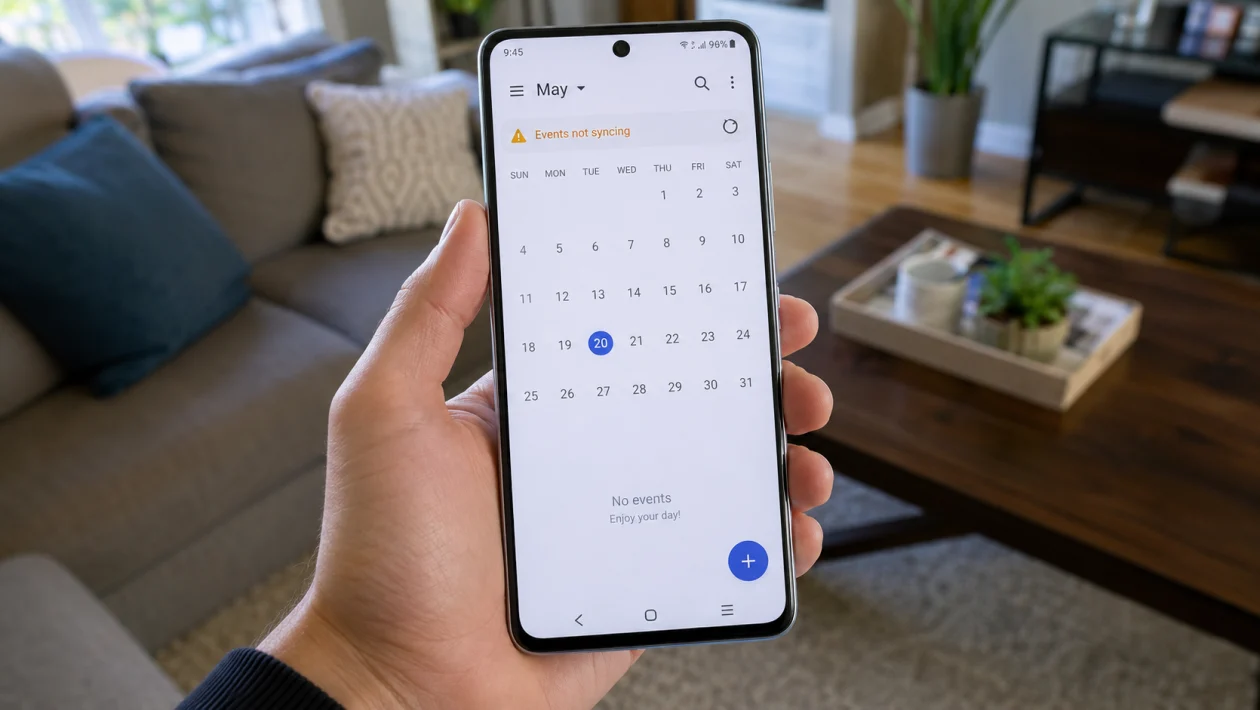
If calendar events are not syncing on your vivo Y51 Pro, the problem is usually tied to account sync, internet access, Calendar app settings, background restrictions, or battery management.
Start with the account and sync settings first. If your Google account, work account, or phone calendar is not allowed to sync, new events may appear on one device but not on your vivo Y51 Pro.
Quick answer
To fix vivo Y51 Pro calendar events not syncing, go to Settings > Accounts & sync, choose the account linked to your calendar, and make sure Calendar sync is turned on. Then open the Calendar app, check that the correct calendar is visible, update the app, allow background data, and disable battery restrictions for Calendar.
If the problem started after changing accounts, updating the phone, or switching from another device, give the phone a few minutes on stable Wi-Fi after turning sync back on.
vivo Y51 Pro calendar sync diagnostic table
| Symptom | Likely cause | What to check first |
|---|---|---|
| New events do not appear | Calendar sync is off | Settings > Accounts & sync |
| Events appear online but not on phone | Wrong calendar hidden | Calendar app display settings |
| Events sync only on Wi-Fi | Background data or mobile data restriction | App data usage settings |
| Work calendar does not sync | Account permission or admin policy | Google, Outlook, or Exchange account |
| Old events are missing | Calendar app sync range limit | Check events on web calendar |
| Events disappear after restart | Calendar storage or app issue | Clear Calendar cache |
| Sync stops after a while | Battery restriction | Battery and background settings |
| Invite events missing | Wrong account or calendar selected | Event account field |
| Calendar app stuck loading | App bug or outdated version | Update Calendar app |
| Nothing syncs at all | Account authentication issue | Remove and re-add account |
Why your vivo Y51 Pro calendar events are not syncing
Your vivo Y51 Pro may stop syncing calendar events when the phone cannot connect to the calendar server, the account sync toggle is off, the Calendar app is restricted in the background, or the event was saved to a local phone calendar instead of your Google, Outlook, or work account.
Google’s Calendar support recommends checking internet connection, updating the Calendar app, confirming calendar visibility, and making sure sync is turned on when events are not appearing on Android. vivo also lists account sync, app permissions, autostart, and app management settings as areas to check on its phones.
Use the fixes below in order.
1. Check your internet connection
Calendar sync needs a working internet connection. If your vivo Y51 Pro is offline, in Airplane mode, or connected to weak mobile data, events may not update.
- Open a browser.
- Search for anything online.
- Switch from mobile data to Wi-Fi.
- Turn Airplane mode off if it is enabled.
- Reopen the Calendar app.
This is the simplest fix, but it is easy to miss. Calendar may open normally even when it cannot sync in the background.
2. Turn on Calendar sync for your account
This is the most important setting to check.
- Open Settings.
- Tap Accounts & sync.
- Choose your Google, Outlook, Exchange, or work account.
- Tap Account sync.
- Turn on Calendar.
- Tap Sync now if the option appears.
If you use more than one account, check each one. Your event may belong to a different account than the one currently syncing.
For example, you may be checking your Gmail calendar but the event was saved under a work calendar, Outlook calendar, or local phone calendar.
3. Make sure the right calendar is visible
Sometimes the events are syncing, but the Calendar app is hiding that specific calendar.
- Open the Calendar app.
- Tap the menu icon.
- Look for your calendar list.
- Make sure your Google, work, holiday, shared, or subscribed calendar is checked.
- Refresh the app.
This matters if you use multiple calendars, such as Personal, Work, Birthdays, Holidays, Tasks, or shared family calendars.
Check this before deleting accounts. Hidden calendars can look like a sync problem even when sync is working.
4. Refresh Calendar manually
A manual refresh can force the app to pull new events from your account.
- Open the Calendar app.
- Go to the main calendar view.
- Swipe down from the top of the screen.
- Wait for the refresh spinner to finish.
- Check whether the missing event appears.
If the event appears after a manual refresh, the issue may be background sync or battery restriction. Continue with the next fixes.
5. Update the Calendar app
An outdated Calendar app can cause sync delays, missing events, or account display problems.
- Open the Google Play Store.
- Search for Google Calendar or your calendar app.
- Tap Update if available.
- Open the Calendar app again.
- Refresh your events.
Also update related apps if you use them for calendar sync, such as Gmail, Outlook, Google Play services, or your work email app.
If your vivo Y51 Pro uses the built-in vivo Calendar app, also check the V-Appstore or system app update section if available.
6. Allow Calendar to use background data
If background data is blocked, events may only update when the app is open.
- Open Settings.
- Tap Apps or Applications and permissions.
- Tap App manager.
- Choose your Calendar app.
- Tap Data usage.
- Allow Background data.
- Allow Unrestricted data usage if you use Data Saver.
This is useful if your calendar syncs sometimes but not reliably.
It is also worth checking if the problem happens more often when you are using mobile data instead of Wi-Fi.
7. Remove battery restrictions for Calendar
vivo phones can be aggressive with background activity to save battery. That is good for battery life, but it can delay calendar sync.
- Open Settings.
- Tap Battery.
- Go to Background power consumption management or a similar battery section.
- Choose your Calendar app.
- Allow background activity.
- Do the same for Gmail, Outlook, or Google Play services if your calendar depends on them.
The exact wording can vary by Funtouch OS version, but the goal is the same: do not let the phone stop Calendar from working in the background.
If the Calendar app syncs only after you open it, this fix is one of the most likely to help.
8. Enable autostart for Calendar or email apps
If your vivo Y51 Pro stops syncing after a restart, enable autostart for the apps that manage your calendar.
- Open Settings.
- Tap More settings.
- Tap Permission management or Applications.
- Tap Autostart.
- Turn on autostart for Calendar, Gmail, Outlook, or your work email app.
vivo’s support page notes that autostart can be managed from Settings > More settings > Permission management > Autostart on some models, while older Funtouch OS versions may use i Manager.
This helps after rebooting the phone because the sync app can start again without waiting for you to open it manually.
9. Clear Calendar cache
Clearing the cache can fix stuck sync, blank calendars, or events that refuse to refresh. This does not delete your online Google Calendar events.
- Open Settings.
- Tap Apps or Applications and permissions.
- Tap App manager.
- Select your Calendar app.
- Tap Storage.
- Tap Clear cache.
- Restart the phone.
- Open Calendar and refresh.
Do not tap Clear data first unless you know your events are safely stored in your online account. If you saved events only to the phone, clearing app data may remove local calendar data.
Check your events at Google Calendar on the web or your Outlook calendar before using stronger reset options.
10. Remove and re-add the calendar account
Use this if nothing else works. Removing and re-adding the account can fix expired login sessions, broken sync tokens, and account permission problems.
- Open Settings.
- Tap Accounts & sync.
- Select the account with the calendar problem.
- Tap Remove account.
- Restart your vivo Y51 Pro.
- Go back to Accounts & sync.
- Add the account again.
- Turn on Calendar sync.
- Open Calendar and refresh.
Before removing an account, confirm that your events exist online. Open your calendar in a browser on another device and check whether the missing events are there.
If the events exist online, they should return after you add the account again and enable calendar sync.
What to check when creating new events
When you create a new event, check the account field before saving it.
If the event is saved to Phone calendar, it may stay only on your vivo Y51 Pro. If you want it to appear on other devices, save it under your Google, Outlook, Exchange, or work calendar.
Look for the calendar name near the top or bottom of the event creation screen. Choose the account you want before tapping Save.
This small detail causes a lot of calendar sync confusion.
When to contact support
Contact vivo support, Google Workspace admin, Microsoft 365 admin, or your company IT team if:
The account sync option is missing
Your work calendar is blocked by policy
Calendar sync fails only on a managed work account
Events disappear from the web calendar too
The phone cannot add the account again
Calendar keeps crashing after updates
If your vivo Y51 Pro is managed by a company or school, some calendar settings may be controlled by the organization.
FAQ
Why are my Google Calendar events not showing on my vivo Y51 Pro?
Your Google Calendar events may not show if Calendar sync is off, the wrong calendar is hidden, background data is blocked, or the Calendar app is restricted by battery settings. Check Settings > Accounts & sync first.
Why do new events show on my phone but not on my laptop?
The event may have been saved to the local phone calendar instead of your Google or Outlook account. Open the event and check which calendar account it was saved under.
Why does my vivo Y51 Pro calendar sync only when I open the app?
This usually means background activity is restricted. Allow background data, disable battery restrictions for Calendar, and enable autostart if available.
