
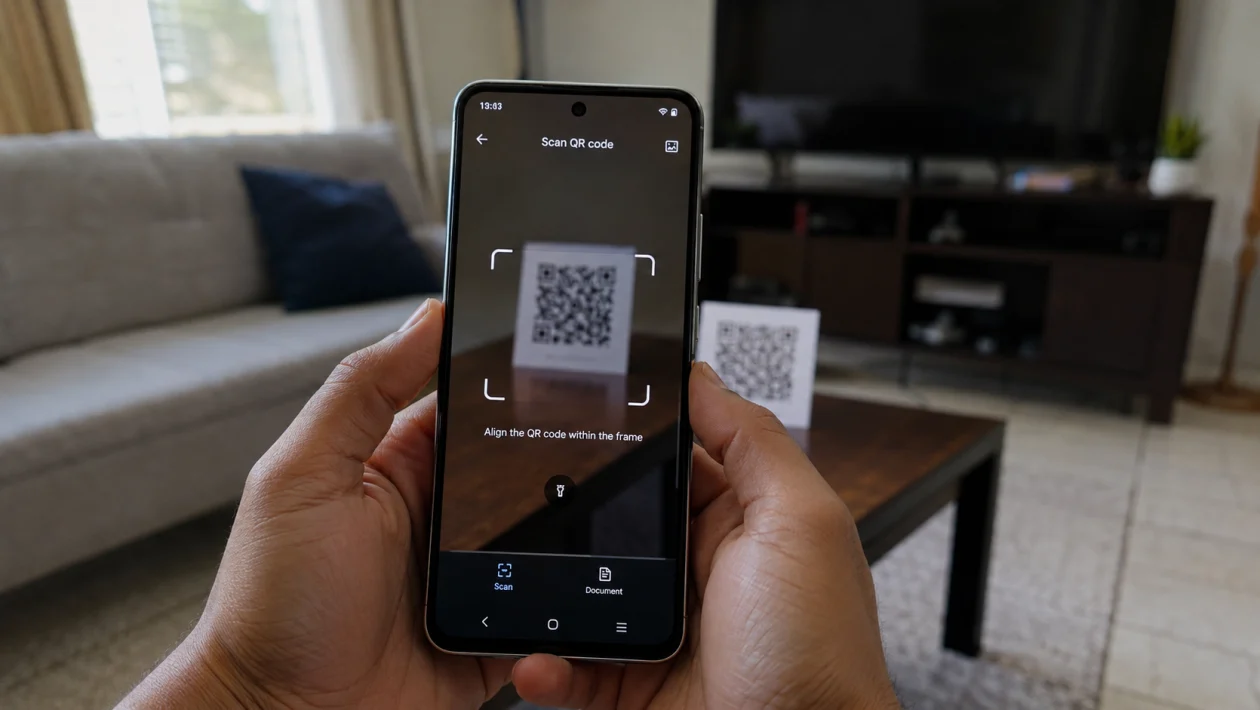
If your vivo Y51 Pro QR code scanner is not working, the problem is usually caused by camera permission, poor lighting, a dirty lens, a software glitch, an outdated app, or a camera setting that is not detecting QR codes properly.
Start with the simple checks first. Open the camera, clean the lens, check camera permission, restart the phone, then clear the Camera app cache if the scanner still does not detect codes.
This guide covers 10 fixes for the vivo Y51 Pro QR code scanner not working issue.
Quick answer
If your vivo Y51 Pro QR code scanner is not working, open the Camera app and point the rear camera at the QR code for a few seconds. Make sure the code is clear, flat, well-lit, and not too close to the lens.
Then check these settings:
Settings > Apps > Camera > Permissions > Camera
Settings > Apps > Camera > Storage & cache > Clear cache
Settings > System update
Google Play Store > Manage apps and device > Update all
If the issue happens only in one app, such as WhatsApp, Paytm, Google Pay, PhonePe, Messenger, or a browser, check that app’s camera permission and update the app.
vivo Y51 Pro QR code scanner diagnostic table
| Symptom | Likely cause | What to check first |
|---|---|---|
| QR code does not appear | Poor lighting or blurry code | Clean lens and improve lighting |
| Camera opens but does not scan | QR scanning is not detected | Try Google Lens or another scanner |
| Scanner works in Camera but not in an app | App permission problem | App camera permission |
| Scanner opens to a black screen | Camera permission or app glitch | Restart phone and check permission |
| QR code scans slowly | Low light, dirty lens, or weak focus | Move phone back and keep it steady |
| QR code works on another phone | vivo Y51 Pro camera/app issue | Clear Camera cache |
| Scanner stopped after update | App or system bug | Update apps and restart |
| Payment QR code will not scan | App issue or camera permission | Update payment app |
| QR code from screen will not scan | Glare or low brightness | Increase screen brightness |
| Nothing works after all fixes | System or camera hardware issue | Reset settings or contact vivo support |
Why is my vivo Y51 Pro QR code scanner not working?
Your vivo Y51 Pro may fail to scan QR codes if the camera cannot focus clearly, the Camera app has a temporary bug, the scanning app has no camera permission, or the code itself is damaged.
Common causes include:
Dirty camera lens
Poor lighting
QR code too close to the camera
Blurry, damaged, or low-resolution QR code
Camera permission turned off
Camera app cache problem
Outdated payment, browser, or scanner app
Outdated phone software
A third-party QR scanner bug
Camera hardware problem
Use the fixes below in order.
Before you start
Time needed: 5 to 15 minutes
Difficulty: Easy
Tools needed: Clean microfiber cloth, internet connection, and the QR code you want to scan
Use the rear camera when possible. The rear camera usually focuses better than the selfie camera for QR codes.
1. Clean the camera lens and scan again
Start here because QR scanning depends on focus.
A smudged camera lens can make the QR code look blurry even when the screen looks normal. This is common if the phone has fingerprints, dust, oil, or moisture on the lens.
To clean and test it:
- Turn the phone around.
- Wipe the rear camera lens with a soft microfiber cloth.
- Open the Camera app.
- Point the camera at the QR code.
- Hold the phone steady for 2 to 3 seconds.
Do not place the camera too close to the code. Move the phone back slightly until the QR code looks sharp.
If the QR code appears clear but nothing happens, move to the next fix.
2. Improve the lighting and adjust the distance
QR codes need contrast. If the area is too dark, too bright, or full of glare, your vivo Y51 Pro may not detect the pattern.
Try this:
- Move to a brighter area.
- Avoid direct glare on the QR code.
- Keep the code flat.
- Hold the phone about 15 to 30 cm away.
- Tap the QR code on the screen to help the camera focus.
If you are scanning a QR code from another phone, increase that phone’s screen brightness. Also wipe the other phone’s screen if it has fingerprints.
This often fixes the vivo Y51 Pro camera not scanning QR code problem when the phone is working normally but the code is hard to read.
3. Restart your vivo Y51 Pro
A restart can clear temporary camera or app problems.
Use this before changing deeper settings.
- Press and hold the Power button.
- Tap Restart.
- Wait for the phone to turn back on.
- Open the Camera app again.
- Try scanning the QR code.
This will not delete your files.
If the scanner stopped working after using the camera, payment app, browser, or social media app for a long time, a restart may be enough.
4. Check camera permission for the app
If QR scanning fails only inside one app, the app may not have permission to use the camera.
This can happen with payment apps, messaging apps, browser apps, shopping apps, banking apps, or third-party QR code scanner apps.
To check permission:
- Open Settings.
- Tap Apps.
- Select the app that cannot scan the QR code.
- Tap Permissions.
- Tap Camera.
- Choose Allow only while using the app.
- Open the app and scan again.
Check this for apps like Google Pay, PhonePe, Paytm, WhatsApp, Messenger, Chrome, or your QR code scanner app.
If the app shows a black screen when scanning, camera permission is one of the first things to check.
5. Try scanning with Google Lens or another built-in option
If the vivo Camera app does not detect the QR code, test whether another scanning method works.
Try Google Lens:
- Open the Google app.
- Tap the Lens icon.
- Point the camera at the QR code.
- Tap the link or action that appears.
You can also try scanning from the search bar, browser, or a trusted QR scanner app.
If Google Lens scans the code but the Camera app does not, the problem is likely with the Camera app’s scanning feature or settings.
If no app can scan QR codes, the issue may be camera focus, software, or hardware.
6. Clear the Camera app cache
The Camera app can build up temporary files. If those files become corrupted, camera features may behave strangely.
Clear the cache first. This is safer than clearing all data.
For many vivo phones:
- Open Settings.
- Tap Apps.
- Tap See all apps or App management.
- Tap Camera.
- Tap Storage & cache.
- Tap Clear cache.
- Open Camera and scan again.
On some Funtouch OS versions, the path may look like:
Settings > More settings > App manager > Camera > Storage > Clear cache
Clearing cache should not delete your photos or videos.
This is a good fix if the vivo QR code scanner fix you need is for a scanner that suddenly stopped working without any obvious reason.
7. Clear the cache of the QR scanner or payment app
If QR scanning fails in one app but works in Camera or Google Lens, clear that app’s cache.
Example: if WhatsApp scans QR codes but your payment app does not, the payment app is the problem.
To clear app cache:
- Open Settings.
- Tap Apps.
- Select the problem app.
- Tap Storage & cache.
- Tap Clear cache.
- Reopen the app.
- Try scanning again.
Do not tap Clear data unless you understand what it removes. Clearing data may sign you out, remove saved settings, or reset the app.
Try this for payment apps, banking apps, browsers, shopping apps, and third-party scanner apps.
8. Update the app and your phone software
An outdated app can break camera access or QR scanning. This is common after Android, security, or app updates.
Update your apps first:
- Open Google Play Store.
- Tap your profile icon.
- Tap Manage apps and device.
- Tap Update all.
- Restart the phone after updates finish.
Then check your phone software:
- Open Settings.
- Tap System update.
- Download and install any available update.
- Restart the phone.
- Test QR scanning again.
If the issue started after an update, do not reset the phone immediately. Restart it, update your apps, and test again.
9. Uninstall suspicious third-party QR scanner apps
Some third-party scanner apps can conflict with camera access, show ads, request too many permissions, or fail after updates.
If you recently installed a QR scanner before the problem started, remove it temporarily.
- Open Settings.
- Tap Apps.
- Select the QR scanner app.
- Tap Uninstall.
- Restart the phone.
- Try scanning with Camera or Google Lens.
Use only trusted scanner apps. QR codes can open links, payment pages, login pages, and downloads, so avoid unknown scanner apps that force ads or redirect links.
If the code opens a website, check the link before entering personal information.
10. Reset app preferences or reset all settings
Use this only after the simpler fixes.
Resetting app preferences can restore disabled apps, default app actions, background restrictions, and permission prompts. It does not usually delete photos, videos, or personal files, but it can change app behavior.
To reset app preferences:
- Open Settings.
- Tap Apps.
- Tap the three-dot menu if available.
- Tap Reset app preferences.
- Confirm.
- Test the QR scanner again.
If that option is not available or the problem continues, reset all settings:
- Open Settings.
- Tap System management or More settings.
- Tap Backup & Reset or Reset options.
- Tap Reset all settings.
- Read the warning on screen.
- Confirm only if you are ready.
Avoid Factory data reset unless you have backed up your phone and already tried the other fixes. A factory reset erases personal data.
When to contact vivo support
Contact vivo support or visit an authorized service center if QR scanning still does not work after checking permissions, clearing cache, updating apps, and resetting settings.
Get help sooner if:
The Camera app shows a black screen
The rear camera cannot focus on any object
Photos look blurry even after cleaning the lens
The camera shakes or makes noise
The phone was dropped or exposed to water
No app can use the camera properly
The QR scanner stopped working after physical damage
If normal photos are also blurry, this may not be a QR scanner problem. It may be a camera focus or hardware issue.
vivo Y51 Pro QR scanner checklist
Use this before booking a repair:
Clean the rear camera lens
Scan in better lighting
Move the phone farther from the QR code
Restart the phone
Check camera permission
Try Google Lens
Clear Camera app cache
Clear cache for the payment or scanner app
Update apps from Google Play Store
Update phone software
Remove suspicious QR scanner apps
Reset app preferences
Reset all settings if needed
Contact vivo support if the camera cannot focus
FAQs
Why won’t my vivo Y51 Pro scan QR codes?
Your vivo Y51 Pro may not scan QR codes because the camera lens is dirty, the code is blurry, the app has no camera permission, or the Camera app has a cache problem. Start by cleaning the lens, improving the lighting, restarting the phone, and checking camera permission.
Does vivo Y51 Pro have a QR code scanner?
The vivo Y51 Pro can scan QR codes through the camera or supported scanning apps such as Google Lens. Availability of built-in camera QR detection can vary depending on the software version and region.
Why is my QR scanner showing a black screen?
A black screen usually points to blocked camera permission, an app glitch, or another app using the camera. Restart the phone, check camera permission, then clear the app cache.
