
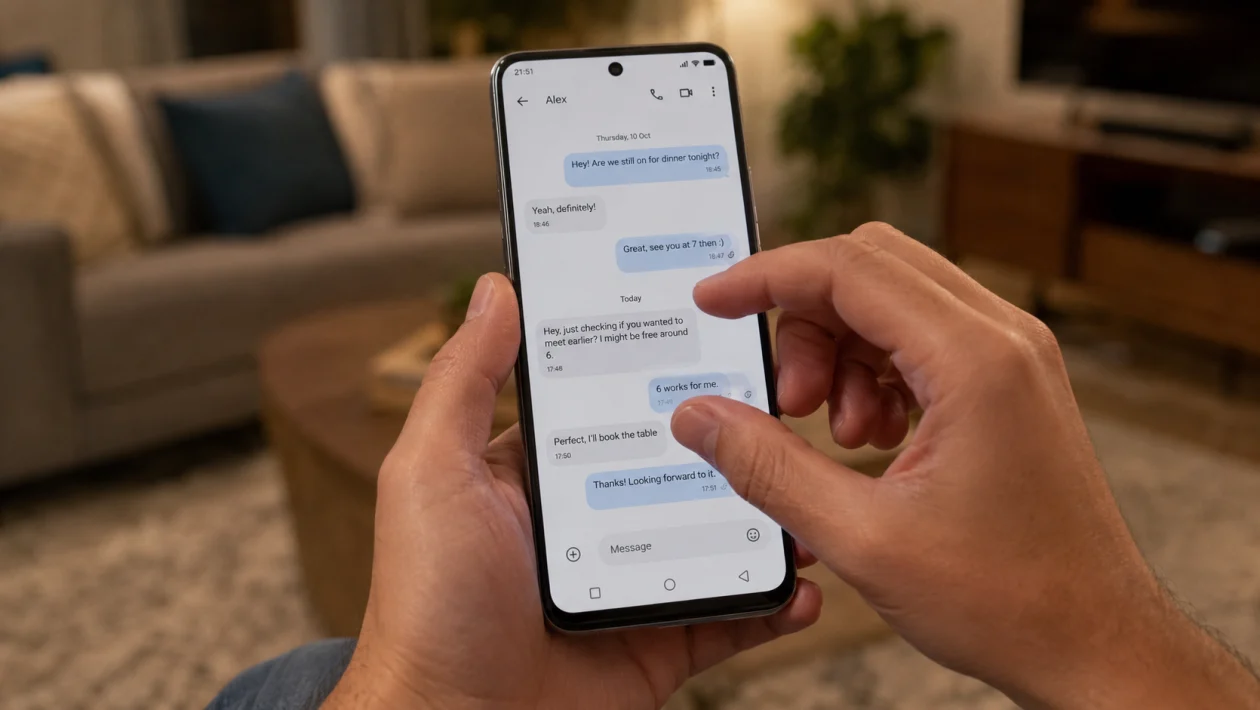
If text messages will not zoom in on your vivo Y51 Pro, the problem is usually tied to the Messages app, pinch gesture behavior, font size settings, accessibility settings, app cache, or a software bug.
On vivo phones, text zoom in Messages may work by using two fingers to magnify or shrink message text. On Google Messages, you may need to open a conversation, select a message, then pinch to zoom in. If that does not work, try the fixes below before assuming the phone has a screen problem.
Quick answer
If text messages will not zoom in on your vivo Y51 Pro, first try pinching with two fingers inside an open conversation. If you use Google Messages, tap a message first, then pinch outward to make the text bigger.
If nothing happens, check Settings > Display and brightness > Font size, update the Messages app, clear the app cache, restart the phone, and check Accessibility > Magnification. The issue is usually caused by app settings, gesture conflict, outdated software, or corrupted temporary app data.
vivo Y51 Pro message zoom diagnostic table
| Symptom | Likely cause | What to check first |
|---|---|---|
| Pinch gesture does nothing | Wrong app gesture or app bug | Open a conversation and pinch with two fingers |
| Text is too small only in Messages | App-specific text size issue | Messages settings or Google Messages zoom |
| Text is small everywhere | System font size is too low | Display and brightness settings |
| Screen zoom works, but messages do not | Messages app issue | Clear cache or update the app |
| Zoom worked before, then stopped | Recent app or system update | Restart, update apps, clear cache |
| Only one conversation has tiny text | Google Messages conversation zoom state | Select message, pinch again |
| Phone ignores two-finger gestures | Touchscreen, case, screen protector, or gesture conflict | Test pinch in Photos or browser |
| Text is hard to read, but zoom works | Display size or accessibility issue | Font size, display size, magnification |
1. Make sure you are using the right zoom gesture
Start with the simplest check. Open the Messages app, go into a conversation, then place two fingers on the message area and spread them apart.
Do not pinch from the keyboard area. Do it directly over the message thread.
Try this:
- Open Messages.
- Open any conversation.
- Place two fingers on the message area.
- Spread your fingers apart slowly.
- Pinch inward if you want to make the text smaller again.
On some messaging apps, the gesture only works inside the conversation view, not on the message list.
Suggested hyperlink anchor: vivo Messages supports pinch-to-zoom
2. If you use Google Messages, tap or select a message first
If your vivo Y51 Pro uses Google Messages instead of vivo’s default Messages app, the zoom behavior may be slightly different.
Try this:
- Open Google Messages.
- Open a conversation.
- Tap the message you want to enlarge.
- Pinch outward on the message.
- Pinch inward to return the text size closer to normal.
This matters because Google Messages handles message zoom differently from some default Android SMS apps. If you pinch on the empty conversation area, it may not respond the way you expect.
Suggested hyperlink anchor: Google Messages pinch to zoom
3. Increase the system font size
If text is too small across the phone, not just inside text messages, change the system font size.
Try this:
- Open Settings.
- Tap Display and brightness.
- Tap Font size.
- Move the slider to a larger size.
- Reopen Messages and check the text again.
This will make more than just SMS text bigger. It can also affect menus, notifications, contacts, and supported apps.
If you only want temporary zoom, use Magnification instead of permanently increasing font size.
4. Adjust display size if font size is not enough
Font size changes the text. Display size changes the scale of items on the screen.
Try this:
- Open Settings.
- Tap Display and brightness.
- Look for Display size or Screen zoom.
- Choose a larger option.
- Restart Messages.
The exact wording may vary depending on your Funtouch OS version. If you do not see Display size, use the search bar inside Settings and search for “display size,” “font,” or “zoom.”
Suggested hyperlink anchor: Funtouch OS display size settings
5. Turn on Accessibility Magnification
If you need messages to zoom in temporarily, Accessibility Magnification is often better than changing font size.
Try this:
- Open Settings.
- Tap Shortcuts and Accessibility.
- Tap Accessibility.
- Look for Magnification.
- Turn on the magnification shortcut.
- Open Messages and use the shortcut when you need larger text.
This zooms the screen, not just the Messages app. It is useful if pinch-to-zoom in Messages does not work or if you need bigger text only sometimes.
6. Restart your vivo Y51 Pro
A restart can fix temporary app glitches, stuck gestures, and display scaling bugs.
Try this:
- Press and hold the Power button.
- Tap Restart.
- Wait for the phone to turn back on.
- Open Messages again.
- Test pinch-to-zoom.
This will not delete your messages, photos, contacts, or apps.
7. Clear the Messages app cache
If zoom stopped working after an app update or after heavy use, the Messages app cache may be causing the problem.
Try this:
- Open Settings.
- Tap Apps.
- Tap See all apps or App management.
- Select Messages or Google Messages.
- Tap Storage.
- Tap Clear cache.
- Reopen the app and test zoom again.
Do not tap Clear data unless you have backed up important messages. Clearing cache is safer because it removes temporary files only.
Suggested hyperlink anchor: clear Messages app cache
8. Update the Messages app
An outdated Messages app can cause gesture bugs, display problems, or missing features.
Try this:
- Open Google Play Store.
- Search for Google Messages or Messages.
- Tap Update if available.
- Also open vivo App Store or V-Appstore if your phone uses vivo’s built-in Messages app.
- Install any available update.
- Restart the phone.
If the issue started right after an update, still check for another update. App developers often release follow-up fixes when a bug affects many users.
9. Update your vivo Y51 Pro software
System updates can fix display, touch, accessibility, and app compatibility issues.
Try this:
- Open Settings.
- Tap System update.
- Check for updates.
- Download and install any available update.
- Restart the phone.
- Test message zoom again.
If your phone recently updated, give it a restart first. Some app and display issues settle after the phone finishes background optimization.
Suggested hyperlink anchor: vivo Y51 Pro software update
10. Test the touchscreen and screen protector
If pinch-to-zoom does not work anywhere, the issue may not be the Messages app.
Test it here:
- Open Photos.
- Open any picture.
- Try pinching outward to zoom in.
- Open a browser page and try pinch zoom there too.
- Remove thick gloves, clean the screen, and try again.
- If you use a thick or damaged screen protector, test without it if possible.
If pinch zoom works in Photos and the browser, your touchscreen is probably fine. The issue is more likely the Messages app or text-size setting.
If pinch zoom fails everywhere, the screen protector, touch sensitivity, or hardware may need checking.
Why text messages may not zoom in on vivo Y51 Pro
This usually happens for one of these reasons:
The Messages app needs a different pinch gesture.
The system font size is set too small.
The phone is using Google Messages instead of vivo Messages.
Accessibility Magnification is turned off.
The Messages app cache is causing a display bug.
The app or phone software is outdated.
A recent update changed the zoom behavior.
The screen protector is interfering with multi-touch gestures.
The touchscreen is not detecting two fingers properly.
Most of the time, it is not a serious phone problem. Start with the app gesture, font size, cache, and updates before trying deeper fixes.
Best fix for most users
For most vivo Y51 Pro users, the fastest fix is this:
- Open Messages.
- Open a conversation.
- Try two-finger pinch zoom.
- If you use Google Messages, tap a message first, then pinch.
- Increase Settings > Display and brightness > Font size.
- Clear the Messages app cache.
- Restart the phone.
That solves the most common cases without deleting messages or resetting the phone.
When to contact vivo support
Contact vivo support or visit a service center if:
Pinch-to-zoom does not work in any app.
The screen misses two-finger gestures.
Messages zoom fails even after updates and cache clearing.
The problem started after the phone was dropped.
The screen has cracks, ghost touches, or dead zones.
The phone randomly changes text size by itself.
If only one app has the issue, try switching between vivo Messages and Google Messages before getting the phone checked.
FAQs
Why are my text messages so small on vivo Y51 Pro?
Your system font size may be too low, or the Messages app may have been zoomed out. Go to Settings > Display and brightness > Font size and increase the text size. Then open a conversation and try pinching outward with two fingers.
Can I zoom text messages on vivo phones?
Yes, vivo’s support guidance says Messages can use two fingers to magnify or shrink text size on supported vivo phones. The exact behavior can vary by Messages app and Funtouch OS version.
Why does pinch-to-zoom work in photos but not in Messages?
That usually means your touchscreen is fine. The issue is likely the Messages app, Google Messages behavior, app cache, or a setting inside your phone.
