
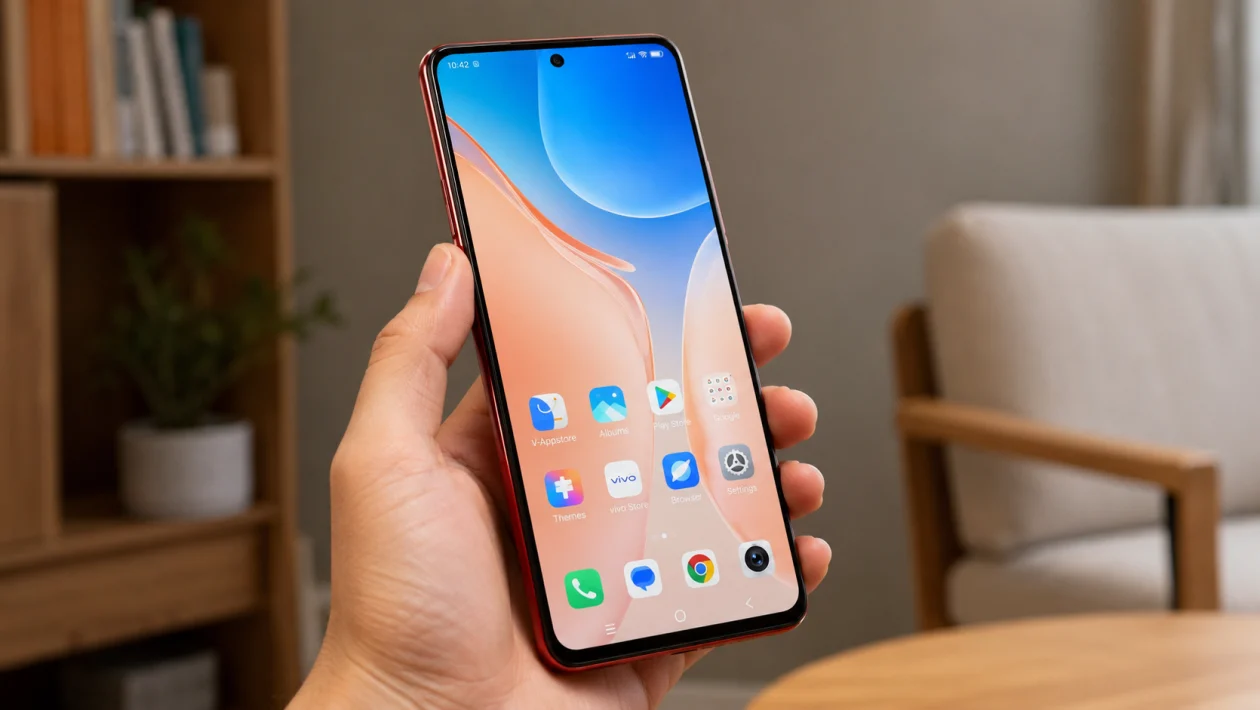
If widgets are missing on your vivo Y51 Pro, the problem is usually tied to the home screen layout, launcher settings, disabled apps, outdated apps, or Funtouch OS behavior.
The good news: this is usually fixable without resetting the phone. Start by checking the widget menu, then move through the app, launcher, and software fixes below.
Quick answer
To fix missing widgets on vivo Y51 Pro, long-press an empty area on the home screen, tap Widgets, then check if the missing widget is available. vivo says that on Funtouch OS 3.0 and higher, desktop widgets can be added by long-pressing a blank area of the desktop and opening Widgets.
If the widget is not there, update the related app, restart the phone, clear the launcher cache, check hidden or disabled apps, and make sure the app that provides the widget is installed.
vivo Y51 Pro missing widgets diagnostic table
| Problem | Likely cause | What to check first |
|---|---|---|
| Widget option is missing | Home screen mode or launcher issue | Long-press blank home screen area |
| Clock or weather widget missing | Funtouch widget issue or disabled app | Widgets menu and Weather app |
| Google widgets missing | Google app disabled or outdated | Google app in Play Store |
| WhatsApp or app widget missing | App does not provide widget or needs update | App info and Play Store |
| Widget disappears after restart | Launcher cache or home screen bug | Clear launcher cache |
| Widget is there but not updating | Battery restriction or background data issue | Battery and data settings |
| Widget cannot fit on screen | Not enough home screen space | Add a new home screen page |
| Widget disappeared after update | System or app re-indexing | Restart and update apps |
| Widgets missing after using a theme | Theme or layout conflict | Switch to default theme |
| Nothing works | Corrupt launcher setting or system issue | Reset home screen settings |
Why are widgets missing on vivo Y51 Pro?
Widgets may disappear or stop showing on your vivo Y51 Pro because the app that provides the widget is disabled, outdated, restricted, or removed from the home screen. It can also happen after a Funtouch OS update, theme change, launcher issue, or home screen layout bug.
Common causes include:
Apps being disabled
App updates removing old widgets
Home screen layout glitches
Not enough space on the home screen
Google, Clock, Calendar, or Weather app problems
Third-party launcher conflicts
Battery restrictions stopping widgets from refreshing
Funtouch OS update bugs
Theme conflicts
Launcher cache issues
Use these 10 fixes in order.
1. Add the widget again from the home screen
Start with the basic check. The widget may not be gone from the phone. It may only have been removed from the home screen.
- Go to the home screen.
- Long-press an empty area.
- Tap Widgets.
- Look for the missing widget.
- Press and hold the widget.
- Drag it to the home screen.
- Release it where you want it to appear.
For Funtouch OS 3.0 and newer, vivo’s widget guidance says to long-press a blank area of the desktop to bring up Widgets, then add the widget you need.
If the widget appears in the list, the issue is solved. If it does not appear, continue with the next fix.
2. Make space on the home screen
Widgets need enough room. If your home screen is full of app icons, folders, and other widgets, the vivo Y51 Pro may not let you place a new one.
Try this:
- Remove unused icons from the home screen.
- Move apps into folders.
- Swipe to another home screen page.
- Long-press the widget again.
- Place it on a page with more space.
You can also create a new home screen page by dragging an app or widget to the far-right side of the screen until a new page appears.
This is worth checking if the widget shows in the widget list but will not stay on the home screen.
3. Restart your vivo Y51 Pro
A restart can fix temporary home screen and launcher glitches.
- Press and hold the Power button.
- Tap Restart.
- Wait for the phone to turn back on.
- Long-press the home screen again.
- Open Widgets and check if the missing widget returned.
This will not delete your photos, apps, messages, or files.
Restarting is especially useful if widgets disappeared after an app update, software update, or theme change.
4. Update the app that owns the widget
Many widgets are controlled by their parent app. For example, the Google Search widget comes from the Google app. A calendar widget comes from a calendar app. A weather widget comes from a weather app.
If that app is outdated or broken, its widget may disappear.
- Open Google Play Store.
- Tap your profile icon.
- Tap Manage apps and device.
- Tap Updates available.
- Update the app connected to the missing widget.
- Update Google, Calendar, Clock, Weather, and launcher-related apps if available.
Also check vivo’s app store if you use built-in vivo apps.
After updating, restart the phone and check the widget menu again.
5. Check if the app is disabled or uninstalled
A widget will not appear if the app that provides it is disabled or removed.
- Open Settings.
- Tap Apps.
- Tap See all apps or App manager.
- Search for the app connected to the missing widget.
- Open it.
- If you see Enable, tap it.
- If the app is missing, reinstall it from the Play Store.
Check these apps first:
Google
Clock
Calendar
Weather
Gmail
Chrome
Notes
Music
WhatsApp
Facebook
Any app whose widget is missing
If you recently cleaned storage or removed unused apps, the widget may have disappeared because the app was deleted.
6. Clear the launcher cache
The home screen on your vivo Y51 Pro is controlled by the system launcher. If its cache is corrupted, widgets may disappear, fail to load, or stop appearing in the widget picker.
- Open Settings.
- Tap Apps.
- Tap App manager or See all apps.
- Tap the three-dot menu if needed.
- Choose Show system apps.
- Find vivo Home, System Launcher, or Home Screen.
- Tap Storage.
- Tap Clear cache.
- Restart the phone.
Do not tap Clear data unless you are ready to rebuild your home screen layout. Clearing launcher data can remove your current home screen arrangement.
Start with Clear cache only.
7. Turn off battery restrictions for widgets that do not update
Sometimes the widget is not missing. It is there, but it looks blank, frozen, or outdated. This often happens with weather, calendar, clock, email, and task widgets.
Check battery settings:
- Open Settings.
- Tap Battery.
- Open Background power consumption management or a similar battery option.
- Choose the app connected to the widget.
- Allow background activity if available.
- Restart the phone.
Also check mobile data:
- Open Settings.
- Tap Apps.
- Select the app.
- Tap Mobile data & Wi-Fi or Data usage.
- Allow background data.
This helps widgets that need internet access, such as weather, calendar sync, email, and news widgets.
8. Switch back to the default theme or launcher
Themes and third-party launchers can change how widgets behave. If widgets disappeared after installing a theme, icon pack, or launcher, test the default setup.
To check themes:
- Open the Themes app.
- Apply the default vivo theme.
- Go back to the home screen.
- Long-press an empty space.
- Tap Widgets.
To check launcher settings:
- Open Settings.
- Tap Apps.
- Tap Default apps.
- Tap Home app.
- Select the default vivo launcher.
If widgets return after switching back, the theme or launcher was probably blocking or hiding them.
9. Update Funtouch OS
A system update can fix home screen bugs, widget issues, app compatibility problems, and launcher errors.
- Open Settings.
- Tap System update.
- Check for updates.
- Download and install any available update.
- Restart the phone.
- Check the widget menu again.
vivo’s support pages also separate widget and home screen settings under Funtouch OS support, so the exact wording can vary depending on your phone’s software version and region.
If the widget problem started right after a software update, give the phone a few hours after restarting. Apps and system services may still be settling in.
10. Reset home screen settings
Use this only after trying the easier fixes. Resetting the home screen can help if the widget menu is broken or your layout is corrupted.
The exact wording may vary, but try this path:
- Open Settings.
- Tap Apps.
- Tap App manager or See all apps.
- Show system apps if needed.
- Open vivo Home, System Launcher, or Home Screen.
- Tap Storage.
- Tap Clear data.
- Restart the phone.
This can reset your home screen layout, app icon placement, folders, and widgets. Your personal files should not be deleted, but you may need to arrange your home screen again.
After the restart, long-press the home screen, tap Widgets, and add the missing widgets again.
What to do if widgets are still missing
If widgets are still missing after all 10 fixes, the problem may be caused by a system bug, unsupported widget, or app compatibility issue.
Try checking whether the missing widget is available on another Android phone. Some apps remove widgets after updates, and not every app offers a widget.
You should also contact vivo support if:
Widgets are missing from every app
The home screen keeps crashing
The phone freezes when opening Widgets
Widgets disappear after every restart
System Launcher will not open
The issue started after a failed software update
FAQ
Why are my widgets missing on vivo Y51 Pro?
Your widgets may be missing because the app that provides them is disabled, outdated, restricted, or removed. It can also happen because of a launcher cache issue, theme conflict, software update, or lack of space on the home screen.
How do I add widgets on vivo Y51 Pro?
Long-press an empty area on the home screen, tap Widgets, choose the widget you want, then drag it to the home screen. On Funtouch OS 3.0 and higher, vivo says widgets can be added by long-pressing a blank area of the desktop and opening the widget menu.
Why is my weather widget missing on vivo Y51 Pro?
The weather widget may be missing if the Weather app is disabled, outdated, restricted, or affected by a home screen issue. Update the Weather app, restart the phone, then check the widget menu again.
