
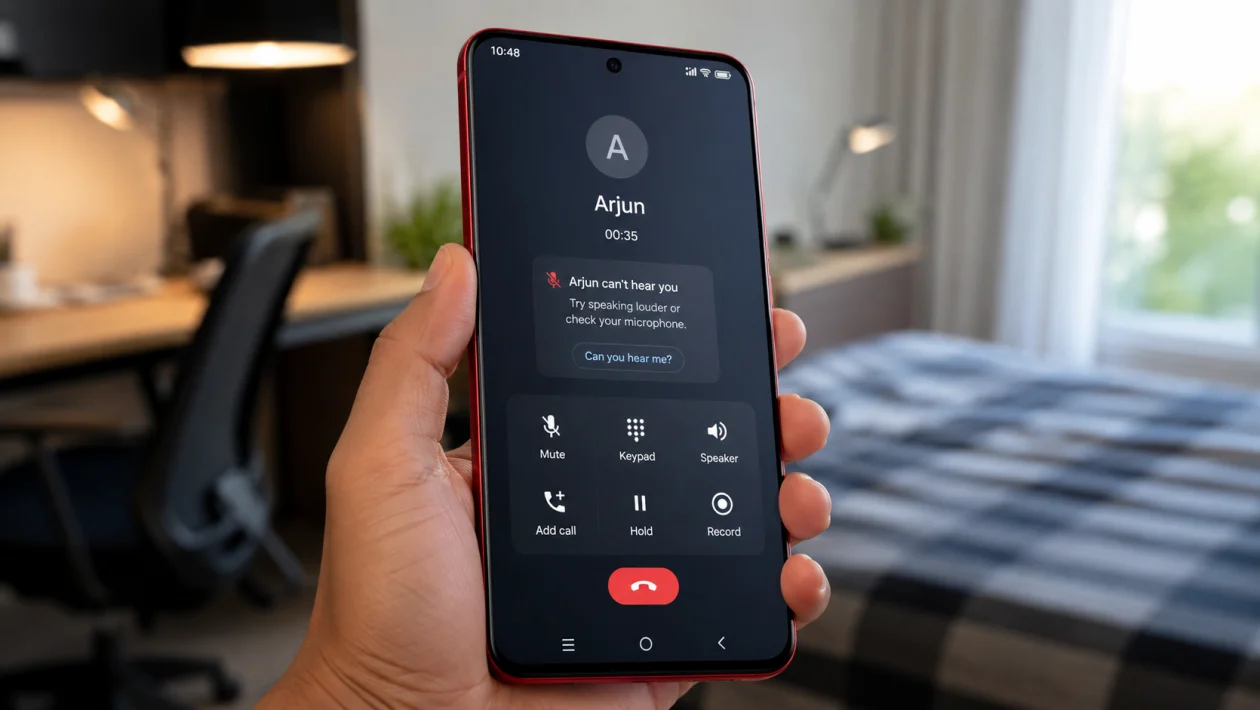
If people can’t hear you on calls using your vivo Y51 Pro, the problem is usually connected to the microphone, Bluetooth, call app, network signal, app permissions, or a blocked mic opening.
Start with the simple checks first. Remove the case, test the microphone, restart the phone, then check call settings and app permissions before doing bigger resets.
Quick answer
If people can’t hear you on your vivo Y51 Pro, first remove the phone case and clean the microphone opening gently. Then restart the phone and test the microphone using Voice Recorder. If your voice sounds clear in recordings but not during calls, check Bluetooth, network signal, Phone app settings, and microphone permissions.
If the microphone does not work in recordings, video calls, or voice messages, the issue may be a blocked, damaged, or faulty microphone.
vivo Y51 Pro call microphone problem diagnostic table
| Symptom | Likely cause | What to check first |
|---|---|---|
| People hear nothing during calls | Mic blocked, muted, or damaged | Case, screen protector, microphone hole |
| People hear you only on speakerphone | Main microphone issue | Test normal call vs speakerphone |
| Voice sounds muffled | Dust, case, moisture, or hand placement | Clean mic opening |
| Calls work on WhatsApp but not regular calls | Phone app or network issue | Phone app cache, SIM signal |
| Regular calls work but WhatsApp calls do not | App permission issue | Microphone permission |
| Voice cuts in and out | Weak signal or VoLTE issue | Signal strength, network mode |
| People hear background noise only | Bluetooth or headset connected | Disconnect Bluetooth |
| Mic fails in every app | Hardware or system issue | Voice Recorder test, service center |
Why people can’t hear you on your vivo Y51 Pro
People may not hear you on calls because your phone is not sending clean microphone audio. This can happen when the microphone hole is blocked, the phone is connected to a Bluetooth device, the call app is glitching, the network signal is weak, or an app does not have microphone permission.
It can also happen after a software update, after dropping the phone, after using the phone near moisture, or after installing an app that controls calls, recording, privacy, or audio.
Use the fixes below in order.
1. Check if the microphone is blocked
Start here because this is the easiest problem to miss.
Your vivo Y51 Pro has small microphone openings that can be blocked by dust, lint, a thick case, a badly placed screen protector, or your finger while holding the phone.
Do this:
- Remove the phone case.
- Remove any accessory covering the bottom edge of the phone.
- Check the small microphone hole near the charging port.
- Gently clean the area with a soft dry brush.
- Do not use a needle, pin, or liquid cleaner.
- Make a test call again.
If your voice sounds muffled, this fix is especially important. A blocked mic can make your voice sound far away even when the phone looks fine.
2. Make sure the call is not muted
It sounds obvious, but it happens.
During a call, look at the call screen and check whether the Mute button is turned on. If it is enabled, the other person will not hear anything from your side.
Do this:
- Make a test call.
- Look at the call screen.
- Tap Mute if it is active.
- Speak close to the phone.
- Ask the other person if your voice is back.
If the mute button turns on by itself, your screen may be registering accidental touches during calls. In that case, clean the screen and make sure the proximity sensor area near the top of the phone is not covered.
3. Restart your vivo Y51 Pro
A restart can fix temporary call audio bugs, stuck background apps, and small system glitches.
Do this:
- Press and hold the Power button.
- Tap Restart.
- Wait for the phone to turn back on.
- Make a normal phone call.
- Test your voice again.
This will not delete your photos, apps, contacts, or messages.
If the issue started suddenly and nothing was physically damaged, restarting is one of the first things worth trying.
4. Test the microphone with Voice Recorder
Before changing more settings, check whether the microphone itself works.
Do this:
- Open the Voice Recorder app.
- Record a short clip.
- Speak normally into the bottom of the phone.
- Play the recording.
- Listen carefully to your voice.
Here is how to read the result:
| Test result | What it means |
|---|---|
| Recording sounds clear | The microphone likely works, so the issue may be calls, network, Bluetooth, or settings |
| Recording sounds muffled | The microphone may be blocked or dirty |
| Recording has no voice | The microphone may be disabled, faulty, or affected by software |
| Recording cuts in and out | Could be mic damage, background app interference, or system issue |
Also test a voice message in WhatsApp, Messenger, or another calling app. If your voice fails everywhere, the problem is more likely with the microphone or system.
5. Disconnect Bluetooth devices
Your vivo Y51 Pro may be sending call audio to a Bluetooth headset, car stereo, smartwatch, speaker, or earbuds without you noticing.
When that happens, the other person may not hear you because the phone is using the microphone on the connected Bluetooth device.
Do this:
- Open Settings.
- Tap Bluetooth.
- Turn Bluetooth off.
- Make a test call.
- Check if the other person can hear you.
You can also swipe down from the top of the screen and turn off Bluetooth from Quick Settings.
If the call works after turning off Bluetooth, reconnect your Bluetooth device later and test it separately. The headset or car microphone may be the real problem.
6. Check microphone permission for calling apps
If people can’t hear you on WhatsApp, Messenger, Telegram, Zoom, Google Meet, or another app, the app may not have microphone permission.
Do this:
- Open Settings.
- Tap Apps.
- Select the calling app.
- Tap Permissions.
- Tap Microphone.
- Choose Allow only while using the app.
- Open the app and test a call again.
For normal phone calls, also check the Phone app if your vivo software version allows it.
If only one app has the problem, do not reset the whole phone yet. Update that app, check its microphone permission, then clear its cache.
7. Clear the Phone app cache
If regular calls are the only problem, the Phone app may have a temporary cache issue.
Do this:
- Open Settings.
- Tap Apps.
- Tap App management or See all apps.
- Select Phone.
- Tap Storage.
- Tap Clear cache.
- Restart your phone.
- Make a test call.
Do not tap Clear data unless you are comfortable resetting app-related settings. Start with Clear cache because it is safer and usually enough for minor app problems.
If you use a third-party dialer app, switch back to the default Phone app and test calls again.
8. Check your network signal and SIM
Call audio can fail or cut out when the phone has weak signal, unstable VoLTE, or a SIM/network issue. This is more likely if people hear you sometimes, then your voice suddenly disappears.
Try this:
- Move to an area with stronger signal.
- Turn Airplane mode on for 10 seconds.
- Turn Airplane mode off.
- Make another call.
- Try calling a different person.
- Test with another SIM if available.
You can also check mobile network settings:
- Open Settings.
- Tap Mobile network.
- Select your SIM.
- Check Preferred network type.
- Try switching between 4G/3G/2G auto options if call audio keeps failing.
If the problem happens only in one location, it may be a network coverage issue instead of a phone microphone issue.
9. Update the phone software and calling apps
Software bugs can affect call audio, microphone routing, VoLTE, Bluetooth, and app permissions. If the issue started after an update, another patch or app update may fix it.
To update your vivo Y51 Pro:
- Open Settings.
- Tap System update.
- Download and install any available update.
- Restart the phone after updating.
To update apps:
- Open Google Play Store.
- Tap your profile icon.
- Tap Manage apps and device.
- Tap Update all.
Pay attention to apps that use audio, privacy, calls, screen recording, or Bluetooth. These can sometimes interfere with microphone behavior.
After updating, test both a regular call and an app call.
10. Reset network settings or get the microphone checked
Use this step only after trying the easier fixes.
If people still can’t hear you on regular calls, but your microphone works in recordings, reset network settings first. This can fix call, SIM, Bluetooth, and mobile network problems.
Do this:
- Open Settings.
- Tap System management.
- Tap Backup and reset.
- Tap Reset network settings.
- Confirm the reset.
- Reconnect to Wi-Fi and Bluetooth afterward.
- Test calls again.
The exact path may vary depending on your Funtouch OS version.
If the microphone does not work in Voice Recorder, video calls, voice messages, or normal calls, the issue may be hardware-related. At that point, the best move is to contact vivo support or visit an authorized service center.
This is especially likely if:
The phone was dropped
The phone got wet
The microphone hole was cleaned with a sharp object
People hear only static
Voice recording captures no sound
Speakerphone works but normal calls do not
The problem happens in every app
FAQ
Why can’t people hear me on my vivo Y51 Pro?
People may not hear you because the microphone is blocked, the call is muted, Bluetooth is connected, the Phone app is glitching, microphone permission is disabled, or your mobile signal is unstable. If the microphone fails in every app, it may be a hardware issue.
How do I test the microphone on my vivo Y51 Pro?
Open Voice Recorder, record a short clip, then play it back. If your voice sounds clear, the microphone is probably working. If the recording has no sound or sounds very muffled, check the microphone opening or contact vivo support.
Why can people hear me on speakerphone but not normal calls?
This can happen when the phone uses different microphones for different call modes. If speakerphone works but normal calls do not, the main microphone near the bottom of the phone may be blocked, dirty, or faulty.
