
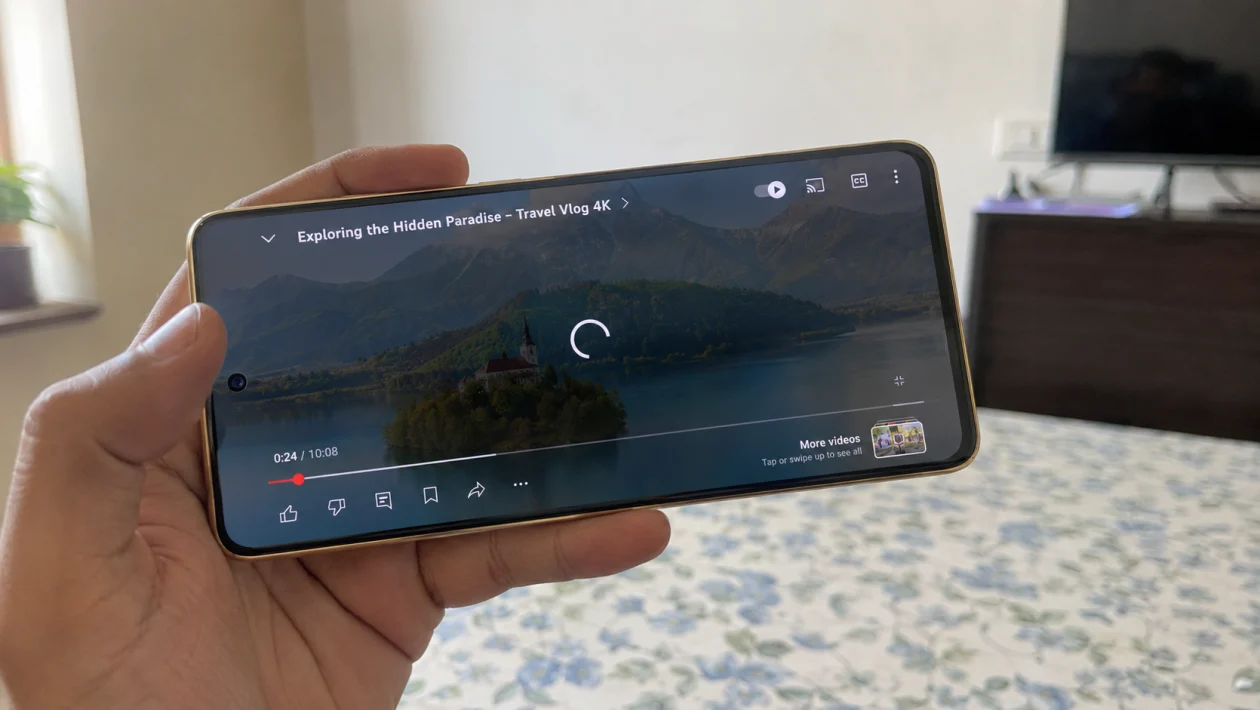
If videos keep lagging on your vivo Y51 Pro, the problem usually comes from low memory, weak internet, storage pressure, app cache, display settings, battery restrictions, or a video file the phone is struggling to decode.
Start with the simple fixes first. Close background apps, restart the phone, check your connection, then clear the cache of the app where the video is lagging.
Quick answer
To fix vivo Y51 Pro video playback lagging, close background apps, restart the phone, switch to a stable Wi-Fi connection, lower the video quality, clear the cache of YouTube, Netflix, Chrome, or your video player, and make sure the phone has enough free storage.
If the lag happens only in one app, the app is probably the issue. If all videos lag, check storage, system updates, battery settings, and phone performance.
vivo Y51 Pro video lag diagnostic table
| Problem | Likely cause | Check first |
|---|---|---|
| YouTube videos lag | Weak network, high video quality, app cache | YouTube app and Wi-Fi |
| Netflix or streaming apps stutter | Slow internet, battery restriction, app issue | App cache and connection |
| Gallery videos lag | Large file, unsupported codec, low storage | File format and storage |
| Browser videos lag | Browser cache, too many tabs | Chrome or browser settings |
| Videos lag after update | App not optimized yet | App and system updates |
| Video freezes but audio continues | Decoder, app cache, file issue | Try another video player |
| Videos lag when phone is hot | Thermal slowdown | Let the phone cool |
| Downloaded videos lag | Corrupted file or unsupported format | File source and format |
Why is video playback lagging on vivo Y51 Pro?
Video playback may lag on the vivo Y51 Pro when the phone does not have enough available memory, the video app has too much cached data, the internet connection is unstable, or the video file is too heavy for smooth playback.
Common causes include:
- Too many apps running in the background
- Weak Wi-Fi or mobile data signal
- High video resolution in streaming apps
- Low internal storage
- App cache problems
- Outdated video apps
- Battery saver limiting performance
- Phone overheating
- Corrupted or unsupported video files
- Software bugs after an update
Use the fixes below in order.
1. Close background apps before playing videos
Too many open apps can use memory and make video playback lag.
- Open the Recent apps screen.
- Tap Close all, or swipe away apps you are not using.
- Open the video app again.
- Play the video and check if it runs smoothly.
This helps when the lag happens after using social media, games, camera, shopping apps, or multiple browser tabs.
2. Restart your vivo Y51 Pro
A restart can clear temporary glitches that affect video playback.
- Press and hold the Power button.
- Tap Restart.
- Wait for the phone to turn back on.
- Open the same video again.
This will not delete your photos, apps, messages, or downloaded videos.
Try this especially if the video lag started suddenly.
3. Check your Wi-Fi or mobile data connection
If the lag happens on YouTube, Netflix, Facebook, TikTok, Chrome, or any streaming app, your internet connection may be the problem.
Try this:
- Turn Wi-Fi off and on again.
- Move closer to the router.
- Switch from mobile data to Wi-Fi.
- Turn Airplane mode on for 10 seconds, then turn it off.
- Play the video again.
If videos lag only when streaming but downloaded videos play fine, the phone is probably not the main issue. The connection is.
4. Lower the video quality
High-resolution video uses more data and processing power. If the vivo Y51 Pro is lagging during playback, lower the quality first.
For YouTube:
- Open the video.
- Tap the gear icon.
- Tap Quality.
- Choose 720p, 480p, or Auto.
For Netflix or other streaming apps, open the app settings and reduce playback quality or data usage.
This is useful if the video lags on mobile data, public Wi-Fi, or when the signal is weak.
5. Clear the cache of the video app
If lag happens in one app only, clear that app’s cache.
Try this for YouTube, Netflix, VLC, MX Player, Chrome, Facebook, TikTok, or your default video player.
- Open Settings.
- Tap Apps.
- Choose the video app.
- Tap Storage.
- Tap Clear cache.
- Reopen the app and play the video again.
Do not tap Clear data unless you are okay with resetting the app. Clearing data may remove app settings, downloads, or signed-in sessions depending on the app.
6. Free up storage space
Low storage can make the phone slower, especially when playing downloaded videos or recording and playing camera clips.
Check storage:
- Open Settings.
- Tap Storage.
- Check available space.
- Delete large files you no longer need.
- Move old videos, photos, and downloads to cloud storage, a computer, or an SD card if supported.
You can also open iManager and use its cleanup feature to remove junk files.
Keep some free space available. If the phone is almost full, video apps may stutter, freeze, or take longer to load.
7. Update the video app
A buggy app version can cause lag even when the phone itself is fine.
- Open Google Play Store.
- Tap your profile icon.
- Tap Manage apps and device.
- Tap Updates available.
- Update YouTube, Netflix, Chrome, your video player, and other media apps.
Also check the vivo App Store if you use apps installed from there.
After updating, restart the phone and test the video again.
8. Update your vivo Y51 Pro software
System updates can fix performance issues, app compatibility problems, and playback bugs.
- Open Settings.
- Tap System update.
- Check for updates.
- Download and install any available update.
- Restart the phone after installation.
If video lag started right after a software update, update your apps too. Some apps may need a newer version to work smoothly with the latest system software.
9. Turn off Battery Saver for video apps
Battery Saver can limit background activity and performance. That can affect streaming apps, especially during longer playback.
- Open Settings.
- Tap Battery.
- Turn off Battery Saver or Low power mode.
- Go back to Apps.
- Select the video app.
- Check battery settings for that app.
- Allow normal battery usage if restricted.
Use this for apps like YouTube, Netflix, Prime Video, VLC, MX Player, Chrome, and Facebook.
If videos play better with Battery Saver off, keep it disabled when watching long videos.
10. Try another video player or convert the file
If only one downloaded video lags, the file may be too large, corrupted, or encoded in a format that your current player does not handle well.
Try this:
- Play another video file.
- Open the same file in a different video player.
- Download the file again if it came from a browser or messaging app.
- Convert the file to MP4 if it uses an unusual format.
- Avoid playing damaged or incomplete downloads.
If streaming videos work fine but one offline file lags, the issue is probably the file, not the vivo Y51 Pro.
What if video playback still lags?
If all videos lag after trying these fixes, check whether the phone is overheating, almost full, or running several heavy apps in the background.
You should contact vivo support or visit a service center if:
- The phone freezes during every video
- Videos lag even after a factory reset
- The phone gets hot during basic playback
- The screen stutters in other apps too
- Audio and video are always out of sync
- The problem started after physical damage or water exposure
Do not reset the phone before backing up your files.
FAQ
Why does YouTube lag on my vivo Y51 Pro?
YouTube may lag because of weak internet, high playback quality, app cache, low storage, or too many apps running in the background. Lower the video quality, clear the YouTube cache, and switch to a stronger Wi-Fi connection.
Why do downloaded videos lag but streaming videos work fine?
That usually means the downloaded file is the problem. It may be corrupted, too large, or encoded in a format your video player does not handle smoothly. Try another player or download the file again.
Does low storage cause video playback lag?
Yes. When the phone is nearly full, apps may load slowly, cache may not work properly, and videos can stutter. Free up space using Settings > Storage or iManager.
