
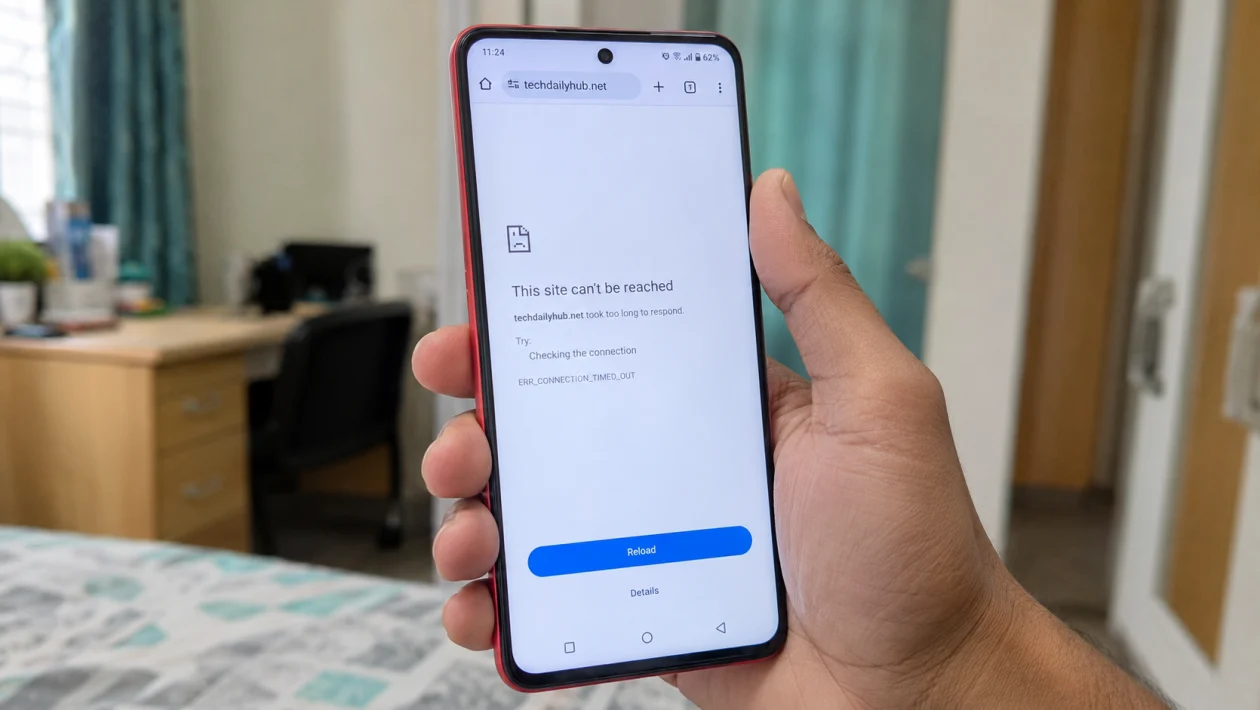
If your vivo Y51 Pro is connected to Wi-Fi or mobile data but browser pages are not loading, the problem is usually tied to the connection, browser cache, DNS, APN settings, app permissions, or a temporary software glitch.
Start with the simple checks first. Test another app, switch between Wi-Fi and mobile data, restart the phone, then clear your browser cache. If pages still refuse to load, move through the 10 fixes below in order.
Quick answer
To fix a vivo Y51 Pro with browser pages not loading, first check whether other apps can access the internet. If only the browser fails, clear the browser cache, update the browser, disable VPN or private DNS, and check app data permissions.
If no apps can access the internet, restart the phone, toggle Airplane mode, test Wi-Fi and mobile data separately, reset APN settings, or reset network settings.
vivo Y51 Pro browser pages not loading diagnostic table
| Symptom | Likely cause | What to check first |
|---|---|---|
| Browser says “This site can’t be reached” | Internet, DNS, or browser issue | Switch between Wi-Fi and mobile data |
| Wi-Fi is connected but pages do not load | Router, DNS, or weak connection | Restart router and reconnect Wi-Fi |
| Pages load on Wi-Fi but not mobile data | APN, signal, or data permission issue | Check mobile data and APN settings |
| Apps work but browser does not | Browser cache, update, or permission issue | Clear browser cache |
| Only some websites do not load | Website, DNS, VPN, or private DNS issue | Turn off VPN and private DNS |
| Pages load slowly then fail | Weak signal or congested network | Test another network |
| Browser crashes or freezes | App cache or outdated browser | Update or reinstall browser |
| Problem started after update | Temporary software or app conflict | Restart and update apps |
Why browser pages are not loading on vivo Y51 Pro
Browser pages may stop loading on your vivo Y51 Pro because the phone has a weak connection, the browser cache is corrupted, mobile data is blocked for the browser, APN settings are wrong, private DNS is misconfigured, or a VPN is interfering with traffic.
In many cases, the phone is not actually “offline.” The browser may be the only app affected, which is why checking another app first matters.
1. Check if the internet works in other apps
Before changing settings, confirm whether the issue is only with the browser.
- Open YouTube, WhatsApp, Gmail, Facebook, or another app that needs the internet.
- Check if messages, videos, or feeds load.
- Open the browser again.
- Try loading a simple website.
- Switch from Wi-Fi to mobile data, then test again.
If other apps work but the browser does not, focus on browser cache, permissions, DNS, or the browser app itself.
If no apps work, the issue is probably your Wi-Fi, mobile data, SIM, APN, or network settings.
2. Restart your vivo Y51 Pro
A restart can clear temporary software bugs, stuck browser processes, and minor network glitches.
- Press and hold the Power button.
- Tap Restart.
- Wait for the phone to turn back on.
- Open the browser.
- Try loading a website again.
This is the easiest fix, and it should be done before resetting deeper settings.
3. Toggle Airplane mode on and off
Airplane mode refreshes your phone’s network connection without deleting anything. This can help when the browser is stuck even though the phone looks connected.
- Swipe down from the top of the screen.
- Tap Airplane mode.
- Wait 10 seconds.
- Turn Airplane mode off.
- Wait for Wi-Fi or mobile data to reconnect.
- Open the browser and test a page.
Try this especially if browser pages stopped loading after moving between Wi-Fi and mobile data.
4. Switch between Wi-Fi and mobile data
This tells you whether the problem is coming from your phone, your Wi-Fi router, or your mobile carrier.
- Turn off Wi-Fi.
- Turn on Mobile data.
- Open the browser and test a website.
- Then turn Wi-Fi back on.
- Turn off Mobile data.
- Test the browser again.
If pages load on mobile data but not Wi-Fi, restart your router or forget and reconnect to the Wi-Fi network.
If pages load on Wi-Fi but not mobile data, check your SIM signal, data balance, APN settings, and mobile data permissions.
5. Clear the browser cache and data
If only Chrome, vivo Browser, or another browser is failing, the browser cache may be corrupted. Clearing cache removes temporary files that may be stopping pages from loading.
- Open Settings.
- Go to Apps or App manager.
- Select your browser, such as Chrome or Browser.
- Tap Storage.
- Tap Clear cache.
- Open the browser and test again.
If pages still do not load, go back to the same screen and tap Clear data or Clear storage.
Clearing data may remove browser settings, saved tabs, site data, and login sessions. It will not delete your photos, videos, or personal files.
This is one of the best fixes when browser cache is the cause.
6. Update or change your browser
An outdated browser can have loading issues, certificate problems, or broken site compatibility.
- Open the Google Play Store.
- Search for Chrome, Firefox, Opera, or your current browser.
- Tap Update if available.
- Restart the browser.
- Try loading pages again.
If your current browser still fails, install another browser and test the same websites.
If another browser works, the issue is probably with your original browser app, not the vivo Y51 Pro itself.
7. Check browser mobile data and background data permissions
Your vivo Y51 Pro may block mobile data for specific apps. If the browser works on Wi-Fi but not mobile data, check this setting.
- Open Settings.
- Tap Apps or App manager.
- Select your browser.
- Tap Mobile data or Data usage.
- Allow mobile data usage.
- Allow background data if available.
- Turn off any data restriction for the browser.
Also check whether Data Saver is enabled.
- Open Settings.
- Go to Network, Mobile network, or Data usage.
- Look for Data Saver.
- Turn it off temporarily.
- Test the browser again.
This fix is useful when vivo Y51 Pro mobile data works in some apps but not in the browser.
8. Turn off VPN, ad blocker, or private DNS
VPNs, ad blockers, and private DNS settings can stop websites from loading. This is common when only some pages fail or the browser shows privacy, DNS, or connection errors.
To turn off VPN:
- Open Settings.
- Search for VPN.
- Disconnect any active VPN.
- Open the browser again.
To turn off private DNS:
- Open Settings.
- Search for Private DNS.
- Set it to Off or Automatic.
- Save the setting.
- Test the browser.
If pages load after this, your VPN, DNS provider, or ad blocker was likely blocking the connection.
This is worth checking when private DNS is enabled or when pages load on other phones but not on your vivo Y51 Pro.
9. Reset APN settings for mobile data problems
APN settings tell your vivo Y51 Pro how to connect to your carrier’s mobile internet. If the APN is wrong, apps or browser pages may not load properly on mobile data.
- Open Settings.
- Tap Mobile network or SIM card and mobile network.
- Select your SIM.
- Tap Access Point Names or APN.
- Tap the menu icon.
- Choose Reset to default.
- Restart the phone.
- Turn on mobile data and test the browser.
Use this fix if Wi-Fi works but mobile data does not load browser pages.
If the APN reset does not help, contact your carrier and ask for the correct APN settings for your SIM.
10. Reset network settings
Reset network settings should be one of the last fixes because it removes saved Wi-Fi networks, Bluetooth pairings, and mobile network settings. It does not delete your photos, videos, apps, or personal files.
- Open Settings.
- Go to System, More settings, or Backup and reset.
- Tap Reset network settings or Reset Wi-Fi, mobile network, and Bluetooth.
- Confirm the reset.
- Restart your vivo Y51 Pro.
- Reconnect to Wi-Fi.
- Test the browser again.
Use this if the browser still will not load pages after checking Wi-Fi, mobile data, browser cache, DNS, APN, and updates.
When to contact vivo support or your carrier
Contact vivo support if browser pages still do not load after all 10 fixes, especially if the phone also has Wi-Fi drops, SIM issues, app crashes, overheating, or system update errors.
Contact your mobile carrier if the issue only happens on mobile data. Ask them to check your SIM, data plan, APN settings, signal coverage, and account restrictions.
FAQ
Why is my vivo Y51 Pro connected to Wi-Fi but browser pages are not loading?
Your vivo Y51 Pro may be connected to the router but not getting a stable internet connection. Restart the router, forget and reconnect to Wi-Fi, disable private DNS or VPN, then test another Wi-Fi network.
Why does Chrome not load pages on my vivo Y51 Pro?
Chrome may not load pages because of corrupted cache, an outdated app, blocked mobile data permission, private DNS, VPN, or a weak connection. Clear Chrome cache first, then update Chrome from the Play Store.
Why do apps work but browser pages do not load?
If apps work but browser pages do not load, the issue is likely with the browser app, DNS, VPN, ad blocker, or website data. Clear the browser cache, turn off private DNS, disable VPN, and test another browser.
