
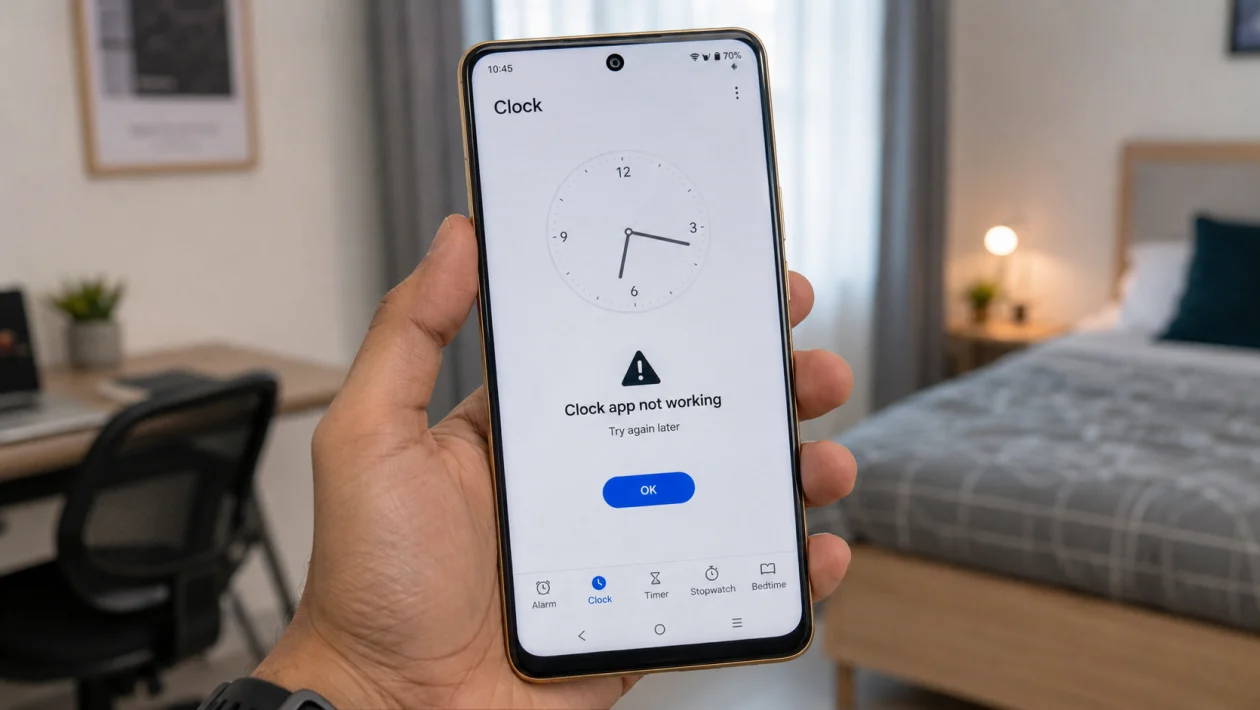
If the Clock app on your vivo Y51 Pro is not working, the problem is usually caused by muted alarm volume, app cache errors, notification restrictions, battery optimization, Do Not Disturb, or a recent software issue.
Start with the simple checks first. Open the Clock app, test a new alarm, check the alarm volume, then make sure the app is allowed to show notifications and run in the background.
This guide covers the most common Clock app problems on vivo phones, including alarms not ringing, timer sound not playing, app crashing, and alarms failing when the phone is locked.
Quick answer
To fix the vivo Y51 Pro Clock app not working, restart your phone, check the alarm volume, allow Clock notifications, turn off Do Not Disturb, clear the Clock app cache, and make sure the app is not restricted by battery settings.
If alarms fail only when the phone is locked or overnight, check background battery usage, power saving mode, and autostart settings.
vivo Y51 Pro Clock app not working diagnostic table
| Problem | Likely cause | What to check first |
|---|---|---|
| Alarm does not ring | Alarm volume, DND, notification setting | Sound and vibration settings |
| Clock app keeps crashing | App cache or temporary software bug | Clear cache and restart |
| Timer has no sound | Alert tone or volume issue | Timer sound and alarm volume |
| Alarm works only when phone is awake | Battery restriction | Background battery settings |
| Alarm appears but makes no sound | Silent tone or muted volume | Alarm ringtone |
| Clock widget not updating | Launcher or battery issue | Remove and add widget again |
| Alarm failed after update | System or app optimization issue | Restart and update apps |
| Clock app freezes | Corrupted cache or low storage | Clear cache and free storage |
| Notifications missing | Notifications disabled | App notification settings |
| Alarm skips overnight | Power saving or background limits | Turn off power saving temporarily |
Why is the Clock app not working on vivo Y51 Pro?
The vivo Y51 Pro Clock app may stop working when Android or Funtouch OS limits background activity, blocks notifications, mutes alarm sounds, or keeps the app from waking the phone properly.
Common causes include:
Muted alarm volume
Do Not Disturb mode
Power saving mode
Clock notifications turned off
Corrupted app cache
Wrong alarm sound
Battery optimization
Low storage
Outdated system software
A temporary system bug after an update
The good news is that most Clock app problems can be fixed without resetting your phone.
1. Restart your vivo Y51 Pro
Start with a restart before changing deeper settings.
A simple restart can fix temporary Clock app glitches, stuck background processes, and system bugs that stop alarms or timers from working properly.
- Press and hold the Power button.
- Tap Restart.
- Wait for the phone to turn back on.
- Open the Clock app.
- Create a test alarm for 2 to 3 minutes later.
- Check if it rings.
This will not delete your photos, apps, messages, or settings.
If the Clock app works after restarting, the issue was probably a temporary system problem.
2. Check alarm volume and sound settings
The Clock app may be working, but the alarm may be too quiet or muted.
On many Android phones, alarm volume is separate from ringtone, media, and notification volume. That means your phone can play videos loudly while your alarm stays silent.
- Open Settings.
- Tap Sound and vibration.
- Look for Volume.
- Increase Alarm volume.
- Open the Clock app.
- Tap your alarm.
- Check the alarm sound or ringtone.
- Choose a clear, loud tone.
- Save the alarm.
Also check that the alarm is not set to vibrate only.
If you use your vivo Y51 Pro as your main wake-up alarm, avoid soft tones that are easy to miss. Pick a loud default tone and test it before relying on it overnight.
3. Turn off Do Not Disturb or allow alarms through it
Do Not Disturb can silence calls, notifications, and app alerts. Depending on your settings, it may also affect alarm behavior or make it seem like the Clock app is not working.
- Swipe down from the top of the screen.
- Check if Do Not Disturb is turned on.
- Turn it off.
- Open the Clock app.
- Set a test alarm.
You can also check from Settings:
- Open Settings.
- Tap Sound and vibration.
- Tap Do Not Disturb.
- Make sure alarms are allowed.
- Turn off any schedule that may silence alerts overnight.
This is especially important if your alarm works during the day but fails in the morning.
4. Allow Clock app notifications
If Clock notifications are disabled, alarms and timers may not appear correctly on the lock screen. You may hear no alert, miss the dismiss button, or fail to see timer notifications.
- Open Settings.
- Tap Apps.
- Tap See all apps or App management.
- Find Clock.
- Tap Notifications.
- Turn on notifications.
- Allow alarm, timer, and reminder notifications if those categories appear.
- Make sure lock screen notifications are allowed.
The exact menu names can vary depending on your Funtouch OS version.
After changing the setting, create a test alarm and lock your phone. Wait for the alarm to trigger and check if it appears on the lock screen.
5. Clear the Clock app cache
A corrupted cache can cause the Clock app to freeze, crash, show the wrong time, fail to open, or stop alarms from triggering properly.
Clearing the cache is safe. It usually does not delete your alarms, but you should still check your saved alarms afterward.
- Open Settings.
- Tap Apps.
- Tap App management.
- Find Clock.
- Tap Storage.
- Tap Clear cache.
- Restart your phone.
- Open Clock and test it again.
Do not tap Clear data unless you are ready to reset the Clock app settings. Clearing data may remove saved alarms, timers, and app preferences.
Try cache clearing first. It is the safer option.
6. Check battery optimization for the Clock app
This is one of the most important fixes if alarms do not ring when your vivo Y51 Pro is locked, idle, or left overnight.
Some vivo and Android battery features can restrict background apps to save power. That can affect alarms, timers, reminders, and third-party clock apps.
- Open Settings.
- Tap Battery.
- Look for Battery usage, Background power consumption, or app battery settings.
- Find Clock.
- Allow background battery usage if the option appears.
- Do not restrict the Clock app.
- Turn off Power saving mode temporarily.
- Set a test alarm while the screen is locked.
You can also try this path:
- Open Settings.
- Tap Apps.
- Tap Clock.
- Tap Battery.
- Choose an option like Unrestricted, Allow background activity, or Background power consumption allowed.
Menu names can differ by vivo model and Funtouch OS version, so use the search bar in Settings and search for “battery usage,” “background,” or “power saving.”
7. Enable autostart for Clock if available
Some vivo phones include an autostart or auto-run setting. This allows selected apps to start again after being closed by the system.
The built-in Clock app may already have system-level permission, but it is still worth checking if your vivo Y51 Pro shows this option.
- Open Settings.
- Search for Autostart or Auto start.
- Tap Autostart or Auto-run apps.
- Look for Clock.
- Turn it on if available.
- Restart the phone.
- Test an alarm again.
If you are using a third-party alarm app instead of the built-in Clock app, this step becomes even more important. Third-party alarm apps can fail if vivo’s battery management prevents them from starting in the background.
8. Update your phone software and system apps
Clock app problems can appear after a system update, app update, or Android security patch. Updates can also fix bugs that affect alarms, notifications, timers, and lock screen alerts.
To update your vivo Y51 Pro:
- Open Settings.
- Tap System update.
- Check for updates.
- Install any available update.
- Restart your phone.
Then update apps:
- Open the Google Play Store.
- Tap your profile icon.
- Tap Manage apps and device.
- Tap Update all.
If your vivo phone has a system app updater or vivo app store, check that too.
After updating, give the phone a few hours to settle. Some phones may behave strangely right after a major update while background services refresh.
9. Free up storage and close heavy background apps
The Clock app can misbehave if your phone is low on storage or struggling with too many apps running in the background.
Low storage can cause apps to freeze, crash, or fail to save settings properly. Heavy background apps can also make alarms delayed or unreliable.
- Open Settings.
- Tap Storage.
- Check available space.
- Delete unnecessary downloads, videos, and duplicate files.
- Uninstall apps you no longer use.
- Restart your phone.
- Open Clock and set a test alarm.
Also close apps you do not need:
- Open Recent apps.
- Close unused apps.
- Keep Clock available.
- Test the alarm again.
You do not need to constantly clear all apps. The goal is to remove obvious memory and storage pressure if the phone is already slow or unstable.
10. Reset app preferences or use another Clock app temporarily
If none of the fixes work, reset app preferences. This can restore disabled app permissions, notification settings, background restrictions, and default app behavior.
It will not delete your personal files, but it may reset app permissions and disabled apps.
- Open Settings.
- Tap Apps.
- Tap the menu icon.
- Tap Reset app preferences.
- Confirm the reset.
- Restart your phone.
- Open Clock and set a test alarm.
After resetting app preferences, check your Clock alarms again. You may need to re-allow notifications or adjust permissions for other apps.
If the built-in Clock app still fails, install Google Clock temporarily and test whether alarms work better. This helps you confirm whether the issue is with the vivo Clock app or with system-level battery and notification settings.
When should you contact vivo support?
Contact vivo support if the Clock app still does not work after all 10 fixes, especially if:
The alarm never rings even after a reset
The app crashes every time you open it
The phone shuts down overnight
The time or date keeps changing by itself
Multiple system apps are failing
The phone started having problems after a major update
The alarm works only when the screen is on
If the problem affects alarms you depend on for work, school, medication, or travel, use a second alarm device until your vivo Y51 Pro is reliable again.
FAQ
Why is my vivo Y51 Pro alarm not ringing?
Your vivo Y51 Pro alarm may not ring because alarm volume is muted, Do Not Disturb is active, Clock notifications are blocked, or battery optimization is restricting the app in the background.
Why does my vivo Clock app stop working overnight?
If the Clock app fails overnight, battery optimization or power saving mode may be limiting background activity while the phone is idle.
Will clearing the Clock app cache delete my alarms?
Clearing cache usually does not delete saved alarms. Clearing data may remove alarms and app settings, so try Clear cache first.
