
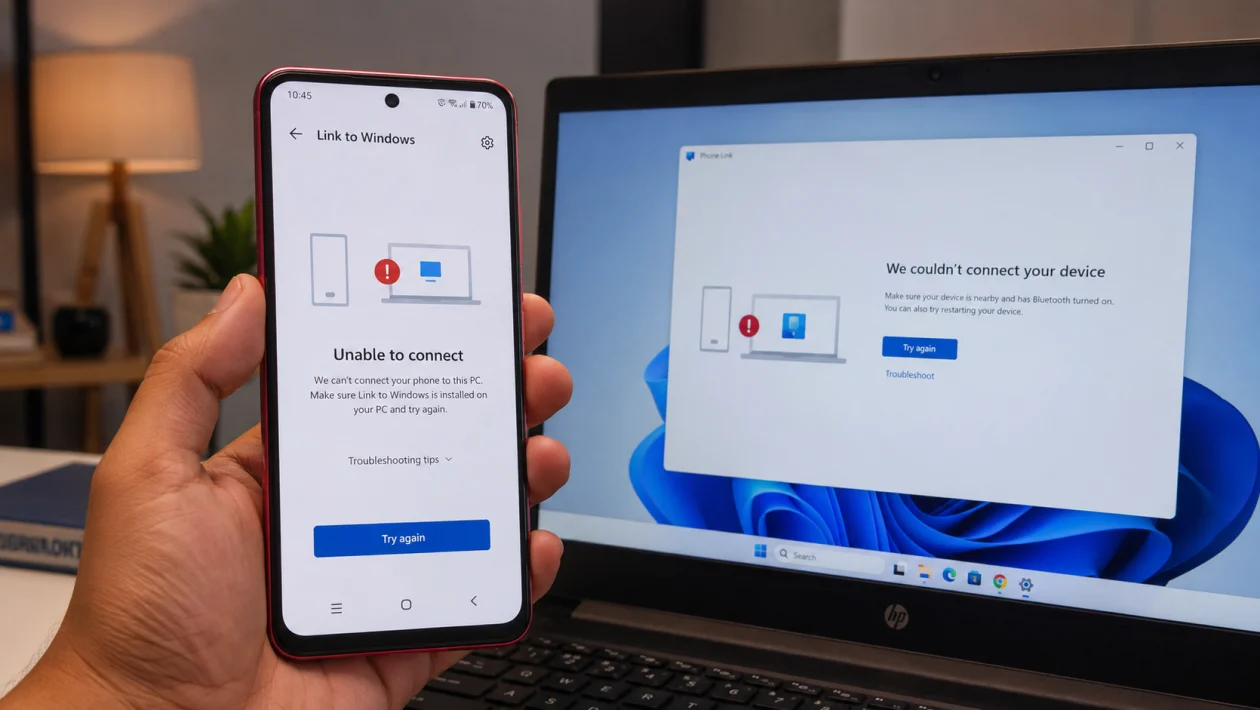
If Link to Windows is not working on your vivo Y51 Pro, the problem is usually caused by pairing errors, missing permissions, Wi-Fi issues, battery restrictions, outdated apps, or Windows Phone Link not running properly.
The vivo Y51 Pro runs Android 16 with OriginOS 6, so some menus may look slightly different depending on your region and software version. Still, the fixes below should help if Phone Link will not connect, keeps disconnecting, does not show notifications, fails to sync messages, or gets stuck on the QR code screen.
Quick answer
To fix vivo Y51 Pro Link to Windows not working, restart both devices, make sure your phone and PC are on the same Wi-Fi network, update the Link to Windows and Phone Link apps, then check permissions under Settings > Apps > Link to Windows > Permissions.
If it still fails, turn off battery optimization for Link to Windows, allow background activity, clear the app cache, remove the old pairing, and set it up again using the QR code in the Phone Link app.
vivo Y51 Pro Link to Windows problem table
| Problem | Likely cause | What to check first |
|---|---|---|
| QR code will not scan | Camera permission or pairing issue | Link to Windows permissions |
| Phone not connecting to PC | Different Wi-Fi networks | Wi-Fi on both devices |
| Keeps disconnecting | Battery restriction | Battery optimization |
| Messages not syncing | SMS permission missing | App permissions |
| Notifications not showing | Notification access disabled | Notification settings |
| Calls not working | Bluetooth permission or pairing issue | Bluetooth and Nearby devices |
| Photos not loading | App cache or sync issue | Clear cache and reconnect |
| Phone Link stuck on setup | Old pairing conflict | Remove and pair again |
| Works on Wi-Fi but not mobile data | Sync over mobile data disabled | Link to Windows settings |
| App opens but does nothing | Outdated app or Windows issue | Update both apps |
Why Link to Windows is not working on vivo Y51 Pro
Link to Windows needs several things to work properly. Your vivo Y51 Pro and Windows PC must be connected correctly, the apps must be updated, and the phone must allow background syncing.
Common causes include:
Different Wi-Fi networks
Weak Wi-Fi signal
Missing camera, contacts, SMS, phone, Bluetooth, or notification permissions
Battery optimization blocking Link to Windows
Phone Link not allowed to run in the background on Windows
Outdated Link to Windows or Phone Link app
Old pairing data from a previous setup
VPN, firewall, or private network blocking the connection
Temporary app cache problems
OriginOS background restrictions closing the app
Start with the simple fixes first. Do not reset your phone unless every basic fix fails.
1. Restart your vivo Y51 Pro and Windows PC
Start here because Link to Windows can fail after a temporary app or network glitch.
- Restart your vivo Y51 Pro.
- Restart your Windows PC.
- Open Phone Link on your PC.
- Open Link to Windows on your vivo Y51 Pro.
- Try connecting again.
This can fix temporary connection problems without changing your settings.
2. Check if both devices are on the same Wi-Fi network
Phone Link works best when your vivo Y51 Pro and Windows PC are nearby and connected to the same Wi-Fi network.
On your vivo Y51 Pro:
- Open Settings.
- Tap Wi-Fi.
- Check the connected network name.
On your Windows PC:
- Click the Wi-Fi icon in the taskbar.
- Check the connected network name.
- Make sure it matches the Wi-Fi network on your phone.
Avoid guest Wi-Fi, public Wi-Fi, office networks, and networks with device isolation. These can stop your phone and PC from seeing each other.
If you use a VPN on either device, turn it off temporarily and try again.
3. Update Link to Windows and Phone Link
An outdated app can cause pairing, syncing, and notification problems.
On your vivo Y51 Pro:
- Open Google Play Store.
- Search for Link to Windows.
- Tap Update if available.
On your Windows PC:
- Open Microsoft Store.
- Search for Phone Link.
- Install any available update.
Then restart both devices and try again.
Also check Windows Update:
- Open Settings on your PC.
- Go to Windows Update.
- Install any pending updates.
- Restart the PC.
4. Allow all Link to Windows permissions
Link to Windows needs access to phone features before it can sync messages, calls, photos, and notifications.
On your vivo Y51 Pro:
- Open Settings.
- Tap Apps.
- Tap Link to Windows.
- Tap Permissions.
- Allow the permissions needed for the features you use.
Check permissions such as:
Camera
Contacts
Phone
SMS
Nearby devices
Bluetooth
Photos and videos
Notifications
If QR code scanning does not work, allow Camera permission.
If messages do not sync, allow SMS permission.
If calls do not work, allow Phone, Contacts, Bluetooth, and Nearby devices permissions.
If notifications do not appear on your PC, allow Notification access.
5. Turn off battery optimization for Link to Windows
OriginOS may stop Link to Windows in the background to save battery. That can make Phone Link disconnect, stop syncing, or fail to show notifications.
On your vivo Y51 Pro:
- Open Settings.
- Tap Battery.
- Tap Background power consumption management or Battery usage.
- Find Link to Windows.
- Allow background usage.
- Turn off battery optimization for Link to Windows if the option appears.
You can also check:
Settings > Apps > Link to Windows > Battery > Allow background activity
The exact wording may vary, but the goal is simple: do not let OriginOS close Link to Windows in the background.
6. Allow Phone Link to run in the background on Windows
The problem may be on the PC side, not the phone.
On Windows:
- Open Settings.
- Go to Apps.
- Click Installed apps.
- Find Phone Link.
- Open Advanced options.
- Set Background app permissions to Always or Power optimized if available.
Then open Phone Link and keep it running while you reconnect your vivo Y51 Pro.
If Phone Link is closed, blocked, or restricted, your phone may appear disconnected even when Link to Windows is working correctly.
7. Clear the Link to Windows cache
If the app opens but does not connect, gets stuck, or keeps showing old pairing information, clear its cache.
On your vivo Y51 Pro:
- Open Settings.
- Tap Apps.
- Tap Link to Windows.
- Tap Storage.
- Tap Clear cache.
- Restart the phone.
- Open Link to Windows again.
Do not clear storage first unless you are ready to set up the app again. Clearing storage can remove app data and pairing details.
If clearing the cache does not help, move to the next fix and reconnect from scratch.
8. Remove the old pairing and connect again
Old pairing data can break the connection, especially if you changed your Microsoft account, updated Windows, reset network settings, or previously connected another phone.
On your Windows PC:
- Open Phone Link.
- Go to Settings.
- Select your vivo Y51 Pro.
- Remove or unlink the device.
On your vivo Y51 Pro:
- Open Link to Windows.
- Go to the connected account or linked devices section.
- Remove the linked PC if available.
Then pair again:
- Open Phone Link on Windows.
- Choose Android.
- Sign in with your Microsoft account.
- Open Link to Windows on your vivo Y51 Pro.
- Scan the QR code.
- Approve all permission prompts.
This is one of the best fixes if setup worked before but suddenly stopped.
9. Check Bluetooth if calls are not working
Messages and photos can work over Wi-Fi, but calls usually need Bluetooth pairing.
On your vivo Y51 Pro:
- Open Settings.
- Tap Bluetooth.
- Turn Bluetooth on.
On Windows:
- Open Settings.
- Go to Bluetooth & devices.
- Turn Bluetooth on.
- Remove old vivo Y51 Pro pairings if needed.
- Pair the phone again.
Then open Phone Link and test calls.
If calls still fail, check that Link to Windows has Phone, Contacts, Nearby devices, and Bluetooth permissions on your vivo Y51 Pro.
10. Reset Phone Link if nothing else works
Use this only after trying the earlier fixes.
On Windows:
- Open Settings.
- Go to Apps.
- Click Installed apps.
- Find Phone Link.
- Open Advanced options.
- Click Repair.
- If Repair does not work, click Reset.
Then reopen Phone Link and pair your vivo Y51 Pro again.
On your phone, you can also clear storage for Link to Windows:
- Open Settings.
- Tap Apps.
- Tap Link to Windows.
- Tap Storage.
- Tap Clear storage.
- Set up Link to Windows again.
This gives both apps a clean start.
What if notifications still do not show?
If only notifications are missing, the connection may be fine but notification access may be blocked.
Check this on your vivo Y51 Pro:
- Open Settings.
- Tap Notifications.
- Find Link to Windows.
- Allow notifications.
- Go back to Settings.
- Search for Notification access.
- Allow Link to Windows if listed.
Also check Do Not Disturb. If DND is on, some alerts may not appear as expected.
What if messages sync but calls do not?
That usually points to Bluetooth or permission issues.
Check:
Bluetooth is on for both devices
The phone is paired with the PC
Link to Windows has Phone permission
Link to Windows has Contacts permission
Nearby devices permission is allowed
Phone Link is allowed to use microphone access on Windows
After changing these settings, restart both devices and test again.
What if the QR code does not work?
If the QR code fails, try these checks:
Clean your camera lens
Increase PC screen brightness
Allow Camera permission for Link to Windows
Refresh the QR code in Phone Link
Move the phone closer to the screen
Turn off VPN on both devices
Restart the setup process
You can also try manual pairing if Phone Link offers that option.
Should you reset your vivo Y51 Pro?
No, not at first.
A factory reset is rarely needed for Link to Windows problems. Try restarting, updating, changing permissions, disabling battery restrictions, clearing cache, and pairing again first.
Only consider a reset if other apps are also broken, network settings are failing, or vivo support recommends it.
FAQ
Why is my vivo Y51 Pro not connecting to Phone Link?
Your vivo Y51 Pro may not connect to Phone Link because both devices are not on the same Wi-Fi network, Link to Windows lacks permissions, battery optimization is blocking background activity, or the old pairing is corrupted.
Why does Link to Windows keep disconnecting on vivo Y51 Pro?
It usually keeps disconnecting because OriginOS is closing the app in the background. Turn off battery optimization for Link to Windows and allow background activity.
Why are my vivo Y51 Pro notifications not showing on Windows?
Notifications may be blocked because notification access is disabled. Check Settings > Notifications and allow Link to Windows to access and send notifications.
