
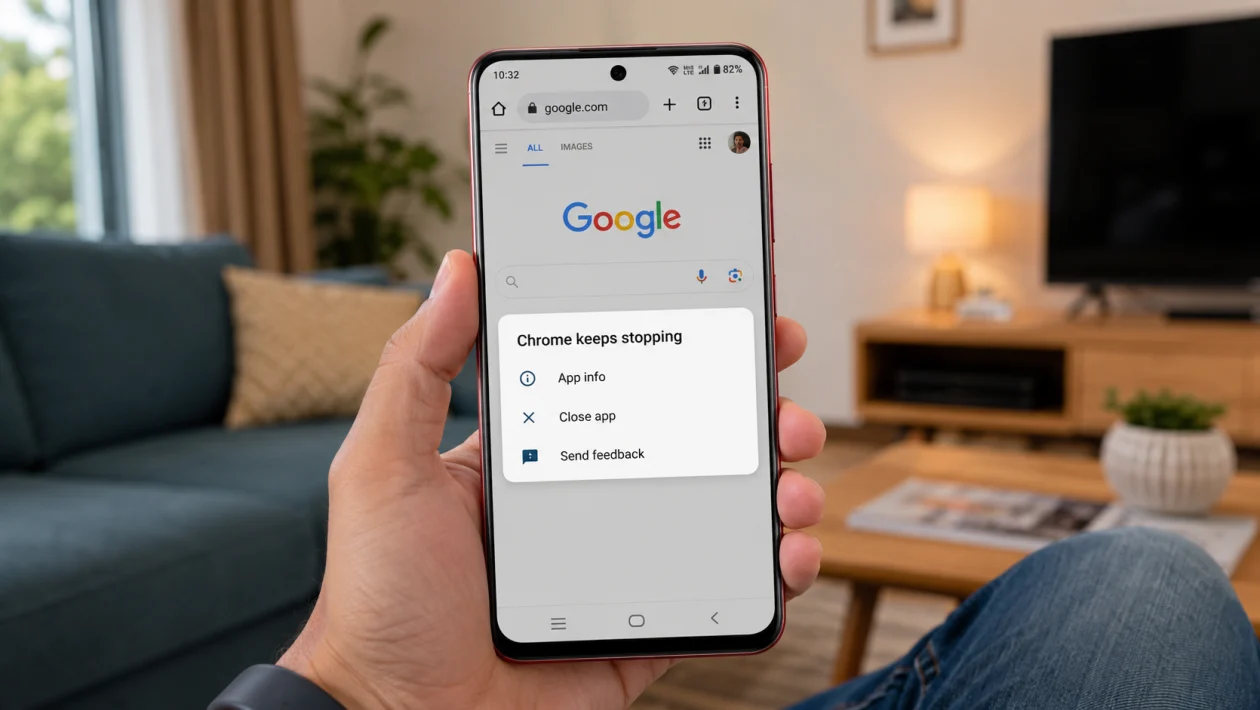
If Google Chrome keeps crashing on your vivo Y51 Pro, the problem is usually caused by corrupted app cache, an outdated Chrome update, low storage, Android System WebView issues, too many open tabs, or a temporary Funtouch OS glitch.
Start with the easy fixes first. You do not need to reset your phone right away. In most cases, clearing Chrome cache, updating Chrome, restarting the phone, or checking WebView is enough to stop the crashes.
Quick answer
To fix Google Chrome crashing on vivo Y51 Pro, go to Settings > Apps > Chrome > Storage & cache, then clear the cache and restart your phone. After that, update Chrome from the Google Play Store and check if Android System WebView also has an update.
If Chrome still closes by itself, free up storage, disable problematic extensions or flags, reset app preferences, or uninstall Chrome updates.
vivo Y51 Pro Chrome crashing diagnostic table
| Problem | Likely cause | First fix to try |
|---|---|---|
| Chrome closes as soon as it opens | Corrupted cache or bad update | Clear Chrome cache |
| Chrome crashes on certain websites | Site data, cookies, or WebView issue | Clear browsing data |
| Chrome freezes before closing | Low RAM or too many tabs | Close tabs and restart |
| Chrome crashes after an update | Buggy app update | Update again or uninstall updates |
| Chrome crashes when opening links from other apps | Android System WebView issue | Update WebView |
| Chrome works on Wi-Fi but not mobile data | Network or DNS issue | Reset network settings |
| Chrome keeps crashing after all fixes | System-level issue | Reset app preferences |
Why does Google Chrome keep crashing on vivo Y51 Pro?
Google Chrome may keep crashing on your vivo Y51 Pro because the app is trying to load damaged temporary files, old browsing data, unstable website scripts, or a faulty Chrome update.
It can also happen when your phone has low internal storage, too many background apps, outdated Google Play Services, or a problem with Android System WebView. WebView matters because many Android apps use it to open web pages inside other apps.
Use the fixes below in order.
1. Restart your vivo Y51 Pro
Start with a restart before changing any settings.
A restart can close stuck background processes, refresh memory, and stop temporary app conflicts that may be making Chrome crash.
- Press and hold the Power button.
- Tap Restart.
- Wait for the phone to turn back on.
- Open Chrome again.
- Check if it still crashes.
This will not delete your files, apps, photos, or Chrome bookmarks.
2. Force stop Chrome
If Chrome is stuck in a crash loop, force stopping it can give the app a clean start.
- Open Settings.
- Tap Apps.
- Find and tap Chrome.
- Tap Force stop.
- Tap OK.
- Open Chrome again.
This is useful if Chrome keeps closing immediately after you tap the app icon.
3. Clear Chrome cache
This is one of the best fixes for Chrome crashing on vivo Y51 Pro.
Chrome stores temporary files to make websites load faster. When those files become corrupted, Chrome may freeze, lag, or close by itself.
- Open Settings.
- Tap Apps.
- Tap Chrome.
- Tap Storage & cache.
- Tap Clear cache.
- Open Chrome again.
Do not tap Clear storage yet unless the cache fix does not work. Clearing storage is a stronger fix and may remove local app data.
4. Clear Chrome browsing data
If Chrome crashes only when opening certain websites, the issue may be related to cookies, site data, or cached pages.
- Open Chrome.
- Tap the three-dot menu.
- Tap Settings.
- Tap Privacy and security.
- Tap Clear browsing data.
- Choose Cached images and files and Cookies and site data.
- Tap Clear data.
After this, you may need to sign in again to some websites.
5. Update Google Chrome
An outdated Chrome version can crash because of bugs, website compatibility problems, or missing security fixes.
- Open the Google Play Store.
- Search for Google Chrome.
- Tap Update if available.
- Wait for the update to finish.
- Restart your vivo Y51 Pro.
- Open Chrome again.
If the button says Open instead of Update, Chrome is already updated.
6. Update Android System WebView
If Chrome crashes when opening links from Facebook, Gmail, Messages, or other apps, check Android System WebView.
- Open the Google Play Store.
- Search for Android System WebView.
- Tap Update if available.
- Then search for Google Chrome.
- Update Chrome too.
- Restart your phone.
Chrome and WebView are closely connected on Android. If one of them has a bad or outdated update, web pages may crash inside apps or inside Chrome itself.
7. Free up storage space
Chrome may crash if your vivo Y51 Pro is almost out of storage. Android apps need free space for cache, updates, downloads, and temporary files.
- Open Settings.
- Tap Storage.
- Check how much space is available.
- Delete unused downloads, large videos, duplicate photos, and apps you no longer use.
- Restart your phone.
- Try Chrome again.
Try to keep at least a few gigabytes of free space. If your storage is nearly full, Chrome may keep crashing even after you clear the cache.
8. Close unused tabs and background apps
Chrome can become unstable if too many tabs are open, especially heavy pages with videos, ads, scripts, maps, or shopping widgets.
- Open Chrome.
- Tap the tab icon.
- Close tabs you no longer need.
- Open the recent apps screen.
- Close apps running in the background.
- Reopen Chrome.
This helps if Chrome freezes first, then crashes a few seconds later.
9. Uninstall Chrome updates
If Chrome started crashing right after an update, the update itself may be the problem. Since Chrome is often a system app on Android phones, you may not be able to fully uninstall it, but you can uninstall updates.
- Open Settings.
- Tap Apps.
- Tap Chrome.
- Tap the three-dot menu in the top-right corner.
- Tap Uninstall updates.
- Confirm the action.
- Restart your vivo Y51 Pro.
- Open Chrome and test it.
After testing, go back to the Play Store and update Chrome again when a newer version is available.
10. Reset app preferences
Use this if Chrome still crashes after updating, clearing cache, and checking WebView.
Resetting app preferences can fix disabled system apps, broken default app settings, background restrictions, and permission conflicts.
- Open Settings.
- Tap Apps.
- Tap the three-dot menu.
- Tap Reset app preferences.
- Confirm the reset.
- Restart your phone.
- Open Chrome again.
This will not delete your photos, videos, or personal files. It may reset disabled apps, default apps, permissions, and background restrictions.
What if Chrome still crashes on your vivo Y51 Pro?
If Chrome still crashes after all 10 fixes, test another browser such as Firefox, Edge, or Samsung Internet. If other browsers work normally, the issue is probably limited to Chrome, Chrome data, or a Chrome update.
If several apps are also crashing, the issue may be with Funtouch OS, Google Play Services, low storage, or the phone software.
At that point, check for a system update:
- Open Settings.
- Tap System update.
- Download and install any available update.
- Restart your phone.
You can also contact vivo support or visit a vivo service center if the phone crashes across multiple apps, restarts by itself, overheats, or shows storage errors.
FAQ
Why does Chrome keep closing on my vivo Y51 Pro?
Chrome usually keeps closing because of corrupted cache, outdated app files, low storage, too many open tabs, or a problem with Android System WebView.
Will clearing Chrome cache delete my bookmarks?
No. Clearing the cache does not delete your bookmarks, saved passwords, or Google account. It only removes temporary files.
Should I clear Chrome storage too?
Only do that if clearing cache does not work. Clearing Chrome storage can reset local app data and may sign you out of websites.
