
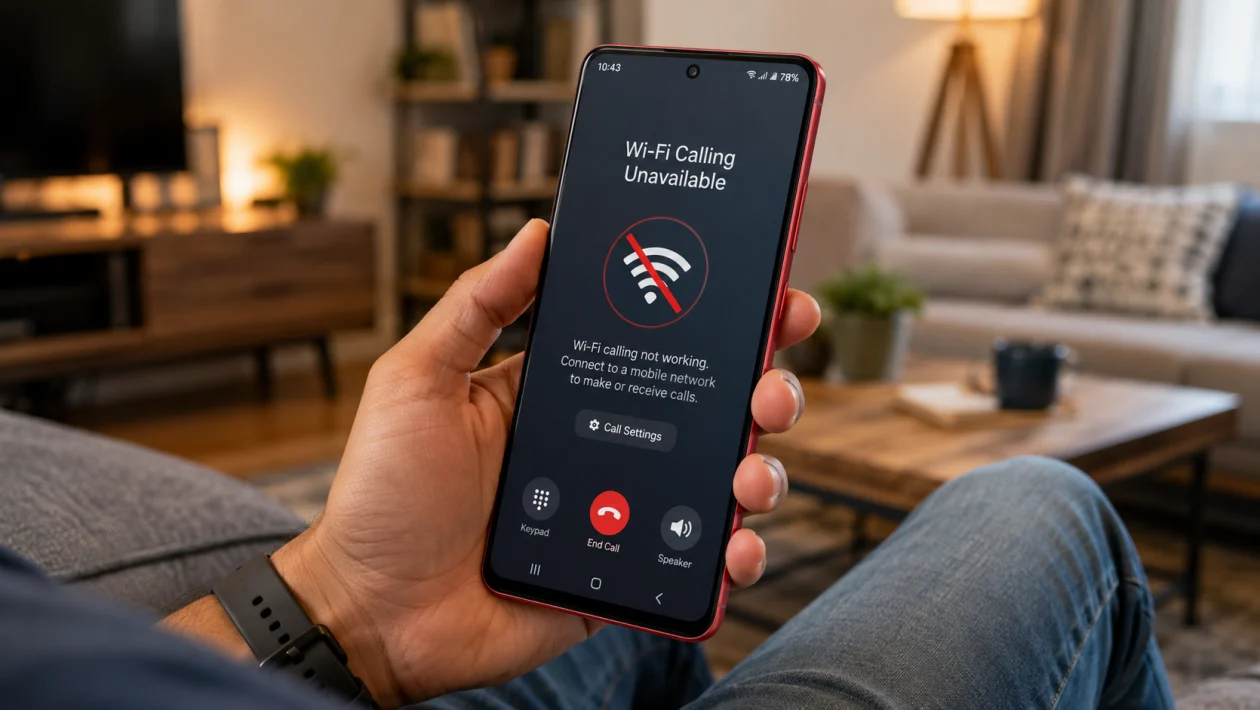
If Wi-Fi Calling is not working on your vivo Y51 Pro, the problem usually comes from one of three places: your carrier, your SIM settings, or your Wi-Fi connection.
Wi-Fi Calling, also called VoWiFi, lets your phone make and receive calls over Wi-Fi when mobile signal is weak. But it only works when your phone, SIM card, carrier plan, and region all support it. vivo’s own support guidance says you need both SIM and phone support before enabling VoWiFi, and the setting is usually found under SIM or mobile network settings.
Start with the quick checks first. Do not reset the phone right away.
Quick answer
If Wi-Fi Calling is not working on your vivo Y51 Pro, go to Settings > SIMs & mobile network, choose your SIM, then check whether Wi-Fi Calling or VoWiFi is turned on.
If the option is missing, your carrier may not support Wi-Fi Calling for your SIM, plan, region, or phone model. If the option is visible but calls still use the mobile network, restart the phone, reconnect to
Wi-Fi, update the software, and test Wi-Fi Calling with stronger Wi-Fi signal.
vivo Y51 Pro Wi-Fi Calling diagnostic table
| Problem | Likely cause | What to check first |
|---|---|---|
| Wi-Fi Calling option is missing | Carrier or SIM does not support VoWiFi | SIM plan and carrier support |
| Option is on but calls do not use Wi-Fi | Mobile signal is preferred | Airplane mode test with Wi-Fi on |
| Calls drop during Wi-Fi Calling | Weak Wi-Fi or unstable router | Wi-Fi strength and router restart |
| Wi-Fi Calling stopped after update | Network settings or carrier config issue | Restart and software update |
| Works on one SIM but not the other | Only one SIM supports VoWiFi | SIM-specific settings |
| Works on one Wi-Fi network only | Router or ISP issue | Test another Wi-Fi network |
| Calls connect but audio is poor | Slow or congested Wi-Fi | Move closer to router |
| VoWiFi icon does not appear | Feature inactive or unsupported | Status bar and SIM settings |
| Wi-Fi Calling works sometimes | Network switching issue | Preferred calling setting |
| Nothing works | Carrier provisioning or network profile issue | Reset network settings or contact carrier |
1. Confirm that your carrier supports Wi-Fi Calling
Before changing phone settings, check carrier support.
Wi-Fi Calling is not controlled by the phone alone. Your carrier must support it for your SIM, account type, region, and device. This is why the same vivo phone may show Wi-Fi Calling on one network but not another.
Check these first:
- Open your carrier’s app or support page.
- Search for Wi-Fi Calling, VoWiFi, or Voice over Wi-Fi.
- Confirm that your SIM plan supports it.
- Confirm that the feature is active on your account.
- Restart your vivo Y51 Pro after carrier activation.
This matters most if the Wi-Fi Calling toggle is missing completely.
2. Turn on Wi-Fi Calling in SIM settings
If your carrier supports it, check whether the setting is enabled.
On many vivo phones, the path is usually:
- Open Settings.
- Tap SIMs & mobile network or SIM card & mobile network.
- Select the SIM you use for calls.
- Tap Wi-Fi Calling or VoWiFi.
- Turn it on.
The wording can vary depending on your software version, carrier, and region. If you cannot find it, use the search bar inside Settings and search for Wi-Fi Calling or VoWiFi.
If your vivo Y51 Pro has two SIM cards, check both SIM profiles. One SIM may support Wi-Fi Calling while the other does not.
3. Restart your vivo Y51 Pro
A restart is simple, but it often fixes temporary network registration problems.
Do this after enabling Wi-Fi Calling, changing SIM settings, updating the phone, or activating the feature through your carrier.
- Press and hold the power button.
- Tap Restart.
- Wait for the phone to turn back on.
- Connect to Wi-Fi.
- Check if the VoWiFi or Wi-Fi Calling icon appears.
This will not delete your apps, photos, messages, or personal files.
4. Check your Wi-Fi connection strength
Wi-Fi Calling needs stable Wi-Fi, not just any Wi-Fi connection.
If your vivo Y51 Pro is connected to a weak, crowded, or unstable network, calls may fail, drop, or switch back to mobile signal.
Try this:
- Move closer to the router.
- Turn Wi-Fi off and on.
- Forget the Wi-Fi network, then reconnect.
- Test a normal internet task, such as loading a webpage.
- Try Wi-Fi Calling again.
If calls work near the router but fail in another room, the issue is probably Wi-Fi coverage, not the phone.
5. Restart your router
If Wi-Fi Calling fails only on your home network, restart the router.
- Turn off the router.
- Unplug it from power.
- Wait 30 seconds.
- Plug it back in.
- Wait for Wi-Fi to reconnect.
- Test Wi-Fi Calling again.
This can fix temporary router issues, congested connections, and local network problems that affect voice calls more than regular browsing.
If Wi-Fi Calling works on another Wi-Fi network but not yours, the router or internet provider may be the problem.
6. Test Wi-Fi Calling with Airplane mode
This is one of the best ways to check whether Wi-Fi Calling is actually working.
- Connect your vivo Y51 Pro to Wi-Fi.
- Turn on Airplane mode.
- Turn Wi-Fi back on manually.
- Wait a few seconds.
- Try making a call.
If the call goes through, Wi-Fi Calling is working.
If the call fails, your phone may not be registered for Wi-Fi Calling, your carrier may not support it properly, or the Wi-Fi network may be blocking it.
Do not leave Airplane mode on unless you understand which services will still work. Some carrier features, including SMS behavior, may vary when mobile service is disabled.
7. Set the correct preferred calling option
Some phones and carriers let you choose whether calls prefer Wi-Fi or mobile network.
Look for a setting like:
Settings > SIMs & mobile network > SIM > Wi-Fi Calling > Calling preference
Then choose a Wi-Fi-first option if available.
Depending on the carrier, the choices may look like:
| Option | What it means |
|---|---|
| Prefer Wi-Fi | Calls use Wi-Fi when available |
| Prefer mobile network | Calls use cellular signal first |
| Wi-Fi only | Calls use Wi-Fi when mobile signal is unavailable |
| Mobile network only | Wi-Fi Calling may not activate |
If your phone keeps using mobile signal even while Wi-Fi Calling is turned on, this setting is worth checking.
8. Update your vivo phone software
Software updates can include carrier configuration changes, modem fixes, Wi-Fi stability improvements, and network compatibility updates.
To check for updates:
- Open Settings.
- Tap System update.
- Download and install any available update.
- Restart the phone.
- Test Wi-Fi Calling again.
Also update carrier-related apps if your carrier uses an account app to activate calling features.
If Wi-Fi Calling stopped working after a recent update, still check for another patch. Network bugs are sometimes fixed in follow-up updates.
9. Remove and reinsert the SIM card
If the Wi-Fi Calling setting disappeared or stopped working suddenly, reseating the SIM can help the phone reload network settings.
- Turn off your vivo Y51 Pro.
- Remove the SIM tray.
- Take out the SIM card.
- Check that it is clean and seated properly.
- Insert it again.
- Turn the phone back on.
- Check Wi-Fi Calling settings.
If you use two SIM cards, test one SIM at a time. This helps confirm whether the issue is with a specific SIM or with the phone.
If your SIM is old, damaged, or not provisioned for VoWiFi, ask your carrier for a replacement SIM.
10. Reset network settings
Use this only after the easier fixes.
Resetting network settings can clear broken Wi-Fi, Bluetooth, mobile network, and carrier configuration data. It will not delete your photos or apps, but it may remove saved Wi-Fi networks and paired Bluetooth devices.
On vivo phones, the path may vary, but try:
- Open Settings.
- Tap System management.
- Tap Backup & reset or Reset options.
- Choose Reset network settings.
- Confirm the reset.
- Reconnect to Wi-Fi.
- Turn Wi-Fi Calling on again.
After the reset, test Wi-Fi Calling before changing too many settings at once.
Why Wi-Fi Calling may still not work
If you tried all 10 fixes and Wi-Fi Calling still does not work on your vivo Y51 Pro, the most likely reasons are:
Your carrier does not support Wi-Fi Calling for this phone
Your SIM or plan is not provisioned for VoWiFi
Wi-Fi Calling is not available in your region
Your router or ISP is blocking the connection
The phone needs a carrier configuration update
Your SIM card needs replacement
At that point, contact your carrier first. Ask them to check whether Wi-Fi Calling or VoWiFi is active on your account.
Then contact vivo support if your carrier confirms the feature should work on your device.
FAQ
Why is Wi-Fi Calling missing on my vivo Y51 Pro?
The Wi-Fi Calling option may be missing because your carrier, SIM, plan, or region does not support VoWiFi for your device. It can also disappear if the SIM is not provisioned correctly.
Does Wi-Fi Calling work without mobile signal?
Yes, Wi-Fi Calling can work in areas with weak mobile signal if your carrier supports it and the phone is connected to stable Wi-Fi. Some carrier services may still behave differently when mobile signal is unavailable.
Why does Wi-Fi Calling work on one SIM but not another?
Dual-SIM phones can have different carrier support for each SIM. One SIM may support Wi-Fi Calling while the other does not.
