
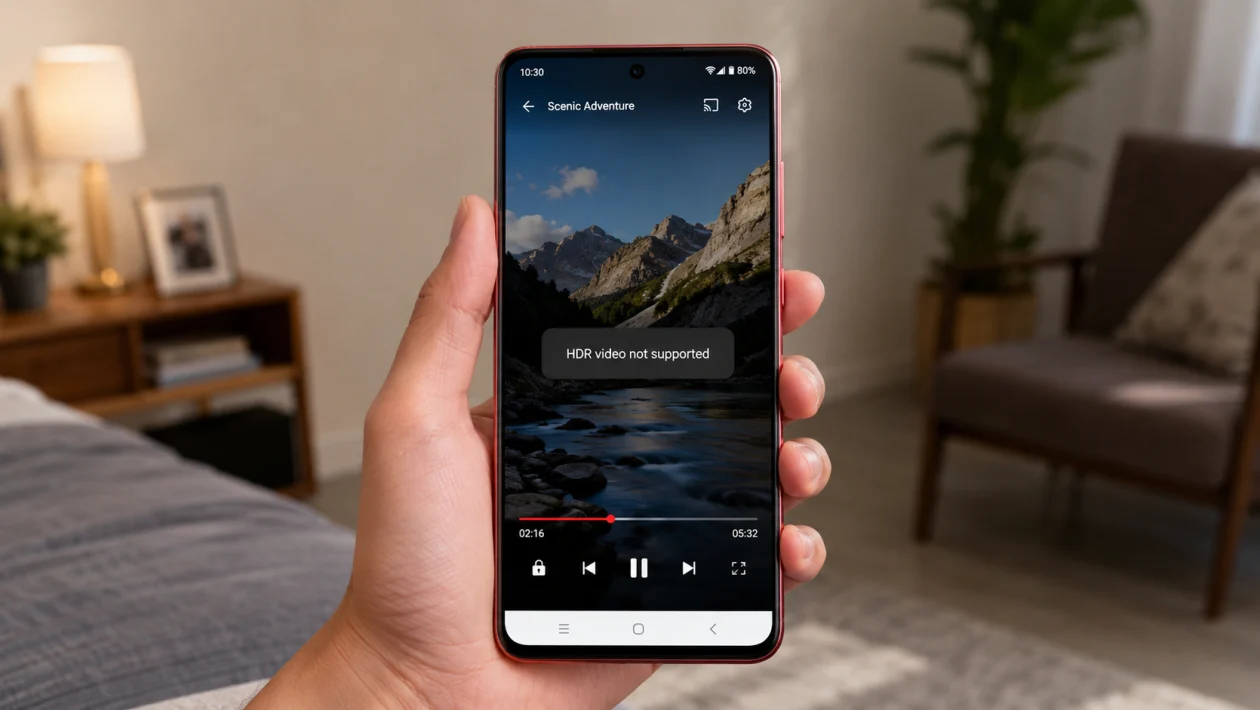
If your vivo Y51 Pro won’t play HDR videos, the problem may not be the video itself. It can happen because of app support, DRM limits, display compatibility, video format, outdated software, or a streaming service that does not recognize the phone for HDR playback.
The important thing to know first: HDR playback needs more than a good processor. Android HDR playback depends on a compatible Android version, HDR-capable decoding, and access to an HDR-capable display. Google’s Android media guidance says not all Android devices support HDR playback, even if they can play normal HD or 4K videos.
The vivo Y51 Pro 5G can record 4K video and supports common video playback formats such as MP4, 3GP, AVI, FLV, MKV, WEBM, TS, and ASF, according to vivo’s official specification page. That does not automatically mean every HDR video from YouTube, Netflix, Prime Video, local storage, or another app will play in HDR.
Quick answer
If your vivo Y51 Pro won’t play HDR videos, first test the same video in the official YouTube app, update your video app, restart the phone, and check whether the video plays as SDR instead. If the issue happens only in Netflix or another streaming app, check the app’s playback specification or DRM status.
If the phone does not support the required HDR profile or the streaming app does not certify the device for HDR, you may not be able to force true HDR playback. In that case, the best fix is to play the SDR version, use a different video file, or cast the video to an HDR-supported TV.
vivo Y51 Pro HDR video problem diagnostic table
| Symptom | Likely cause | What to check first |
|---|---|---|
| HDR video plays but looks normal | Phone or app is playing SDR version | YouTube quality menu or app playback settings |
| Video has sound but black screen | Unsupported codec, HDR profile, or player issue | Try another video player |
| Netflix does not show HDR badge | DRM or Netflix device certification limit | Netflix App Settings > Playback Specification |
| Local HDR file will not open | Unsupported file format or codec | Convert video to SDR MP4 |
| YouTube HDR option missing | App, display, or device support issue | Update YouTube and test another HDR video |
| Video stutters or freezes | File too heavy or hardware decoding issue | Try lower resolution or SDR version |
| HDR looks washed out | Tone mapping issue | Use another player or SDR copy |
| Only one app has the issue | App-specific bug or app limit | Clear cache or reinstall the app |
| Problem started after update | Software or app playback bug | Update apps and restart |
| HDR works on TV but not phone | Phone display or app limitation | Cast to HDR TV |
Why your vivo Y51 Pro may not play HDR videos
HDR video needs the phone, display, app, DRM system, and video file to work together. If one part does not support the video properly, the result can be a black screen, washed-out colors, missing HDR badge, stuttering, or normal SDR playback.
Common causes include:
Unsupported HDR display or HDR profile
Unsupported video codec
Streaming app certification limits
Widevine DRM restrictions
Old app version
Buggy video player
Corrupted HDR file
Battery saver or display mode conflict
Weak internet connection
HDR video being too heavy for smooth playback
YouTube says HDR viewing on Android mobile devices requires an HDR display. Netflix also requires Widevine L1 for HD streaming on Android, and app-specific playback support can affect whether higher-quality streams are available.
1. Confirm whether the vivo Y51 Pro can play that HDR format
Start here before changing settings.
Not all HDR videos use the same format. Some use HDR10, some use HLG, some use Dolby Vision, and some use 10-bit HEVC. Your phone may play one type but fail with another.
Try this:
- Open YouTube.
- Search for a known HDR test video.
- Tap the gear icon.
- Tap Quality.
- Check whether HDR appears beside the resolution.
- Try the same video in another app or browser.
If HDR does not appear at all, the phone or app may not be exposing HDR playback support for that video.
This is not always something you can fix manually. It may be a hardware, display, codec, or app-certification limit.
2. Update the video app you are using
If HDR videos fail in only one app, update that app first.
Do this:
- Open Google Play Store.
- Tap your profile icon.
- Tap Manage apps and device.
- Tap Updates available.
- Update YouTube, Netflix, Prime Video, VLC, MX Player, Google Photos, or the app where the issue happens.
Then reopen the video and test it again.
This can fix playback bugs, codec handling issues, DRM errors, and streaming quality problems.
3. Restart your vivo Y51 Pro
A restart can clear temporary playback errors, stuck decoder sessions, and app memory problems.
Do this:
- Press and hold the Power button.
- Tap Restart.
- Wait for the phone to turn back on.
- Open the video app again.
- Test the same HDR video.
This will not delete your files.
If the video plays after restarting, the issue was probably temporary.
4. Check Netflix playback specifications
If the problem happens in Netflix, do not assume the phone is broken. Netflix has its own device playback rules.
Check this:
- Open Netflix.
- Tap My Netflix.
- Tap the menu icon.
- Tap App Settings.
- Tap Playback Specification.
- Look for Widevine, maximum playback resolution, and HDR support.
If Netflix shows Widevine L3 or does not show HDR support, HDR playback may not be available in Netflix on that device. Netflix says Android HD streaming requires Widevine L1.
Also check your Netflix plan. HDR and higher-resolution streaming may depend on the plan, app support, content title, and device compatibility.
5. Clear the cache of the video app
A bad app cache can cause black screen playback, frozen videos, missing quality options, or failed HDR decoding.
For YouTube, Netflix, Prime Video, or another app:
- Open Settings.
- Tap Apps.
- Select the video app.
- Tap Storage.
- Tap Clear cache.
- Reopen the app.
- Try the HDR video again.
Do not tap Clear data unless you are fine with signing in again and resetting app preferences.
6. Try a different video player for local HDR files
If the HDR video is saved on your phone, the default gallery or file player may not handle it properly.
Try another trusted video player such as VLC or another player that supports more codecs.
Then test the same file:
- Open the video player.
- Allow file access if asked.
- Open the HDR video.
- Check whether it plays normally.
- Compare color, brightness, and smoothness.
If the video plays in one player but not another, the issue is the app, not the phone.
If it still shows a black screen or washed-out colors, the file may use an HDR profile or codec the phone does not handle well.
7. Convert the HDR video to SDR MP4
This is the most reliable fix for local videos that refuse to play.
Use this when:
The video has sound but no picture
The video looks gray or washed out
The video stutters badly
The file came from an iPhone, action camera, drone, or editing app
The video uses Dolby Vision or 10-bit HDR
Convert the file to:
MP4
H.264
8-bit SDR
1080p or 4K, depending on the file size you need
This removes the HDR layer and makes the video easier for more Android phones and apps to play.
The trade-off is simple: you lose HDR brightness and contrast, but the video becomes much more compatible.
8. Turn off battery saver while playing HDR videos
Battery saving modes can limit performance, background activity, brightness, and media behavior. That can make heavy videos stutter or fail.
Try this:
- Open Settings.
- Tap Battery.
- Turn off Battery Saver or low power mode.
- Charge the phone above 30 percent.
- Reopen the video app.
- Play the HDR video again.
Also close heavy apps running in the background before testing.
HDR and 4K files can be demanding, especially if the app has to decode or tone-map the video.
9. Update your vivo system software
A system update can improve app compatibility, media playback, DRM behavior, and general stability.
To check for updates:
- Open Settings.
- Tap System update.
- Check for available updates.
- Install the update if one is available.
- Restart the phone after updating.
After updating, update your streaming apps again from the Play Store.
If the HDR issue started after a recent update, give the phone a restart and test more than one app. If only one app is affected, the app may need its own update.
10. Cast the video to an HDR-supported TV
If the vivo Y51 Pro cannot play the video in true HDR, casting may be the better solution.
Use this if:
The video plays on your TV but not on the phone
You want real HDR brightness and contrast
Netflix, YouTube, or Prime Video does not show HDR on the phone
The local video is too heavy for smooth phone playback
Try casting to:
An HDR TV
Chromecast with HDR support
Android TV or Google TV device with HDR support
A streaming box that supports HDR10, HLG, or Dolby Vision
Make sure the TV, HDMI port, streaming device, and app all support the HDR format you want to play.
What if HDR still does not work?
If none of the fixes work, the vivo Y51 Pro may simply not support that HDR playback path.
That can mean:
The display is not recognized as HDR-capable
The app does not certify the phone for HDR
The video uses an unsupported HDR format
DRM limits the stream quality
The video file needs to be converted
The content is available only in SDR on that app
In that case, do not waste time forcing hidden settings. Play the SDR version, convert the file, use another app, or cast to an HDR-supported screen.
FAQ
Does vivo Y51 Pro support HDR videos?
The vivo Y51 Pro can play common video formats and record 4K video, but that does not guarantee full HDR playback in every app. HDR playback depends on the display, decoder, app, DRM status, and video format.
Why does YouTube not show HDR on vivo Y51 Pro?
YouTube may not show HDR if the phone, display, app, or selected video does not meet HDR playback requirements. Try updating YouTube, testing a known HDR video, and checking the quality menu.
Why does Netflix not show HDR on vivo Y51 Pro?
Netflix HDR depends on device support, DRM status, Netflix certification, plan type, app version, and the title being played. Check Netflix App Settings > Playback Specification.
