
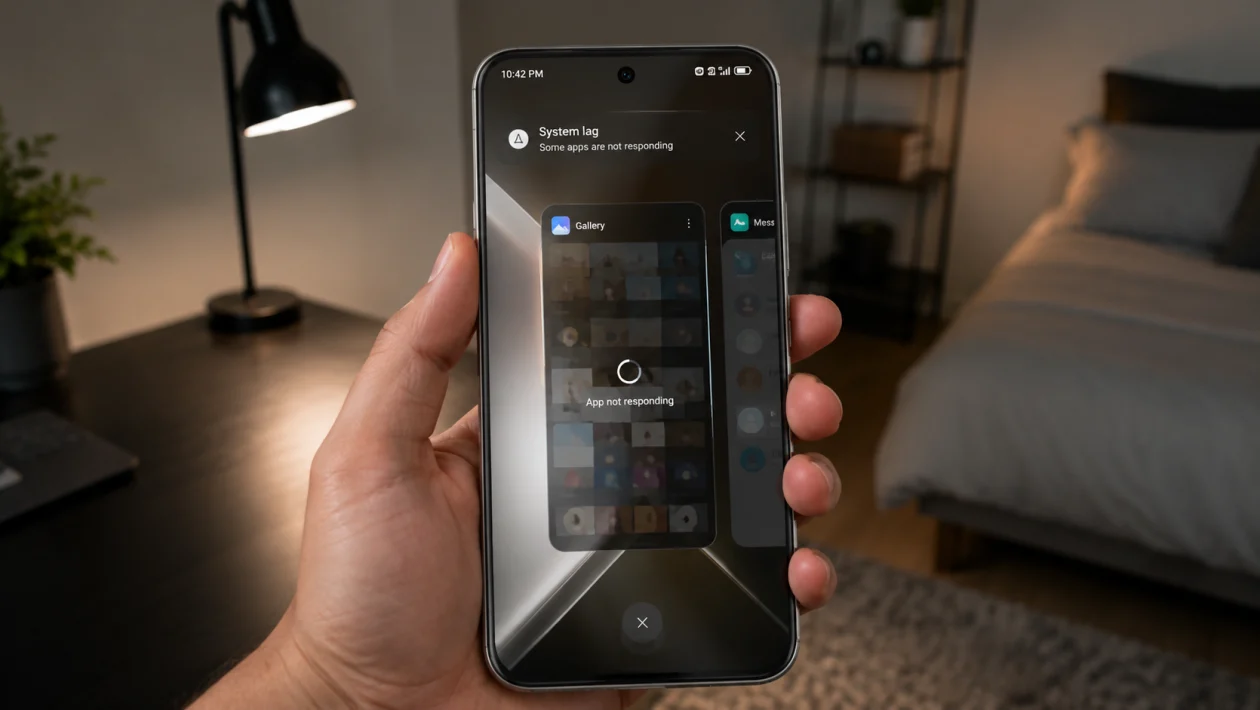
If your Infinix GT 50 Pro apps are lagging, freezing, opening slowly, or stuttering when you switch between apps, the problem is usually caused by background apps, low storage, app cache, battery restrictions, overheating, outdated software, or a heavy launcher setup.
Start with the simple fixes first. Restart the phone, update the affected apps, clear app cache, then check storage and background activity before trying bigger changes.
Quick answer
To fix Infinix GT 50 Pro apps lagging, restart the phone, update the affected apps, clear their cache, free up storage, close background apps, and turn off battery saver while testing. If the lag happens only in games or heavy apps, enable game/performance mode and check if the phone is overheating.
Infinix GT 50 Pro app lag diagnostic table
| Symptom | Likely cause | What to check first |
|---|---|---|
| Apps open slowly | Low RAM, too many background apps | Recent apps and Phone Master |
| One app keeps lagging | App cache or app bug | Clear cache and update the app |
| All apps feel slow | Storage, system load, software issue | Storage and software update |
| Apps lag after update | App optimization or buggy update | Restart and update apps |
| Games lag but normal apps are fine | Graphics load, heat, network, game settings | Game mode and temperature |
| Apps lag when battery is low | Power saving limits performance | Battery saver settings |
| Apps lag after long use | Heat or memory pressure | Restart and let phone cool |
| Keyboard lags inside apps | Keyboard cache or overloaded app | Clear keyboard/app cache |
Why are apps lagging on the Infinix GT 50 Pro?
Apps may lag on your Infinix GT 50 Pro because the phone is running too many background processes, storage is nearly full, the app cache is corrupted, battery saver is limiting performance, or the phone is getting warm during heavy use.
Lag can also happen after a software update while Android and XOS re-optimize apps in the background. If the issue started right after an update, give the phone a few hours of normal use before doing a reset.
1. Restart your Infinix GT 50 Pro
Start here because a restart clears temporary memory issues and stops stuck background processes.
- Press and hold the Power button.
- Tap Restart.
- Wait for the phone to turn back on.
- Open the lagging app again.
- Check if scrolling, typing, and switching apps feel smoother.
This will not delete your files, photos, apps, or settings.
2. Close background apps you are not using
Too many apps running in the background can make app switching feel slow.
- Swipe up from the bottom of the screen and hold.
- Check the recent apps list.
- Close apps you are not using.
- Keep only important apps open.
- Reopen the app that was lagging.
Do not close messaging, music, maps, delivery, banking, or work apps if you need them running in the background.
3. Clear the cache of the lagging app
If only one app is lagging, its cache may be the problem.
- Open Settings.
- Tap Apps or App Management.
- Select the lagging app.
- Tap Storage.
- Tap Clear cache.
- Open the app again.
Do not tap Clear data unless you are ready to sign in again or reset the app’s local settings.
This is one of the safest fixes for Infinix GT 50 Pro app lag because it removes temporary files without deleting the app itself.
4. Update the lagging apps
An outdated app can lag, freeze, or behave badly after a phone update.
- Open Google Play Store.
- Tap your profile icon.
- Tap Manage apps and device.
- Tap Updates available.
- Update the apps that are lagging.
- Update your keyboard, launcher, social media apps, and games too.
Also check the Infinix app store or system app updater if your phone has one. Some built-in apps may update outside Google Play.
5. Free up storage space
Apps can slow down when your storage is almost full. The phone needs free space for cache, app updates, downloads, photos, and temporary system files.
- Open Settings.
- Tap Storage.
- Check how much space is left.
- Delete large videos you no longer need.
- Uninstall apps you do not use.
- Move photos and videos to cloud storage or a computer.
- Empty the trash folder in Gallery or Files if available.
Try to keep at least 10% to 20% of your storage free. If your storage is almost full, app lag will usually come back even after a restart.
6. Turn off Battery Saver while testing
Battery Saver can reduce background activity and limit performance. That helps battery life, but it can also make apps feel delayed.
- Open Settings.
- Tap Battery.
- Turn off Battery Saver or Power Saving Mode.
- Open the lagging app again.
- Test typing, scrolling, and app switching.
If apps feel faster with Battery Saver off, the phone was likely limiting performance to save power.
You can turn Battery Saver back on later, but avoid using it while gaming, editing videos, recording, navigating, or using apps that need real-time updates.
7. Check app background restrictions
Some apps lag because they are being restricted too aggressively in the background. This can affect messaging apps, music apps, ride-hailing apps, delivery apps, VPNs, and work apps.
- Open Settings.
- Tap Apps or App Management.
- Choose the affected app.
- Tap Battery or Battery usage.
- Allow background activity if needed.
- Turn off strict battery restriction for that app.
Use this only for apps you trust. Allowing too many apps to run freely in the background can cause battery drain.
This fix is especially useful when an app does not just lag, but also delays notifications or reloads every time you switch back to it.
8. Use Phone Master or system cleanup carefully
Infinix phones usually include system tools for cleaning junk files, managing memory, and checking performance.
- Open Phone Master or the built-in phone manager app.
- Run a basic cleanup.
- Remove junk files.
- Check for apps using too much memory.
- Avoid deleting files you do not recognize.
- Do not repeatedly force-clean apps every few minutes.
Cleanup tools can help when the phone is overloaded, but overusing them can make some apps reload more often. Use cleanup when the phone feels slow, not every time you open an app.
9. Reduce animation, widgets, and heavy launcher effects
A busy home screen can make the phone feel slower even when the processor is not the real problem.
Try this:
- Remove unnecessary widgets.
- Use a simple wallpaper instead of a live wallpaper.
- Turn off animated themes.
- Remove heavy third-party launchers.
- Keep fewer apps on the home screen.
- Restart the phone after changing the setup.
If the lag happens when going home, opening the app drawer, or switching between screens, the launcher or theme may be causing the slowdown.
This is a good fix for Infinix GT 50 Pro slow apps when the phone feels laggy before you even open a heavy app.
10. Update XOS and reset app preferences if needed
If several apps are lagging, check for a system update. Updates can fix bugs, improve stability, and patch app compatibility problems.
To update your phone:
- Open Settings.
- Tap System.
- Tap System update or Software update.
- Download and install any available update.
- Restart the phone.
If apps still lag after updates, reset app preferences:
- Open Settings.
- Tap Apps.
- Tap the three-dot menu.
- Tap Reset app preferences.
- Confirm the reset.
This will not delete your apps or personal files, but it may reset disabled apps, default app choices, background restrictions, and permission-related preferences.
Use this before doing a factory reset.
What if apps still lag after all 10 fixes?
If your Infinix GT 50 Pro still lags after trying all 10 solutions, check whether the phone gets hot, storage is almost full, or the lag happens after installing a specific app.
If the phone lags even after a restart, with enough free storage, updated apps, and no heavy apps running, back up your data and contact Infinix or Carlcare support. The issue may be related to software corruption, a faulty update, storage health, or hardware.
FAQ
Why is my Infinix GT 50 Pro lagging when opening apps?
Your Infinix GT 50 Pro may lag when opening apps because too many apps are running in the background, storage is nearly full, the app cache is corrupted, or Battery Saver is limiting performance.
How do I make apps open faster on my Infinix GT 50 Pro?
Restart the phone, close unused apps, clear the cache of slow apps, free up storage, update apps, and turn off Battery Saver while testing performance.
Should I clear cache or clear data?
Clear cache first. It removes temporary files and is usually safe. Clear data only if the app still has problems and you are ready to sign in again or reset the app’s local settings.
