
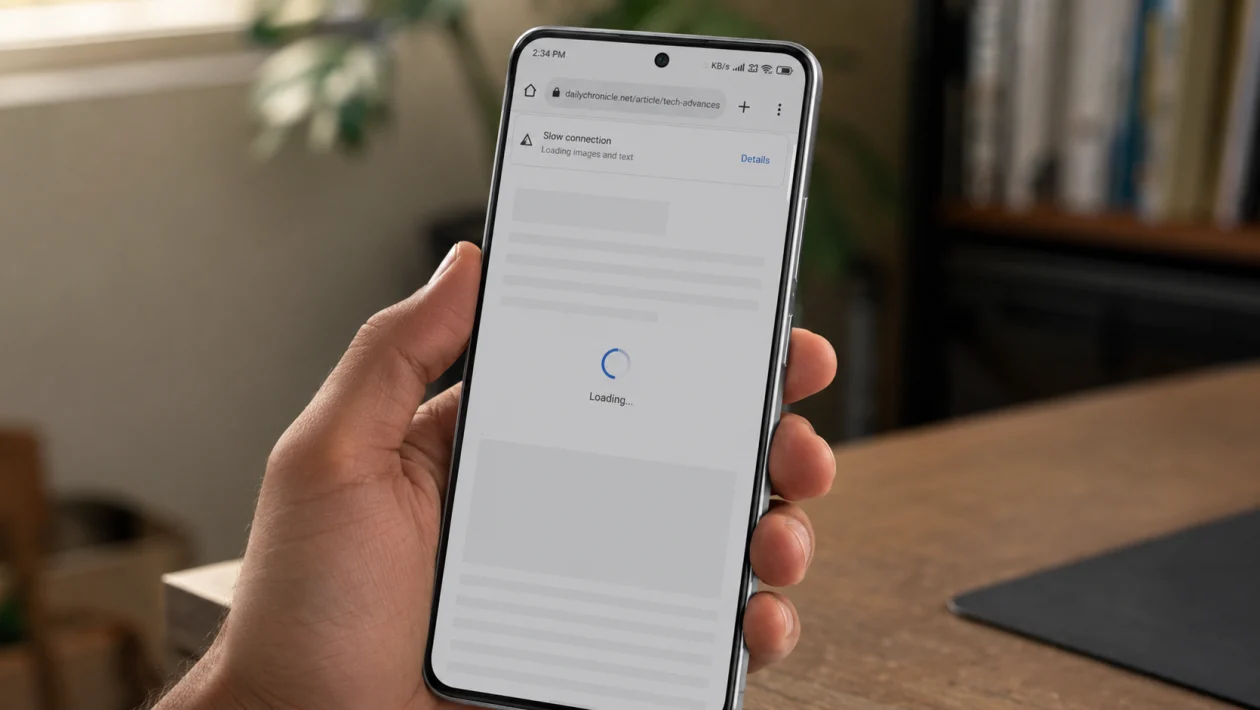
If your Infinix GT 50 Pro has poor connection, the problem may come from weak signal, mobile data settings, Wi-Fi interference, 5G coverage, SIM issues, VPN apps, outdated software, or network settings that need to be reset.
The Infinix GT 50 Pro supports modern network features, including 5.5G, 5G, 4G, 3G, and 2G, but actual connection quality can still depend on your region and local network provider. Infinix also promotes the GT 50 Pro with an all-around network boost system, so if the signal feels unusually weak, it is worth checking settings before assuming the phone is defective.
Quick answer
To fix poor connection on the Infinix GT 50 Pro, restart the phone, test Wi-Fi and mobile data separately, check your SIM signal, switch network mode, forget and reconnect to Wi-Fi, turn off VPN or Data Saver, update XOS, then reset network settings if nothing improves.
Start with the simple checks first. Do not factory reset the phone right away.
Infinix GT 50 Pro poor connection diagnostic table
| Problem | Likely cause | Check first |
|---|---|---|
| Weak mobile signal | Poor coverage or wrong network mode | SIM signal and preferred network type |
| Slow mobile data | Carrier issue, 5G congestion, Data Saver | Mobile data speed and network mode |
| Wi-Fi keeps dropping | Router issue, weak signal, saved network bug | Forget and reconnect to Wi-Fi |
| Lag in online games | High ping, unstable Wi-Fi, background apps | Wi-Fi band and running apps |
| Bluetooth affects Wi-Fi | 2.4GHz interference | Try 5GHz Wi-Fi or turn off Bluetooth |
| No internet after connecting | Router, DNS, or network configuration | Test another Wi-Fi network |
| Only one SIM has poor signal | SIM or carrier coverage issue | Swap SIM slots |
| Connection worse after update | Temporary software or app conflict | Restart and update apps |
| Hotspot is unstable | Power saving or data limits | Hotspot and battery settings |
| Signal disappears often | SIM, antenna, or hardware issue | Test another SIM and contact support |
Why your Infinix GT 50 Pro has poor connection
Your Infinix GT 50 Pro may have poor connection because the phone is struggling with weak network coverage, unstable Wi-Fi, carrier congestion, 5G handoff issues, router distance, Bluetooth interference, background downloads, or incorrect network settings.
This does not always mean the phone is broken.
It is normal for connection quality to change depending on location, network provider, router quality, building walls, SIM condition, and whether you are using 5G, 4G, Wi-Fi, Bluetooth, VPN, or hotspot at the same time.
1. Restart your Infinix GT 50 Pro
Start here because it is the fastest fix.
A restart can clear temporary network glitches, stuck background processes, and small XOS issues that affect Wi-Fi or mobile data. Google’s Android troubleshooting advice also recommends restarting the device as one of the first steps when internet connection problems appear.
- Press and hold the Power button.
- Tap Restart.
- Wait for the phone to turn back on.
- Test mobile data.
- Test Wi-Fi separately.
Do not skip this step. If the problem started suddenly, a restart may be enough.
2. Check if the problem is Wi-Fi or mobile data
Before changing settings, find out which connection is actually failing.
- Turn off Wi-Fi.
- Use mobile data for a few minutes.
- Open a website, YouTube, or an online game.
- Turn mobile data off.
- Connect to Wi-Fi.
- Test the same apps again.
If mobile data works but Wi-Fi is slow, the problem is probably your router, Wi-Fi band, or saved network settings.
If Wi-Fi works but mobile data is poor, check your SIM, signal strength, data plan, and network mode.
This simple test prevents you from fixing the wrong thing.
3. Move to a stronger signal area
Poor mobile connection is often a coverage issue, not a phone issue.
Try using the Infinix GT 50 Pro in:
A window area
An open space
A higher floor
A different room
A different neighborhood
An area with known 5G or 4G coverage
Infinix’s support FAQ also advises checking whether the phone is in a good network signal area when connection problems happen.
If your signal improves outside but fails indoors, your carrier signal may be weak inside your house or building. Thick walls, elevators, basements, and crowded areas can all make mobile data worse.
4. Switch your preferred network type
The Infinix GT 50 Pro supports 5G, but 5G is not always the most stable option in every area. If your phone keeps switching between 5G and 4G, you may see slow loading, lag, or sudden disconnections.
Try this:
- Open Settings.
- Tap SIM & network, Mobile network, or a similar option.
- Choose the SIM you use for mobile data.
- Tap Preferred network type.
- Switch from 5G to 4G/LTE.
- Test the connection for a few minutes.
If 4G is more stable than 5G in your area, keep using 4G until your carrier’s 5G coverage improves.
If you need the fastest speed and your area has strong 5G, switch back to 5G later.
5. Turn Airplane mode on and off
Airplane mode forces the phone to disconnect and reconnect to the network. This can help when the phone is stuck on a weak tower or when mobile data refuses to refresh.
- Swipe down from the top of the screen.
- Tap Airplane mode.
- Wait 10 to 15 seconds.
- Turn Airplane mode off.
- Wait for the signal bars to return.
- Test mobile data again.
This is useful when your Infinix GT 50 Pro shows signal bars but apps still say there is no internet.
6. Forget and reconnect to the Wi-Fi network
If the poor connection happens only on Wi-Fi, remove the saved network and reconnect from scratch.
- Open Settings.
- Tap Wi-Fi.
- Tap the Wi-Fi network you are using.
- Tap Forget.
- Restart your phone.
- Reconnect to the Wi-Fi network.
- Enter the password again.
This can fix saved password errors, bad IP settings, or old router connection data.
If the Wi-Fi still drops, test another Wi-Fi network. If your Infinix GT 50 Pro works fine on another network, your router is likely the issue.
7. Use 5GHz Wi-Fi for gaming and streaming
If your router supports both 2.4GHz and 5GHz Wi-Fi, connect your Infinix GT 50 Pro to the 5GHz network when you are close to the router.
Use 5GHz for:
Online gaming
Video calls
HD streaming
Large downloads
Cloud gaming
App updates
Use 2.4GHz when you are farther from the router because it usually reaches longer distances.
Bluetooth devices can also interfere with 2.4GHz Wi-Fi in some setups because both use nearby wireless frequencies. If your connection gets worse while using wireless earbuds or a controller, try turning Bluetooth off for a minute or switch to 5GHz Wi-Fi.
8. Turn off VPN, Data Saver, and background downloads
VPN apps, Data Saver, downloads, cloud sync, and app updates can make the connection feel slow even when the network itself is fine.
Check these:
- Turn off any VPN app.
- Turn off Data Saver.
- Pause Play Store updates.
- Pause cloud backup or photo sync.
- Close apps downloading files in the background.
- Test the connection again.
This matters more if you are gaming. Even a strong Wi-Fi or 5G connection can lag if another app is downloading, syncing, or backing up large files.
9. Update XOS, Android, and your apps
Software updates can fix network bugs, Wi-Fi stability issues, modem behavior, and app connection problems.
To update the phone:
- Open Settings.
- Tap System.
- Tap System update or Software update.
- Download and install any available update.
- Restart the phone after updating.
To update apps:
- Open Google Play Store.
- Tap your profile icon.
- Tap Manage apps and device.
- Tap Update all.
Infinix’s support page also points users toward system updates and service support, so checking for updates is a safe step before assuming hardware failure.
If the problem started after an update, restart the phone and give it a day of normal use. Some background services may still be settling after a major update.
10. Reset network settings
Use this if the first nine fixes do not work.
Resetting network settings removes saved Wi-Fi networks, Bluetooth pairings, and mobile network settings. It does not delete your photos, videos, apps, or personal files.
- Open Settings.
- Tap System.
- Tap Reset options.
- Tap Reset Wi-Fi, mobile network, and Bluetooth.
- Confirm the reset.
- Restart your Infinix GT 50 Pro.
- Reconnect to Wi-Fi and pair Bluetooth devices again.
This is one of the best fixes for stubborn connection problems because it rebuilds your wireless settings from scratch.
When to contact Infinix support
Contact Infinix support or visit a service center if:
Your SIM works well in another phone but not in the Infinix GT 50 Pro
Both Wi-Fi and mobile data fail on every network
The phone keeps losing signal in strong coverage areas
The SIM is not detected
The phone was dropped or exposed to water
Connection problems continue after a network settings reset
The issue started after physical damage
At that point, the problem may involve the SIM tray, antenna, modem, software fault, or another hardware issue.
FAQ
Why is my Infinix GT 50 Pro internet slow?
Your Infinix GT 50 Pro internet may be slow because of weak signal, crowded 5G coverage, router distance, Data Saver, VPN apps, background downloads, or carrier network congestion.
Should I use 5G or 4G on the Infinix GT 50 Pro?
Use 5G if your area has strong and stable 5G coverage. Use 4G/LTE if the phone keeps switching networks, loading slowly, or dropping connection during games.
Why does my Infinix GT 50 Pro Wi-Fi keep disconnecting?
Wi-Fi may keep disconnecting because of weak router signal, saved network errors, router bugs, 2.4GHz interference, Bluetooth interference, or outdated software.
