
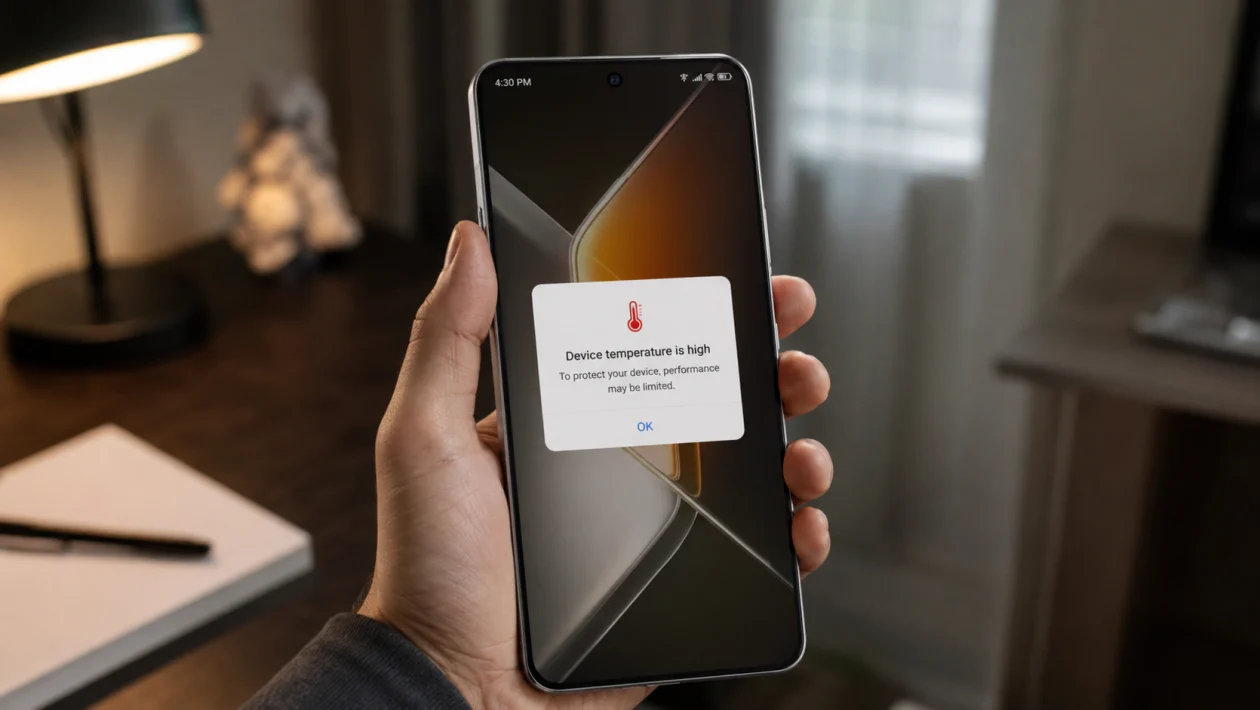
If your Infinix GT 50 Pro overheating problem shows up after long gaming sessions, video calls, charging, hotspot use, or heavy multitasking, the phone may not be broken. It may simply be holding too much heat from the screen, processor, battery, network, or background apps.
The Infinix GT 50 Pro is built for performance, so some warmth during gaming or camera use is normal. But it should not become uncomfortable to hold, shut down, slow down badly, or show repeated temperature warnings.
Start with the easy fixes first. Most overheating problems come from high screen brightness, extended gaming, poor signal, charging while using the phone, too many background apps, or a thick case trapping heat.
Quick answer
To fix this, stop charging while using the phone, remove the case, lower brightness, close background apps, switch to Wi-Fi when possible, reduce gaming graphics, update XOS and apps, and avoid using the phone under direct sunlight.
If the phone still overheats after these fixes, check whether it gets hot while idle. A phone that heats up even when not being used may have a battery, app, software, or hardware problem.
Infinix GT 50 Pro overheating diagnostic table
| Symptom | Likely cause | What to check first |
|---|---|---|
| Gets hot while gaming | High graphics, high refresh rate, long session | Game settings and display settings |
| Gets hot while charging | Fast charging, case, using phone while plugged in | Cable, charger, case, usage |
| Gets hot on mobile data | Weak signal or 5G activity | Signal strength and network mode |
| Gets hot during video calls | Camera, screen, microphone, network use | Brightness and connection |
| Gets hot while idle | Background app or system issue | Battery usage and recent apps |
| Gets hot outdoors | Sunlight and high ambient temperature | Move to shade and lower brightness |
| Battery drains fast with heat | App, network, display, or battery issue | Battery usage screen |
| Phone slows down when hot | Thermal throttling | Let it cool before heavy use |
Why your Infinix GT 50 Pro overheats during prolonged use
Your Infinix GT 50 Pro can heat up when several power-heavy tasks happen at once. Gaming, video recording, charging, 5G, hotspot, GPS, and high brightness all add heat. The longer these run together, the harder it is for the phone to cool itself.
Common causes include:
High screen brightness
Long gaming sessions
Charging while gaming or watching videos
Weak mobile signal
5G use in poor coverage areas
Too many apps running in the background
Hot weather or direct sunlight
Thick phone case
Buggy app after an update
Battery or hardware issue
Use the 10 fixes below in order.
1. Stop charging while gaming or using heavy apps
This is the first thing to check.
Charging already creates heat. Gaming, recording video, using GPS, or joining long video calls also creates heat. When you do both at the same time, the phone can get hot quickly.
Do this:
- Unplug the charger.
- Close the game or heavy app.
- Let the phone cool for a few minutes.
- Charge it again while the screen is off.
- Avoid gaming while fast charging.
If the phone only overheats when charging and gaming together, the issue is probably heat buildup rather than a faulty device.
Also check the charger. Use the original charger and cable when possible. Cheap or damaged charging accessories can cause heat, slow charging, or unstable power delivery.
2. Remove the case during long gaming or charging
A thick case can trap heat around the phone. This matters more during gaming, fast charging, hotspot use, or outdoor use.
Remove the case when:
Playing games for more than 20 to 30 minutes
Charging the phone
Using the camera for long videos
Using hotspot
Using the phone outdoors
The back panel feels warmer than usual
After removing the case, place the phone on a cool, dry surface. Do not put it inside a freezer or in front of very cold air. Sudden temperature changes can cause moisture problems.
3. Lower brightness and reduce display load
The display can be one of the biggest heat sources during prolonged use. A bright screen, high refresh rate, and long screen-on time can push the phone harder.
Try this:
- Open Settings.
- Tap Display.
- Lower the brightness.
- Turn on Adaptive brightness if available.
- Set Screen timeout to a shorter time.
- Reduce the refresh rate if the phone allows it.
The GT 50 Pro has a high-refresh display, which is great for smooth gaming and scrolling. But if the phone is getting hot, reducing display intensity can help.
4. Close background apps before long gaming sessions
Background apps can keep using CPU, RAM, mobile data, location, and notifications. If you start a heavy game while multiple apps are still active, the phone has more work to do.
Before gaming or long video use:
- Open recent apps.
- Close apps you are not using.
- Restart the phone if it has been running for several days.
- Open only the game or app you need.
- Check if the phone stays cooler.
Pay attention to apps that use location, camera, video, syncing, or social media uploads. These can keep working even when you are not looking at them.
If the phone started heating after installing a new app, uninstall that app temporarily and test again.
5. Check battery usage for power-hungry apps
A single misbehaving app can cause heat, battery drain, and lag. This is especially common after app updates or system updates.
Check battery usage:
- Open Settings.
- Go to Battery.
- Open Battery usage or Power consumption details.
- Look for apps using more battery than expected.
- Update, restrict, or uninstall suspicious apps.
Look for these warning signs:
An app you barely used appears near the top
A game keeps running after you close it
A shopping, social, or map app uses too much battery
The phone heats while idle
Battery drops quickly overnight
If one app stands out, update it first. If it still causes heat, restrict its background activity or remove it for a day.
6. Use Wi-Fi instead of mobile data when the signal is weak
Poor signal can make your phone work harder. When the phone struggles to stay connected, it may increase power use, which can create more heat.
This often happens:
Inside buildings
In elevators
In basements
In rural areas
While travelling
In areas with weak 5G signal
Try this:
- Switch to Wi-Fi when available.
- Turn off hotspot if you are not using it.
- Move to an area with stronger signal.
- Turn Airplane mode on and off to refresh the connection.
- Use 4G/LTE instead of 5G if 5G is unstable.
Use this fix if your Infinix GT 50 Pro gets hot mainly when using mobile data, streaming, gaming online, or using maps.
7. Reduce gaming graphics, FPS, and performance mode
The Infinix GT 50 Pro is designed for gaming, but high graphics settings can still create heat during long sessions. If you play demanding games for an hour or more, heat buildup is normal.
Change these settings inside the game:
Graphics: Medium instead of Ultra
Frame rate: High instead of Max
Shadows: Low or Off
Anti-aliasing: Off if available
HD textures: Off if the phone gets hot
Voice chat: Off when not needed
Also check gaming mode or performance settings. If the phone is set to maximum performance, switch to a balanced mode for longer sessions.
For long gaming, stable performance is better than short bursts of maximum performance. A slightly lower graphics setting can keep the phone cooler and reduce frame drops.
8. Update XOS, Android, and your apps
Software bugs can cause overheating. A bad app update, system bug, or background service issue can make the processor work harder than normal.
Update your phone:
- Open Settings.
- Tap System.
- Tap System update or Software update.
- Install any available update.
- Restart the phone after updating.
Update apps:
- Open Google Play Store.
- Tap your profile icon.
- Tap Manage apps and device.
- Tap Update all.
Also update apps from the Infinix app store or other preinstalled app stores if you use them.
If the overheating started right after a system update, give the phone a day or two of normal use. Phones can run warmer after major updates while apps, files, and system services settle.
9. Avoid direct sunlight and hot surfaces
Your phone cools itself using the surrounding air. If the room, car, or outdoor area is already hot, the phone has less room to release heat.
Avoid using the phone:
Under direct sunlight
On a car dashboard
Under a pillow or blanket
On a bed while charging
Inside a parked car
Near a window with strong sunlight
If the phone gets hot outdoors:
- Move to shade.
- Turn off the screen.
- Remove the case.
- Stop charging.
- Let it cool naturally.
Do not keep using the phone just because it still works. Heat can reduce performance, slow charging, and affect long-term battery health.
10. Reset settings or contact support if overheating continues
Try this only after the easier fixes.
If your Infinix GT 50 Pro still overheats during light use, while idle, or shortly after restarting, there may be a deeper software or hardware issue.
First, reset settings:
- Open Settings.
- Go to System.
- Tap Reset options.
- Choose reset settings if available.
- Avoid factory reset unless you have backed up your data.
A settings reset can fix network, app permission, and configuration problems without deleting everything. The exact wording may vary depending on your XOS version.
Contact Infinix support or an authorized service center if:
The phone gets hot while idle
It shuts down because of heat
The battery swells
The back panel lifts
Charging creates unusual heat
The phone smells burnt
The heat started after a drop or water exposure
The phone shows repeated temperature warnings
Do not keep charging or gaming on a phone that feels dangerously hot.
Best settings to reduce Infinix GT 50 Pro overheating
| Setting | Recommended option |
|---|---|
| Brightness | Lower manually or use Adaptive brightness |
| Refresh rate | Use a lower setting during long sessions |
| Game graphics | Medium or High instead of Ultra |
| Game FPS | High instead of Max if heat builds up |
| Network | Use Wi-Fi or stable 4G/LTE when 5G is weak |
| Hotspot | Turn off when not needed |
| Background apps | Close before gaming |
| Charging | Avoid heavy use while plugged in |
| Case | Remove during long gaming or charging |
| Updates | Keep XOS and apps updated |
FAQ
Is it normal for the Infinix GT 50 Pro to get warm?
Yes, some warmth is normal during gaming, charging, camera use, video calls, or mobile data use. It becomes a problem if the phone is uncomfortable to hold, slows down badly, shuts down, or gets hot while idle.
Why does my Infinix GT 50 Pro overheat while gaming?
Gaming uses the processor, GPU, display, battery, speakers, network, and touch input at the same time. Long sessions, high graphics, high FPS, and charging while gaming can make the phone heat up faster.
Should I use a phone cooler with the Infinix GT 50 Pro?
A phone cooler can help during long gaming sessions, especially in hot rooms. But it should not be needed for basic use. If the phone overheats while browsing, messaging, or sitting idle, check apps, software, battery usage, and support options.
