
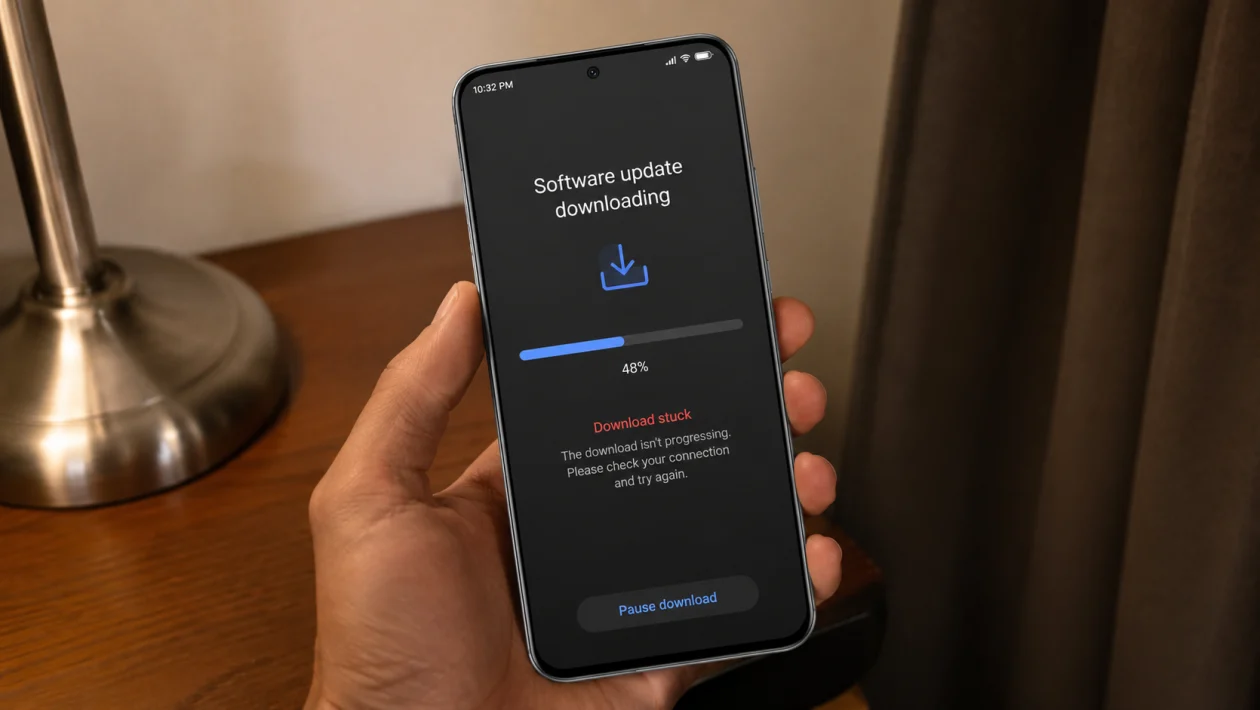
If your Infinix GT 50 Pro software update is stuck on download, the phone may not be broken. Most of the time, the update is waiting because of a weak internet connection, low storage, battery limits, server delay, VPN interference, or a temporary problem with the System Update app.
Start with the simple fixes first. Do not reset your phone right away. In most cases, you can get the update moving again by restarting the phone, switching networks, clearing update-related cache, or downloading the update again.
Quick answer
To fix an Infinix GT 50 Pro software update stuck on download, restart the phone, connect to a stable Wi-Fi network, make sure the battery is above 50%, free up storage, then go back to Settings > My Phone or Settings > System > System Update and try again.
If the download still does not move, turn off VPN, pause battery saver, clear cache for the System Update app, reset network settings, or check Infinix support for official update help.
Infinix GT 50 Pro update stuck on download: quick check table
| Problem | Likely cause | What to try first |
|---|---|---|
| Download stays at 0% | Weak Wi-Fi or server delay | Restart phone and switch Wi-Fi |
| Download stops halfway | Unstable internet | Use a stronger Wi-Fi network |
| Update keeps pausing | Battery saver or data limit | Turn off Power Marathon and data saver |
| Update fails after retrying | Not enough storage | Free up internal storage |
| Update only fails on mobile data | Carrier or data restriction | Use Wi-Fi instead |
| Download loops again and again | Corrupted update package | Clear System Update cache |
| Update is unavailable after restart | Staged rollout | Check again later |
| Phone heats up during download | Background load or poor signal | Let it cool and retry on Wi-Fi |
| Update freezes after download | Installation issue | Restart and install again |
| Nothing works | Firmware or device issue | Contact Infinix or Carlcare |
Why your Infinix GT 50 Pro software update gets stuck
A software update can get stuck when the phone cannot download the update package cleanly. This can happen because the Wi-Fi is unstable, the phone does not have enough free space, the update server is busy, or the update package was interrupted.
It can also happen after the phone has been running for a long time without a restart. Background apps, VPN services, private DNS settings, battery restrictions, or a weak mobile signal can stop the update from completing properly.
Use the 10 fixes below in order.
1. Restart your Infinix GT 50 Pro
Restarting is the easiest fix, and it is worth doing before changing any settings.
A restart can stop a stuck update process, refresh the network connection, and clear temporary system issues.
- Press and hold the Power button.
- Tap Restart.
- Wait for the phone to fully turn back on.
- Connect to Wi-Fi.
- Go to Settings.
- Tap My Phone or System.
- Tap System Update.
- Try the download again.
If the update was stuck because of a temporary XOS process, this may be enough.
2. Switch to a stronger Wi-Fi network
Software updates can be large. If your Wi-Fi drops in and out, the update may stay stuck, restart, or fail silently.
Do this:
- Open Settings.
- Tap Wi-Fi.
- Disconnect from your current network.
- Connect to a stronger Wi-Fi network.
- Stay close to the router.
- Try the update again.
Avoid updating while connected to public Wi-Fi, hotel Wi-Fi, school Wi-Fi, or office Wi-Fi. These networks sometimes block large downloads or device update servers.
If your Wi-Fi is slow, restart the router and try again.
3. Turn off mobile data, VPN, and private DNS
A VPN, proxy, ad blocker, or private DNS setting can interfere with update downloads. This is common when the update server needs a clean connection.
Turn them off temporarily.
To turn off VPN:
- Open Settings.
- Tap Network & internet or Connections.
- Tap VPN.
- Disconnect any active VPN.
To turn off Private DNS:
- Open Settings.
- Search for Private DNS.
- Open Private DNS.
- Set it to Off or Automatic.
- Try the update again.
Then use Wi-Fi only. Do not switch between Wi-Fi and mobile data while the update is downloading.
4. Free up internal storage
Your Infinix GT 50 Pro needs enough free storage to download, unpack, and prepare the update. Even if the update file looks small, the phone may need extra space during installation.
Try to keep at least 8GB to 10GB of free space before downloading a major update.
To check storage:
- Open Settings.
- Tap Storage.
- Check available internal storage.
- Delete large videos, duplicate files, old APKs, and unused apps.
- Empty the trash or recently deleted folder if available.
- Restart the phone.
- Try the update again.
Do not rely only on a microSD card. System updates usually need internal storage.
5. Charge the battery above 50%
Your phone may pause or block a system update if the battery is too low. This prevents the phone from shutting down while downloading or installing the update.
Do this:
- Charge your Infinix GT 50 Pro to at least 50%.
- Keep it plugged in if the update is large.
- Let the phone cool down if it feels warm.
- Open System Update again.
- Restart the download.
Do not install a system update when the phone is overheating. Let it rest for a few minutes first.
6. Turn off Power Marathon, Battery Saver, and Data Saver
Battery-saving modes can limit background downloads. Data Saver can also stop the update service from using the network properly.
To turn off battery restrictions:
- Open Settings.
- Tap Battery.
- Turn off Battery Saver or Power Marathon.
- If there is an Ultra Power Saving mode, turn it off.
To turn off Data Saver:
- Open Settings.
- Tap Network & internet or SIM & network.
- Tap Data Saver.
- Turn it off.
After that, reconnect to Wi-Fi and try the software update again.
7. Clear cache for the System Update app
If the update download started but got stuck, the update cache may be corrupted. Clearing the cache can force the phone to start fresh without deleting your photos, apps, or personal files.
The exact app name can vary by XOS version, but try this:
- Open Settings.
- Tap Apps or App Management.
- Tap See all apps.
- Tap the three-dot menu.
- Choose Show system.
- Search for System Update, Software Update, or Update Service.
- Tap Storage.
- Tap Clear cache.
- Restart your phone.
- Try the update again.
Be careful with Clear data. Clearing data may remove the downloaded update package and reset update settings. That can help if the package is broken, but you may need to download the update again from the beginning.
8. Reset network settings
If the update still refuses to download, your phone’s saved network settings may be causing the problem. Resetting network settings can fix Wi-Fi, mobile data, Bluetooth, and DNS-related issues.
This will not delete your photos or apps, but it will remove saved Wi-Fi networks and paired Bluetooth devices.
- Open Settings.
- Tap System.
- Tap Reset options.
- Tap Reset Wi-Fi, mobile and Bluetooth.
- Confirm the reset.
- Reconnect to Wi-Fi.
- Try the update again.
This is useful if your Infinix GT 50 Pro update gets stuck only on your usual Wi-Fi network.
9. Check if the update rollout is delayed in your region
Not every Infinix software update reaches every phone at the same time. Updates can roll out by region, model number, carrier, and batch.
That means your Infinix GT 50 Pro may show an update, pause, disappear, or fail if the rollout is still being staged.
Check these before forcing anything:
- Confirm your model name and build number.
- Open Settings.
- Tap My Phone.
- Check your XOS version and build number.
- Go back to System Update.
- Tap Check for update again.
If the update keeps getting stuck but your internet and storage are fine, wait and try again later. Server-side rollout issues are not something you can fix from the phone.
10. Use Infinix support or Carlcare if the update still will not download
If all 9 fixes fail, the issue may be linked to the firmware package, your device build, or a deeper system problem.
Do not install random firmware files from unknown websites. A wrong package can break the phone, cause boot loops, or remove region-specific features.
Use official help instead:
- Open the Infinix support website.
- Check the System Update section.
- Search for your exact model.
- Contact support if the update keeps failing.
- Visit a Carlcare service center if the phone freezes, restarts, or cannot install updates.
This is the safer option if the update download is stuck every time, even after clearing cache and resetting network settings.
What not to do when the update is stuck
Do not keep tapping Download again and again if nothing changes.
Do not install firmware from Telegram groups, random forums, or unverified file-sharing links.
Do not factory reset the phone before trying the easier fixes.
Do not turn off the phone while an update is installing.
Do not remove storage, force reboot, or drain the battery if the phone has already moved from downloading to installing.
FAQ
Why is my Infinix GT 50 Pro update stuck at 0%?
It is usually caused by weak Wi-Fi, server delay, VPN interference, or a paused update service. Restart the phone, switch to a stronger Wi-Fi network, turn off VPN, and try again.
Why does my Infinix update stop halfway?
The download may have been interrupted. This can happen when Wi-Fi drops, storage runs low, or battery-saving settings restrict background activity.
Can I update my Infinix GT 50 Pro using mobile data?
You may be able to, but Wi-Fi is safer for large updates. Mobile data can be unstable, restricted by your carrier, or interrupted when the signal changes.
