
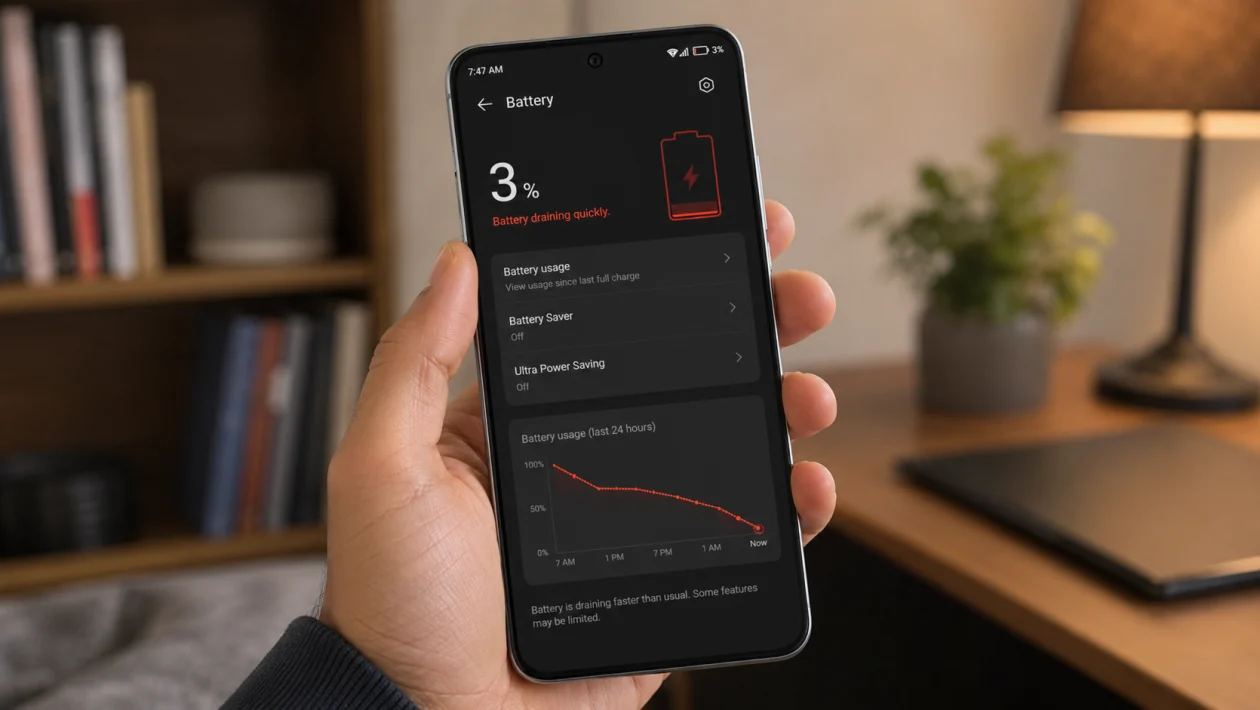
If your Infinix GT 50 Pro battery is draining fast, start by checking which apps are using the most power. Go to Settings > Battery > Battery usage and look for apps that keep running in the background, especially games, social apps, video apps, navigation apps, and apps that use location.
The Infinix GT 50 Pro is built for gaming, so battery drain can also come from the 144Hz display, 5G, high brightness, performance mode, cooling features, background sync, or long gaming sessions.
The good news is that fast battery drain does not always mean the battery is damaged. Most of the time, one setting or one app is using more power than it should.
Quick answer
To fix Infinix GT 50 Pro battery drain, check Battery usage first, restart the phone, update your apps, lower the refresh rate, reduce screen brightness, limit background apps, turn off 5G when signal is weak, disable unused wireless features, use Power Marathon or battery saver, and reset settings only if nothing works.
Infinix GT 50 Pro battery drain diagnostic table
| Symptom | Likely cause | Check first |
|---|---|---|
| Battery drains while gaming | 144Hz, high graphics, performance mode | Game settings and refresh rate |
| Battery drops overnight | Background apps, sync, location | Battery usage |
| Battery drains faster on mobile data | Weak 5G or poor signal | Network mode |
| Phone gets warm and drains fast | Heavy app, gaming, hotspot | Battery usage and temperature |
| Battery drains after update | App re-optimization | Restart and update apps |
| Battery drops when screen is on | Brightness, 144Hz, Always On Display | Display settings |
| Battery drains while idle | Notifications, background activity | App background settings |
| Battery drops suddenly | Battery calibration or health issue | Battery health or service check |
Why is my Infinix GT 50 Pro battery draining fast?
Your Infinix GT 50 Pro battery may drain quickly because something is using more power than normal.
Common causes include:
Apps running in the background
High screen brightness
144Hz refresh rate
5G signal searching
Heavy gaming
Performance mode
Location services
Bluetooth, hotspot, or Wi-Fi scanning
App bugs after an update
System activity after a new XOS update
Battery health problems
Use the fixes below in order.
1. Check battery usage first
Start here because this tells you what is actually draining the battery.
- Open Settings.
- Tap Battery.
- Tap Battery usage.
- Check which apps are using the most power.
- Look for apps that used battery even when you barely opened them.
Pay close attention to games, TikTok, Facebook, Instagram, YouTube, Chrome, camera apps, VPNs, launchers, and apps that use location.
If one app looks unusual, update it first. If it still drains battery, restrict its background activity or uninstall it for one day and check if battery life improves.
2. Restart your Infinix GT 50 Pro
A restart can stop stuck background processes and temporary XOS bugs.
- Press and hold the Power button.
- Tap Restart.
- Wait for the phone to turn back on.
- Use it normally for a few hours.
- Check Battery usage again.
This is worth doing if the drain started suddenly, especially after installing an app or software update.
3. Update XOS and your apps
Battery drain can happen when apps are not fully optimized for your current Android or XOS version.
To update the phone:
- Open Settings.
- Tap System.
- Tap System update.
- Download and install any available update.
To update apps:
- Open Google Play Store.
- Tap your profile icon.
- Tap Manage apps and device.
- Tap Update all.
Also check the App Update or system app update section if your Infinix phone shows one.
If the battery drain started right after a major update, give the phone 24 to 48 hours. Android can re-optimize apps and background services after an update.
4. Lower the refresh rate from 144Hz
The Infinix GT 50 Pro has a high refresh rate display, which is great for gaming but can use more battery.
- Open Settings.
- Tap Display & brightness.
- Tap Refresh rate.
- Choose 60Hz or Auto-switch instead of 144Hz.
Use 144Hz only when gaming or when you really want smoother scrolling. For normal use, 60Hz or auto mode is usually better for battery life.
This is one of the most important fixes for a gaming phone.
5. Reduce brightness and screen timeout
The screen is one of the biggest battery users on the Infinix GT 50 Pro.
- Open Settings.
- Tap Display & brightness.
- Lower the brightness slider.
- Turn on Adaptive brightness.
- Tap Screen timeout.
- Set it to 30 seconds or 1 minute.
Also avoid leaving the screen on at high brightness while gaming, watching videos, or using maps.
If your battery drops fast while the screen is on, this setting matters more than most background tweaks.
6. Limit background apps
Some apps continue working after you close them. They may sync data, send notifications, track location, or refresh feeds.
- Open Settings.
- Tap Apps.
- Choose the app using too much battery.
- Tap Battery.
- Choose Restricted or Optimized.
You can also check:
Settings > Battery > Battery usage > select app > restrict background usage
Do not restrict apps you need for instant alerts, such as banking apps, messaging apps, delivery apps, or work apps. Restrict social media, shopping, games, and apps you rarely use first.
7. Turn off 5G when signal is weak
5G can drain battery faster when the signal is weak or unstable. The phone may keep searching for a stronger connection.
- Open Settings.
- Tap SIM & network or Mobile network.
- Select your SIM.
- Tap Preferred network type.
- Choose 4G/LTE if 5G coverage is poor.
Use this if your battery drains faster on mobile data than on Wi-Fi.
This often helps indoors, while commuting, in rural areas, inside malls, or in places with patchy signal.
8. Turn off unused wireless features
Bluetooth, hotspot, GPS, nearby device scanning, and Wi-Fi scanning can use battery even when you are not actively using them.
Turn off what you do not need:
Bluetooth
Mobile hotspot
Location
NFC, if available
Wi-Fi scanning
Nearby Share or Quick Share
Wireless reverse charging, if enabled
To check location-heavy apps:
- Open Settings.
- Tap Location.
- Tap App location permissions.
- Set non-essential apps to Allow only while using the app.
If the phone drains overnight, location and background sync are two of the first things to check.
9. Use Power Marathon or Battery Saver
Infinix phones usually include battery saving features under Battery or Power Marathon.
- Open Settings.
- Tap Battery.
- Tap Power Marathon, Power saving mode, or Battery saver.
- Turn it on when the battery is low.
- Use Ultra Power Saving only when you need maximum battery life.
Battery saver may limit background activity, reduce visual effects, delay notifications, and lower performance. That is normal.
Use it when travelling, gaming away from a charger, or when your battery drops below 30%.
10. Reset settings or contact Carlcare if the drain continues
Use this only after trying the earlier fixes.
A settings reset can fix bad network, battery, app, or system configuration without deleting your personal files.
- Open Settings.
- Tap System.
- Tap Reset options.
- Choose Reset all settings or Reset app preferences.
- Restart the phone.
If the battery still drains fast, gets hot during light use, shuts down before reaching 0%, or drops suddenly from a high percentage, the battery or hardware may need checking.
Infinix uses Carlcare as its official after-sales service provider in many regions, so contact Carlcare or an authorized Infinix service center for inspection.
Should you factory reset your Infinix GT 50 Pro?
Only factory reset the phone if nothing else works.
Before doing it:
Back up your photos, videos, contacts, and files
Make sure you know your Google account password
Charge the phone above 50%
Remove important files from internal storage
Factory reset path:
Settings > System > Reset options > Erase all data
Do this only when the drain is severe and software fixes do not help.
FAQ
Why is my Infinix GT 50 Pro battery draining overnight?
It is usually caused by background apps, location access, notifications, sync, weak signal, or an app that keeps running while the phone is idle. Check Settings > Battery > Battery usage first.
Does 144Hz drain battery on the Infinix GT 50 Pro?
Yes, 144Hz can use more battery than 60Hz because the screen refreshes more often. Use 144Hz for gaming and switch to 60Hz or Auto-switch for normal use.
Does 5G drain battery faster?
It can, especially when 5G signal is weak. If your battery drains faster on mobile data, switch to 4G/LTE and test the phone for a day.
