
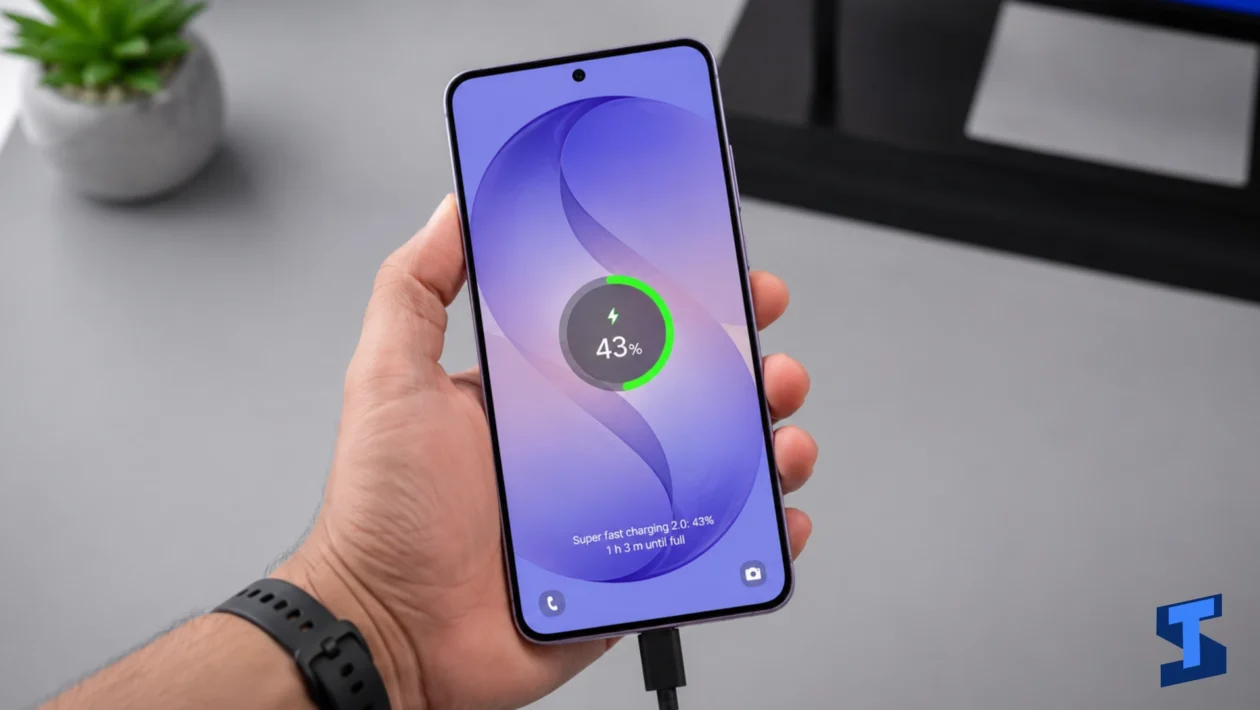
Galaxy A57 battery draining fast is usually caused by apps, display settings, poor signal, 5G switching, location access, overheating, or a recent One UI update. It does not always mean the battery is damaged.
Before replacing the battery or resetting the phone, start by finding out what is using power. A good Galaxy A57 battery drain fix should help you identify the cause first, then apply the right setting change.
For more general device issues, you can also check our main guide to Galaxy A57 problems. But for battery drain specifically, start with the steps below.
Quick Checks Before Changing Settings
Restart the phone first. This clears temporary glitches and stops apps that may be stuck running in the background.
Next, check if the phone feels hot. Battery drain and heat often happen together. Gaming, camera use, video calls, hotspot, navigation, and charging while using demanding apps can make the phone work harder than normal.
Update your apps from the Play Store and Galaxy Store as well. A buggy app can cause Galaxy A57 battery life issues, especially after a software update.
Turn on Power Saving mode temporarily if you need the phone to last longer right now. Just do not treat it as the full solution. Power Saving can slow the drain, but it does not explain what caused it.
Find Out What Type of Battery Drain You Have
Not all battery drain has the same cause.
A phone that drains while gaming has a different problem from one that loses battery overnight while sitting unused. Before changing random settings, pay attention to when the battery drops.
Fast drain while the screen is on usually points to brightness, refresh rate, gaming, camera use, video calls, or mobile data. Fast drain while idle usually points to background syncing, weak signal, location access, notifications, or Always On Display.
A Samsung Galaxy A57 battery draining fast after an update may also settle down after a short period. After major updates, apps may re-optimize, sync data again, or behave differently until they receive their own updates.
Check Which Apps Are Using the Most Battery
The first serious step is checking Battery usage. Go to Settings, tap Battery, then review Battery usage.
Look for apps using more power than expected. Games, camera apps, streaming apps, navigation apps, and video calling apps are expected to use more battery after heavy use. The warning sign is an app you barely opened appearing near the top.
This is often the real answer to why is my Galaxy A57 battery draining so fast. A social media app may be refreshing too often. A weather app may be checking location repeatedly. A shopping app, browser, or messaging app may be syncing in the background.
When Galaxy A57 background apps draining battery is the issue, closing apps once is not enough. You need to limit what those apps can do when you are not using them.
For broader battery-related symptoms, including sudden drops and abnormal drain patterns, our guide on battery problems may also help.
Stop Background Apps From Draining the Battery
Samsung phones include tools for managing background activity. Go to Settings, tap Battery, then check Background usage limits.
Use Sleeping apps for apps you do not need running all day. Use Deep sleeping apps for apps you rarely open. This can help when the Galaxy A57 battery draining quickly even when you are not actively using the phone.
Be careful with apps that need instant alerts. Do not deep sleep messaging apps, banking apps, authenticator apps, delivery apps, ride-hailing apps, or smart home apps unless you are okay with delayed notifications.
The goal is not to disable everything. The goal is to stop wasteful background activity without breaking the apps you rely on.
Adjust Display Settings That Use Too Much Battery
The display is one of the biggest battery users on any phone. When the battery drains fast during active use, screen settings should be one of the first places to check.
Lower the brightness, turn on adaptive brightness, shorten the screen timeout, and use dark mode if you prefer it. Turn off Always On Display if you do not need the clock or notifications showing while the screen is off.
A high refresh rate can also use more power during scrolling, gaming, and browsing. Use smoother motion when you want it, but lowering it can help when the Galaxy A57 battery not lasting long becomes a daily problem.
Display behavior can also overlap with touch or screen-related issues. When the screen seems unusually active, flickers, or behaves strangely, check our guide on display and touchscreen problems.
Fix Battery Drain After a One UI Update
Galaxy A57 battery draining fast after update is a common complaint on Samsung devices. It does not always mean the update damaged the phone.
After a One UI update, the device may re-index files, refresh system services, sync accounts, and adjust app behavior. Some apps may also need updates before they work properly with the new software.
Restart the phone first. Then update apps from both the Play Store and Galaxy Store. After that, check Battery usage again after a full day.
When one app is clearly responsible, clear its cache or reinstall it. Remove apps you no longer use, especially if they keep showing up in the battery list.
Avoid jumping straight to a factory reset. It should be a last resort, not the first move.
Fix Overnight Battery Drain
Galaxy A57 battery drain overnight fix usually starts with idle activity, not screen brightness. When the screen is off and the phone still loses 15 to 25 percent overnight, something is probably working in the background.
Check Always On Display, weak Wi-Fi or mobile signal, cloud backups, location access, notifications, and apps syncing overnight. Poor signal can make the phone work harder even while you are asleep.
Before bed, try turning off Always On Display, enabling Power Saving mode, and using Wi-Fi instead of mobile data when available. Also check if photo backup, messaging apps, or cloud sync apps are running overnight.
This also applies to Galaxy A57 battery drain while idle. The screen may be off, but the phone can still be syncing, searching for signal, checking location, or keeping apps awake.
Check 5G, Weak Signal, and Location Settings
Poor network conditions can drain the battery quickly. A phone in weak 5G coverage may keep switching between networks, and that constant searching uses power.
When the battery drains faster outside the house than at home, the cause may be mobile data, 5G switching, navigation, or background location tracking. Use Wi-Fi when available. When 5G coverage is unstable, switching to LTE may help.
Review Location permission settings too. Change location access to “while using the app” for apps that do not need constant tracking.
Network problems can also show up as SIM errors, mobile data drops, or unstable 5G. For those cases, check our guide on mobile data and 5G problems. Wi-Fi and Bluetooth scanning can also affect standby drain, so our guide on Wi-Fi and Bluetooth problems may be useful if the battery drain happens mostly during wireless use.
Stop Overheating and Fast Battery Drain
Galaxy A57 overheating and battery draining fast usually means the phone is under heavy load. Games, video recording, video calls, navigation, hotspot, and direct sunlight can all cause heat.
Remove the case for a few minutes if the phone is warm. Stop heavy apps, avoid charging while gaming or recording video, and keep the phone away from direct sun.
When the phone gets hot even while idle, check Battery usage immediately. A stuck app may be running hard in the background. That is one of the clearest signs that Galaxy A57 battery drain caused by apps may be the real issue.
If the drain happens during camera use, our guide on camera problems may help. If the phone slows down, freezes, or lags while the battery drops quickly, check our guide on performance problems.
Check Charging Behavior Too
Fast drain can sometimes feel like a battery problem when the phone is actually not charging properly. A weak cable, dirty port, unstable adapter, or interrupted charging session may leave the battery lower than expected.
Try a different cable and charger if the battery percentage rises slowly or drops soon after unplugging. Also check if the phone gets unusually warm while charging.
For charging-specific symptoms, such as slow charging, charging pauses, or the phone not recognizing the cable, use our guide on charging problems.
Should You Reset the Phone?
A factory reset can help with stubborn software problems, but it should come late in the process.
Try these first: restart the phone, update apps, check Battery usage, limit background activity, adjust display settings, review location permissions, test Power Saving mode, and watch the battery for at least a day.
Only consider a reset when the Samsung Galaxy A57 fast battery drain problem continues after normal fixes. Back up your photos, messages, files, and app data before resetting.
When the Battery Might Need Service
Software fixes will not solve every case. The battery may need service if the phone shuts down with battery left, drops suddenly from 30 percent to 5 percent, gets hot while idle, charges strangely, or keeps draining fast after a reset.
Stop using the phone and contact Samsung support or an authorized repair center if the body is swelling, the back cover is lifting, or the device gets unusually hot. Battery swelling is not something to troubleshoot at home.
Galaxy A57 Battery Drain Fix Checklist
Use this checklist before assuming the battery is defective:
- Restart the phone
- Check Battery usage
- Update apps from the Play Store and Galaxy Store
- Limit background activity
- Turn off Always On Display when not needed
- Lower brightness and shorten screen timeout
- Check weak signal or 5G switching
- Review Location permission settings
- Watch for overheating
- Check charging behavior
- Wait 24 to 48 hours after a major update
- Contact Samsung support if the battery behaves abnormally
FAQs
Why is my Galaxy A57 battery draining so fast?
The most common causes are background apps, high screen brightness, Always On Display, weak signal, 5G switching, location access, app bugs, or a recent One UI update.
How do I stop my Galaxy A57 battery from draining quickly?
Check Battery usage first, then update apps, limit background activity, adjust display settings, turn off unnecessary location access, and use Power Saving mode when needed.
Why does my Galaxy A57 battery drain even when not in use?
Battery draining even when not in use usually comes from background syncing, notifications, poor signal, Always On Display, cloud backups, or apps running while the phone is idle.
Why does my Galaxy A57 battery die quickly after charging?
A phone that dies quickly after charging may have a power-hungry app, poor signal, heat buildup, or battery health problems. Check Battery usage first before assuming the battery is damaged.
Does 5G drain the battery faster?
5G can use more power, especially in weak coverage areas. When coverage is unstable, switching to LTE can help the battery last longer.
