
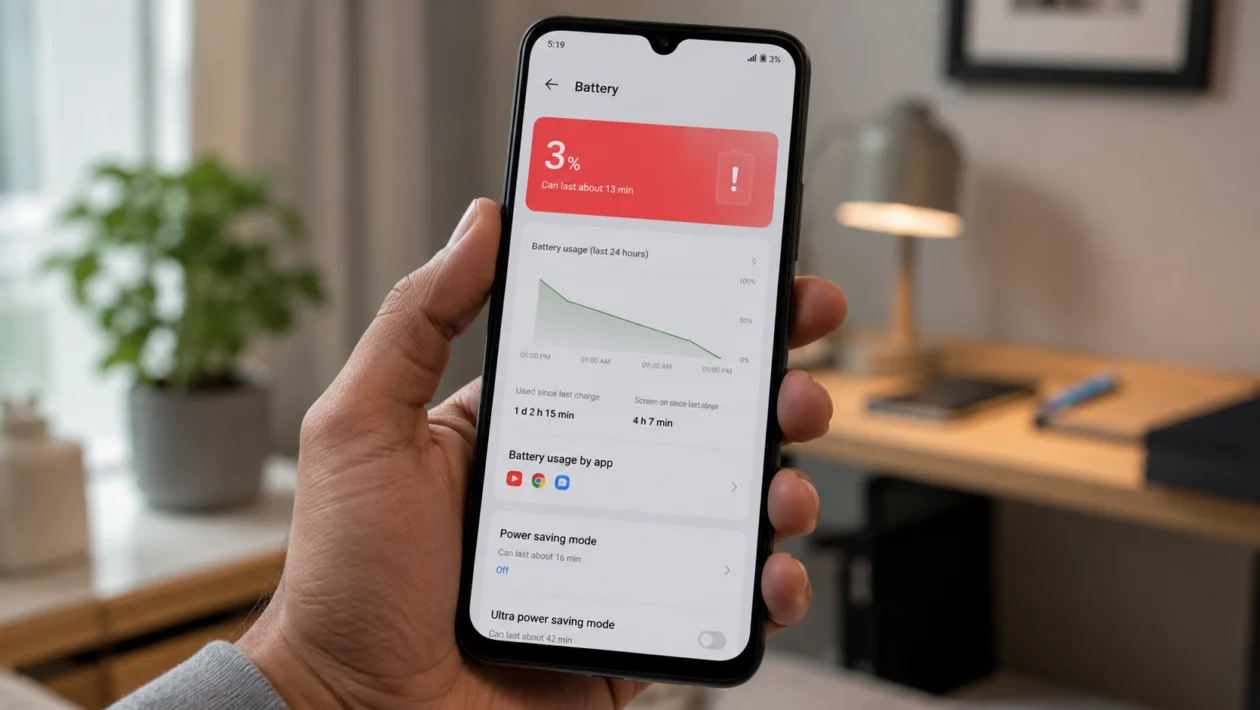
If your Xiaomi Poco C81 Pro battery is draining fast, do not assume the battery is already damaged. A phone with a large battery can still lose charge quickly if the screen, apps, mobile signal, updates, or background activity are using too much power.
The POCO C81 Pro has a 6000mAh battery, a large 6.9-inch display, and up to a 120Hz refresh rate. Those are good features, but they also mean display settings and background apps can make a big difference to battery life.
Start with the simple checks first. Look at battery usage, restart the phone, update your apps, then adjust the settings most likely to drain power.
Quick answer
To fix a Xiaomi Poco C81 Pro with battery draining fast, go to Settings > Battery > Battery usage and check which apps are using the most power. If one app is using too much battery, update it, restrict its background activity, or uninstall it temporarily.
Then reduce screen brightness, lower the refresh rate, turn off Always-on features if available, disable unused connections, check mobile signal, and enable Battery saver when needed.
If the battery drain started after a system update, restart the phone, update your apps, and use the phone normally for 24 to 48 hours before doing a reset.
Xiaomi Poco C81 Pro battery drain diagnostic table
| Symptom | Likely cause | What to check first |
|---|---|---|
| Battery drains overnight | Background apps, syncing, location, notifications | Settings > Battery > Battery usage |
| Battery drains while screen is on | Brightness, 120Hz refresh rate, long screen timeout | Display settings |
| Battery drains faster on mobile data | Weak signal or constant network switching | Signal strength and SIM settings |
| Phone gets warm and drains fast | Heavy app, gaming, hotspot, poor signal | Battery usage and background apps |
| Battery drain started after update | Apps re-optimising or system background tasks | Restart and update apps |
| Battery drops even when unused | Autostart apps, sync, location, malware-like app behavior | App permissions and autostart |
| Battery suddenly drops by large percentages | Battery calibration issue or hardware fault | Full charge cycle, then service check |
Why is my Xiaomi Poco C81 Pro battery draining so fast?
Your Xiaomi Poco C81 Pro battery may be draining quickly because one or more apps or settings are using more power than expected.
Common causes include:
Apps running in the background
High screen brightness
120Hz refresh rate
Long screen timeout
Weak mobile signal
Mobile data usage
Location services
Bluetooth, hotspot, or Wi-Fi scanning
Too many apps allowed to autostart
Recent software or app updates
Battery saver being disabled
A faulty app or possible battery issue
The fix depends on the cause. Use the 10 solutions below in order.
1. Check battery usage first
Start here before changing random settings. Battery usage shows which apps and system features are consuming the most power.
- Open Settings.
- Tap Battery.
- Tap Battery usage.
- Look for apps using more battery than expected.
- Tap the app and check its background settings.
Look for apps you barely used but still appear high on the list. Social media apps, games, shopping apps, video apps, maps, camera apps, and messaging apps can use a lot of battery, especially when they run in the background.
If one app stands out, update it first. If it still drains battery, restrict background activity or uninstall it for a day to test whether battery life improves.
2. Restart your Poco C81 Pro
A restart can stop temporary software problems, stuck background services, and apps that are using power after they should have closed.
- Press and hold the Power button.
- Tap Restart.
- Wait for the phone to turn back on.
- Use it normally for a few hours.
- Check battery usage again.
This will not delete your photos, apps, messages, or files.
Restarting is especially worth doing if the battery drain started suddenly after installing an app, changing a setting, or updating the phone.
3. Update your apps and system software
Outdated apps can drain battery if they have bugs, background sync problems, or compatibility issues with the current version of HyperOS.
To update apps:
- Open the Google Play Store.
- Tap your profile icon.
- Tap Manage apps and device.
- Tap Update all.
Also check Xiaomi system app updates:
- Open Settings.
- Tap System apps updater, if available.
- Install pending updates.
To update the phone:
- Open Settings.
- Tap About phone.
- Tap the HyperOS version panel.
- Check for updates.
- Install any available update.
If the battery started draining fast right after a system update, give the phone 24 to 48 hours. After updates, apps and system services may re-index files, refresh caches, and optimise background activity.
4. Lower brightness and screen timeout
The POCO C81 Pro has a large 6.9-inch display, so screen settings can have a big effect on battery life.
Start with brightness:
- Open Settings.
- Tap Display & brightness.
- Lower the brightness slider.
- Turn on Auto brightness if you want the phone to adjust brightness automatically.
Then reduce screen timeout:
- Open Settings.
- Tap Lock screen.
- Tap Sleep or Screen timeout.
- Choose 30 seconds or 1 minute.
This helps if you often leave the screen on after checking messages, watching videos, or placing the phone on a desk.
5. Reduce the refresh rate
The POCO C81 Pro supports up to a 120Hz refresh rate. It makes scrolling feel smoother, but it can use more power than a lower refresh rate.
To change it:
- Open Settings.
- Tap Display & brightness.
- Tap Refresh rate.
- Choose a lower option, such as 60Hz, if available.
Use 120Hz when you care more about smooth scrolling. Use 60Hz when battery life matters more.
This is one of the best fixes if the battery drains mostly while you are using the screen.
6. Restrict background battery usage for problem apps
Some apps keep running even after you stop using them. This can drain the battery overnight or while the phone is in your pocket.
To restrict a specific app:
- Open Settings.
- Tap Apps.
- Tap Manage apps.
- Select the app.
- Tap Battery or Battery saver.
- Choose a restricted or battery-saving option.
Settings names may vary depending on the HyperOS version. The idea is the same: stop apps from using too much power in the background.
Be careful with messaging, banking, delivery, and work apps. Restricting them too aggressively may delay notifications.
7. Turn off unnecessary autostart apps
Autostart allows apps to launch themselves in the background. This is useful for messaging apps, but unnecessary for many shopping, game, cleaner, VPN, and social apps.
To check autostart:
- Open Settings.
- Tap Apps.
- Tap Permissions.
- Tap Autostart in background.
- Turn off autostart for apps that do not need to run all the time.
Keep autostart on for apps where instant notifications matter, such as messaging, email, security, banking, or work apps.
This fix is useful if your Poco C81 Pro drains battery while idle.
8. Turn off unused connections and location access
Battery drain can come from features that keep searching, syncing, or sharing in the background.
Turn off what you are not using:
Bluetooth
Portable hotspot
GPS/location
NFC, if available
Wi-Fi scanning
Nearby device scanning
Mobile data when Wi-Fi is available
To check location access:
- Open Settings.
- Tap Location.
- Tap App location permissions.
- Set unnecessary apps to Don’t allow or Allow only while using the app.
Weather apps, maps, ride-hailing apps, camera apps, and social media apps can use location often. If you do not need constant tracking, limit their access.
9. Check weak signal and SIM settings
Weak signal can drain battery quickly. When your phone struggles to stay connected, it uses more power searching for a stable network.
This often happens inside buildings, basements, elevators, rural areas, or places with poor network coverage.
Try this:
- Check if the battery drains faster on mobile data than Wi-Fi.
- Move to an area with stronger signal.
- Turn on Airplane mode for a few minutes if the phone is stuck searching.
- Restart the phone.
- If you use two SIM cards, disable the SIM you are not using.
To manage SIM settings:
- Open Settings.
- Tap SIM cards & mobile networks.
- Select the SIM.
- Turn off unused SIMs or mobile data options you do not need.
If the drain mostly happens when travelling, commuting, or using mobile data, the battery may not be the problem. The network may be forcing the phone to work harder.
10. Use Battery saver and run Xiaomi’s battery optimisation
Xiaomi includes battery tools that can find settings causing extra battery use.
Try this:
- Open Settings.
- Tap Battery.
- Open Battery saver.
- Turn on Battery saver when you need longer battery life.
- Look for battery optimisation suggestions.
- Apply the safe recommendations.
Battery saver may reduce background activity, lower performance, limit sync, and delay some notifications. That is normal.
Use Battery saver when travelling, commuting, or when you need the phone to last until the end of the day.
What if the Poco C81 Pro battery still drains fast?
If you tried all 10 fixes and the battery still drains quickly, check for these warning signs:
The phone gets hot even when idle
Battery drops suddenly by 10% or more
The phone shuts down before reaching 0%
Battery drains fast after a full factory reset
Charging is unusually slow or inconsistent
The back of the phone feels swollen or lifted
If you notice swelling, overheating, or random shutdowns, stop using risky charging accessories and contact Xiaomi or POCO support. Do not try to open the phone yourself unless you are trained to repair smartphones.
Should you factory reset the Poco C81 Pro?
A factory reset should be a last resort, not the first fix.
Try it only if:
Battery drain continues after updates
No app clearly explains the drain
The issue started after a major software problem
The phone has other bugs, crashes, or performance issues
Before resetting:
- Back up your photos, files, contacts, and messages.
- Charge the phone.
- Go to Settings > About phone.
- Tap Factory reset.
- Follow the on-screen instructions.
A reset deletes your personal data, so only do this after the easier fixes fail.
FAQs
Why is my Poco C81 Pro battery draining overnight?
Overnight battery drain usually comes from background apps, syncing, location access, notifications, weak signal, or autostart apps. Check Settings > Battery > Battery usage first.
Does 120Hz drain battery on the Poco C81 Pro?
Yes, 120Hz can use more battery than a lower refresh rate because the screen refreshes more often. If battery life matters more than smooth scrolling, switch to a lower refresh rate.
Is Battery saver safe to use every day?
Yes. Battery saver is safe, but it may delay notifications and reduce background activity. Use it when you need longer battery life.
