
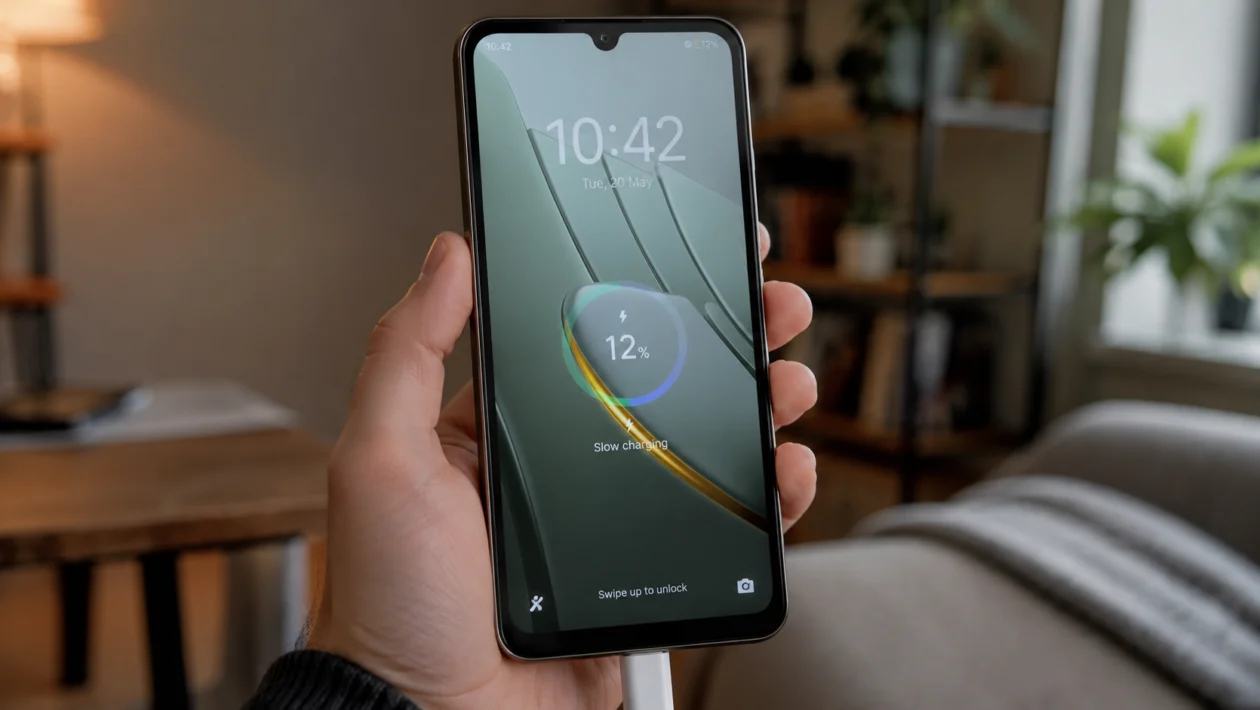
If your Xiaomi Poco C81 Pro is charging slowly, the problem is usually not the battery right away. In many cases, slow charging comes from the charger, USB-C cable, dirty charging port, phone temperature, background apps, or software settings.
The POCO C81 Pro has a large 6000mAh battery, so charging may feel slower than a smaller phone, especially if you are using the phone while it is plugged in. But if the battery percentage barely moves, fast charging does not appear, or the phone takes hours longer than usual, something needs checking.
Start with the simple fixes first. Do not reset the phone or replace the battery until you have checked the charger, cable, charging port, temperature, and battery settings.
Quick answer
To fix a Xiaomi Poco C81 Pro charging slowly, use the original charger and cable, plug it into a wall outlet, clean the USB-C port, restart the phone, and avoid using it while charging. Then check Battery settings, update HyperOS, close heavy apps, and test another charger.
If the phone still charges slowly after trying a different official charger and cable, the problem may be the charging port, battery, or charging circuit.
Xiaomi Poco C81 Pro slow charging diagnostic table
| Problem | Likely cause | Check first |
|---|---|---|
| Charging is very slow | Weak charger or cable | Charger and USB-C cable |
| Charging keeps disconnecting | Dirty or loose charging port | USB-C port |
| Phone charges slowly while hot | Heat protection | Phone temperature |
| Battery percentage barely moves | Heavy apps running | Background apps |
| Charging slows near 80% or 90% | Battery protection or normal trickle charging | Battery level |
| Fast charging does not show | Wrong charger, wrong cable, or setting issue | Charger, cable, Battery settings |
| Charging only works at an angle | Damaged cable or port | Cable and USB-C port |
| Phone does not charge at all | Charger, port, battery, or hardware issue | Try another charger |
Why is your Xiaomi Poco C81 Pro charging slowly?
Your Xiaomi Poco C81 Pro may charge slowly because the phone is not receiving enough power or because the system is limiting charging speed for safety.
Common causes include:
Using a low-power charger
Using a damaged USB-C cable
Charging from a laptop or power bank
Dust or lint inside the charging port
Using the phone while charging
High phone temperature
Background apps using power
Battery protection settings
Software bugs
Battery or charging port damage
The fixes below are arranged from easiest to more advanced.
1. Use the original charger and USB-C cable
Start here. Slow charging often happens when the phone is connected to a weak adapter or a cable that cannot carry enough power.
Use the charger that came with your Xiaomi Poco C81 Pro if you still have it. If the charger was not included in your region, use a charger that supports the phone’s charging requirements.
Also check the USB-C cable. A cable can still transfer data or show the charging icon while charging slowly.
Look for these signs:
The cable is bent near the connector
The cable feels loose
The phone only charges at a certain angle
The charger gets unusually hot
The battery percentage moves very slowly
The phone says “charging” but not “fast charging”
Try another good USB-C cable before blaming the phone. This is one of the fastest ways to confirm whether the problem is the cable or the device.
2. Plug the charger into a wall outlet
Charging from a laptop, car USB port, extension hub, or weak power bank can be much slower than charging from a wall outlet.
For testing, do this:
- Plug the charger directly into a wall socket.
- Avoid using a USB hub or extension.
- Connect the phone with a reliable USB-C cable.
- Lock the screen.
- Check the battery percentage after 15 minutes.
If the phone charges faster from the wall outlet, the problem is probably the power source, not the Xiaomi Poco C81 Pro.
This matters because some USB ports are designed for data transfer, not fast phone charging.
3. Clean the Xiaomi Poco C81 Pro charging port
Dust, lint, or small debris inside the USB-C port can stop the cable from making proper contact. This can cause slow charging, intermittent charging, or charging that only works when the cable is pushed in a certain direction.
Before cleaning the port:
- Turn off the phone.
- Unplug the charger.
- Use a flashlight to inspect the USB-C port.
- Look for lint, dirt, or bent-looking contacts.
Use a soft, dry brush or gentle air to remove visible debris. Do not use metal pins, liquid cleaners, or sharp tools. The USB-C port is easy to damage.
After cleaning, plug the cable in again. It should feel firm, not loose or wobbly.
4. Restart the phone before charging again
A restart can fix temporary software issues that affect charging speed. It can also stop background processes that may be using power while the phone is plugged in.
To restart your Xiaomi Poco C81 Pro:
- Press and hold the Power button.
- Tap Restart.
- Wait for the phone to turn back on.
- Plug in the charger again.
- Leave the phone locked for 10 to 15 minutes.
This will not delete your files.
If charging speed improves after a restart, the issue may have been a temporary app or system process.
5. Stop using the phone while charging
Your Xiaomi Poco C81 Pro may charge slowly if you are gaming, watching videos, using mobile data, recording video, or keeping the screen on while it charges.
The phone is trying to do two things at once: charge the battery and power the screen, processor, network, speakers, and apps. That can make charging feel much slower.
For a clean test:
- Close games, video apps, camera apps, and navigation apps.
- Turn off the screen.
- Leave the phone alone for 15 to 20 minutes.
- Check if the battery percentage rises faster.
This is especially useful if the phone charges slowly only while you are using it.
6. Let the phone cool down
Charging speed can slow down when the phone is too hot or too cold. This is normal battery protection behavior.
Your Xiaomi Poco C81 Pro may heat up while charging if:
You are gaming
You are using mobile data
You are using hotspot
The phone is under a pillow or blanket
The case traps heat
The charger is in direct sunlight
The room is hot
Try this:
- Unplug the phone.
- Remove the case.
- Place the phone on a cool, dry surface.
- Wait 10 to 20 minutes.
- Charge it again with the screen off.
Do not put the phone in a refrigerator or freezer. Sudden temperature changes can cause moisture problems.
If the phone always gets hot while charging, stop using that charger and test another compatible charger.
7. Check battery settings and charging options
Some Xiaomi and POCO phones include charging modes, battery protection options, or charging acceleration settings depending on the model and HyperOS version. The exact wording can vary.
Check these settings:
- Open Settings.
- Tap Battery.
- Look for Battery protection, Charging options, or Additional features.
- Check whether any charging speed option is available.
- Turn on faster charging only if the phone supports it and the charger is compatible.
If you see a setting such as Boost charging speed, Top speed, or Wired charging mode, test it. If you do not see it, your Poco C81 Pro software version may not include that option.
Also check if Battery saver is active. Battery saver usually helps battery life, but some system modes may affect performance or background behavior while charging.
8. Close background apps before charging
If apps keep running while the phone is plugged in, the battery may charge slowly because power is being used at the same time.
This is common with:
Games
Video streaming apps
Navigation apps
Camera apps
Social media apps
File syncing apps
Hotspot
Video calls
To check battery usage:
- Open Settings.
- Tap Battery.
- Check Battery usage.
- Look for apps using more power than expected.
- Close or restrict apps that are draining the battery.
You can also restart the phone, then charge it before opening any heavy apps.
If one app keeps draining the battery even while you are not using it, update the app or uninstall it temporarily to test.
9. Update HyperOS and your apps
Slow charging can sometimes be caused by software bugs, battery management issues, or app behavior after an update.
To update your Xiaomi Poco C81 Pro:
- Open Settings.
- Tap About phone.
- Tap the HyperOS version.
- Tap Check for updates.
- Install any available update.
Then update your apps:
- Open Google Play Store.
- Tap your profile icon.
- Tap Manage apps and device.
- Tap Update all.
After updating, restart the phone and test charging again.
If the slow charging started right after a system update, give the phone some time to settle. Background optimization can make the phone feel warmer or drain more power for a short period.
10. Test another charger or visit a service center
If you have tried all the fixes above and your Xiaomi Poco C81 Pro still charges slowly, test with another compatible charger and cable.
This helps separate three possible problems:
The charger is faulty
The cable is faulty
The phone has a port, battery, or hardware issue
Get the phone checked if:
The charging cable feels loose
The phone only charges at a certain angle
The phone gets very hot while charging
Charging stops and starts repeatedly
The battery percentage does not increase
The phone shuts down while charging
The USB-C port looks damaged
The phone was exposed to water or moisture
Do not keep using a damaged charger, swollen battery, or overheating phone. Those are repair issues, not settings problems.
What not to do when your Xiaomi Poco C81 Pro charges slowly
Do not use a random ultra-cheap charger
Do not clean the port with metal tools
Do not charge the phone under a pillow
Do not keep gaming while testing charging speed
Do not ignore overheating
Do not factory reset before testing the charger and cable
Do not assume the battery is bad immediately
Most slow charging problems are caused by accessories, heat, dirt, or software behavior.
FAQ
Why is my Xiaomi Poco C81 Pro charging so slowly?
Your Xiaomi Poco C81 Pro may charge slowly because of a weak charger, damaged USB-C cable, dirty charging port, high temperature, background apps, or battery protection behavior.
Does the Poco C81 Pro charge slower because it has a big battery?
Yes, a larger battery can take longer to fill than a smaller battery. The POCO C81 Pro has a 6000mAh battery, so a full charge may take longer, especially if you are using the phone while charging.
Why does charging slow down near full battery?
Charging often slows down near the upper battery range to protect the battery and manage heat. This is normal and does not always mean the phone is broken.
