
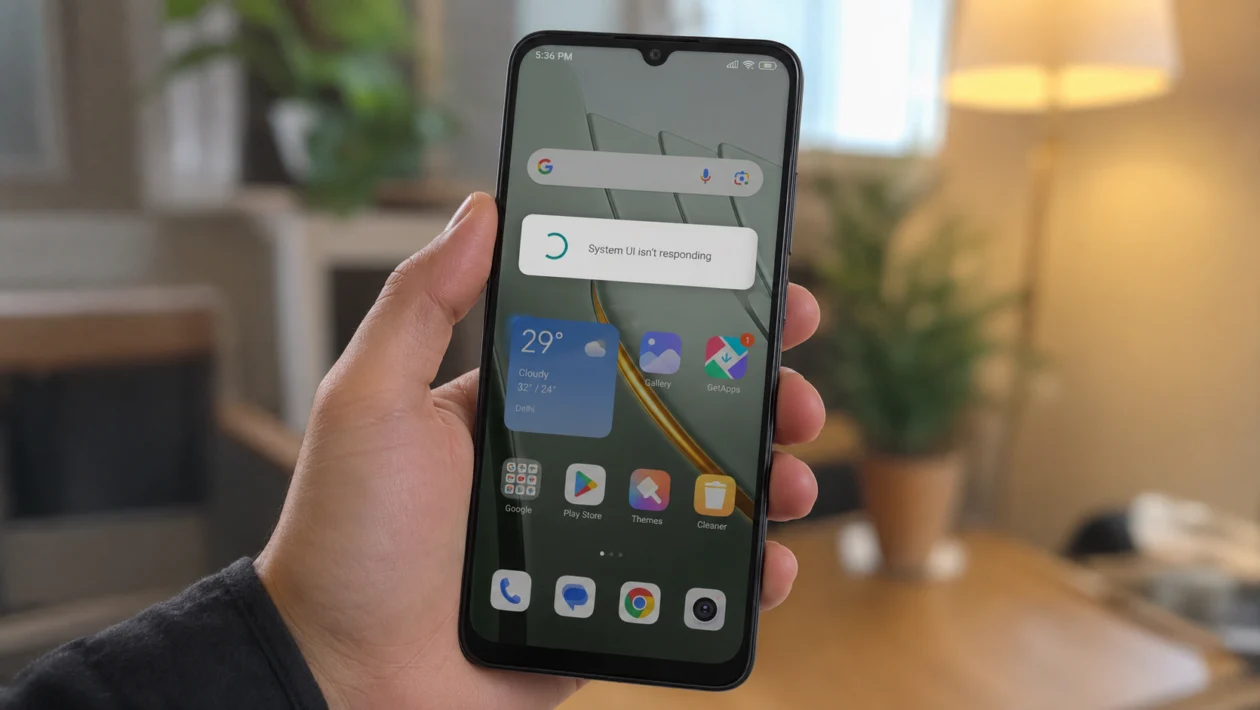
If your Xiaomi POCO C81 Pro feels slow, stutters while scrolling, delays when opening apps, or freezes for a second when switching screens, the phone is probably dealing with background apps, low storage, heavy animations, app bugs, or HyperOS settings that need adjusting.
The POCO C81 Pro is an entry-level phone, so it can handle everyday tasks, but it may lag when too many apps run in the background or when storage gets crowded. Its large 6.9-inch display and up to 120Hz refresh rate can make scrolling feel smoother, but only when the system has enough memory and processing room to keep up.
Quick answer
To fix UI lags on the Xiaomi POCO C81 Pro, restart the phone first, then check storage, update HyperOS, update your apps, reduce background activity, and switch the display refresh rate to a smoother option. You should also clear the cache of laggy apps, remove unused apps, turn off heavy animations, scan for malware, and use a factory reset only if nothing else works.
POCO C81 Pro UI lag diagnostic table
| Symptom | Likely cause | Check first |
|---|---|---|
| Home screen stutters | Too many widgets, animations, or background apps | Recent apps and Home screen layout |
| Apps open slowly | Low RAM, app cache, or outdated apps | App updates and storage |
| Scrolling feels choppy | Refresh rate or system load | Display refresh rate |
| Phone lags after update | System re-optimising or buggy apps | Restart and update apps |
| Keyboard delays | Keyboard cache or memory pressure | Keyboard app settings |
| Lag when multitasking | Background apps and memory extension | Battery and memory settings |
| Random freezing | Low storage or system bug | Storage and software update |
| Lag in games | Entry-level chipset limits, heat, or graphics settings | Game settings and background apps |
Why your Xiaomi POCO C81 Pro is lagging
Your Xiaomi POCO C81 Pro may lag because the phone is running too many processes at once. This is more noticeable on budget phones, especially when apps, animations, updates, widgets, and background services are all active at the same time.
Common causes include:
Too many apps running in the background
Low internal storage
Outdated HyperOS version
Outdated or buggy apps
Heavy animations
High refresh rate instability
Memory extension issues
Too many widgets
Malware or suspicious apps
A system problem after an update
Start with the easier fixes below before doing anything drastic.
1. Restart your POCO C81 Pro
Start here. A restart clears temporary glitches, closes stuck background processes, and gives HyperOS a clean session.
- Press and hold the Power button.
- Tap Restart.
- Wait for the phone to turn back on.
- Use it normally for a few minutes.
- Check if the lag improves.
This is the simplest fix, but it works more often than people expect. If the lag started after long use, charging, gaming, or an update, a restart should be the first thing you try.
2. Free up internal storage
Low storage can make your phone feel slow. Apps need space for cache, downloads, updates, and temporary files. When storage is almost full, the system has less room to work smoothly.
To check storage:
- Open Settings.
- Tap About phone.
- Tap Storage.
- Check how much space is left.
- Delete large videos, unused apps, duplicate photos, and old downloads.
Try to keep at least 10GB to 15GB free if possible. If your POCO C81 Pro has the 64GB version, this matters even more because system files, apps, photos, and cache can fill the phone quickly.
You can also move photos and videos to cloud storage or a microSD card if your setup supports it.
3. Update HyperOS
Software bugs can cause UI lag, especially after a new phone launch or a major system update. Xiaomi may release updates that improve stability, animations, background management, and app compatibility.
To update your phone:
- Open Settings.
- Tap About phone.
- Tap the HyperOS version card.
- Tap Check for updates.
- Install any available update.
- Restart the phone after updating.
Do not judge performance immediately after a big update. The phone may still be updating apps, rebuilding cache, and re-optimising the system. Use it normally for a day before deciding whether the lag is still a problem.
4. Update your apps
Sometimes the phone is not the real problem. One outdated app can cause stutters, battery drain, overheating, or background activity that slows down the whole system.
To update apps from Google Play:
- Open the Google Play Store.
- Tap your profile icon.
- Tap Manage apps and device.
- Tap Update all.
Also check Xiaomi’s app store or system app updater if available in your region.
Pay close attention to apps you use every day, such as social media apps, messaging apps, browsers, keyboards, launchers, shopping apps, and video apps. These apps often run in the background and can affect system smoothness.
5. Clear cache for laggy apps
If the lag happens in one app, clear that app’s cache first. For example, if the phone is smooth everywhere else but lags in Chrome, Facebook, TikTok, YouTube, or the keyboard, the issue may be app-specific.
To clear app cache:
- Open Settings.
- Tap Apps.
- Tap Manage apps.
- Choose the laggy app.
- Tap Storage.
- Tap Clear cache.
Do not tap Clear data unless you understand what it does. Clearing data can remove app settings, saved sessions, downloads, or local files inside that app.
Clear cache is safer. Start there.
6. Limit background apps
Background apps can slow down the POCO C81 Pro, especially if many apps are syncing, sending notifications, tracking location, or refreshing content at the same time.
To limit background activity:
- Open Settings.
- Tap Battery.
- Tap the settings for battery usage or app battery saver.
- Choose apps that do not need to run all the time.
- Set them to a restricted or battery-saving mode.
You can restrict apps such as shopping apps, games, food delivery apps, travel apps, or apps you rarely open.
Be careful with messaging, banking, email, and security apps. Restricting them too aggressively may delay notifications.
7. Adjust refresh rate and display settings
The POCO C81 Pro has a large display with up to 120Hz refresh rate. A higher refresh rate can make scrolling feel smoother, but it can also expose performance dips if the phone is under load.
To check refresh rate:
- Open Settings.
- Tap Display.
- Tap Refresh rate.
- Choose a balanced or standard option if the phone feels unstable.
- Test scrolling again.
If the lag feels like uneven scrolling rather than slow app opening, refresh rate settings are worth checking.
Also reduce display load:
- Lower brightness.
- Use a simple wallpaper.
- Remove live wallpapers.
- Remove unnecessary home screen widgets.
- Avoid third-party launchers if they stutter.
Live wallpapers and overloaded home screens can make an entry-level phone feel slower than it really is.
8. Turn off or reduce animations
Animations make the phone look smoother, but they can also make a slower phone feel delayed. Reducing animations can make taps, app switching, and screen transitions feel faster.
To reduce animations:
- Open Settings.
- Tap Additional settings.
- Tap Accessibility.
- Look for Vision or Motion settings.
- Enable Remove animations if available.
You can also use Developer options, but only if you are comfortable changing advanced settings.
To use Developer options:
- Open Settings.
- Tap About phone.
- Tap OS version several times until Developer options are enabled.
- Go back to Settings.
- Tap Additional settings.
- Tap Developer options.
- Find Window animation scale, Transition animation scale, and Animator duration scale.
- Set each one to 0.5x.
Do not change random developer settings. Only adjust animation scale if your goal is to make the UI feel faster.
9. Uninstall suspicious or unused apps
Some apps run too often in the background, show too many notifications, or use aggressive services that affect performance. This is common with cleaner apps, battery saver apps, unknown APKs, third-party launchers, free VPNs, and apps downloaded outside official stores.
To remove unused apps:
- Open Settings.
- Tap Apps.
- Tap Manage apps.
- Sort by rarely used apps if available.
- Uninstall apps you no longer need.
You should especially remove:
Phone cleaner apps you do not trust
Duplicate battery saver apps
Unknown APKs
Old games you no longer play
Third-party launchers that lag
Apps with too many ads
Apps that ask for unnecessary permissions
HyperOS already has built-in system management tools, so installing several extra “booster” apps can make performance worse instead of better.
10. Reset the phone if nothing else works
Use this only after trying the other fixes. A factory reset can fix deep software problems, corrupted settings, and persistent lag after updates, but it deletes your data.
Before resetting, back up your photos, videos, contacts, WhatsApp data, files, and important app logins.
To factory reset:
- Open Settings.
- Tap About phone.
- Tap Factory reset.
- Choose Erase all data.
- Follow the on-screen instructions.
After the reset, do not reinstall every old app immediately. Set up the phone, update HyperOS, install your most important apps first, then test performance. If the lag returns after installing a specific app, that app may be the cause.
Should you use Memory Extension on the POCO C81 Pro?
Memory Extension can help with multitasking in some cases, but it is not the same as real RAM. It uses storage as extra virtual memory, which may help keep apps open, but it may not always make the phone feel faster.
Try both settings:
- Open Settings.
- Tap Additional settings.
- Tap Memory extension.
- Turn it on or adjust the amount if available.
- Restart the phone.
- Test performance for a day.
If the phone feels smoother, keep it on. If app switching feels slower or storage is already low, turn it off and free up storage instead.
When to contact Xiaomi or POCO support
Contact support if your POCO C81 Pro still lags badly after a reset, freezes during basic tasks, restarts randomly, overheats while idle, or becomes unusable even with only a few apps installed.
You should also get help if the lag started after physical damage, water exposure, a failed update, or a suspicious APK installation.
FAQ
Why is my POCO C81 Pro lagging even though it is new?
A new POCO C81 Pro can lag during setup because it may be installing updates, syncing apps, restoring backups, and indexing files in the background. Restart it, update apps, and use it normally for a day before judging performance.
Does the 120Hz display cause lag?
The 120Hz display does not directly cause lag, but a high refresh rate can make small stutters easier to notice. If scrolling feels uneven, test a lower or balanced refresh rate.
Will clearing cache delete my files?
Clearing app cache usually does not delete personal files. It removes temporary files used by the app. Avoid Clear data unless you are ready to reset that app.
