
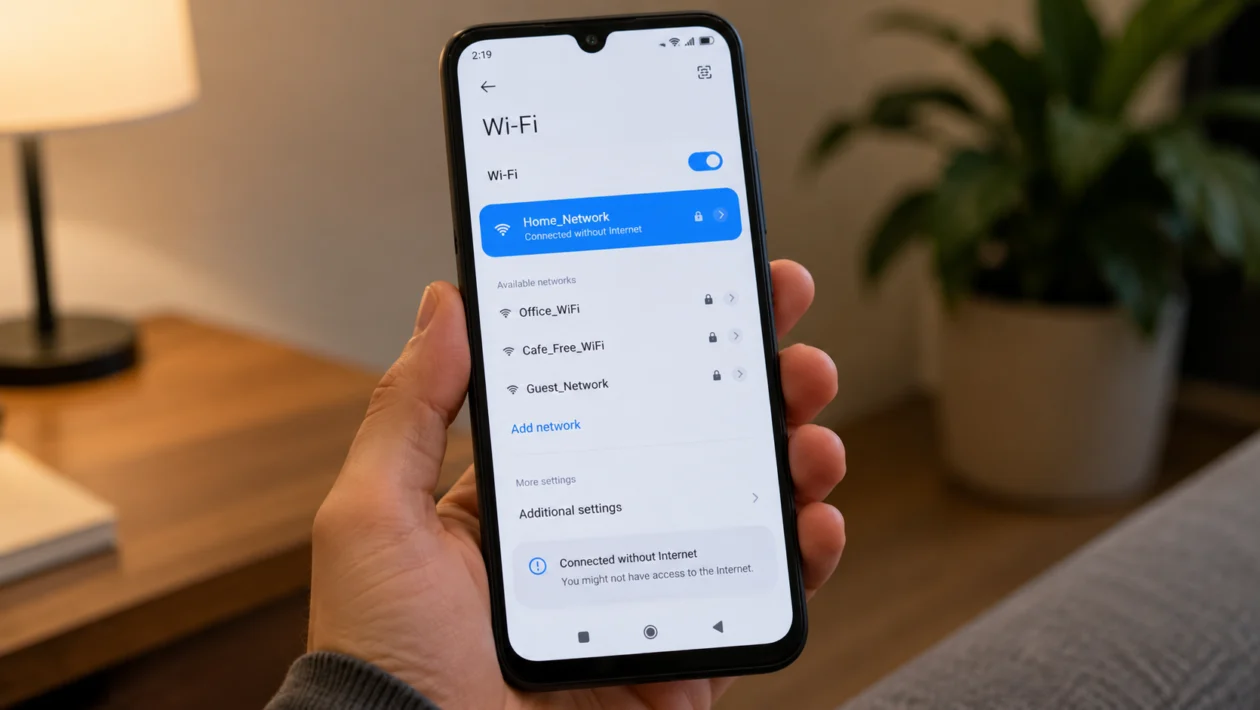
If your Xiaomi Poco C81 Pro has no internet connection, the problem can come from Wi-Fi, mobile data, SIM settings, APN configuration, weak signal, router issues, VPN settings, or a temporary HyperOS glitch.
The phone may show that it is connected to Wi-Fi but still refuse to load websites. Mobile data may be turned on, but apps may act like the phone is offline. Sometimes only one app has no internet, while everything else works normally.
Start with the simple checks first. Restart the phone, test another app, switch between Wi-Fi and mobile data, then move through the fixes below.
Quick answer
If your Xiaomi Poco C81 Pro has no internet connection, turn Airplane mode on and off, restart the phone, then test both Wi-Fi and mobile data. If Wi-Fi is connected but has no internet, restart your router and forget the Wi-Fi network. If mobile data is not working, check your SIM, data balance, network mode, and APN settings.
If none of that works, go to Settings > More connectivity options > Reset Wi-Fi, mobile networks, and Bluetooth, then reconnect to Wi-Fi or set up mobile data again.
Xiaomi Poco C81 Pro no internet diagnostic table
| Symptom | Likely cause | What to check first |
|---|---|---|
| Connected to Wi-Fi but no internet | Router issue, bad Wi-Fi session, network switching | Restart router, forget Wi-Fi network |
| Mobile data is on but offline | SIM issue, no data balance, APN problem | SIM status, data plan, APN settings |
| Internet works on Wi-Fi but not mobile data | Carrier, SIM, APN, signal issue | Network mode and APN |
| Internet works on mobile data but not Wi-Fi | Router, DNS, Wi-Fi password, weak signal | Router and Wi-Fi settings |
| Only some apps have no internet | App restriction, Data Saver, VPN | App data settings |
| Internet drops randomly | Weak signal, network switching, router range | Signal strength and Wi-Fi stability |
| No internet after update | Temporary software or app issue | Restart and update apps |
| No internet after changing SIM | APN or carrier provisioning issue | APN and SIM registration |
Why your Xiaomi Poco C81 Pro has no internet connection
Your Xiaomi Poco C81 Pro may lose internet because the phone is connected to a network that does not actually have online access. This often happens with Wi-Fi networks when the router is working poorly, the phone has a bad saved connection, or the internet service itself is down.
For mobile data, the usual causes are different. The SIM may not be registered properly, the data plan may be expired, the APN may be wrong, or the phone may be stuck on a weak network signal.
It can also happen after a software update, after changing SIM cards, after using a VPN, or after turning on settings that limit background data.
1. Turn Airplane mode on and off
Start here because this refreshes the phone’s wireless connections without deleting anything.
- Swipe down from the top of the screen.
- Tap Airplane mode.
- Wait 10 to 15 seconds.
- Tap Airplane mode again to turn it off.
- Wait for Wi-Fi or mobile signal to return.
- Open Chrome, YouTube, or another app to test the connection.
This can fix a temporary network registration issue, especially if the phone recently moved between Wi-Fi, mobile data, or weak signal areas.
2. Restart your Xiaomi Poco C81 Pro
A restart can clear small software problems that stop Wi-Fi or mobile data from working properly.
- Press and hold the Power button.
- Tap Restart.
- Wait for the phone to turn back on.
- Unlock the phone.
- Test the internet again.
This will not delete your apps, photos, messages, or files.
If the internet stopped working after an update or after installing a new app, restart the phone before changing deeper settings.
3. Check if the problem is Wi-Fi or mobile data
Before changing settings, find out which connection is failing.
- Turn Wi-Fi off.
- Turn Mobile data on.
- Test the internet.
- Turn Wi-Fi back on.
- Connect to your Wi-Fi network.
- Test the internet again.
If mobile data works but Wi-Fi does not, the issue is probably your router, Wi-Fi network, or saved Wi-Fi settings.
If Wi-Fi works but mobile data does not, check your SIM, data plan, APN, and carrier signal.
If both Wi-Fi and mobile data fail, the issue may be a system setting, VPN, private DNS, app restriction, or network configuration problem.
4. Restart your Wi-Fi router
If your Xiaomi Poco C81 Pro connects to Wi-Fi but has no internet, the router may be the problem.
- Unplug your router from power.
- Wait at least 30 seconds.
- Plug it back in.
- Wait for the internet light to become stable.
- Reconnect your Poco C81 Pro to Wi-Fi.
- Test a website or video app.
Also check if other devices can use the same Wi-Fi network. If your laptop, tablet, or another phone also has no internet, the problem is likely the router or internet provider, not the Poco C81 Pro.
5. Forget and reconnect to the Wi-Fi network
A saved Wi-Fi profile can become outdated or corrupted. Forgetting the network forces the phone to create a fresh connection.
- Open Settings.
- Tap Wi-Fi.
- Tap the Wi-Fi network you are using.
- Tap Forget network.
- Restart the phone.
- Go back to Wi-Fi.
- Select the same network.
- Enter the Wi-Fi password again.
- Test the connection.
Use this fix when the phone says connected but pages do not load.
This is also worth trying if the router password was recently changed, the router was replaced, or the Wi-Fi name was reused from an old router.
6. Check your SIM, mobile data, and data balance
If the issue happens only on mobile data, check the basics before editing APN settings.
- Open Settings.
- Tap SIM cards & mobile networks.
- Make sure your SIM is enabled.
- Make sure Mobile data is turned on.
- Confirm the correct SIM is selected for mobile data if you use two SIM cards.
- Check your prepaid balance, postpaid data limit, or carrier app.
- Move to an area with stronger signal.
- Test the internet again.
If your Poco C81 Pro shows signal bars but mobile data still does not work, your data plan may be expired, restricted, or not provisioned correctly by the carrier.
Also try removing and reinserting the SIM card. Turn the phone off first, remove the SIM tray, check that the SIM is seated properly, then turn the phone back on.
7. Check APN settings
APN settings tell the phone how to connect to your carrier’s mobile internet service. If the APN is wrong, mobile data may turn on but not actually work.
- Open Settings.
- Tap SIM cards & mobile networks.
- Choose the SIM you use for mobile data.
- Tap Access Point Names.
- Select your carrier’s default APN if available.
- Tap Reset if there is an option to restore default APN settings.
- Restart the phone.
- Test mobile data again.
If you changed SIM cards, traveled to another country, or manually edited APN settings, this fix is especially important.
For manual APN values, use your carrier’s official support page or carrier app. Do not copy random APN settings from forums unless they match your exact carrier and country.
8. Turn off VPN, Private DNS, and Data Saver
VPN, Private DNS, and Data Saver can block or slow internet access if they are misconfigured.
To turn off VPN:
- Open Settings.
- Tap VPN, or search for VPN in Settings.
- Disconnect the active VPN.
- Test the internet again.
To check Private DNS:
- Open Settings.
- Tap More connectivity options.
- Tap Private DNS.
- Choose Off or Automatic.
- Test the connection again.
To check Data Saver:
- Open Settings.
- Tap Mobile network or Connection & sharing.
- Look for Data Saver.
- Turn it off temporarily.
- Test your apps again.
This helps when browsers work but apps do not, or when only selected apps cannot connect.
If you recently installed an ad blocker, firewall app, VPN app, or DNS app, disable it temporarily and test the connection again.
9. Update HyperOS and your apps
Software bugs can affect Wi-Fi, mobile data, app connectivity, and background network access. App updates can also fix connection issues inside specific apps.
To update your phone:
- Open Settings.
- Tap About phone.
- Tap HyperOS version.
- Check for updates.
- Install any available update.
- Restart the phone.
To update apps:
- Open Google Play Store.
- Tap your profile icon.
- Tap Manage apps and device.
- Tap Update all, or update the affected apps first.
If the no internet issue started after a system update, give the phone a little time after restarting. Some apps may still be updating or re-optimising in the background.
But if the problem continues after a day of normal use, move to the network reset below.
10. Reset Wi-Fi, mobile networks, and Bluetooth
Use this when the basic fixes do not work. It resets network-related settings without deleting your photos, apps, or personal files.
It will remove saved Wi-Fi networks, paired Bluetooth devices, and mobile network preferences, so you will need to reconnect them afterward.
- Open Settings.
- Tap More connectivity options.
- Tap Reset Wi-Fi, mobile networks, and Bluetooth.
- Tap Reset settings.
- Confirm if asked.
- Restart your Poco C81 Pro.
- Reconnect to Wi-Fi.
- Test mobile data again.
This is one of the best fixes when the phone has no internet on both Wi-Fi and mobile data, or when the issue started after changing network settings.
What to do if your Poco C81 Pro still has no internet
If your Xiaomi Poco C81 Pro still has no internet after all 10 fixes, test your SIM in another phone and test another SIM in your Poco C81 Pro.
If your SIM does not work in another phone, contact your carrier.
If another SIM also fails in your Poco C81 Pro, the phone may have a software, antenna, SIM slot, or hardware issue.
You should contact Xiaomi or POCO support if:
The phone cannot connect to any Wi-Fi network
Mobile data does not work with any SIM
The SIM is not detected
The phone keeps dropping signal
The issue started after physical damage or water exposure
Network reset does not help
The phone shows emergency calls only
FAQ
Why is my Xiaomi Poco C81 Pro connected to Wi-Fi but has no internet?
This usually means the phone is connected to the router, but the router is not providing internet access. Restart the router, forget the Wi-Fi network, reconnect, and test another device on the same Wi-Fi.
Why is mobile data not working on my Poco C81 Pro?
Mobile data may fail because of an expired data plan, weak signal, disabled SIM, wrong data SIM selection, incorrect APN settings, or a carrier issue. Check SIM cards & mobile networks first, then reset the APN.
Will resetting network settings delete my files?
No. Resetting Wi-Fi, mobile networks, and Bluetooth does not delete your photos, apps, contacts, or messages. It removes saved Wi-Fi networks, Bluetooth pairings, and network preferences.
