
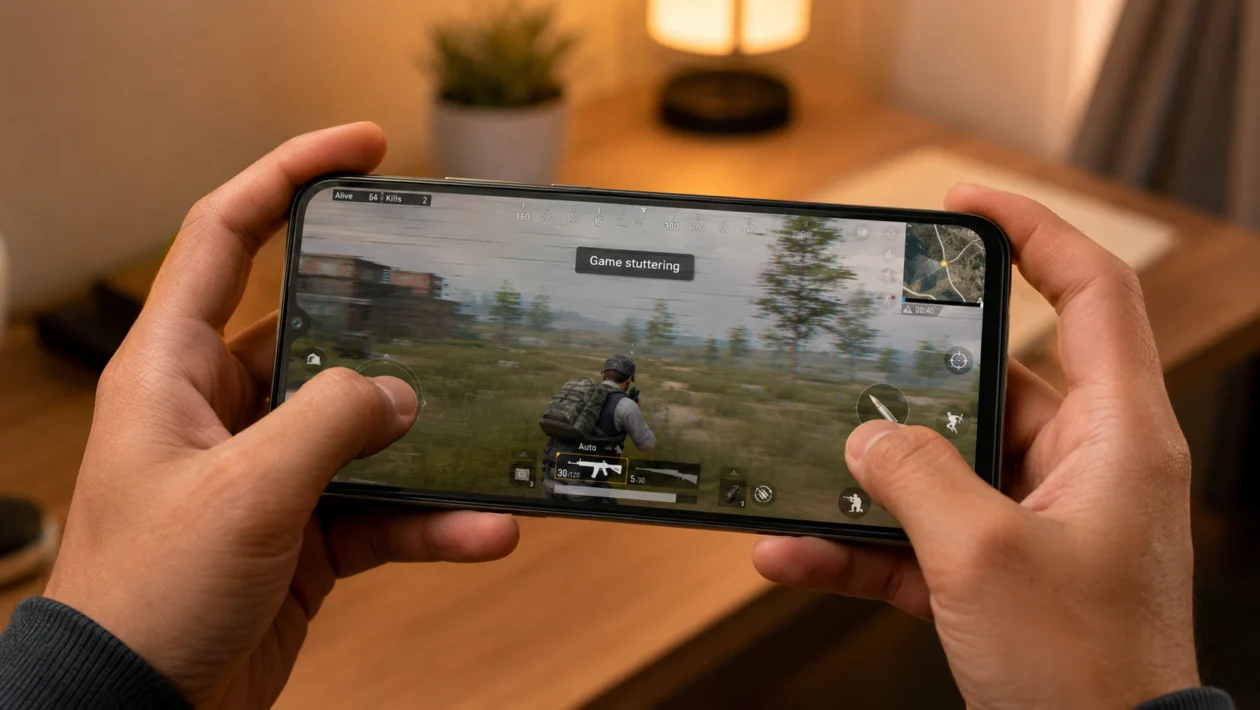
If your Xiaomi Poco C81 Pro stutters when playing games, watching videos, or scrolling through media apps, the phone may be struggling with background activity, heat, low storage, unstable refresh rate behavior, or game settings that are too heavy for the hardware.
The Poco C81 Pro is built as an entry-level entertainment phone with a large 6.9-inch display, up to 120Hz refresh rate, a 6000mAh battery, Xiaomi HyperOS 3.0, and a UNISOC T7250 processor. That setup is fine for everyday use and lighter games, but demanding games can still stutter if the phone is hot, overloaded, or running too many background tasks.
Start with the simple fixes first. Most stuttering problems improve after closing background apps, lowering game graphics, clearing storage, updating the game, and using Game Turbo properly.
Quick answer
To fix stuttering on the Xiaomi Poco C81 Pro, close background apps, restart the phone, update the game, lower graphics settings, clear storage, turn on Game Turbo, and keep the phone cool while playing. If the lag happens only in one game, the game settings are probably too high. If every game stutters, check storage, software updates, overheating, and background apps.
Xiaomi Poco C81 Pro stuttering diagnostic table
| Symptom | Likely cause | Check first |
|---|---|---|
| Game stutters after 10 to 15 minutes | Heat or thermal throttling | Phone temperature, case, brightness |
| Stuttering starts as soon as the game opens | Graphics settings too high | Game graphics and FPS settings |
| Lag happens in all games | Low storage, background apps, or system issue | Storage, RAM, updates |
| Game freezes during online matches | Weak Wi-Fi or mobile data | Internet connection |
| Video playback stutters | App cache, display refresh, or storage issue | App update, storage, refresh rate |
| Phone feels warm and slow | Heavy load or charging while playing | Stop charging, remove case |
| Lag started after an update | App or system re-optimising | Restart, update apps, wait 24 to 48 hours |
Why your Xiaomi Poco C81 Pro stutters when playing
Your Xiaomi Poco C81 Pro may stutter because the game is asking for more performance than the phone can comfortably deliver at your current settings.
Common causes include:
Background apps using memory
High graphics settings
High frame rate settings
Low internal storage
Phone overheating
Weak internet connection
Outdated game version
Outdated HyperOS software
Battery saver limiting performance
Too many notifications while playing
Game cache problems
The Poco C81 Pro has a large display and 120Hz refresh rate, but that does not mean every game will run smoothly at high graphics or high FPS. For heavier games, stable performance usually matters more than visual quality.
1. Restart your Xiaomi Poco C81 Pro
Start with a restart. It sounds basic, but it can clear temporary system issues, close stuck background processes, and refresh memory before you play again.
- Press and hold the Power button.
- Tap Restart.
- Wait for the phone to turn back on.
- Open the game again.
- Play for a few minutes and check if the stuttering improves.
This will not delete your files, apps, photos, or game data.
Use this first if the stuttering appeared suddenly after the phone had been running for several days.
2. Close background apps before playing
Games can stutter when too many apps are open in the background. Social apps, browsers, video apps, shopping apps, and messaging apps can continue using memory, network access, and battery.
Before opening the game:
- Swipe up from the bottom of the screen and hold.
- Close apps you are not using.
- Keep only the game open.
- Avoid switching between many apps while playing.
This is especially important if your Poco C81 Pro has the 4GB RAM version. A game may run fine at first, then start stuttering once background apps begin syncing or sending notifications.
For better results, restart the phone before a long gaming session, then open only the game.
3. Lower the game graphics settings
If the game stutters during action scenes, team fights, racing, explosions, or crowded areas, the graphics settings may be too high.
Open the game’s settings and lower:
Graphics quality
Texture quality
Shadow quality
Effects quality
Anti-aliasing
Resolution scale
Frame rate
A good starting setup for the Poco C81 Pro is:
Graphics: Low or Medium
Frame rate: Medium or 30 FPS
Shadows: Off or Low
Effects: Low
Anti-aliasing: Off
This may not look as sharp, but it can make gameplay feel smoother. For budget phones, consistent FPS is usually better than high graphics with constant frame drops.
4. Turn on Game Turbo
Xiaomi phones usually include Game Turbo to help manage performance, notifications, touch response, and background activity while gaming.
To check it:
- Open the Security app.
- Tap Game Turbo.
- Add your game if it is not listed.
- Open the game from Game Turbo.
- Check available performance and notification options.
Game Turbo can help reduce interruptions and keep the phone focused on the game. It will not turn the Poco C81 Pro into a gaming phone, but it can help with small stutters caused by background activity.
Also turn off floating windows, screen recording, and unnecessary overlays while playing. Those extras can make stuttering worse.
5. Free up storage space
Low storage can make a phone feel slow, especially when games need space for cache files, updates, maps, textures, or temporary data.
Check storage:
- Open Settings.
- Tap About phone.
- Tap Storage.
- Check how much free space is left.
Try to keep at least 10GB to 15GB free if you play large games.
To free space:
Delete old videos
Remove unused apps
Clear downloaded files
Move photos to cloud storage or a computer
Delete old game installers
Clear cache from large apps
Do not delete game data unless you are sure your progress is synced to an account.
If stuttering happens after a game update, storage is one of the first things to check. Some games need extra free space to unpack files properly.
6. Update the game and HyperOS
An outdated game can stutter because of bugs, poor optimization, or compatibility issues with your phone’s software.
Update your game:
- Open Google Play Store.
- Search for the game.
- Tap Update if available.
Update your phone:
- Open Settings.
- Tap About phone.
- Tap Xiaomi HyperOS version.
- Tap Check for updates.
- Install any available update.
Also check the game’s official page or community posts if the stuttering started after a recent patch. Sometimes the problem is not your phone. It may be a game-side optimization issue that needs another update.
If the stuttering started right after a system update, restart the phone and monitor it for 24 to 48 hours. Phones can feel slightly slower after an update while apps and system services settle.
7. Keep the phone cool while playing
Heat is one of the biggest reasons phones stutter during games. When the phone gets too warm, it may reduce performance to protect the battery and internal components.
To reduce heat:
Remove the phone case while gaming
Do not play under direct sunlight
Lower screen brightness
Avoid charging while playing
Close background apps
Take short breaks between matches
Use Wi-Fi instead of mobile data when possible
If the game runs smoothly for the first few minutes but stutters later, heat is likely part of the problem.
This is common during long gaming sessions. The phone may feel fine at first, then frame drops appear once the processor and battery get warm.
8. Turn off Battery Saver while gaming
Battery Saver can reduce background activity and limit performance. That helps battery life, but it can also cause stuttering in games.
To check it:
- Open Settings.
- Tap Battery.
- Turn off Battery Saver.
- Turn off Ultra Battery Saver if it is enabled.
- Open the game again.
Also check whether the game has been restricted in battery settings:
- Open Settings.
- Tap Apps.
- Tap Manage apps.
- Choose the game.
- Tap Battery saver.
- Choose a less restrictive option if needed.
Use Battery Saver when you are not gaming. Turn it off when you want smoother performance.
9. Check your internet connection
If the stuttering happens in online games, the problem may be connection lag rather than phone performance.
Signs of network-related stuttering include:
Characters teleporting
Delayed shots or skills
Sudden ping spikes
Game runs smoothly offline but lags online
Lag happens only on mobile data
Lag gets worse in crowded areas or at night
Try this:
- Switch from mobile data to Wi-Fi.
- Move closer to the router.
- Restart your router.
- Turn Airplane mode on, then off.
- Avoid downloads or video streaming on the same network.
- Test another online game.
If your connection is unstable, lowering graphics will not fully fix the problem. You need a more stable network first.
For mobile data, weak signal can also make the phone warmer and drain more battery while playing.
10. Clear the game cache or reinstall the game
If only one game stutters, freezes, or loads badly, its cache may be corrupted.
Clear the game cache:
- Open Settings.
- Tap Apps.
- Tap Manage apps.
- Select the game.
- Tap Storage.
- Tap Clear cache.
Do not tap Clear data unless your game progress is saved online.
If clearing cache does not help:
- Back up or sync your game account.
- Uninstall the game.
- Restart the phone.
- Reinstall the game from Google Play Store.
- Log in and test again.
This can fix stuttering caused by broken update files, corrupted resources, or old cached data.
Best settings for smoother gameplay on Xiaomi Poco C81 Pro
For smoother gaming, try these settings:
| Setting | Recommended option |
|---|---|
| Graphics quality | Low or Medium |
| Frame rate | 30 FPS or Medium |
| Shadows | Off or Low |
| Anti-aliasing | Off |
| Battery Saver | Off while gaming |
| Brightness | Medium |
| Game Turbo | On |
| Background apps | Closed |
| Phone case | Remove during long sessions |
| Connection | Stable Wi-Fi when possible |
The goal is not to force the highest graphics. The goal is stable gameplay.
When to get the phone checked
Get support if your Poco C81 Pro still stutters badly after trying all 10 fixes and you notice any of these problems:
The phone overheats even with light games
The phone restarts while playing
The screen freezes outside games too
Apps crash often
The phone is slow after a factory reset
The battery drains unusually fast while idle
The phone stutters even when storage is mostly free
At that point, the issue may be deeper than game settings. It could be a system problem, faulty storage, a bad update, or a hardware issue.
FAQs
Why does my Xiaomi Poco C81 Pro stutter when playing games?
It usually stutters because of high game settings, background apps, low storage, overheating, Battery Saver, or an unstable internet connection. If only one game stutters, the game may need an update or lower graphics settings.
Is the Poco C81 Pro good for gaming?
The Poco C81 Pro is better suited for casual and lighter games. It can run many games, but demanding titles may need low or medium graphics for smoother performance.
Should I use 120Hz while gaming?
A 120Hz display can make scrolling and supported visuals feel smoother, but it does not guarantee 120 FPS gaming. If a game stutters, lower the game’s frame rate and graphics first.
