
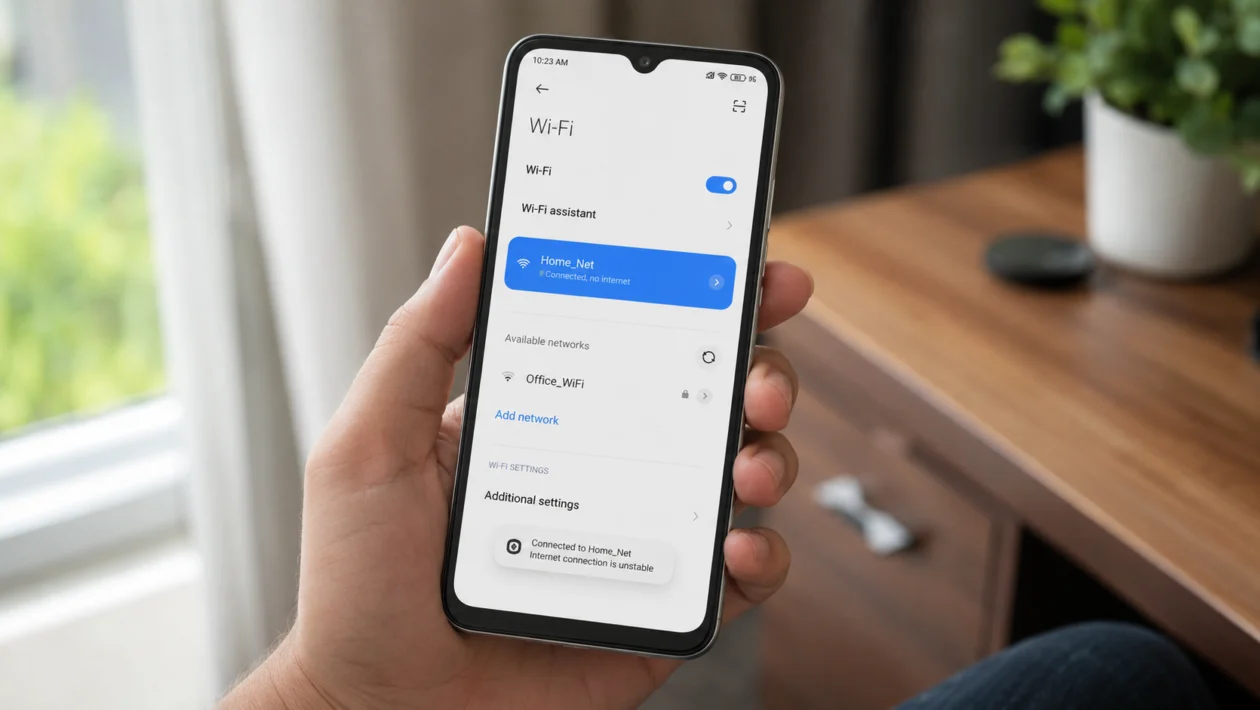
If your Xiaomi Poco C81 Pro keeps dropping Wi-Fi, reconnecting by itself, or showing connected but no internet, the problem is not always the phone. It can come from a saved network error, router issue, proxy setting, network switching, outdated software, or a third-party app interfering with the connection.
Start with the easy checks first. Restart the phone, forget and reconnect to the Wi-Fi network, then check whether the issue happens on one network or every network.
Quick answer
To fix unstable Wi-Fi on the Xiaomi Poco C81 Pro, restart the phone and router first. Then go to Settings > Wi-Fi, tap your connected network, forget it, and reconnect with the password.
If the Wi-Fi still disconnects, check Proxy is set to None, update HyperOS, disable network switching, remove third-party network apps, and reset Wi-Fi, mobile networks, and Bluetooth.
Xiaomi Poco C81 Pro unstable Wi-Fi diagnostic table
| Symptom | Likely cause | What to check first |
|---|---|---|
| Wi-Fi disconnects often | Saved network error or network switching | Forget Wi-Fi and reconnect |
| Connected but no internet | Router issue, proxy, DNS, or IP conflict | Test another device on the same Wi-Fi |
| Wi-Fi drops only at home | Router firmware, distance, or weak signal | Restart and update the router |
| Wi-Fi drops only at work | Network restriction or IP conflict | Ask the network admin |
| Wi-Fi works after restart then fails again | Software bug or third-party app | Update phone and remove network apps |
| Wi-Fi is slow but connected | Weak signal or congested band | Move closer to the router |
| All networks fail | Phone network settings issue | Reset Wi-Fi, mobile networks, and Bluetooth |
Why your Xiaomi Poco C81 Pro Wi-Fi is unstable
Your Xiaomi Poco C81 Pro Wi-Fi may be unstable because the phone is using outdated or corrupted Wi-Fi settings. It may also disconnect because of router firmware problems, proxy settings, third-party security apps, network switching, weak signal, or a system bug.
The Poco C81 Pro runs Xiaomi software, so the same Xiaomi Wi-Fi troubleshooting steps apply: restart the phone, forget the network, disable proxy settings, update the system, update the router, remove network optimization apps, and reset network settings if needed.
1. Restart your Xiaomi Poco C81 Pro
Start here before changing deeper settings.
A restart can clear temporary Wi-Fi conflicts, stuck background processes, and small system glitches.
- Press and hold the Power button.
- Tap Restart.
- Wait for the phone to turn back on.
- Connect to Wi-Fi again.
- Use the phone for a few minutes and check if the connection stays stable.
This will not delete your files, apps, photos, or messages.
2. Restart your Wi-Fi router
If the Poco C81 Pro disconnects only on your home Wi-Fi, the router may be the problem.
- Unplug the router from power.
- Wait 30 seconds.
- Plug it back in.
- Wait until the Wi-Fi light becomes stable.
- Reconnect your Poco C81 Pro.
Then test another phone or laptop on the same Wi-Fi. If every device disconnects, the issue is probably the router or internet provider, not your phone.
3. Forget the Wi-Fi network and reconnect
Saved Wi-Fi details can become outdated or corrupted. Forgetting the network gives your Poco C81 Pro a fresh connection.
- Open Settings.
- Tap Wi-Fi.
- Tap the arrow or details icon beside your connected network.
- Tap Forget network.
- Return to the Wi-Fi list.
- Select the network again.
- Enter the Wi-Fi password.
Use this fix if the phone connects for a while, disconnects, then reconnects again.
4. Check if Proxy is set to None
Wrong proxy settings can make Wi-Fi unstable or stop internet access even when the phone says it is connected.
- Open Settings.
- Tap Wi-Fi.
- Tap the arrow or details icon beside your connected network.
- Look for Proxy.
- Set it to None.
- Save the setting.
- Reconnect to Wi-Fi.
Most home Wi-Fi networks do not need a proxy. If this is a school, office, or enterprise Wi-Fi network, ask the network admin before changing it.
5. Turn off network switching
Some Xiaomi phones can switch between networks when the connection seems weak. That sounds useful, but it can also cause repeated Wi-Fi drops.
- Open Settings.
- Tap Wi-Fi.
- Look for Network acceleration.
- Tap Switch between networks.
- Turn it off.
- Test Wi-Fi again.
This is worth checking if your Poco C81 Pro disconnects for a few seconds, then reconnects by itself.
6. Move closer to the router and check signal strength
Unstable Wi-Fi can happen when the signal is weak, blocked, or crowded.
Try this:
- Move closer to the router.
- Avoid thick walls, metal shelves, mirrors, and appliances.
- Test Wi-Fi in the same room as the router.
- Check if the disconnection stops.
- Test both 2.4GHz and 5GHz Wi-Fi if your router has separate names.
Use 2.4GHz if you are far from the router. Use 5GHz if you are close and want better speed.
7. Update your Poco C81 Pro software
A system update can fix Wi-Fi bugs and improve connection stability.
- Open Settings.
- Tap About phone.
- Tap HyperOS version or System update.
- Tap Check for updates.
- Install any available update.
- Restart the phone after updating.
If the Wi-Fi problem started after an update, still check for a newer patch. Some connection bugs are fixed in follow-up updates.
8. Update your router firmware
Your phone may be fine, but the router may be running old firmware.
- Open your router app or admin page.
- Look for Firmware update, Software update, or System update.
- Install the latest version.
- Restart the router.
- Reconnect your Poco C81 Pro.
Router firmware updates can fix bugs that cause disconnections, slow speeds, and device compatibility issues.
9. Disable third-party network, VPN, or security apps
Some VPNs, ad blockers, firewall apps, antivirus apps, and network booster apps can interfere with Wi-Fi.
Check apps such as:
VPN apps
DNS changer apps
Wi-Fi booster apps
Network speed optimizer apps
Firewall or security apps
Ad-blocking apps with local VPN mode
To test:
- Turn off the VPN or network app.
- Restart the phone.
- Connect to Wi-Fi again.
- Use the phone normally.
- If Wi-Fi becomes stable, uninstall or reconfigure the app.
Do not use multiple VPN, DNS, and network optimization tools at the same time.
10. Reset Wi-Fi, mobile networks, and Bluetooth
Use this when the earlier fixes do not work.
Resetting network settings clears saved Wi-Fi networks, Bluetooth pairings, and mobile network settings. It does not delete your photos, apps, or personal files, but you will need to enter Wi-Fi passwords again.
- Open Settings.
- Tap More connectivity options.
- Tap Reset Wi-Fi, mobile networks, and Bluetooth.
- Tap Reset settings.
- Confirm if asked.
- Restart the phone.
- Reconnect to Wi-Fi.
After this, test the phone on your home Wi-Fi and another Wi-Fi network. If the Poco C81 Pro is unstable on every network, the issue may be deeper than a saved Wi-Fi profile.
When to contact Xiaomi support
Contact Xiaomi support or visit an authorized service center if:
The Poco C81 Pro disconnects from every Wi-Fi network
Wi-Fi will not turn on
The phone cannot find nearby Wi-Fi networks
Bluetooth and Wi-Fi both behave strangely
The issue continues after a network reset
The phone was dropped or exposed to liquid
Wi-Fi stopped working after overheating or physical damage
Before service, back up your phone.
FAQ
Why does my Xiaomi Poco C81 Pro keep disconnecting from Wi-Fi?
It may keep disconnecting because of corrupted saved Wi-Fi settings, proxy settings, network switching, weak signal, outdated system software, router firmware problems, or a third-party VPN or network app.
Why is my Poco C81 Pro connected to Wi-Fi but has no internet?
This usually points to a router issue, proxy setting, DNS problem, IP conflict, or internet provider outage. Test another device on the same Wi-Fi to confirm whether the problem is the phone or the network.
Will resetting network settings delete my files?
No. Resetting Wi-Fi, mobile networks, and Bluetooth will not delete your photos, apps, videos, or documents. It will remove saved Wi-Fi passwords, Bluetooth pairings, and network-related settings.
