
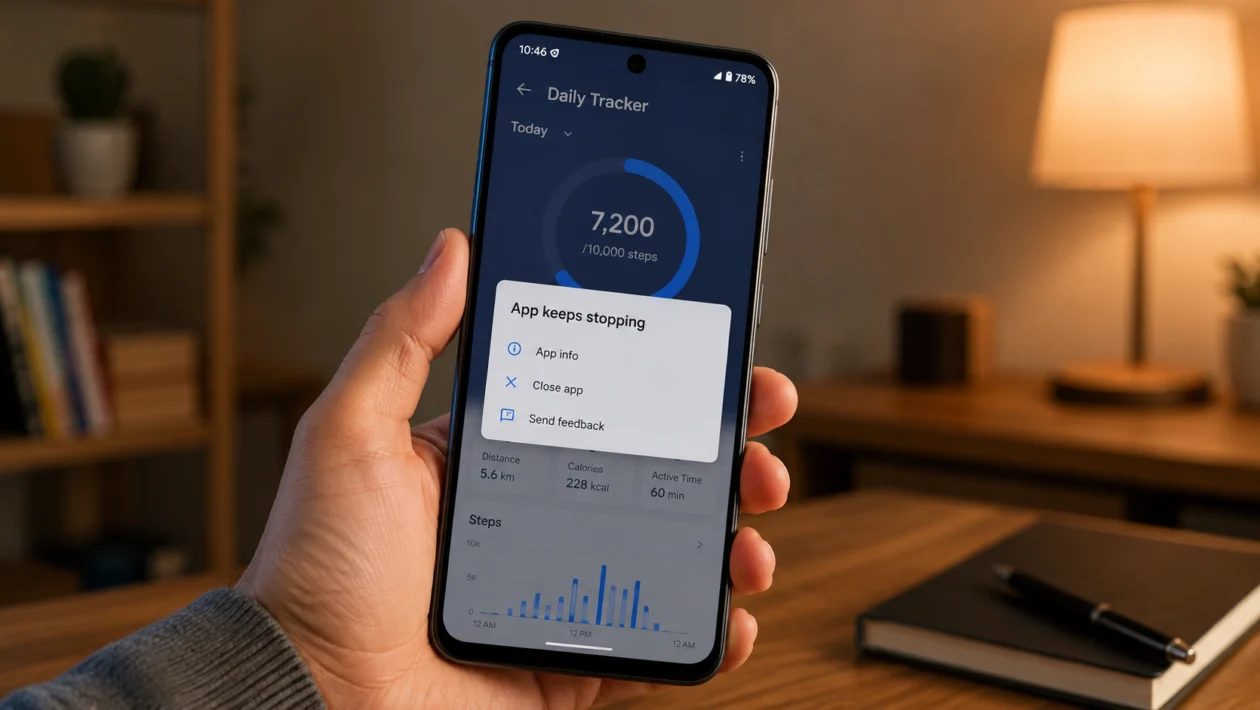
If apps keep crashing on your vivo Y60, the phone can feel unreliable fast. You open WhatsApp, Facebook, TikTok, YouTube, a banking app, or a game, then it suddenly closes, freezes, or shows an “app keeps stopping” message.
This does not always mean your vivo Y60 is broken. App crashes usually happen because of outdated apps, low storage, corrupted cache, background conflicts, weak internet, missing permissions, or a software bug.
Start with the simple fixes first. Restart the phone, update the app, clear the app cache, and check storage before trying deeper settings.
Quick answer
To fix a vivo Y60 with apps crashing, restart the phone, then update the crashing app from the Google Play Store. If it still crashes, go to Settings > Apps > App management, select the problem app, then clear its cache.
If many apps are crashing, check your storage, update the phone software, turn off battery restrictions for important apps, and test the phone in Safe Mode. A factory reset should only be used as the last option.
vivo Y60 apps crashing diagnostic table
| Symptom | Likely cause | What to check first |
|---|---|---|
| One app keeps crashing | App bug or corrupted cache | Update the app and clear cache |
| Many apps keep closing | Software issue, low storage, or system conflict | Restart and check storage |
| Apps crash after update | App compatibility or temporary system issue | Update apps and phone software |
| Games crash while playing | RAM pressure, heat, or low storage | Close background apps |
| Banking app crashes | Outdated app, security check, or Play Services issue | Update app and Google Play services |
| App opens then closes | Corrupted app data | Clear cache or reinstall app |
| Apps crash only on mobile data | Weak signal or network issue | Test on Wi-Fi |
| Apps crash in background | Battery restriction or autostart setting | Check background permissions |
Why do apps keep crashing on vivo Y60?
Apps may keep crashing on your vivo Y60 because the app cannot load properly, does not have enough phone resources, or is conflicting with the system.
The most common causes are:
- Outdated app version
- Corrupted app cache
- Low internal storage
- Too many apps running in the background
- Weak internet connection
- Missing app permissions
- Battery restrictions
- Google Play Services problem
- Recent software update
- Buggy or incompatible app version
Use the fixes below in order. Do not start with a factory reset unless nothing else works.
1. Restart your vivo Y60
Start with a restart. It sounds basic, but it can stop temporary app glitches, clear stuck background processes, and refresh system memory.
- Press and hold the Power button.
- Tap Restart.
- Wait for the vivo Y60 to turn back on.
- Open the app again.
- Check if it still crashes.
If only one app crashes, move to the next fix. If many apps are crashing, keep going through the list.
2. Update the crashing app
An app may crash if it has a bug or if the installed version is not working well with your phone software.
- Open the Google Play Store.
- Tap your profile icon.
- Tap Manage apps and device.
- Tap Updates available.
- Update the app that keeps crashing.
- Open the app again.
You can also search for the app directly in the Play Store and tap Update if the button appears.
This is especially worth doing for Google Play Store apps, banking apps, social media apps, messaging apps, and games.
3. Clear the app cache
The app cache stores temporary files. Sometimes those files become corrupted, which can make the app freeze, close, or fail to open.
- Open Settings.
- Tap Apps.
- Tap App management.
- Select the app that keeps crashing.
- Tap Storage.
- Tap Clear cache.
- Open the app again.
Clearing cache should not delete your account, saved files, or app login in most cases. It only removes temporary files.
If the app still crashes, do not clear data yet. Try the next fixes first unless you are ready to sign in again.
4. Clear app data if the same app still crashes
If clearing cache does not work, the app’s stored data may be damaged. Clearing app data resets the app as if it was newly installed.
Use this carefully.
- Open Settings.
- Tap Apps.
- Tap App management.
- Select the problem app.
- Tap Storage.
- Tap Clear data.
- Confirm the action.
- Open the app and sign in again.
Before doing this, back up anything important inside the app. Clearing data can remove saved settings, offline files, game progress, drafts, and login sessions.
This fix is useful when vivo Y60 apps keep stopping even after an update.
5. Free up storage space
Apps can crash when your vivo Y60 has very little internal storage left. The phone needs free space for app updates, cache, photos, downloads, and temporary system files.
- Open Settings.
- Tap RAM and storage space or Storage.
- Check available internal storage.
- Delete files you no longer need.
- Remove unused apps.
- Clear large downloads, old videos, and duplicate photos.
- Restart the phone.
Try to keep at least a few GB of free space. If the phone is almost full, apps may open slowly, freeze, or close suddenly.
Start with large files first. Videos, downloaded movies, screen recordings, and messaging app media usually take up the most space.
6. Close background apps and remove heavy apps from memory
If too many apps are running at the same time, your vivo Y60 may struggle to keep everything open. This can cause games, camera apps, video apps, and social media apps to crash.
- Swipe up from the bottom of the screen and hold to open recent apps.
- Close apps you are not using.
- Open the problem app again.
- If it works better, avoid running too many heavy apps at once.
This matters more when using games, video editors, camera filters, live streaming apps, or apps that keep syncing in the background.
If the crashing happens while gaming, close chat apps, video apps, screen recorders, VPN apps, and browsers before launching the game.
7. Check app permissions
Some apps crash when they cannot access the permissions they need. Camera apps may need camera and microphone access. Navigation apps need location. Messaging apps may need contacts, photos, or notification access.
- Open Settings.
- Tap Apps.
- Tap App management.
- Select the crashing app.
- Tap Permissions.
- Allow the permissions the app needs.
- Reopen the app.
Do not allow every permission blindly. Only enable permissions that make sense for the app.
For example, a map app needs location. A camera app needs camera access. A calculator app usually does not need your contacts.
8. Turn off battery restriction for important apps
Battery optimization can sometimes stop apps too aggressively in the background. This can make messaging apps, fitness apps, navigation apps, or banking apps freeze or close.
- Open Settings.
- Tap Battery.
- Look for background battery usage or battery management options.
- Select the app that keeps crashing.
- Allow background activity if the app needs it.
- Test the app again.
You should not do this for every app. Use it only for apps that need to stay active, such as messaging, email, navigation, health tracking, payment, or security apps.
This can help if vivo Y60 apps crash in the background or stop sending notifications.
9. Update your vivo Y60 software and Google Play services
If several apps crash at the same time, the issue may be connected to your phone software, Android system components, or Google Play services.
To update your phone:
- Open Settings.
- Tap System update.
- Check for updates.
- Install any available update.
- Restart your phone.
To update apps and Google components:
- Open the Google Play Store.
- Tap your profile icon.
- Tap Manage apps and device.
- Tap Update all.
- Search for Google Play services.
- Update it if an update is available.
Software updates can fix bugs, app compatibility problems, security issues, and system stability problems.
If the crashing started right after a system update, update all your apps too. Some apps need a newer version to work properly after Android or Funtouch OS changes.
10. Use Safe Mode, then reset only if needed
Safe Mode helps you check whether a third-party app is causing the crash problem. In Safe Mode, downloaded apps are temporarily disabled, so you can test if the phone works normally without them.
- Press and hold the Power button.
- Touch and hold Power off.
- Tap Safe Mode if the option appears.
- Wait for the phone to restart.
- Check if system apps work normally.
If your vivo Y60 works fine in Safe Mode, one of your downloaded apps may be causing the problem. Uninstall recently installed apps first, especially cleaners, launchers, VPN apps, battery savers, unknown APKs, or apps installed outside the Play Store.
If apps still crash after all fixes, back up your data and consider a factory reset.
To reset:
- Open Settings.
- Tap System management.
- Tap Backup & Reset.
- Tap Erase all data.
- Follow the on-screen instructions.
Only do this after backing up your photos, videos, contacts, files, WhatsApp chats, and app data.
When should you contact vivo support?
Contact vivo support if:
- Apps still crash after a factory reset
- System apps crash constantly
- The phone restarts by itself
- The vivo Y60 freezes even with no third-party apps installed
- The phone overheats and apps close repeatedly
- You see error messages after a failed software update
- The crashing started after physical damage or water exposure
If the issue happens with only one app, contact the app developer first. If the issue affects many apps, vivo support is the better next step.
FAQ
Why does my vivo Y60 keep saying “app keeps stopping”?
This usually means the app crashed because of a bug, corrupted cache, outdated software, low storage, or a compatibility issue. Start by updating the app, clearing its cache, and restarting the phone.
Will clearing cache delete my files?
No, clearing cache usually removes only temporary files. It should not delete your photos, account, messages, or saved files. Clearing data is different and can reset the app.
Why do apps crash after a software update?
After a software update, some apps may need their own updates to stay compatible. Restart your phone, update all apps from the Play Store, then monitor the phone again.
