
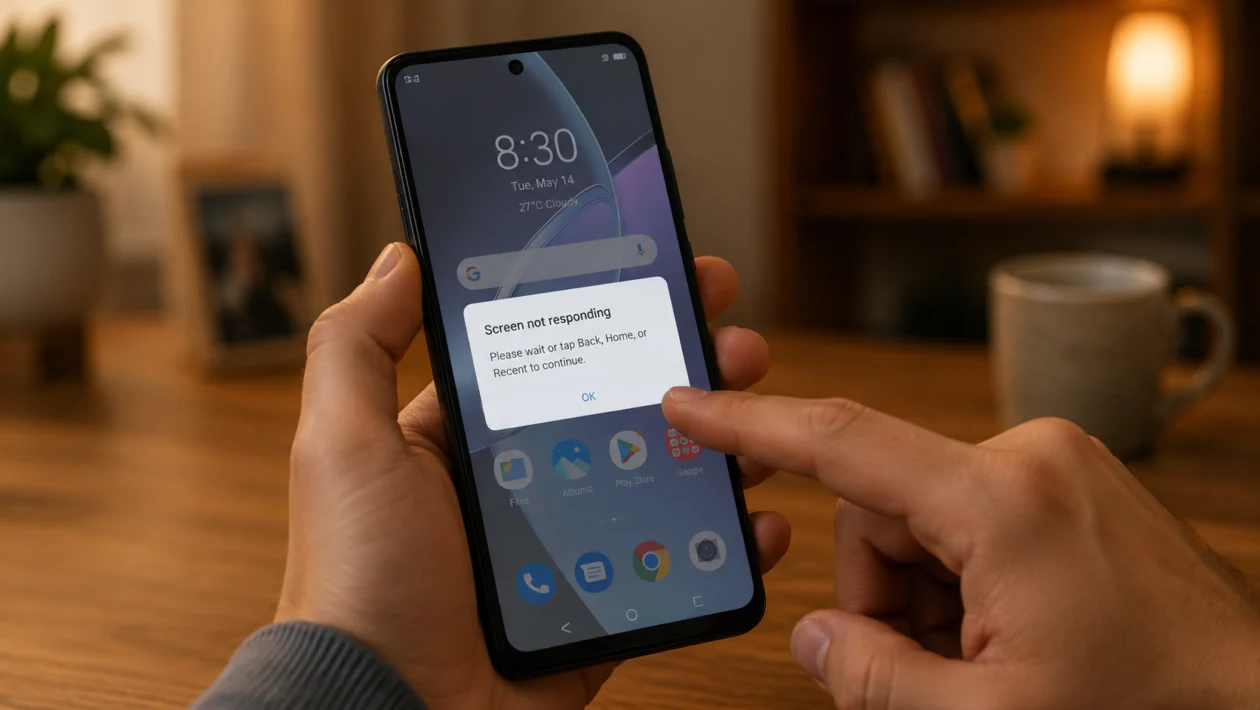
If your vivo Y60 screen is not responding, tapping, swiping, or typing can become frustrating fast. You may notice delayed touch, frozen areas, ghost touch, or a screen that only works after locking and unlocking the phone.
Screen unresponsiveness does not always mean the display is broken. It can happen because of a dirty screen, a bad screen protector, a frozen app, low storage, system lag, accidental accessibility settings, a recent update, moisture, or hardware damage.
Start with the simple checks first. Clean the screen, force restart the phone, remove the screen protector, then check whether the issue happens everywhere or only inside one app.
Quick answer
To fix a vivo Y60 with screen unresponsiveness, force restart the phone first. Press and hold the Power button and Volume down button until the phone restarts. Then clean the screen, remove the case or screen protector, update the software, and check whether a third-party app is causing the touch problem.
If only part of the screen is not responding, or the problem started after a drop or water exposure, the phone may need inspection by vivo support.
vivo Y60 screen unresponsiveness diagnostic table
| Symptom | Likely cause | What to check first |
|---|---|---|
| Screen does not respond at all | System freeze or hardware issue | Force restart |
| Touch works slowly | Lag, storage, low temperature, or background apps | Restart and storage |
| Only one app freezes | App bug or cache problem | Update or clear app cache |
| Touch works in some areas only | Screen protector, damage, or digitizer issue | Remove protector and inspect screen |
| Ghost touch happens | Moisture, dirty screen, bad charger, or display fault | Clean screen and remove charger |
| Screen freezes after update | App or system optimization issue | Update apps and wait 24 to 48 hours |
| Touch fails while charging | Faulty charger, cable, or grounding issue | Use original charger |
| Screen responds after locking/unlocking | Temporary software glitch | Restart and update software |
| Touch stopped after a drop | Hardware damage | Service center check |
| Screen stopped after getting wet | Moisture or internal damage | Power off and dry phone |
Why is my vivo Y60 screen not responding?
Your vivo Y60 screen may stop responding because the touch layer is not reading input properly, or because the phone software is frozen. In many cases, the issue is temporary and can be fixed without repair.
Common causes include:
Dirty or oily screen
Thick or cracked screen protector
Tight phone case pressing the screen edge
Frozen app
System lag
Low storage
Outdated software
Moisture on the screen
Bad charger or cable
Accessibility settings affecting touch behavior
Physical screen damage
Internal display or digitizer fault
Use the fixes below in order.
1. Force restart your vivo Y60
Start with a force restart. This is the fastest fix if the phone is frozen but the screen itself is not damaged.
Press and hold the Power button and Volume down button.
Keep holding until the vivo logo appears.
Release the buttons.
Wait for the phone to restart.
Test the screen again.
A force restart does not delete your photos, apps, or files. It only refreshes the system and closes stuck background processes.
Try this first if the screen is frozen, delayed, or not accepting taps.
2. Clean the screen and dry your hands
A touchscreen can become inaccurate when there is oil, dust, sweat, lotion, or moisture on the glass.
Turn off the screen.
Use a soft microfiber cloth.
Wipe the screen gently.
Dry your hands.
Remove any water, sweat, or grease from the screen.
Turn the screen back on and test touch again.
Do not use sharp tools, metal objects, or strong cleaning chemicals on the display.
This fix is especially useful if your vivo Y60 has ghost touch, delayed touch, or random taps.
3. Remove the screen protector and phone case
A cracked, thick, poorly installed, or lifted screen protector can interfere with touch response. A tight case can also press against the screen edge and cause false touches.
Remove the phone case first.
Test the screen.
If the problem continues, remove the screen protector.
Clean the display.
Test the screen again.
Look closely at the protector. If it has bubbles, cracks, dust under the glass, or lifted corners, replace it.
This is worth checking before changing software settings because the problem may be physical, not system-related.
4. Check if the problem happens in one app only
If your vivo Y60 screen works normally on the home screen but freezes inside one app, the app may be the problem.
Open a different app.
Try typing, scrolling, and tapping.
Go back to the app that freezes.
Check if the issue repeats.
If only one app is affected:
Open Settings.
Tap Apps.
Select the problem app.
Tap Storage.
Clear cache.
Update the app from the Play Store.
Restart the phone.
If the app still causes freezing, uninstall it temporarily and check whether the touchscreen works better.
5. Update your vivo Y60 software and apps
Software bugs can cause touch delay, app freezing, and screen lag. Updates may fix system stability problems and app compatibility issues.
To update your vivo Y60:
Open Settings.
Tap System update.
Download and install any available update.
Restart the phone after updating.
To update apps:
Open Google Play Store.
Tap your profile icon.
Tap Manage apps and device.
Tap Update all.
If the screen issue started after a recent update, give the phone 24 to 48 hours of normal use. Android phones may re-optimize apps and background services after a system update.
6. Free up storage and close heavy background apps
Low storage can make a phone slow enough that it feels like the screen is not responding. The touch may still work, but the phone reacts late.
Open Settings.
Tap Storage.
Check available space.
Delete unnecessary videos, downloads, and duplicate files.
Uninstall apps you no longer use.
Restart the phone.
You should also close heavy apps such as games, video editors, camera apps, and social media apps running in the background.
If your vivo Y60 screen responds slowly instead of completely failing, storage and memory pressure may be part of the problem.
7. Test the phone in Safe Mode
Safe Mode helps you check whether a downloaded app is causing the touch problem. In Safe Mode, third-party apps are temporarily disabled.
Press and hold the Power button.
Touch and hold Power off.
Tap Safe Mode if the option appears.
Wait for the phone to restart.
Test the touchscreen.
If the screen works normally in Safe Mode, a downloaded app is likely causing the issue.
Start by removing recently installed apps, especially screen filter apps, launchers, cleaning apps, battery saver apps, keyboard apps, or apps that draw over the screen.
Restart the phone normally after testing.
8. Turn off accessibility features that may affect touch
Some accessibility settings can change how taps, gestures, or floating controls behave. This can make the screen feel unresponsive even when the display is working.
Open Settings.
Tap Shortcuts and Accessibility.
Tap Accessibility.
Check TalkBack, Switch Access, Magnification, and touch-related settings.
Turn off anything you do not use.
Also check Easy Touch or floating shortcut features if you see icons on the edge of the screen.
If TalkBack is enabled by mistake, you may need to tap once to select an item, then double-tap to activate it. That can make the phone feel like touch is broken.
9. Check the charger, cable, temperature, and moisture
If your vivo Y60 screen becomes unresponsive while charging, the charger or cable may be causing electrical interference. This can show up as ghost touch, jumping taps, or delayed response.
Unplug the charger.
Test the screen.
Use the original vivo charger and cable if available.
Avoid damaged or loose charging cables.
Do not use the phone while it is wet.
Let the phone cool down if it feels hot.
Temperature can also affect touch response. If the phone is very cold or very hot, let it return to normal room temperature before testing again.
If the phone was exposed to water, power it off and let it dry. Do not charge it while moisture may still be inside the port or screen area.
10. Back up your data and reset only if needed
A factory reset should be one of the last software fixes. It can help if the touchscreen issue is caused by a serious system problem, but it will erase your phone if you do not back up first.
Before resetting:
Back up photos, videos, contacts, and files.
Sync important data to your Google account or vivo account.
Make sure you know your lock screen password and Google account details.
Charge the phone.
To reset:
Open Settings.
Tap System management.
Tap Backup and reset.
Choose Erase all data.
Follow the on-screen steps.
Only do this if the screen still responds enough to complete the backup and reset safely.
If the screen is completely unresponsive, do not reset the phone before trying to recover your data.
When should you contact vivo support?
Contact vivo support or visit a service center if:
The screen does not respond after a force restart
Only one part of the screen works
The problem started after a drop
The screen has cracks, lines, black spots, or flickering
The phone got wet before the issue started
Ghost touch continues after cleaning and removing the charger
The phone shuts down or restarts by itself
A factory reset does not fix the problem
If the touch layer or display connector is damaged, software fixes will not solve it. The phone may need a screen inspection or replacement.
FAQ
Why is my vivo Y60 screen frozen?
Your vivo Y60 screen may be frozen because of a system glitch, a stuck app, low storage, overheating, or a third-party app conflict. Force restart the phone first, then check apps, storage, and updates.
How do I restart my vivo Y60 if the screen is not working?
Press and hold the Power button and Volume down button until the phone restarts. This force restart can help when the screen is frozen and normal touch controls do not work.
Why does my vivo Y60 touch work only sometimes?
Intermittent touch problems can come from a dirty screen, cracked screen protector, moisture, background lag, charging interference, or early hardware failure. Remove the case and protector, clean the screen, restart, and test again.
