
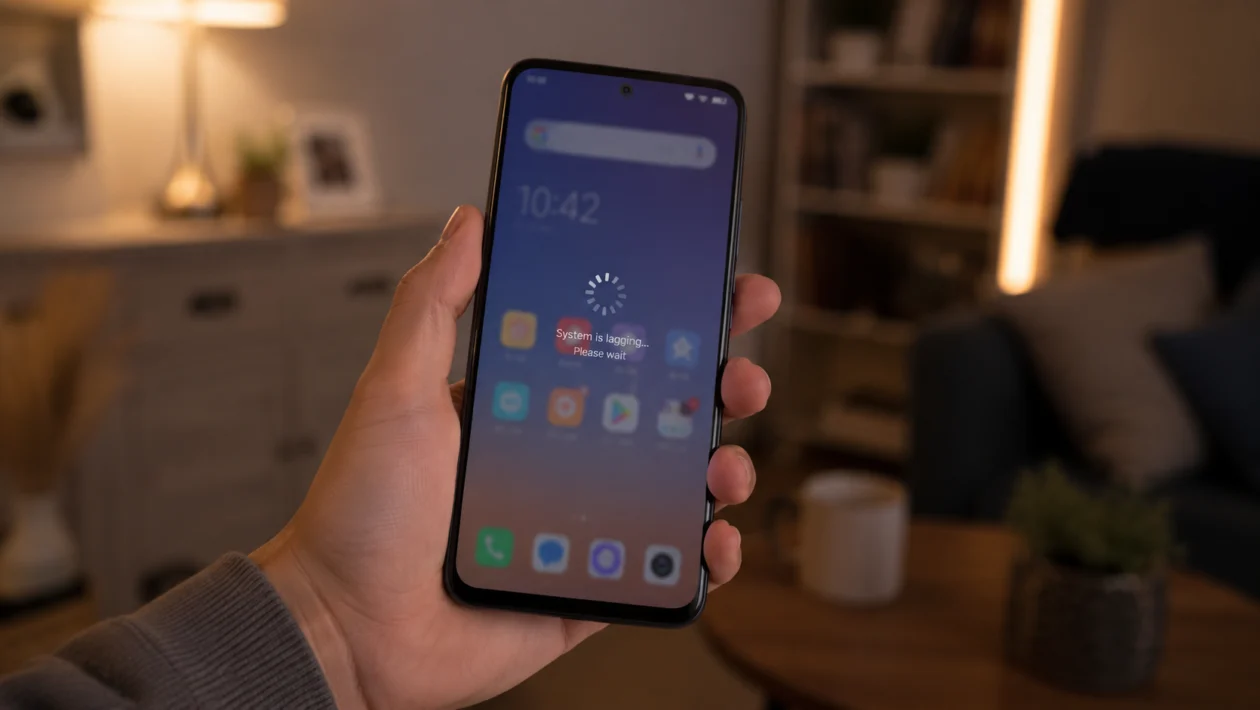
If your vivo Y60 feels slow, freezes between apps, or takes too long to respond, the phone may not be broken. System lag usually happens when too many apps are running, storage is nearly full, the software needs an update, or one app is using more memory than it should.
Start with the simple checks first. Close background apps, restart the phone, clear storage, update your apps, then adjust the settings that affect performance.
Quick answer
To fix a vivo Y60 with system lag, restart the phone, close unused apps, clear storage through iManager, update your apps, and check which apps are running in the background.
If the lag happens only when using one app, clear that app’s cache or reinstall it. If the entire phone feels slow, check storage, animations, software updates, and background app permissions.
If the vivo Y60 started lagging after a system update, give it a day or two to settle, then update all apps and restart the phone again.
vivo Y60 lag diagnostic table
| Symptom | Likely cause | What to check first |
|---|---|---|
| Phone lags when switching apps | Too many apps running | Recent apps and RAM usage |
| Phone freezes after opening one app | App bug or corrupted cache | App cache and app update |
| Lag gets worse when storage is full | Low internal storage | Settings > Storage |
| Phone slows down after an update | Apps re-optimising | Restart and update apps |
| Keyboard responds late | Keyboard app cache or memory pressure | Keyboard app settings |
| Games stutter | Graphics load, heat, or background apps | Game settings and Ultra Game Mode |
| Home screen lags | Launcher cache or widgets | Home screen widgets and app cache |
| Phone gets hot and slows down | Thermal throttling | Heavy apps, charging, and signal |
| Lag happens on mobile data | Weak signal or background syncing | Network signal and sync settings |
| Phone is slow all the time | Storage, software, or hardware issue | Backup, reset, or vivo support |
Why is your vivo Y60 lagging?
Your vivo Y60 may lag when the phone does not have enough free memory, storage, or processing headroom for the apps running in the background.
Common causes include:
Apps running in the background
Low internal storage
Too many widgets
Heavy games or video apps
Outdated apps
Old system software
App cache problems
Weak signal
Heat while charging or gaming
Too many animations
Malware or suspicious apps
A recent software update
A hardware or storage issue
The best fix depends on where the lag happens. Use the steps below in order.
1. Restart your vivo Y60
Start with a restart. It clears temporary system issues and closes background processes that may be stuck.
- Press and hold the Power button.
- Tap Restart.
- Wait for the phone to turn back on.
- Use the phone normally for a few minutes.
- Check if the lag improves.
This will not delete your photos, apps, or files.
If the phone feels smooth after restarting but slows down again later, the problem is probably a background app, storage issue, or memory-heavy app.
2. Close apps running in the background
Too many open apps can make the vivo Y60 feel slow, especially when switching between apps, opening the camera, typing, or returning to the home screen.
- Swipe up from the bottom of the screen and hold.
- Check the apps running in the background.
- Swipe away apps you are not using.
- Tap Clear all if available.
Do not keep games, shopping apps, video apps, maps, and social media apps running if you are not using them.
This fix helps most when the lag appears after long use without restarting the phone.
3. Free up storage with iManager
Low storage can make Android phones slow. Apps need free space for cache, updates, downloads, and temporary files. If your vivo Y60 storage is almost full, the system may lag even when you are doing simple tasks.
- Open iManager.
- Tap Space cleanup or Cleanup.
- Review junk files, cache, and large files.
- Delete files you do not need.
- Restart the phone after cleanup.
You can also check storage manually:
- Open Settings.
- Tap Storage.
- Check how much space is left.
- Delete large videos, old downloads, duplicate photos, or unused apps.
Try to keep at least 10% to 15% of your storage free. If your phone is always near full, lag will likely come back.
4. Update your apps
Outdated apps can cause lag, freezing, battery drain, and background errors. Update apps before changing deeper settings.
- Open Google Play Store.
- Tap your profile picture.
- Tap Manage apps and device.
- Tap Updates available.
- Tap Update all.
Also check vivo’s V-Appstore if you use apps from there.
After updating, restart your vivo Y60 and test the phone again.
If the lag started after one specific app update, the app may be the problem. Clear its cache, force stop it, or uninstall it temporarily.
5. Update the phone software
System updates can fix bugs, security issues, and performance problems. If your vivo Y60 has a pending update, install it when the battery is charged and your internet connection is stable.
- Open Settings.
- Tap System update.
- Check for updates.
- Download and install the update if available.
- Restart the phone after installation.
Do not interrupt the update while it is installing.
If your vivo Y60 started lagging right after a system update, that can happen for a short time. The phone may be updating apps, rebuilding cache, and adjusting background services. Use it normally for 24 to 48 hours, then check again.
6. Clear cache for the app that is lagging
If the lag happens only in one app, clear that app’s cache. This can help with apps that freeze, scroll slowly, open late, or crash.
- Open Settings.
- Tap Apps.
- Tap App manager.
- Choose the app that is lagging.
- Tap Storage.
- Tap Clear cache.
Do not tap Clear data unless you understand what it removes. Clearing data may delete app login sessions, settings, downloads, or offline files inside that app.
Start with cache only.
Good apps to check include:
TikTok
Facebook
Instagram
Chrome
Shopee
Lazada
YouTube
Messenger
Mobile games
Keyboard apps
If clearing cache does not help, update the app or uninstall and reinstall it.
7. Limit background activity for heavy apps
Some apps keep running even when you are not using them. They may sync, track location, send notifications, download content, or refresh feeds in the background.
- Open Settings.
- Tap Battery.
- Tap Background power consumption management if available.
- Find apps that do not need to run all the time.
- Restrict background activity for those apps.
You can also check app permissions:
- Open Settings.
- Tap Apps.
- Choose the app.
- Tap Permissions.
- Turn off permissions the app does not need.
Be careful with messaging, email, banking, work, and delivery apps. If you restrict them too much, notifications may arrive late.
Restrict background use for apps that do not need instant alerts, such as games, shopping apps, video apps, photo editors, and rarely used tools.
8. Remove apps you do not use
Unused apps can still take storage, run services, send notifications, and update in the background. Removing them can make the phone feel cleaner and faster.
- Open Settings.
- Tap Apps.
- Review installed apps.
- Uninstall apps you do not use.
- Restart your vivo Y60.
Also remove suspicious apps, APKs from unknown sources, battery saver apps, cleaner apps, and apps that show too many ads.
Many third-party cleaner or booster apps do not actually help. Some make the phone slower because they run constantly in the background.
Use iManager first before installing extra cleaner apps.
9. Reduce animations and home screen load
Animations make the phone feel smoother when performance is good, but they can make lag more obvious when the phone is under load.
First, reduce home screen clutter:
- Remove widgets you do not use.
- Delete unnecessary live wallpapers.
- Use a simple static wallpaper.
- Remove extra home screen pages.
- Restart the phone.
You can also reduce animation effects if your Funtouch OS version allows it:
- Open Settings.
- Tap Dynamic effects if available.
- Reduce animation effects, transition effects, or home screen effects.
If you use a third-party launcher, switch back to the default vivo launcher and test the phone again.
This fix helps if the lag appears when unlocking the phone, swiping between home screens, opening the app drawer, or returning to the home screen.
10. Reset settings or factory reset as a last step
If your vivo Y60 still lags after all the fixes above, reset settings before doing a full factory reset.
Reset settings first:
- Open Settings.
- Tap System management.
- Tap Backup & Reset.
- Choose Reset all settings if available.
- Restart the phone.
This may reset Wi-Fi, Bluetooth, permissions, and system preferences, but it should not delete personal files.
If the phone is still slow, back up your data and do a factory reset.
Before factory reset, back up:
Photos
Videos
Contacts
Messages
WhatsApp chats
Files
Authenticator apps
Banking app access
Important downloads
Then reset:
- Open Settings.
- Tap System management.
- Tap Backup & Reset.
- Tap Erase all data.
- Follow the on-screen instructions.
Only do this after backing up your files. A factory reset deletes your data and returns the phone to its default state.
What if your vivo Y60 is still lagging?
If your vivo Y60 still lags after a factory reset, the problem may be deeper than normal software slowdown.
Contact vivo support or visit an authorised service centre if:
The phone freezes even with no extra apps installed
The phone restarts by itself
The screen becomes unresponsive often
Apps crash after a factory reset
The phone gets hot during simple tasks
Storage errors appear
The lag started after a drop or liquid exposure
The phone shuts down randomly
At that point, the issue may involve the storage chip, battery, motherboard, or another hardware fault.
How to prevent vivo Y60 lag from coming back
Keep at least 10% to 15% storage free.
Restart the phone once or twice a week.
Update apps regularly.
Uninstall apps you do not use.
Avoid unknown APK files.
Keep fewer widgets on the home screen.
Do not install multiple cleaner or booster apps.
Close heavy apps after using them.
Avoid gaming while charging.
Check battery and storage usage every few weeks.
The vivo Y60 should handle normal daily tasks better when the phone has enough free storage, fewer background apps, and updated software.
FAQs
Why is my vivo Y60 suddenly lagging?
Your vivo Y60 may suddenly lag because of a recent app update, low storage, too many background apps, a system update, or one app using too much memory. Restart the phone first, then check storage and app updates.
Does clearing cache delete my files?
Clearing app cache usually does not delete personal files. It removes temporary files used by the app. Avoid tapping Clear data unless you are ready to reset that app.
Will a software update fix vivo Y60 lag?
A software update can fix lag if the problem is caused by a system bug or app compatibility issue. After updating, restart the phone and update your apps too.
